For level design in a limited space, a compact monitor in the 24-inch class is a sensible starting point. QHD gives you more pixels for your scene and tool windows, while a 16:10 model with 1920 × 1200 pixels provides extra vertical space. The dimensions, including the stand, also matter, as does choosing a scaling setting that keeps text and controls easy to read. Unity supports customisable editor tabs and saveable layouts, so you can tailor the interface to your work.
Who are compact monitors suited to?
Level designers with limited desk space
You need a clear view of your scene alongside your tool windows, but can’t fit a screen of any size on your desk. Compare the dimensions of the monitor and stand with your desk, and check that your editor layout works within the available space. Unity Docs explains how to customise tabs and save layouts.
Graphics and lighting artists
If you assess colours and image detail, distinguish manufacturers’ colour-gamut claims from independent test results. PRAD treats colour gamut and hardware calibration as separate selection criteria for graphics monitors, so check which claims actually apply to the specific model.
Designers using a laptop and a test PC
If you switch between computers or want to reduce cable clutter, check the specific USB-C, charging and hub features. A USB-C port alone doesn’t tell you which video, data or power-delivery features a particular model offers.
What should you look for when buying?
First, work out how much space the monitor and stand can take up, then decide which parts of your editor need to be visible at the same time. You can then prioritise colour, game testing and connectivity according to how important they are to your day-to-day work.
| Consideration |
What to check before buying |
Who is it particularly important to? |
| Desk space and positioning |
Measure the available desk width and depth, then compare them with the dimensions of the specific monitor and stand. Also check the height adjustment and, where applicable, the VESA specifications. |
If my desk isn’t very deep, I want to know whether the screen and stand will fit together and whether I can position the monitor comfortably. Around 33% of consumers prioritise desk space and positioning. |
| Editor workspace and readability |
Compare the resolution and screen size, then check once the monitor is set up that text and icons remain easy to read at your chosen scaling. |
If I want to see the scene, hierarchy and Inspector at the same time, I need a resolution and scaling setting that keep everything readable. Around 33% of consumers prioritise usable editor space. |
| Colour and in-game visuals |
Compare the sRGB, calibration and refresh-rate specifications for the exact model; manufacturer claims aren’t automatically based on independent testing. |
If I assess colour, lighting or motion in-game, I want to compare the features that matter for those tasks. Around 20% of consumers prioritise evaluating image quality. |
| Ports and cables |
Check video transmission, USB data and Power Delivery for both the monitor and computer. If you use more than one computer, also consider whether you need a KVM. |
If I connect a laptop and test PC in turn, I want to avoid unnecessary cable swapping and know whether the monitor can actually power my devices. Around 14% of consumers prioritise connectivity and cable management. |
Avoid common buying pitfalls
-
Comparing screen size alone
The screen and stand take up desk space together. For example, LG lists dimensions of 539.4 × 413.6 × 215 mm with the stand for the 24U631A-B. Be sure to check the depth against your desk.
Compare the dimensions of the exact model, including its stand, with the space available. A separate mount is only an option if it’s compatible with both your monitor and desk.
If the supplied stand doesn’t fit, you may need a suitable separate mount. Check that it can also be attached to your desk.
-
Assuming USB-C automatically works like a laptop docking station
Features and charging power vary by model. Dell lists up to 90 W Power Delivery for the P2425DE, while LG lists 15 W for the 24U631A-B. These specifications apply to the models named.
Check video transmission, data connectivity and charging power for the specific monitor, and make sure they meet your laptop’s requirements.
If the charging power isn’t sufficient or the monitor lacks the docking features you need, you may still need your laptop’s separate power adapter or an additional dock.
-
Assuming similarly named model variants are the same
Samsung uses the model codes LS24D600UAUXEN and LS24D604UAUXEN for different variants. Don’t assume that a feature listed for one variant also applies to the other without checking.
Before buying, check the full model code and confirm that the specific variant has the ports you need.
Relevant brands and product ranges
ASUS ProArt
The ProArt range may suit compact workspaces where a 16:10 aspect ratio and adjustable ergonomics are priorities.
- For the PA248QFV, ASUS lists a 24.1-inch screen, 1920 × 1200 resolution, 100% sRGB and height adjustment from 0 to 130 mm. These are the manufacturer’s specifications for this model.
- Its resolution has fewer pixels than QHD. The colour specifications aren’t the result of independent testing.
Dell Pro 24
This range includes compact monitors with different aspect ratios and connectivity features, so make sure the specifications match the model number.
- Dell lists a 23.8-inch screen, QHD resolution and USB-C with up to 90 W Power Delivery for the P2425DE.
- The P2425E is a different 16:10 model. Its features shouldn’t be attributed to the P2425DE.
LG 24U631A-B
This model is a compact QHD option for buyers who don’t need extensive docking features.
- LG lists a 23.8-inch screen, 2560 × 1440 resolution, a tilt-adjustable stand and USB-C with 15 W charging power.
- Its charging power isn’t comparable with the 90 W offered by the Dell P2425DE mentioned above. Check it against your laptop’s requirements.
Samsung ViewFinity S6
The compact ViewFinity S6 range may be worth considering for QHD workspaces, provided you know the full model code.
- Samsung Germany lists the model code LS24D600UAUXEN for the S60UD.
- LS24D604UAUXEN is a different model code. Check the specifications for the exact variant rather than assuming features carry over between similarly named models.
Joybuy product selection
This selection includes compact monitors in the 24-inch class, with different resolutions, connectivity options and adjustment features. If you need several parts of your editor visible at once, compare the FHD models with a QHD option and check readability at your preferred scaling.
 No image available
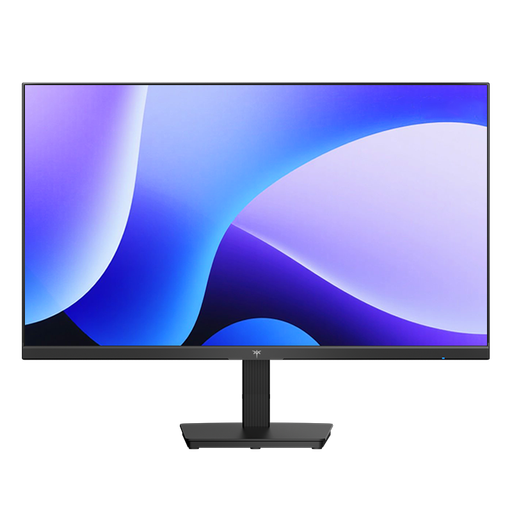
KOORUI MB24V29FS4, 24-inch FHD IPS
A compact option if FHD and adjustable tilt suit your workspace.
- 24-inch, FHD and IPS
- 120 Hz and 5 ms response time
- HDMI and VGA; VESA 100 × 100 mm and a tilt-adjustable stand
FHD has fewer pixels than a compact QHD option. Check that your editor windows remain readable at your chosen scaling.
View at Joybuy
 No image available
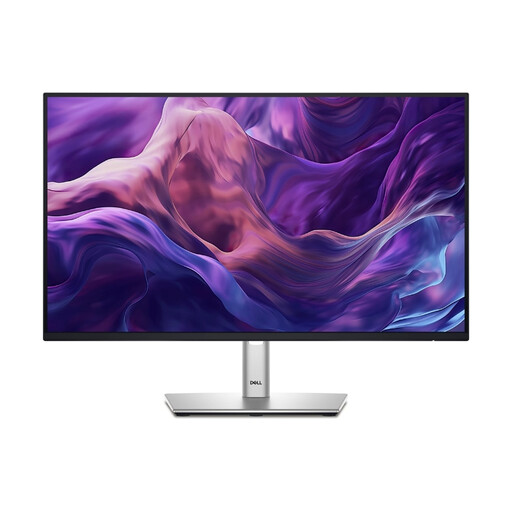
KTC H24B9S, 24-inch FHD gaming monitor
This model may suit you if you also want to assess gameplay on the same screen.
- 24-inch and FHD (1920 × 1080)
- 144 Hz and Adaptive Sync
- HDMI and DisplayPort
A high refresh rate doesn’t give you more space for editor windows; check the resolution and readability for your workflow.
View at Joybuy
 No image available
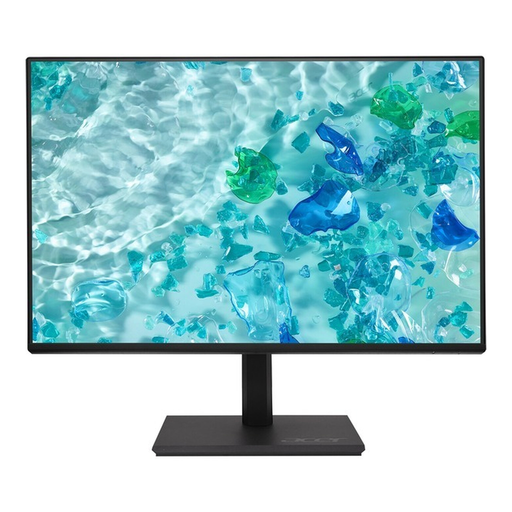
Dell P2425HE, 24-inch FHD IPS with USB-C
An option if you’re looking for a compact screen with USB-C connectivity and an adjustable-height stand.
- 24-inch, FHD and IPS
- USB-C with video, data and charging; up to 90 W Power Delivery
- Integrated USB hub and height-adjustable stand
Check that the connectivity and charging power suit your laptop; FHD has fewer pixels than a compact QHD option.
View at Joybuy
 No image available
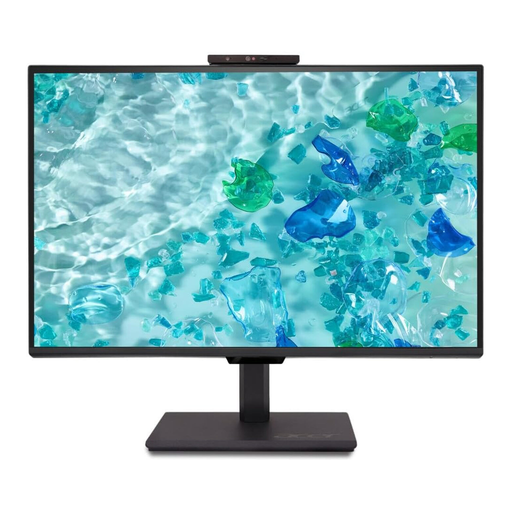
Acer Vero B247YGbmiqprx, 24-inch
This model may be a good choice if you want to adjust the screen position to suit your workspace.
- 24-inch, FHD and IPS
- 120 Hz; HDMI and DisplayPort
- Height adjustment up to 165 mm and pivot function
FHD has fewer pixels than a compact QHD option. Check that your editor remains easy to read at your preferred scaling.
View at Joybuy
 No image available
Acer Vero B248YGbemiqprcuzx, 24-inch business monitor
A compact FHD option if you also want a built-in webcam and an adjustable screen position.
- 23.8-inch, FHD and IPS
- 120 Hz; height adjustment and pivot function
- HDMI, DisplayPort, USB ports and a 5 MP IR webcam with microphone
Check whether FHD is sufficient for the editor areas you want to see at once, and whether the ports suit your devices.
View at Joybuy
Frequently asked questions
Do I need a monitor with a particularly high refresh rate for level design?
Not necessarily. If you mainly work in the editor, check the resolution, readability and desk space first. A higher refresh rate may matter more if you assess fast-paced gameplay on the same screen; PRAD’s gaming monitor recommendations prioritise different criteria from its work monitor recommendations.
How do I set up a single monitor for Unity in a small space?
Rearrange the editor tabs you need and save a suitable layout; Unity supports customisable tabs and saveable layouts. Then check that the screen position and text size suit your vision.
What are my rights when buying a monitor online in Germany?
When you buy online from a trader in the EU, you generally have a 14-day right to cancel. For goods, Your Europe says the cancellation period starts on delivery, although statutory exceptions may apply. Your Europe also distinguishes the minimum two-year statutory guarantee against the seller from any additional manufacturer’s warranty.
Does ASR A6 specify a particular monitor size for my home level-design desk?
No. The Federal Institute for Occupational Safety and Health (BAuA) sets out requirements in ASR A6 for screen-based workstations in workplaces and teleworking environments. It doesn’t apply to screen use outside these settings, such as at home. It therefore doesn’t impose a general size or resolution requirement on private buyers.
How should I clean the screen?
ASUS recommends using a soft microfibre cloth for its LCD and OLED monitors. If needed, apply a small amount of pure water to the cloth rather than directly to the screen. Always follow the care instructions for the model you’ve bought.


