Illustrators working with lots of reference material
If you often switch between historical images, notes, your drawing canvas and a booklet page, consider how much space you can use for windows at once and how clearly you can see fine details.


If you often have historical references, your drawing canvas and booklet layout open at the same time, choose a monitor to suit the way you prefer to arrange your windows. A wide 21:9 display gives you more room side by side, while a 4K model offers plenty of native pixels for details and layout. For print-focused illustrations, you’ll also need to consider the right colour space and a workflow agreed with your printer; no monitor specification alone can guarantee a particular print result.
If you often switch between historical images, notes, your drawing canvas and a booklet page, consider how much space you can use for windows at once and how clearly you can see fine details.
If you’re assessing illustrations for a specific print job, consider the colour space alongside your print workflow. The print profile needs to suit the job and the paper being used.
If you regularly work with an external monitor, check the video signal, connection, charging power and window layout against your specific laptop model.
First, check whether your windows fit side by side at a readable scaling setting. If print colours or laptop use matter to you, also consider the print profile and the connections on your specific device.
| What you need | What to check before buying | Who may find this especially important |
|---|---|---|
| Several references side by side | Test your window layout at a readable scaling setting; consider the aspect ratio and native resolution together. | If I keep images, notes and a booklet layout open at the same time, I want to switch between windows less often. Around 36% of consumers prioritise having reference windows side by side. |
| Assessing colours for print | Discuss the printing process and ICC profile with the printer; check the documented colour spaces for the specific model. | If my illustrations are for a specific print job, I need to consider the on-screen image as part of the print workflow. Around 29% of consumers put this need first. |
| Seeing fine details | Compare screen size and native resolution together; test small labels at your preferred scaling setting. | When working with fine lines and labels on historical scans, I want to check that details and tools remain easy to read in my layout. Around 21% of consumers put checking fine details first. |
| Connecting a laptop | Check the video output, monitor input, cable and required charging power separately. | If I want to use my existing laptop with the monitor, its video signal and power supply need to work with the connections it actually has. Around 14% of consumers prioritise this connection above all else. |
How colours look on your monitor alone can’t predict how an illustration will appear on your chosen paper. The printing conditions and paper both affect the result.
Before choosing a monitor based solely on an Adobe RGB specification, discuss the printing process and intended ICC profile with your printer.
Discussing your requirements with the printer and, where appropriate, arranging a suitable proof will take extra time.
Wide and 4K displays arrange their native pixels differently. Scaling and toolbars also take up space.
Try setting up your usual window layout and check the width and height at a scaling setting that’s comfortable for you to read.
The monitor’s connection alone doesn’t confirm that your laptop can output a picture through it or receive enough power.
Check your laptop’s connection, video signal, cable and required charging power against the exact monitor model.
Depending on your laptop, you may need a suitable cable or adapter, and you might still need to use the laptop’s power supply.
The PD2705U and PD3205U are documented 27-inch and 31.5-inch 4K options for sRGB-focused illustration and layout work.
According to ASUS’s specifications, the ProArt PA279CRV combines a 27-inch 4K display with sRGB and Adobe RGB specifications.
EIZO lists the ColorEdge CS2740 as a 26.9-inch 4K wide-gamut monitor for design and illustration.
The UltraSharp U3425WE is a 34.1-inch 21:9 option for arranging windows across a wider workspace.
The ColorPro VP3256-4K is a 32-inch 4K option for sRGB-focused design work.
The Joybuy models below include wide ultrawide displays and a 27-inch 4K option for detailed work. Compare their resolution and screen height with your usual layout.
 No image available
The 21:9 format is worth considering if you want to arrange several references side by side.
Specifications listed in the product name: 3440 × 1440 pixels, VA panel, 200 Hz and 1500R curvature.
 No image available
The wide workspace may suit a layout with several references open at once.
Specifications listed in the product name: 5120 × 2160 pixels, IPS panel, 100 Hz and 65 W USB-C Power Delivery.
 No image available
A 27-inch 4K model may suit you if you want to check fine lines and details in scans. Test how easy it is to read at your preferred scaling setting.
Specifications listed in the product name: IPS panel, 120 Hz, HDR500 and 90 W USB-C Power Delivery. Check compatibility with your laptop.
 No image available
The wide format may suit you if you want to work with several windows side by side. Check that the screen height gives you enough room for your references and tools.
Specifications listed in the product name: VA panel, 120 Hz and 1500R curvature; 135 Hz is listed as an overclocked value.
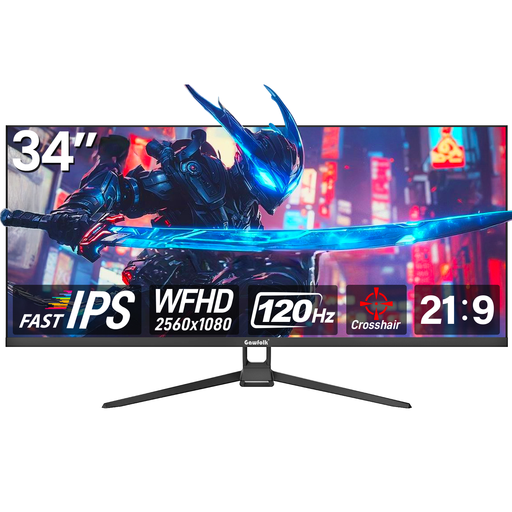 No image available
The wide format is one option for arranging several references in separate windows. Check whether 2560 × 1080 pixels gives you enough height for your tools and references.
Specifications listed in the product name: Fast IPS panel, 120 Hz and wall-mounting option.
Not necessarily. What matters is the specific printing process and the profile intended for it. ASUS lists Adobe RGB coverage for the ProArt PA279CRV, but this monitor specification alone can’t predict the result on a particular paper.
Start by placing the windows you need side by side, then check how easy they are to read at your usual scaling setting. A 21:9 display gives you a different balance of width and height from a 16:9 4K model; the best layout depends on your references and toolbars.
Only if your laptop, connection and cable support the required video output and provide enough power. ASUS lists 96 W USB-C Power Delivery for the PA279CRV; check this against your specific laptop’s power requirements.
The European Commission’s energy label rates electronic displays on an efficiency scale from A to G, among other things. According to the EU information on Your Europe, when you buy from a trader as a consumer, you have at least a two-year legal guarantee against faults; an additional manufacturer’s warranty does not replace it.
No. The German Environment Agency advises that old electrical equipment must be collected separately and can be taken to a recycling centre free of charge. Check whether you can return your monitor to a retailer through your chosen disposal route.