For long documents with tracked changes, a clear document view and a screen position that suits your workspace matter most; it’s your word-processing software, not the monitor, that controls tracked changes. QHD may be sufficient for this kind of work, while 4K offers a higher native resolution, though the benefits also depend on your chosen scaling. For USB-C, your laptop, monitor and cable all need to support the video and charging features you need.
Who is this monitor for?
Writers working on long documents
If you’re writing a guide and regularly checking changes, choose a document view that keeps the text and mark-ups easy to read. Microsoft Support describes tracked changes as a feature of Word; the monitor displays them.
Editors at a fixed desk
For long working sessions, it helps to have a screen position that you can adjust to suit your desk and seating position. The German Federal Institute for Occupational Safety and Health covers screen work under ASR A6, within its scope of application.
Editors who use different laptops
If you often connect a laptop, check that your computer, the monitor input and the cable support the video and charging connection you need. The available features vary between individual monitor and laptop models.
What should you look for when choosing?
First check how easy it is to read a typical document with changes displayed. Then consider how the screen can be positioned at your desk, and only after that decide which connections you actually need.
| What matters |
What to check before buying |
Who will find this most important? |
| Readable text and mark-ups |
Native resolution and screen size; view a typical document with changes displayed at your preferred scaling. |
When I’m working on long texts, I want to be able to see body text and tracked changes clearly in my usual software view. Around 36% of consumers rank readability as their top priority. |
| Adjusting the screen to your workspace |
Height adjustment and tilt; consider pivot functionality and the stand’s footprint if needed. |
During long sessions, I want to position the screen to suit my desk; portrait orientation is only useful if it suits the way I work. Around 29% of consumers prioritise adjusting the screen to their workspace. |
| Laptop connectivity and cables |
Check that your laptop’s USB-C port supports video output, and compare the required charging power with the cables supplied. |
If I switch between laptops, I want to know that the connection I need will work with my devices before relying on USB-C docking. Around 21% of consumers say laptop connectivity is their main concern. |
| Total cost and energy use |
Compare the purchase price with the EU energy label information for the specific monitor variant. |
I only want to choose extra features if they suit my work, and I also want to take energy use into account. Around 14% of consumers prioritise total cost. |
Common selection mistakes
-
Assuming USB-C always means a one-cable solution
A USB-C port on the monitor doesn’t guarantee that your laptop can output video through it or charge at the power level you need.
Check your laptop’s port, video requirements and charging needs against the details for the specific monitor. Also check which cables are included.
Monitor brands to consider
Dell
The Dell Pro Plus P2725DE is an example of a 27-inch QHD monitor with a USB-C hub and adjustable stand.
- Dell lists a resolution of 2560 × 1440 pixels and USB-C power delivery for this model.
- Check that your laptop and the connections you need are compatible. These details apply to this model, not the entire brand.
Philips
The Philips 276B9/00 is a QHD example with USB-C and a SmartErgo stand.
- Philips lists USB-C charging and a range of stand adjustments for this model.
- Check the variant on offer and make sure it’s compatible with your laptop.
Lenovo
The ThinkVision T27h-30, part number 63A3GAT1EU, is a QHD example with USB-C docking, a USB hub and Ethernet.
- Lenovo lists these connections for the model named above.
- If you don’t need the extra docking connections, consider whether they’ll be useful in your workspace. These details don’t apply to all ThinkVision models.
BenQ
The BenQ PD2705Q combines QHD with documented USB-C functionality and portrait pivot.
- BenQ specifies USB-C with DisplayPort Alt Mode, data transfer and 65 W Power Delivery, as well as a pivot function for portrait orientation.
- Check that the specified charging power is suitable for your laptop and that pivot functionality will be useful for your work.
LG
The LG 27UP850K-W is an example of a 27-inch 4K monitor with USB-C and an adjustable stand.
- LG lists a resolution of 3840 × 2160 pixels for this model.
- Resolution alone won’t improve tracked changes. Check readability at your preferred scaling and make sure you’re looking at the right variant.
Monitors for long documents at Joybuy
The models below include options with a large document workspace, as well as 27-inch QHD and 4K monitors. Selected variants are listed with USB-C and adjustable stands.
 No image available
INNOCN 40C1U, 40 inches, 5120 × 2160
The large 40-inch screen may suit long documents, if you have enough desk space.
Specifications include 5120 × 2160 pixels, a 21:9 aspect ratio and USB-C with 65 W Power Delivery.
USB-C video and charging require a compatible laptop; check whether 65 W is enough for your laptop.
View at Joybuy
 No image available
INNOCN CB27U1, 27 inches, 4K UHD
A 27-inch 4K option for anyone considering a higher native resolution than QHD.
Specifications include 3840 × 2160 pixels, USB-C with 90 W Power Delivery and portrait pivot.
Check readability at your preferred scaling, as well as your laptop’s video and charging support.
View at Joybuy
 No image available
KTC M27P6, 27 inches, 4K MiniLED
The 27-inch 4K resolution is an option if you’re considering a high native resolution for documents.
Specifications include 3840 × 2160 pixels, USB-C with 65 W, and height and tilt adjustment.
USB-C features require a compatible laptop; check its charging requirements against the stated 65 W.
View at Joybuy
 No image available
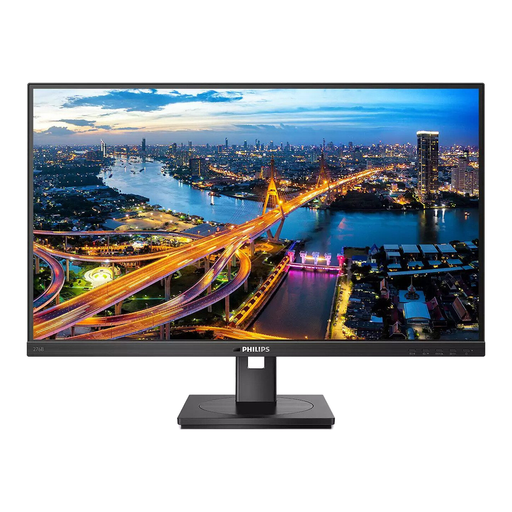
Philips 276B1, 27 inches, QHD
A QHD option for document work if you want an adjustable stand with pivot functionality.
Specifications include 2560 × 1440 pixels, USB-C docking with 90 W Power Delivery, Ethernet and a USB hub.
For USB-C docking, your laptop and its port need to support the video and charging features you require.
View at Joybuy
 No image available
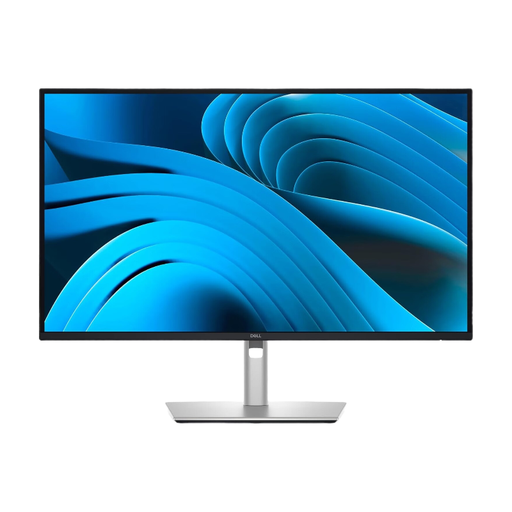
Dell Pro Plus P2725DE, 27 inches, QHD
A QHD option with a USB-C hub for a document-focused workspace where you want to adjust the screen position.
Specifications include 2560 × 1440 pixels, a USB hub, and height and pivot adjustment; the description lists USB-C Power Delivery of up to 90 W.
For USB-C video and charging, your laptop and its port need to support the features you require.
View at Joybuy
Frequently asked questions
Does a new monitor turn on tracked changes?
No. In Word, tracked changes are switched on in the software; the monitor simply displays the document and mark-ups. If you use different word-processing software, check its own features.
What should I do once the monitor is set up?
Position the screen to suit your workspace, then test it with a real document showing mark-ups. The ASR A6 from the German Federal Institute for Occupational Safety and Health applies to screen-based workstations within its scope and does not create a blanket requirement to buy a particular consumer model.
How do I dispose of an old monitor in Germany?
Electrical waste must not go in household rubbish. The German Environment Agency lists options including recycling centres and retailer take-back schemes; check the requirements for the relevant return option.
Do monitors have an energy label?
Yes. The European Commission includes computer monitors among electronic displays covered by energy labelling. Compare the information for the specific model variants rather than assuming an efficiency class based on the brand.
What are my rights if there’s a fault or I order online?
For a consumer purchase, statutory rights against the seller are separate from a voluntary guarantee. Online purchases generally come with a 14-day right to cancel; check for possible exceptions and the terms of your specific purchase.


