Start by positioning your screen sensibly in relation to the window and controlling the amount of incoming light. A matt or anti-glare finish is no substitute for blinds or a suitable setup. For print colours, you’ll also need to consider colour gamut, calibration options and a soft proof for the specific print conditions. For predominantly typographic layout work, resolution, adjustability and suitable connections are key points to consider. The DGUV offers guidance on avoiding glare, while Fogra describes soft proofing as a way to simulate specific lighting and print conditions.
Which monitor is right for you?
Layout designers working by a bright window
You work on magazine pages in changing daylight and want to reduce reflections by first positioning your screen sensibly and controlling the light. The DGUV recommends arranging screen workstations so that your line of sight runs parallel to the window front.
Designers approving print work
You assess image colours for a specific print job and need a repeatable colour management and soft-proofing workflow. Fogra describes soft proofing as a simulation of specific print conditions under defined lighting and viewing conditions.
Typography and laptop users
You check typesetting, details and page layouts, and want to position your screen appropriately and connect your laptop. Make sure the monitor connections and power supply meet your laptop’s capabilities and requirements.
What should you look for when buying?
First, work out how you’ll manage window light and reflections at your workstation. Then decide whether print colours or, above all, typesetting, detail and laptop connectivity should guide your choice.
| Consideration |
What to look for when buying |
Who it matters most to |
| Reflections and daylight |
Check the finish of the specific model; plan for the window position and adjustable blinds. |
If I work by a bright window, I want to keep reflections to a minimum without relying solely on a brightness rating. This applies to around 36% of consumers whose main concern is controlling reflections. |
| Colours for print |
Check the colour gamut and calibration options; match the print profile and viewing light to the print process. |
For a specific print job, I need a suitable soft proof and consistent viewing conditions. This applies to around 29% of consumers whose main concern is assessing print colours. |
| Typesetting and layout details |
Compare native resolution and screen size; check the dimensions with the stand, as well as height and swivel adjustments. |
If I need to assess fine type and image details, I want to see them clearly alongside my layout tools. This applies to around 21% of consumers whose main concern is precise page work. |
| Laptop connectivity |
Check the video output supported by your laptop’s connection and the required charging power against the monitor’s connections. |
When working on a laptop, I want to know whether the image signal and power supply will work through the intended connection. Around 14% of consumers prioritise straightforward laptop connectivity. |
Common mistakes when buying a monitor
-
Assuming a high brightness rating guarantees good visibility in direct sunlight
A monitor’s brightness rating doesn’t tell you how much the window will be reflected at your workstation. The DGUV recommends taking the screen’s position in relation to the window and the incoming light into account.
Start by checking your setup and blinds. Then compare the finish and typical brightness of the specific model, rather than looking only at a peak HDR figure.
Depending on the room, you may need additional blinds or to rearrange your workstation.
-
Assuming a wide colour gamut means you’re ready to soft proof for print
A soft proof is based on specific print and lighting conditions. A wide colour gamut alone doesn’t determine how colours will look in the intended print.
Clarify your print workflow and the right profile before choosing additional colour technology. EIZO’s recommended calibration sensor for the CS2740 is optional.
Your intended workflow may require a suitable measuring device and controlled viewing conditions.
-
Assuming a USB-C connection guarantees full laptop compatibility
Whether a single-cable or hub-based workflow will work depends on whether your laptop’s connection, video signal and power requirements are compatible with the monitor.
Check your laptop’s video output and charging requirements against the connections and power ratings of the specific monitor.
Depending on your existing equipment, you may also need a power adapter, cable or dock.
Key brands at a glance
EIZO
The ColorEdge CS2740 is a documented 27-inch 4K model for photo and graphics work, with a wide colour gamut and hardware calibration.
- EIZO specifies more than 99% Adobe RGB and a maximum typical brightness of 350 cd/m² for the CS2740.
- The recommended external calibration sensor and light-shielding hood are optional accessories. The manufacturer’s specifications don’t guarantee visibility in direct sunlight.
BenQ
The PhotoVue SW272U and DesignVue PD2706U belong to different product ranges: the SW272U is designed for colour-critical work, while the PD2706U includes colour modes for designers.
- BenQ specifies 99% Adobe RGB, hardware calibration, a Nano Matte coating and an included shading hood for the SW272U. For the PD2706U, BenQ specifies 100% sRGB and 95% DCI-P3, among other features.
- The SW272U’s specifications don’t automatically apply to the PD2706U. Manufacturer data is no substitute for checking the monitor in the intended position by the window.
ASUS
The ProArt PA279CRV is a 27-inch 4K model with several colour modes and USB-C.
- ASUS specifies an anti-glare finish, 99% Adobe RGB, typical SDR brightness of 350 cd/m² and 96 W USB-C Power Delivery.
- The separately listed HDR peak brightness of 400 cd/m² is no substitute for typical brightness. These specifications don’t guarantee visibility in direct sunlight.
Dell
The UltraSharp U2725QE is positioned as a 27-inch 4K Thunderbolt hub monitor for a layout workstation with plenty of connectivity.
- Dell describes the U2725QE’s finish as anti-glare and specifies an adjustable stand.
- The hub features alone don’t prove compatibility with every laptop or provide a complete soft-proofing workflow for print.
LG
The UltraFine 27UQ850V-W is another 27-inch 4K option for layout work, with USB-C connectivity.
- LG specifies typical DCI-P3 coverage of 98%, 90 W USB-C power delivery and a stand that adjusts for height, swivel and tilt.
- The DCI-P3 figure doesn’t confirm Adobe RGB coverage or suitability for print.
Joybuy monitors for layout work
This Joybuy selection includes monitors for detailed page work and flexible positioning, as well as models with a matt finish or USB-C connectivity.
 No image available
Z-Edge AGEX, 27 inches, QHD
For page work where you want to adjust the screen to suit your sitting position.
QHD with 2560 × 1440 pixels; IPS panel; stand with height, tilt, swivel and pivot adjustment.
HDMI and DisplayPort are listed as connections.
Joybuy
 No image available
INNOCN 40C1U, 40 inches, 5120 × 2160 pixels
For displaying complex layouts on a large screen. Check beforehand that the screen size and resolution suit your workstation.
IPS display with 5120 × 2160 pixels and a matt finish.
USB-C with 65 W Power Delivery is specified. Check that the video output and charging requirements are compatible with your laptop.
Joybuy
 No image available
INNOCN CB27U1, 27 inches, 4K UHD
For detailed page work, with an anti-glare finish and height-adjustable stand.
3840 × 2160 pixels; the product specifications list 99% Adobe RGB and Delta E < 1. These figures alone don’t confirm a complete soft proof for specific print conditions.
USB-C with 90 W Power Delivery is specified. Check that the connection is compatible with your laptop.
Joybuy
 No image available
ASUS ROG Swift OLED PG32UCDMR, 32 inches, 4K UHD
For layout work on a 32-inch screen. Consider how much space it will need and check that the screen size suits your workstation.
4K resolution with 3840 × 2160 pixels; QD-OLED panel and anti-glare finish.
The product specifications list 99% DCI-P3 and USB-C with 90 W Power Delivery. DCI-P3 doesn’t confirm Adobe RGB coverage; check laptop compatibility.
Joybuy
 No image available
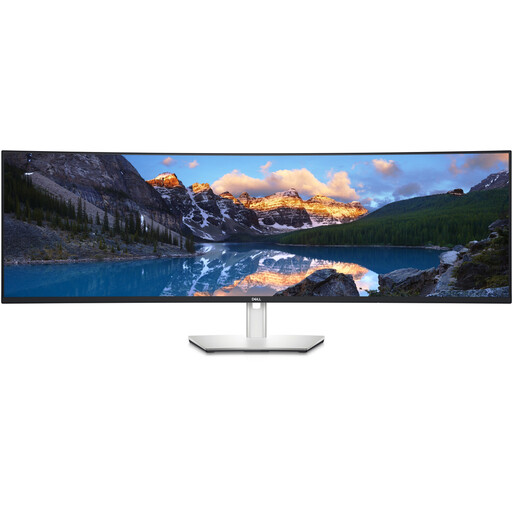
Dell UltraSharp U4924DW, 49 inches, DQHD
For a wide layout workspace with several windows open, if you have enough desk space and depth.
5120 × 1440 pixels; 98% DCI-P3 is specified. DCI-P3 doesn’t confirm Adobe RGB coverage.
USB-C with 90 W Power Delivery, HDMI and DisplayPort are listed. The stand adjusts for height, tilt and swivel.
Joybuy
Frequently asked questions
Can a matt monitor finish replace blinds on a sunny window?
No. For screen workstations, the DGUV recommends, among other things, positioning the screen sensibly in relation to the window and controlling incoming light. A finish described as matt or anti-glare doesn’t tell you how disruptive direct sunlight will be at your particular workstation.
What else do you need to assess print colours on screen?
A soft proof simulates specific print conditions under particular lighting and viewing conditions. Match the profile to the print process and take the lighting into account; a monitor with a wide colour gamut alone isn’t enough.
Will a USB-C monitor automatically charge your laptop over the same cable?
Only if your laptop’s connection supports the required video output and the specific monitor provides enough power. BenQ specifies USB-C with DisplayPort Alt Mode and 90 W Power Delivery for the SW272U; this doesn’t confirm compatibility with your laptop.
Are there specific legal requirements for a workstation by a window?
For employees’ screen workstations, the Workplace Regulations and the associated ASR A6 are relevant within their respective scope. The DGUV describes measures to prevent glare and reflections; this doesn’t create a blanket requirement for private buyers to choose a particular monitor model or a fixed brightness level.


