For dependable print colour assessments, choose a monitor as part of a coordinated soft-proofing workflow; a wide colour gamut alone cannot predict the printed result. For typesetting and page checks without a definitive soft proof, focus on the usable screen space at a readable scaling level and the room available on your desk. If you regularly switch between computers, make sure the video, data and charging connections work with every laptop you use. Fogra describes soft proofing as a simulation of a specific print condition under defined lighting and viewing conditions.
Who is this choice relevant to?
Those checking print colours
If you make colour decisions for a specific print condition, you need a coordinated soft-proofing workflow as well as a suitable monitor. Fogra explains that a soft proof simulates a print condition under specific lighting and viewing conditions.
Layout and typesetting teams
If you check pages, type and image placement, consider the usable screen space at the scaling level you actually use, as well as how easy the tools are to read. The ASUS datasheet lists the PA279CRV as a 27-inch monitor with a resolution of 3840 × 2160 pixels; these figures alone do not tell you which scaling level will suit every workspace.
Teams sharing a desk
If you switch between computers or workstations, check the connections on the devices you use, as well as the monitor’s position and reflections on the desk itself. The German Federal Institute for Occupational Safety and Health covers screen work in ASR A6.
What should you look for when buying?
| What you need |
What to check before buying |
Who it matters most to |
| Assessing colours for print |
Check the print condition and ICC profile, whether the specific model can be calibrated, and the lighting and viewing conditions. |
If I need to assess colours on screen consistently for a specific print condition, I plan the profile, calibration and viewing environment together. Around 33% of consumers give colour assessment top priority. |
| Arranging pages and tools so they’re easy to read |
Check the resolution and operating system scaling together with text legibility and the space needed, including the monitor stand. |
If I’m checking a magazine page alongside tool windows, both need to remain readable at my preferred scaling level. Around 27% of consumers put usable layout space first. |
| Switching between computers |
Check the video output, monitor input, USB data connection and USB-C charging power required for each computer. |
If several people connect their laptops, I want to know whether each computer can output a picture and receive enough power to charge. For around 20% of consumers, compatibility when switching computers comes first. |
| Positioning the screen to suit your workspace |
Check for reflections in the intended position, as well as height adjustment and the desk space required. |
If the lighting and seating position change at a shared desk, I need to be able to adjust the setup to suit the conditions. Around 20% of consumers pay particular attention to positioning and glare. |
Common misconceptions
-
Assuming colour gamut coverage means a complete print soft proof
A soft proof simulates a specific print condition under suitable lighting and viewing conditions. A colour gamut figure alone does not demonstrate that the complete workflow is in place.
Start by clarifying the print condition and workflow. Then check the right profile, the calibration method for the specific monitor and the viewing conditions.
-
Assuming USB-C guarantees video, data and enough charging power
The presence of a USB-C port alone does not tell you whether a laptop can output video through it or whether the charging power is sufficient for that computer.
Check the video signal, data connection and charging requirements for every laptop you actually use against the monitor’s connections.
-
Assuming an anti-glare screen makes for a glare-free workspace
An anti-glare surface cannot rule out distracting reflections from windows or lights at a shared desk.
Check the screen position and reflections at the intended workstation rather than relying solely on the surface description in the datasheet.
Key brands at a glance
EIZO
The ColorEdge CS2740 is an option for a planned wide-gamut and hardware calibration workflow; the CG2700X is a different model with a built-in calibration sensor.
- EIZO quotes typical Adobe RGB coverage of over 99% for the CS2740 and USB-C power delivery of up to 60 W.
- EIZO recommends an optional external calibration sensor for the CS2740. The built-in sensor is on the CG2700X, not the CS2740.
BenQ
The PhotoVue SW272U is for buyers looking into the manufacturer’s Adobe RGB and hardware calibration specifications; the PD2706U is a different model with a different focus.
- BenQ quotes 99% Adobe RGB coverage, hardware calibration and 90 W via USB-C for the SW272U.
- An independent PRAD review of the PD2706U from 2024 reports manufacturer specifications of 99% sRGB and 95% DCI-P3. This does not establish the same Adobe RGB focus.
ASUS
The ProArt PA279CRV is a 27-inch 4K model offering layout space, colour modes and USB-C for a desktop setup.
- According to the German ASUS datasheet, the PA279CRV offers 99% Adobe RGB coverage, an anti-glare surface, height adjustment and 96 W USB-C Power Delivery.
- These manufacturer specifications are not measurements of an individual unit and, on their own, do not demonstrate a complete soft-proofing workflow.
Dell
The UltraSharp U2725QE is a 27-inch 4K alternative focused on connections and hub features for people switching between computers.
- Dell lists a Thunderbolt hub, height adjustment and an anti-glare screen for this model.
- These connection and positioning features do not prove that the model is calibrated for a definitive print soft proof.
Joybuy products for layout and office work
The models below include 27-inch monitors for checking pages, as well as smaller portable displays for a compact layout view. For dependable print colour checks, a coordinated soft-proofing workflow remains essential.
 No image available
INNOCN CB27U1 27-inch 4K UHD monitor
A 27-inch display with 4K UHD resolution is listed for checking magazine pages.
The product name lists 3840 × 2160 pixels, IPS, USB-C with 90 W, HDMI, DisplayPort and a height-adjustable stand.
Joybuy
 No image available
MSI PRO MP275QPDGDE 27-inch WQHD docking monitor
Docking and KVM are listed as features of this model, making it a consideration for a shared workspace where people switch between computers.
The product name lists WQHD, USB-C with 98 W Power Delivery, KVM and a built-in webcam. If you need to check print colours critically, assess its suitability separately; the stated colour gamut coverage is 84% sRGB and 79% DCI-P3.
Joybuy
 No image available
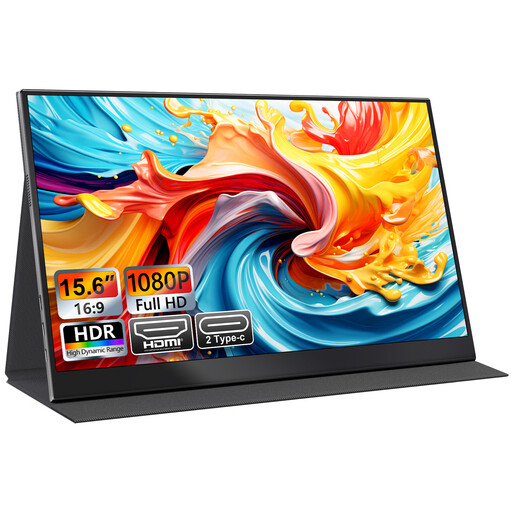
UFYQL M156F04 portable 15.6-inch Full HD monitor
The compact format could work as an additional layout view when you don’t need a full-size page on screen.
The product details list 15.6 inches, Full HD at 1920 × 1080 pixels, IPS, USB-C, HDMI and a smart cover stand.
Joybuy
 No image available
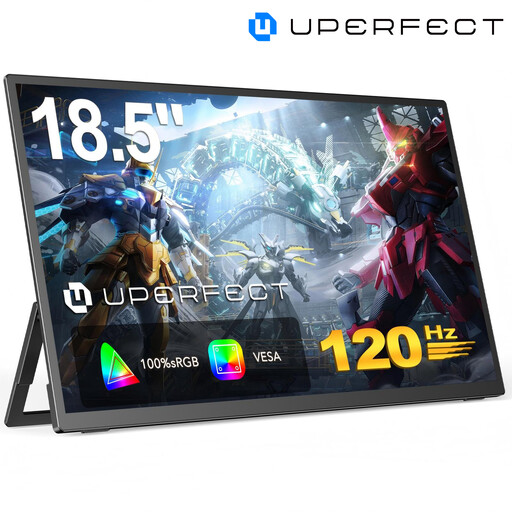
UPERFECT 18.5-inch Full HD IPS monitor
This model could be a portable option for an additional, compact layout view.
The product name lists 18.5 inches, 1920 × 1080 pixels, a matt IPS surface, USB-C, Mini-HDMI and VESA compatibility.
Joybuy
 No image available
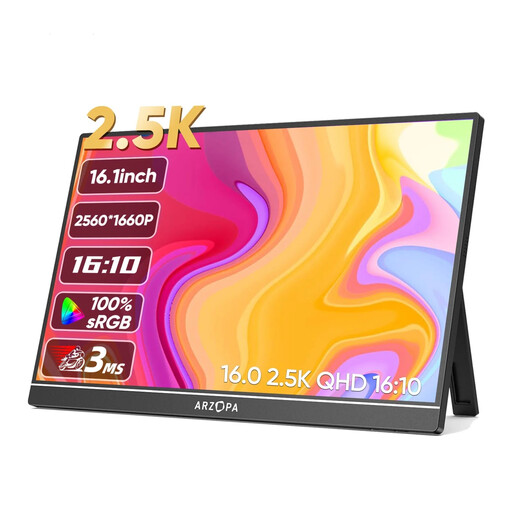
Arzopa Z1RC 16-inch 2.5K monitor
The portable 16-inch format works as a compact additional view when you don’t need the layout space of a large monitor.
The product name lists 2560 × 1600 pixels, a 16:10 IPS panel, USB-C and HDMI.
Joybuy
Frequently asked questions
Is 99% Adobe RGB enough to predict printed magazine colours reliably?
No. A soft proof simulates a specific print condition under particular lighting and viewing conditions. Agree the output profile with the printer and take calibration and viewing conditions into account; colour gamut coverage alone does not answer the question.
Can any USB-C laptop be connected and charged with a single cable?
No, a USB-C port alone is no guarantee. Check whether the laptop can output a video signal through the port you intend to use and how much charging power it needs. Manufacturer specifications list up to 60 W for the EIZO CS2740, 90 W for the BenQ SW272U and 96 W for the ASUS PA279CRV.
Do I need to factor in an additional calibration sensor for the EIZO CS2740?
EIZO recommends an external calibration sensor as an optional accessory for the CS2740. Before buying, plan how you intend to use hardware calibration; according to EIZO, the built-in sensor is a feature of the other model, the CG2700X.
What regulations apply to screen-based workstations in German businesses?
The German Federal Institute for Occupational Safety and Health describes ASR A6 as a specification of the Workplace Ordinance for screen-based workstations within its scope. Compliance with the ASR is presumed to meet the corresponding requirements; if a different solution is used, the employer must ensure at least the same level of safety and health protection. Whether a shared workstation falls within its scope depends on how it is actually used at work.


