If you often read assignments and marking rubrics side by side, an adjustable 27-inch QHD monitor is a good place to start. If space is limited, consider a 24-inch model. Philips and Dell offer QHD models in these sizes, while Dell explicitly specifies the P2425’s USB-C port as a data connection rather than a video connection. Before you buy, check the space available, text size and, if you’re using a laptop, whether the specific port supports video and charging.
Which monitor is right for you?
For marking with multiple windows open
If you want to read assignments, comments and marking rubrics at the same time, compare a 27-inch QHD or 4K model against your usual text size and window layout. Philips and Dell offer 27-inch QHD options; ASUS specifies a resolution of 3840 × 2160 pixels for the ProArt PA279CRV. These resolutions describe the display, not a proven productivity benefit.
For marking at a small desk
If desk space and seating position are the deciding factors, an adjustable 24-inch monitor could be an alternative to a larger screen. Dell lists a resolution of 1920 × 1200 pixels and an adjustable position for the P2425; remember to allow space for the stand too.
For marking on a laptop
If you connect your laptop often, check whether the USB-C port on the specific model supports video, data and the required charging power. Philips describes the 276B9/00 as having a USB-C connection that charges a laptop; Dell lists a USB-C data port on the P2425, but does not specify it as a video input.
What should you look for when buying?
First decide what matters most to you: having several marking windows open side by side, a compact setup or a laptop connection. Then check the specifications of the specific model against your desk and devices.
| Priority |
What to check before buying |
Who is this most relevant to? |
| Reading assignments and rubrics side by side |
Check the window layout and text size at your intended desk; compare the resolution and adjustment range of the specific model. |
If I want to keep the assignment, comments and marking rubric in view at the same time, usable screen space with clearly legible text matters to me. Around 36% of consumers put side-by-side readability first. |
| Space and readability in a small room |
Measure the width and depth, including the stand; check viewing height, text size and potential reflections where you plan to put it. |
If my desk has little free space, I need a monitor that fits there and remains readable at my usual viewing distance. Around 29% of consumers prioritise space and readability. |
| Connecting a laptop |
Check video support, the charging power required and whether the cable is suitable for your laptop and the monitor’s input. |
If I connect my laptop often, I want to know whether the same port can transmit a picture and supply the power I need. Around 21% of consumers prioritise laptop docking. |
| Position and energy information |
Check the adjustment options and reflections in person; compare the energy label and product data sheet for the exact model. |
If desk positioning and comparing energy information are particularly important to me, I check them separately from the resolution and screen size. Around 14% of consumers give these factors priority. |
Common buying mistakes
-
Assuming USB-C makes a complete laptop dock
The USB-C label alone doesn’t tell you whether a port can transmit video. Dell specifies the P2425’s USB-C port as a data downstream port supporting up to 15 W, explicitly for data only.
Check the port specification for the exact model and make sure there is a dedicated video input for connecting a display signal.
Depending on the port, you may need a separate video cable.
-
Choosing a monitor based on screen size alone
A larger screen takes up more desk space and doesn’t automatically give you the right text size or window layout.
Measure the space available, including the stand, and check how the assignment and marking rubric look at your preferred text size.
-
Taking comfort claims as a substitute for good positioning
Monitor features don’t replace checking the screen position, viewing direction and reflections. The German Social Accident Insurance Institution for the Woodworking and Metalworking Industries (BGHM) covers these setup considerations separately.
Assess the monitor’s features separately from the lighting, your seating position and how easy the screen is to read where you plan to use it.
Key brands at a glance
Philips
The B-Line 276B9/00 is a 27-inch QHD option with USB-C for connecting a laptop.
- Philips specifies an IPS panel, USB-C with laptop charging and an adjustable SmartErgo stand.
- For a single-cable connection, your laptop and cable need to be compatible with the port; manufacturer comfort claims aren’t independent evidence of effectiveness.
Dell
The P2425 is a 24-inch 16:10 option; the P2725DE is a 27-inch QHD model with a USB-C hub.
- Dell lists a resolution of 1920 × 1200 pixels and an adjustable position for the P2425, and QHD resolution and 90 W power delivery for the P2725DE.
- According to Dell, the P2425’s USB-C port is a data downstream port supporting up to 15 W; it isn’t specified as a video connection for a laptop. The ports on these two models aren’t equivalent.
ASUS
The ProArt PA279CRV is a 27-inch 4K option for viewing more detail.
- ASUS specifies a resolution of 3840 × 2160 pixels, an adjustable stand and USB-C Power Delivery of 96 W.
- For text marking, check readability at your preferred scaling; colour modes don’t demonstrate an advantage for text-only work.
Lenovo
The ThinkVision T27h-30 is a 27-inch QHD IPS option with USB-C docking, a USB hub and Ethernet.
- Lenovo lists the ports and an ergonomic design for this model.
- Before choosing it for docking, check the power delivery of the specific model and its compatibility with your laptop.
LG
The 27U631A-B is an example of the features available on a 27-inch QHD monitor with USB-C.
- LG lists USB-C Power Delivery of 15 W and a tilt-adjustable stand.
- LG marks the model as no longer available on its German website, so its specifications are useful for comparing features, not as confirmation that it can currently be bought.
Monitors at Joybuy
The models below include 27-inch QHD and 4K options for working with several marking windows side by side, as well as a range of adjustment options and USB-C features.
 No image available
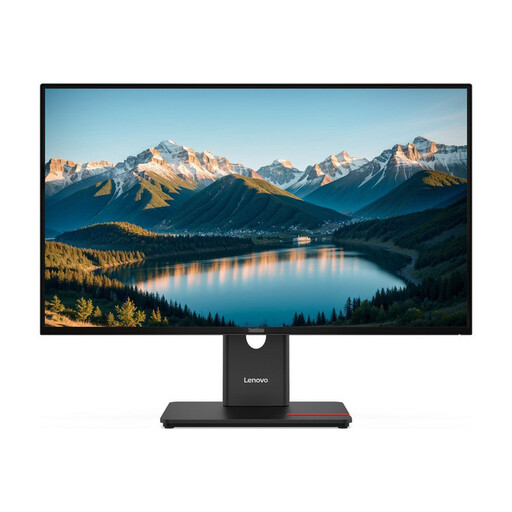
Lenovo ThinkVision T27Q-40, 27-inch QHD IPS
The 27-inch QHD display could suit a workflow with several marking windows open; check readability at your preferred text size.
2560 × 1440 pixels; height, tilt, swivel and pivot adjustment.
View at Joybuy
 No image available
INNOCN CB27U1, 27-inch 4K UHD
The 4K resolution is an option for viewing more detail; check text scaling to make sure it suits your preferred text size.
3840 × 2160 pixels; IPS; USB-C with 90 W Power Delivery; height-adjustable stand.
For USB-C docking, your laptop and cable must be compatible.
View at Joybuy
 No image available
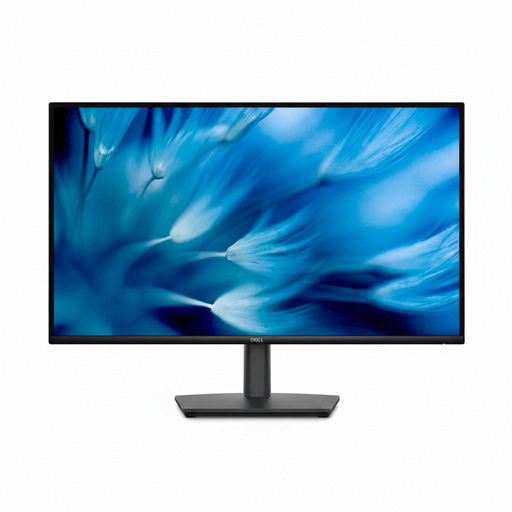
Dell Pro 27 E2726DS, 27-inch WQHD IPS
The 27-inch WQHD display could suit assignments and marking rubrics arranged side by side; choose a text size that works at your viewing distance.
2560 × 1440 pixels; height, tilt, swivel and pivot adjustment.
View at Joybuy
 No image available
Philips 276B9, 27-inch QHD IPS
The QHD resolution and adjustable stand could be useful for working with several marking windows and setting the screen to a comfortable position.
2560 × 1440 pixels; 75 Hz; USB-C with up to 65 W Power Delivery; height, tilt, swivel and pivot adjustment.
USB-C docking requires a compatible laptop and cable.
View at Joybuy
 No image available
MSI PRO MP275QPDGDE, 27-inch WQHD
The QHD resolution is useful for displaying several marking windows side by side; compare how they look at your preferred text size.
2560 × 1440 pixels; IPS; 100 Hz; USB-C with 98 W Power Delivery and video signal; height, tilt, swivel and pivot adjustment.
USB-C docking requires a compatible laptop and cable.
View at Joybuy
Frequently asked questions
Do I need a 4K monitor for marking comments?
No, 4K isn’t essential for digital text marking. First check whether you can read the assignment and marking rubric at the same time on a QHD monitor using your preferred text size. With 4K, choosing the right scaling is also important.
Can any monitor with USB-C connect my laptop with a single cable?
No, USB-C alone doesn’t guarantee video transmission or a particular charging capacity. Dell describes the P2425’s port as a data downstream port supporting up to 15 W. Check the video input, power requirements and cable for the specific monitor you’re considering for your laptop.
Where should I position my monitor in relation to a window?
The German Social Accident Insurance Institution for the Woodworking and Metalworking Industries (BGHM) recommends avoiding glare and reflections, and positioning the screen so that your viewing direction is as parallel as possible to the front of the window. Also check the text size and screen position for the task you’ll be doing.
How can I compare energy information for different monitors?
Compare the EU energy labels and product data sheets for the exact models on the same basis. The European Commission lists classes A to G for electronic displays, along with additional model information in EPREL. Your own cost comparison will also depend on how long you use the monitor, its operating mode and your electricity tariff.
Does a monitor used in a private student room have to comply with ASR A6?
Using a private room doesn’t in itself mean you have a general obligation to comply with this workplace rule. The German Social Accident Insurance (DGUV) describes the scope of ASR A6 as covering screen-based workstations in workplaces, including telework stations; its ergonomic advice can still help when setting up your workspace.


