When you regularly compare meeting minutes with source files, having enough usable screen space to read comfortably at your preferred text size is essential. The German Social Accident Insurance (DGUV) points out that using several programmes at once requires more usable screen space; depending on your workflow, a single larger monitor or a second screen may be suitable. A monitor displays your workspace, but it does not create an index or links to source files.
Which solution is right for you?
People who compare minutes and source files
If you often have meeting minutes and linked source files open at the same time, it’s important to be able to view both clearly. The Institute for Occupational Safety and Health of the German Social Accident Insurance describes the need for usable screen space when running programmes side by side.
People who spend long periods reading
If you review many pages of text at a time, a suitable setup, good readability and adjustment options are particularly important. Germany’s Federal Institute for Occupational Safety and Health sets out requirements for screen-based work within the scope of ASR A6.
Laptop users who move between workspaces
If you regularly reconnect your laptop, check that the monitor supports the video output and connections you need. Lenovo describes docking, a hub and Ethernet for the ThinkVision P27h-30; EIZO lists USB-C with DisplayPort Alt Mode for the EV2795.
What should you look for when buying?
| Buying priority |
What to check |
Who is this important to? |
| Read two documents at the same time |
Test typical files side by side at your preferred text size. Also check whether one or two monitors will fit on your desk. |
If I want to keep the minutes and source file side by side while comparing them, I need enough space for both views. Around 33% of consumers put comparing documents side by side first. |
| Set up your workspace for long periods of reading |
Check readability at your workstation, as well as height and tilt adjustment. Also consider reflections and lighting. |
For long reading sessions, I want to be able to adjust the screen to suit my sitting position. Around 27% of consumers prioritise a comfortable setup for extended periods of working with text. |
| Connect your laptop and peripherals |
Check that USB-C video output and the required charging power match your laptop’s specifications. Also consider whether you need hub or network ports. |
If I connect my laptop frequently, I want to be able to combine the connections I need. Around 20% of consumers put laptop docking first. |
| Choose only the features you need |
Compare the ports and adjustment options on the specific model. Consider energy data only if it’s relevant to your workspace. |
If my computer usually stays connected or I already have a dock, I don’t want to pay for extra features I don’t need. Around 20% of consumers prioritise simple or resource-conscious equipment. |
Avoid common buying mistakes
-
Assuming that more pixels automatically mean clearer text
Practical readability also depends on text size, scaling and how your windows are arranged.
Before choosing a resolution, open sample minutes and source files at your preferred text size.
-
Assuming USB-C guarantees a one-cable setup
Both your laptop and monitor need to support video output and power delivery.
Check the ports and charging requirements of both specific devices.
If they don’t both support the features you need, you may need separate connections or an additional dock.
-
Expecting a new screen to link your files
A monitor displays your software, but it doesn’t provide its indexing function.
Check your software’s indexing and linking features separately from your choice of screen space.
Notable brands and model examples
Dell
The P2725DE and P2725D illustrate the choice between a QHD model with a USB-C hub and a QHD model without the same focus on docking.
- Dell lists a 27-inch screen and 2560 × 1440 pixels for the P2725DE.
- These specifications don’t automatically apply to other Dell monitors; check the ports on the specific model.
Lenovo
The ThinkVision P27h-30 is a documented QHD docking option for a compatible laptop workspace.
- Lenovo lists USB-C docking, Ethernet, a hub and up to 100 W charging power for this model.
- Check that your laptop supports the connections you need and that the stated charging power meets its requirements.
EIZO
The FlexScan EV2795 combines QHD with USB-C docking and documented signal inputs.
- EIZO lists DisplayPort Alt Mode, LAN and a maximum of 70 W at the USB-C upstream port.
- Whether the charging power is sufficient for your laptop depends on the specific device.
Philips
The Business Monitor 27B2G5601/00 combines QHD with USB-C docking and manufacturer-described sensor features.
- Philips lists LightSensor and PowerSensor2 for this model.
- This doesn’t allow you to assume a specific saving on energy costs for your workspace.
ASUS
CHIP included the ProArt PA279CRV in a general selection of office monitors.
- This means the model was included in a general office monitor selection.
- The selection isn’t a dedicated test of indexing meeting minutes or comparing linked source files.
Monitors for working with documents
This Joybuy selection includes monitors in different sizes and resolutions for viewing minutes and source files side by side. Check that both windows remain readable at your preferred text size and that the screen dimensions suit your workspace.
 No image available
Z-Edge AGEX 27-inch QHD monitor, white
An option if you want to compare minutes and source files side by side on a QHD screen; check readability at your chosen scaling.
27 inches; QHD (2K/1440P); height-adjustable stand.
Joybuy
 No image available
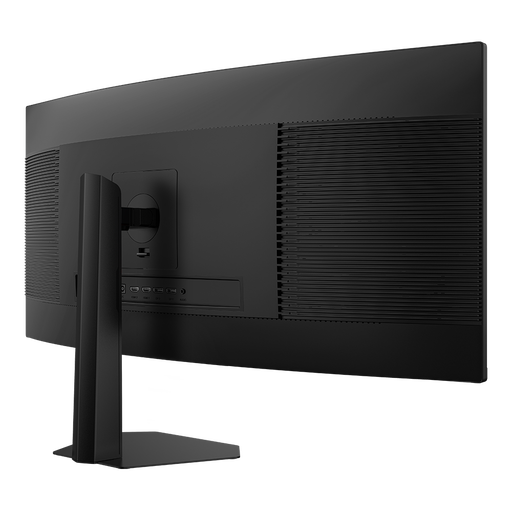
INNOCN E34A1R 34-inch UWQHD curved monitor
The wide UWQHD screen may suit a workspace with several windows open at once; check that the format and dimensions will fit on your desk.
34 inches; 3440 × 1440 pixels; 21:9; PIP and PBP modes.
Joybuy
 No image available
INNOCN 2751S PLUS 27-inch QHD Mini LED monitor
If you want to compare minutes and source files on a 27-inch screen, check how text looks at your preferred scaling.
27 inches; QHD (2K); IPS display; height-adjustable stand.
Joybuy
 No image available
INNOCN 40C1U 40-inch 5K ultrawide monitor
The wide format is one option for working with several windows; compare the screen dimensions with the space you have available.
40 inches; 5120 × 2160 pixels; 21:9; USB-C with 65 W Power Delivery; PIP/PBP.
Joybuy
 No image available
INNOCN CB27U1 27-inch 4K UHD monitor
If you want to view minutes and source files on a 27-inch monitor, check whether the resolution works for you at your chosen text size.
27 inches; 3840 × 2160 pixels; IPS display; USB-C with 90 W Power Delivery; PIP and PBP.
Joybuy
Frequently asked questions
Does a monitor create an index or links to source files?
No. A monitor displays your work windows; indexing and linking features depend on the software you use. Check these features separately from your choice of screen.
Is a second screen always better for comparing documents?
Not necessarily. A laboratory study by the Institute for Occupational Safety and Health of the German Social Accident Insurance compared set-ups using 22-inch screens with ten people; the results can’t be applied universally to every workplace. What matters is your workflow and having a suitable setup.
Can any laptop output video over USB-C and charge from a monitor?
No. The shape of the port alone doesn’t tell you this. Check the video output supported by your specific laptop and its charging requirements, then compare both with the monitor. EIZO lists DisplayPort Alt Mode and up to 70 W at the USB-C upstream port for the EV2795.
How should I set up a monitor for longer periods of work?
Position the screen so that text is readable from where you sit, and take lighting and reflections into account. For workplace screen setups, ASR A6 sets out design requirements; the whole workstation matters, not just one product feature.


