Guide writer working with lots of reference materials
If you write longer pieces and want to keep music examples or reference images in view at the same time, a suitable screen size and an easily adjustable stand are important things to consider.


If you mainly work with text and music examples, start by looking for a clear display, enough room for your reference materials and a stand that can be adjusted to suit you. A QHD office monitor could be a good fit. If you need to assess the colours in reference images, also check the colour-space and calibration details for the specific model. For a laptop setup, make sure its video connection and charging requirements are compatible with the monitor. Neither a higher resolution nor a hub alone guarantees that a monitor will suit your workflow.
If you write longer pieces and want to keep music examples or reference images in view at the same time, a suitable screen size and an easily adjustable stand are important things to consider.
If you make decisions based on the colours in reference images, consider the colour specifications for the particular monitor alongside the picture mode you use.
If you regularly connect a laptop to your monitor, make sure the video connection, any hub features you need and, where relevant, the charging power are compatible with your computer.
First, check whether your usual document and image layout fits on screen and remains easy to read. Then compare colour specifications, connections and adjustability against your workflow.
| What you need | What to check before buying | Who it matters most to |
|---|---|---|
| Read text and music side by side | Consider the resolution and screen size together; try opening your usual document and image layout. | If I want to see longer passages, music and reference materials at the same time, readability at my preferred scaling is essential. Around 36% of consumers put viewing text and music side by side first. |
| Assess the colours in reference images | Compare the model-specific colour-space and calibration details with the picture mode and image files you use. | If the colours in my reference images influence an editorial decision, I want to know which colour specifications are listed for the particular model. Around 29% of consumers prioritise assessing image colours. |
| Connect a laptop | Check video output through the intended connection, along with USB-C features and maximum charging power. | If I regularly work on a laptop, I want to connect the video signal and, where relevant, charging through the monitor. Around 21% of consumers put easy laptop connectivity first. |
| Set up your workspace and compare energy use | Check adjustability, desk space and reflections; also look at the energy label for the specific monitor. | If I spend long periods at my desk or want to compare stated energy consumption, the setup and having clear information matter most to me. Around 14% of consumers prioritise these points. |
The resolution and screen size need to work with your font size, scaling and window layout. More pixels alone do not tell you whether music and text will be easy to read in your preferred view.
Open a typical guide page alongside a music example and a reference image, then check how they look at your usual scaling.
Listed sRGB, Rec. 709 or DCI-P3 values and factory calibration details apply to specific models. They do not automatically guarantee a match across your entire image and print workflow.
Check which colour mode your reference materials use, and whether you are simply viewing images or approving them for final output.
The models reviewed vary in their video connections and maximum charging power. A USB-C connector alone does not confirm that a laptop can output video through it or receive enough power to charge.
Check your laptop’s video output and power requirements against the features of the specific monitor.
Depending on your computer’s connections, you may also need an adapter or a separate power supply for your laptop.
The Pro Plus office range and UltraSharp hub models are worth considering for document-heavy workspaces with different connection requirements.
The ProArt PA278QGV is an option if you want to assess reference images using published colour specifications.
The DesignVue PD2705Q combines model-specific colour specifications with USB-C for certain laptop setups.
The UltraFine 27UP850K-W is a 27-inch 4K option for frequent work with detailed reference images.
The FlexScan EV2795 is a QHD office model for workspaces where USB-C docking and adjustability matter more than 4K.
This Joybuy selection includes monitors with a range of screen sizes and resolutions for working on a guide, music and reference images side by side.
 No image available
The listed screen size and resolution could suit viewing text and reference materials side by side.
27 inches; QHD with 2560 × 1440 pixels; height-adjustable stand.
 No image available
The listed 4K UHD resolution could be a good choice if you often check details in reference images. Test readability at your preferred scaling.
32 inches; 4K UHD with 3840 × 2160 pixels.
 No image available
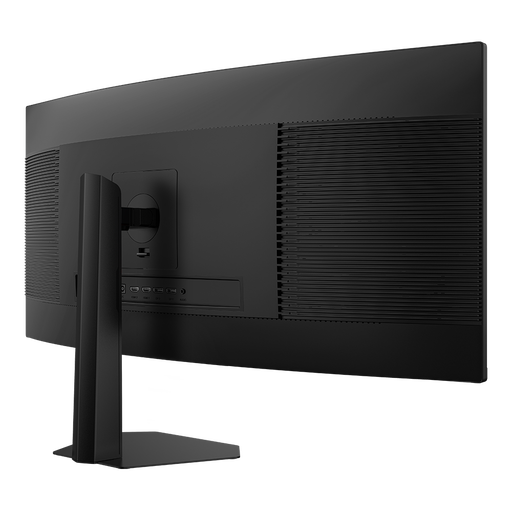
The wide format could be useful for viewing documents and reference materials side by side; check that it will fit on your desk.
34 inches; UWQHD with 3440 × 1440 pixels; 21:9 format; 1500R curvature.
 No image available
The product specifications list colour-space coverage that may be relevant when choosing a monitor for reference images; they are not an independent measurement of the specific unit.
27 inches; QHD 2K; IPS panel; listed as 99% sRGB and 99% Adobe RGB.
 No image available
The large, wide display could suit a workspace with several materials open at once; check your desk space and computer connections.
40 inches; 5120 × 2160 pixels; 21:9 format; USB-C with 65 W Power Delivery according to the product listing. To charge your computer, its video connection and power requirements must be compatible.
No. Readable text, your window layout and scaling are the first things to consider. A 27-inch Philips model offers QHD at 2560 × 1440 pixels, while the LG 27UP850K-W has a resolution of 3840 × 2160 pixels. If you often check fine image details, try 4K with your own files and a display setting that is comfortable to read.
No, the connector shape alone is not enough. Check whether your laptop can output video through the intended USB-C port, then compare its power requirements with the Power Delivery specification for the particular monitor. For example, BenQ lists 65 W for the PD2705Q.
Adjust the height, tilt and distance to suit your vision and, if applicable, your glasses. Also look out for distracting reflections. The Federal Institute for Occupational Safety and Health recommends adjusting the screen position and workspace to suit individual visual requirements. Workplace rules apply within their relevant scope; they do not automatically apply to every home desk.
For computer monitors covered by the scheme, the EU energy label shows an efficiency rating from A to G and lets you compare the stated energy data. Actual electricity costs also depend on how long you use the monitor and your electricity tariff.
Workplace-related sources do not establish a universal minimum resolution for a monitor bought for personal use. For workplaces within its scope, ASR A6 sets out requirements under the Workplace Ordinance; where someone is employed, the specific workplace is what matters.