Newsletter writer who works mainly with text
If you write and proofread longer pieces at home, look for a clear, easy-to-read display and a screen that can be positioned to suit you.


For mostly writing and proofreading, what matters is a clear, easy-to-read display, a screen you can position comfortably and enough desk space; specialist colour features aren’t necessarily needed. If you regularly edit images or page layouts, a higher resolution and suitable colour options may be more important. If you use a laptop at a fixed workstation, you should also make sure the monitor’s video output and charging power meet your laptop’s requirements.
If you write and proofread longer pieces at home, look for a clear, easy-to-read display and a screen that can be positioned to suit you.
If you also check page layouts and images as you write, weigh up screen space and, where relevant, colour features in light of the tasks you do.
If you regularly connect your laptop at the same desk, compare its video output and charging requirements with the specifications of the particular monitor.
First decide whether you’ll mainly be proofreading text, need several views side by side or regularly work on layouts. Then check how comfortably the monitor fits on your desk and which connections your computer has.
| What you need | What to check | Who it matters to |
|---|---|---|
| Readable text | Compare screen size and native resolution together, then check text scaling on your own computer. EIZO Germany lists the EV2490 as 23.8 inches with Full HD; Dell Germany lists the P2425DE as 23.8 inches with QHD. | When I write long pieces and want to spot corrections clearly, I look for a comfortable font size. Around 33% of consumers put readable text first when writing and proofreading. |
| Room for several views | Measure your desk and consider how you want to use the screen: Dell Germany lists the S2725DSM as 27 inches with QHD; ASUS Germany lists the PA279CRV as 27 inches with 4K. | If I want to check a draft, sources and page layout side by side, I need a suitable amount of screen space. Around 27% of consumers prioritise viewing text, sources and layouts side by side. |
| Screen position | Check the space available and your preferred screen position against the adjustment options on the specific stand. ASUS Germany lists height, tilt and pivot adjustment for the PA279CRV; Dell Germany lists height adjustment for the S2725DSM. | If I want to position the monitor comfortably at my desk, I check the stand and available space first. Around 20% of consumers prioritise an adjustable screen position. |
| Laptop connection | Check the video output supported by your laptop port and the charging power you need: EIZO Germany lists up to 70 W via USB-C for the EV2490; ASUS Germany specifies 96 W Power Delivery for the PA279CRV. | If my laptop stays connected at my desk, I want to know whether the monitor can display its picture and provide enough power to charge it. Around 20% of consumers put laptop connectivity first. |
Two monitors with the same screen size can have different native resolutions. This affects the level of detail available and the text scaling you’ll need.
Compare screen size and resolution together, and check which scaling works best for your computer-based work.
A USB-C port on a monitor doesn’t, by itself, guarantee video output from your laptop or enough charging power. The manufacturers’ specifications we checked vary by model.
Check that your laptop port supports video and that the monitor’s power output meets your laptop’s requirements.
If the monitor doesn’t provide enough power, you may still need your laptop charger at your desk.
A manufacturer’s specifications for a monitor’s colour reproduction don’t, on their own, prove that what you see on screen will match every printout.
If you regularly edit images or print layouts, consider your entire colour and print workflow rather than just one colour gamut figure.
The models listed range from a compact QHD monitor with a USB-C hub to 27-inch QHD models.
The FlexScan EV2490 combines a compact office screen size with USB-C docking.
The ProArt PA279CRV reviewed here is a 27-inch 4K option for regular image or layout work.
The 27UP850K-W reviewed here is a 27-inch 4K model with USB-C and an adjustable stand.
The RD320UA reviewed here is a 31.5-inch 4K alternative originally designed for programming work.
This selection includes larger QHD screens for working with text and layouts, as well as 4K models for a more detailed view. If you’re using a laptop, also compare the stated USB-C charging power with your computer’s requirements.
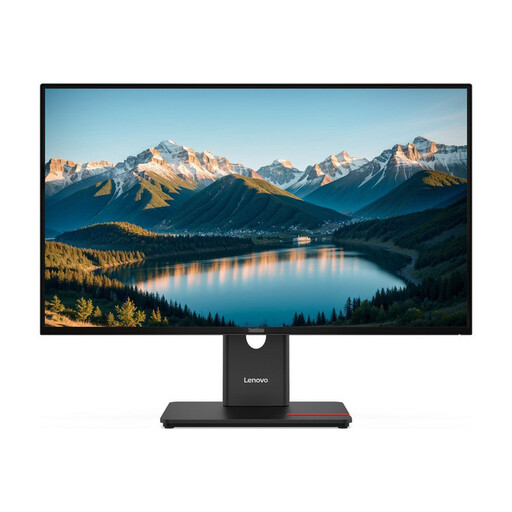 No image available
This model gives you a larger QHD workspace for viewing drafts and sources side by side.
27 inches, 2560 × 1440 pixels, IPS and a USB-C hub. USB-C Power Delivery is rated at 15 W; whether that’s enough to charge your laptop depends on its power requirements.
 No image available
The stated 4K resolution may suit you if you check page layouts or fine details on a larger display.
27 inches, 4K UHD, IPS and 60 Hz; 10-bit colour depth and a matt surface are also listed. The stand is height-adjustable, swivels, tilts and rotates.
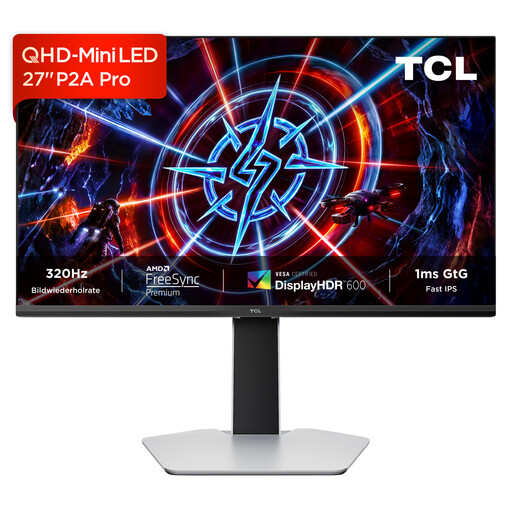 No image available
The 27-inch QHD specification offers a larger workspace for text, sources and layouts.
QHD with 2560 × 1440 pixels, Mini LED and IPS are listed. The product title also states 320 Hz; check the specifications for the exact variant and the features relevant to your work.
 No image available
According to the product specifications, this model offers a 27-inch 4K view for checking fine layout details.
3840 × 2160 pixels, IPS, 120 Hz and USB-C with 90 W Power Delivery are listed. For a laptop connection, the port must support video output and the power delivery must meet your laptop’s requirements.
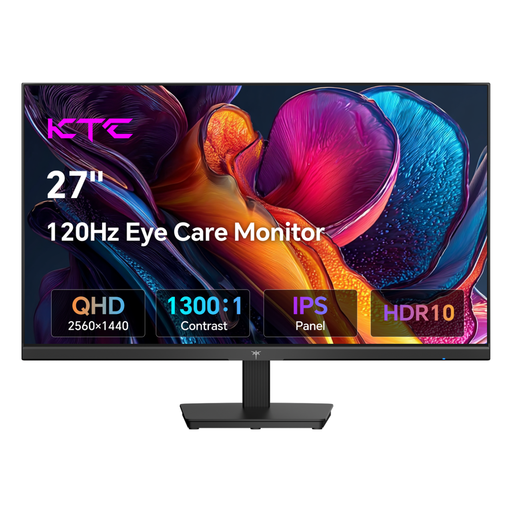 No image available
The listed 27-inch screen and QHD resolution provide a larger view of text and sources.
The product title lists 2560 × 1440 pixels, IPS and 120 Hz. A VESA mount is also listed if you want to use a compatible mounting system.
A compact Full HD model may be suitable if you mainly work with text. If you want to see more content at once or check fine layout details, compare the native resolution and screen size together rather than looking at screen size alone.
Check that the stand and available desk space allow you to position the monitor as you want, and take your workspace lighting into account. Within its scope, the German Committee on Workplaces’ ASR A6 guidance applies in particular to screen-based work in workplaces and at teleworking workstations; it does not automatically apply to every newsletter task carried out at home in a private capacity.
This only works if the relevant laptop port supports video output and the monitor provides enough power for your laptop. EIZO specifies a maximum of 70 W for the EV2490 and ASUS specifies 96 W for the PA279CRV; these are figures for different models, not a general USB-C power rating.
When you buy goods from a business seller in the EU, you generally have a statutory guarantee of at least two years; this is separate from any voluntary manufacturer’s warranty. For an eligible online purchase by a consumer, you generally have a 14-day right to cancel from the date of delivery. The European Union’s Your Europe website explains these rights; when you make a specific purchase, also check who is responsible for any return costs.
EU energy labelling generally covers computer monitors too. Check the label and product information sheet for the specific device; the European Commission describes the A to G scale for electronic displays covered by the rules.