For mostly text-based work, a compact 24-inch monitor with a 16:10 aspect ratio or QHD resolution is a space-conscious option. If you often need to compare a draft and its layout side by side, a 27-inch QHD monitor gives you more screen space, provided your desk and viewing distance can accommodate it. The specifications of selected Philips and Dell models illustrate these different options. At a shared workstation, an adjustable stand is also important. Check that USB-C supports video output and, if needed, provides enough power to charge the laptops you use.
Who will be using the monitor for newsletter work?
Newsletter editors who work with lots of text
If you write and proofread longer articles, you need clear, readable text and enough room for your draft and source material. Philips specifies a 16:10 aspect ratio for the 24B2U3301D/00, while Dell Technologies lists QHD resolution for the P2425DE.
Several people sharing one workstation
If several people share a screen, you should be able to adjust its position to suit each person. For workplace computer workstations, the Federal Institute for Occupational Safety and Health and the Workplace Ordinance set out requirements for screen-based work and the flexible arrangement of work equipment.
Editors using different laptops
If you connect different laptops, you may spend less time switching cables, provided the monitor and devices support the required USB-C video output and charging. Dell Technologies describes these connection features for selected models; check compatibility with each device you use.
What should you look for when buying?
Compact 16:10 monitor
A good fit if: you mainly work with long texts, source material and proofreading on a space-saving screen. Philips lists a 16:10 aspect ratio and 1920 × 1200 pixels for the 24B2U3301D/00.
The trade-off: You get less horizontal space for several side-by-side windows than you would with a larger monitor. Aspect ratio and resolution alone don’t determine how easy the text will be for you to read.
Compact QHD monitor with USB-C hub
A good fit if: you use different compatible laptops at the same workstation and want a higher-resolution workspace. Dell Technologies lists a 23.8-inch screen, 2560 × 1440 pixels, a USB-C hub and height adjustment for the P2425DE.
The trade-off: Check that the text size works with your preferred operating system scaling, and that the laptop, video output, charging power and required connections are all compatible.
Larger QHD monitor for text and layouts
A good fit if: you often need to see a draft, images and a page preview at the same time, and you have enough desk space. Philips lists a 27-inch screen, 2560 × 1440 pixels and USB-C for the 27E1N1600AE/00.
The trade-off: A larger screen takes up more room. The manufacturer’s display specifications don’t replace checking whether the monitor and its setup meet your requirements for colour-critical print proofing.
| Priority |
What to check before buying |
Who it matters most to |
| Readable text area |
Consider screen size and native resolution together; assess text at your intended workstation and with your preferred scaling. |
When I’m working on long drafts and source material, I want clear, readable text and enough lines on screen without constantly switching windows. That’s why around 33% of consumers put a readable text area first. |
| Adjustability at a shared desk |
Check the height adjustment and any other settings you need on the specific model; measure the space required for the stand and screen position. |
When several people use the same screen, I want to be able to adjust its position for each person. That’s why around 27% of consumers prioritise adjustability at a shared workstation. |
| Connecting different laptops |
Check USB-C video output, the charging power required and connections for other devices against the specifications of each laptop. |
When I connect different laptops at the same workstation, I want to use a single, simple connection only if it works with all of them. That’s why around 27% of consumers put laptop connectivity first. |
| Seeing the newsletter layout at a glance |
Check the available desk space and how you’ll arrange your windows; establish whether colour-critical proofing is required. |
When I’m checking a draft and preview at the same time, I want to see both clearly without overlooking the space they’ll take up. That’s why around 13% of consumers prioritise a clear view of the layout. |
Common mistakes when buying a monitor
-
Focusing only on the screen size
Screen size and aspect ratio alone don’t tell you how much text you can see at once. Philips lists a 16:10 aspect ratio and 1920 × 1200 pixels for the 24B2U3301D/00; Dell Technologies lists 2560 × 1440 pixels for the P2425DE. These specifications represent different combinations of aspect ratio and resolution.
Compare screen size, native resolution, desk space and your preferred text scaling together. Assess how readable the text is from your intended viewing distance.
-
Assuming USB-C means every laptop works with a single cable
A USB-C port on a monitor doesn’t guarantee that every laptop will output video through it or receive enough power to charge.
Check the video output and power requirements of each laptop against the connection and charging specifications of the specific monitor.
If your devices aren’t compatible, you may need an extra power adapter, cable or dock.
-
Assuming a similarly named listing is the same model
Similar model numbers can refer to different resolutions, connections or items included in the box. The Dell P2425HE and P2425DE are different model designations; the stand can also be a key part of what’s included, depending on the variant.
Before buying, check the full model number, resolution, connections and what’s included with the specific variant.
Key brands at a glance
Dell
The Pro Plus models featured here offer compact options for text-based work: the P2425E with a 16:10 aspect ratio and the P2425DE with QHD and a USB-C hub.
- Dell Technologies lists a 23.8-inch screen, QHD resolution and height adjustment for the P2425DE; the P2425E is specified with a 16:10 aspect ratio and Power Delivery up to 90 W.
- These features apply to the respective models. Check laptop compatibility and the stand variant included with the specific listing.
Philips
The 24B2U3301D/00 and 27E1N1600AE/00 offer a compact 16:10 option and a larger QHD option with USB-C, respectively.
- Philips lists the specific aspect ratios and resolutions for each model; the 27E1N1600AE/00 is also described as featuring USB-C with Power Delivery.
- This doesn’t guarantee that it will charge every laptop. Manufacturer display specifications also aren’t independent proof of colour accuracy.
LG
The LG 27U730A-B is another 27-inch option for viewing newsletter text alongside detailed graphics.
- LG lists a resolution of 3840 × 2160 pixels and USB-C power delivery up to 90 W for this model.
- Resolution alone doesn’t tell you how useful the monitor will be at your desk or whether it’s suitable for print colour proofing. Check that you have enough space, too.
Joybuy product selection
This selection includes 27-inch QHD monitors for text and layouts, as well as a 24-inch FHD option. The product specifications for these models include adjustment features for different users.
 No image available
INNOCN 2751S PLUS 27-inch Mini LED monitor
A good option if you want a larger QHD screen for newsletter drafts and layout checks, as well as an adjustable stand for different users.
27 inches; QHD at 2560 × 1440 pixels; height-adjustable stand with tilt, swivel and pivot functions.
View at Joybuy
 No image available
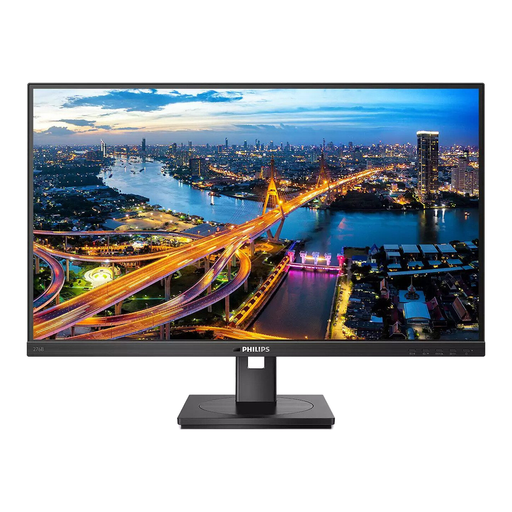
Philips 276B1 27-inch QHD monitor
A potential choice for a shared newsletter workstation if you need a larger workspace, an adjustable screen position and a USB-C hub.
27 inches; QHD at 2560 × 1440 pixels; IPS; 75 Hz; USB-C with Power Delivery up to 90 W; height adjustment, tilt, swivel and pivot functions. Check that the connection suits your laptop and its charging requirements.
View at Joybuy
 No image available
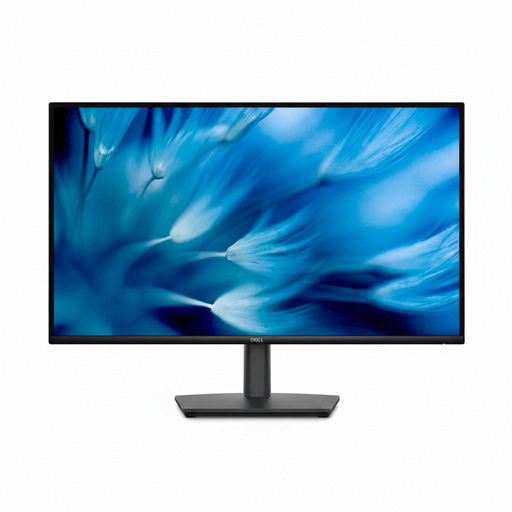
Dell Pro 27 E2726DS WQHD monitor
A good fit for a shared desk if you need a 27-inch QHD screen and an adjustable stand for working with text and layouts.
27 inches; WQHD at 2560 × 1440 pixels; IPS; HDMI and DisplayPort; 130 mm height adjustment, tilt, swivel and pivot functions.
View at Joybuy
 No image available
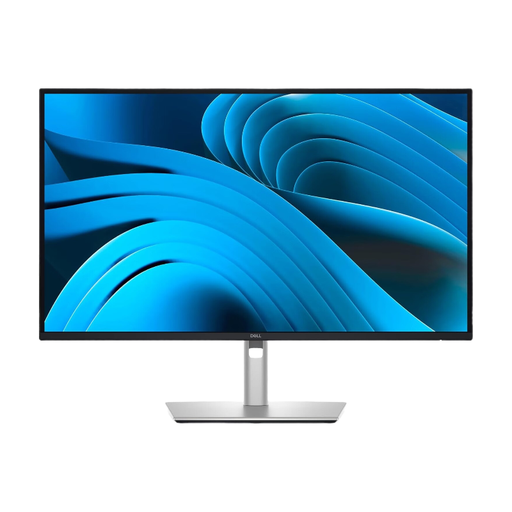
Dell Pro Plus P2725DE 27-inch QHD monitor
A potential choice if you work on layouts and text on a larger QHD screen and want to connect compatible laptops via a USB-C hub.
27 inches; 2560 × 1440 pixels; IPS; USB-C with Power Delivery up to 90 W; four USB ports; height adjustment and pivot function. Check the video output and power requirements of the laptops you use.
View at Joybuy
 No image available
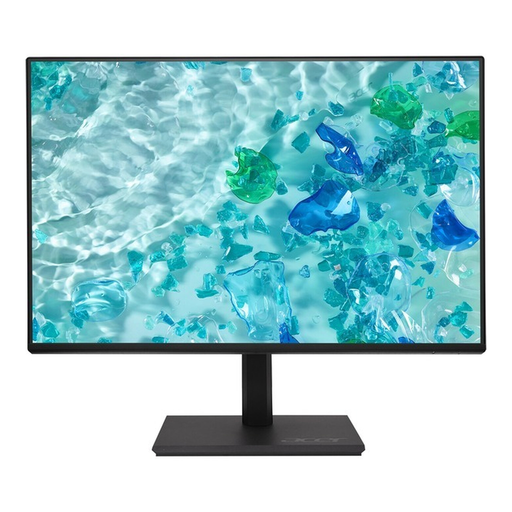
Acer Vero B247YGbmiqprx 24-inch monitor
A potential choice for a space-conscious shared workstation if height adjustment and pivot are more important than the extra vertical screen space of a 16:10 monitor.
24 inches; FHD at 1920 × 1080 pixels in a 16:9 aspect ratio; IPS; HDMI, DisplayPort and VGA; height-adjustable stand with pivot function.
View at Joybuy
Frequently asked questions about monitors for shared desks
Does a monitor at a shared workstation need to be height-adjustable?
What matters is whether you can set the screen position to suit the people who actually use it. Workplace computer workstations are subject to the requirements of the Workplace Ordinance; these don’t amount to a blanket purchasing requirement for every newsletter team run privately or on a voluntary basis. The Federal Institute for Occupational Safety and Health explains the scope of ASR A6.
Is one USB-C cable enough to connect and charge any laptop?
No. A USB-C or Power Delivery specification tells you about the features of that particular monitor. Check whether the laptop outputs video through the intended port and whether the supported charging power meets its requirements.
What should I check when setting up a monitor on a shared desk?
Check that you can position the stand and screen appropriately on the available surface, and adjust the display to suit each user. For workplace setups, the Workplace Ordinance covers the flexible arrangement of the screen, documents and other work equipment.
What ongoing costs and service terms should I compare?
Compare the energy specifications of the specific model based on your expected usage time, and allow for any cables, mount or dock you may need. Check the warranty and service terms for the specific listing rather than assuming they apply to an entire product range.
Do ordinary computer monitors have an energy label?
Yes. EU energy-labelling rules cover electronic displays, including standard monitors; EUR-Lex explains the labelling and information requirements. An energy efficiency class alone can’t tell you how much you’ll personally save on electricity without knowing your usage time and consumption.


