First, position your workspace so that light from the window doesn’t cause glare or reflect off the screen. A matte finish and a high quoted brightness won’t replace adjustable sun shading. Then choose a colour mode and a calibration and profiling workflow that suit your intended output. Finally, make sure the resolution, footprint and connections work for your drawing setup.
Who this monitor guide is for
Character artists working beside a bright window
If you paint right next to a window, you’ll want to be able to judge shadows and outlines in changing daylight. The German Social Accident Insurance (DGUV) recommends positioning your workspace so that your line of sight is parallel to the window; glare protection is a separate part of the setup.
Artists creating digital game art
If your images are mainly viewed on screens, your colour mode and monitor profile should suit that purpose. The International Color Consortium describes calibration and profiling as complementary steps for consistent colour display; Adobe also highlights the importance of document and monitor profiles.
Artists working with references and palettes
If you want to keep your canvas, references and tools open side by side, readable scaling and enough desk space matter just as much as resolution. Consider the screen size alongside your preferred layout and seating position.
What to look for when buying
Beside a bright window, managing the light should take priority over brightness figures. After that, choose a colour workflow, workspace and connections to suit how you work.
| What to consider |
What to check before buying |
Who should pay particular attention? |
| Glare and light from the window |
Check the position of your monitor and window during your usual working hours, look for a matte finish and consider how you can control incoming light. |
If I paint beside a bright window, I want to limit distracting reflections while I work; around 33% of consumers put glare at the top of their list when buying. |
| Colour for digital output |
Decide on your intended output and check for suitable colour modes, as well as options for calibration and profiling. |
If I’m adjusting colours for digital output, I need a suitable colour mode and a reliable monitor profile; around 27% of consumers put these colour considerations first. |
| Room for your artwork and references |
Compare screen size and native resolution, and check that the scaling, reference layout and seating position will work for you. |
If I want to see my figure, references and tools at the same time, I need a workspace that suits my desk and preferred scaling; around 20% of consumers prioritise having enough room. |
| Connections and setup |
Compare your computer’s video output and charging requirements with the monitor’s listed connections and USB-C power delivery. Also check the stand and footprint. |
If I’m connecting my computer at my drawing station, I want compatible connections and a practical setup; around 20% of consumers put connections and setup at the top of their list. |
Common buying mistakes
-
Assuming anti-glare means protection from direct sunlight
Even with an anti-reflective screen, direct or reflected daylight can reduce perceived contrast.
Check your viewing direction and incoming light at the times you usually paint.
-
Choosing the widest colour gamut regardless of your output
An Adobe RGB-capable monitor alone won’t resolve differences between your document, screen and output.
First decide whether you mainly work for digital display or follow a print workflow, then choose your colour mode and profiling setup accordingly.
-
Assuming a USB-C port provides enough power to charge your laptop
Power delivery varies by model: ASUS lists 96 W for the PA279CRV, while BenQ lists 90 W for the SW272U.
Compare your computer’s video output and charging requirements with the specifications for the exact monitor you’re considering.
If the power delivery isn’t sufficient, you may need a separate charger or a different connection setup.
Brands to consider
You can compare the following model ranges based on their stated features. Manufacturer specifications don’t guarantee a glare-free view beside your window or suitability for every colour workflow.
ASUS
The ProArt range includes models for creative work. The PA279CRV is a specific option for digital illustration, with 4K resolution.
- ASUS lists the PA279CRV as a 27-inch monitor with an anti-glare finish, 100% sRGB, 99% Adobe RGB and typical brightness of 350 cd/m². According to the manufacturer, USB-C supports 96 W Power Delivery.
- The brightness figure doesn’t guarantee good visibility in direct sunlight. The model is listed as having a 60 Hz refresh rate.
BenQ
The PhotoVue SW272U is worth considering if, alongside illustration, you’re looking for hardware calibration and a shading hood.
- BenQ lists a matte finish, 27-inch screen, 4K resolution, hardware calibration, 90 W USB-C Power Delivery and an included hood for this model.
- Manufacturer claims about colour coverage and anti-reflective performance don’t replace checking the lighting conditions at your own workstation. The hood also doesn’t remove the need to manage light from the window.
EIZO
The ColorEdge CS2740 is an option if you regularly use colour management and want a high-resolution workspace.
- EIZO lists the CS2740 as a 27-inch 4K monitor with hardware calibration using ColorNavigator.
- Calibration doesn’t replace a suitable workflow for your documents and output.
Dell
The UltraSharp U2725QE may suit a workspace where you need hub features as well as a monitor for drawing.
- Dell lists the model as a 27-inch 4K monitor with an anti-reflective finish and hub features.
- These manufacturer specifications don’t confirm calibration for colour-critical painting or guarantee a glare-free view beside your particular window.
Joybuy monitors for drawing
This Joybuy selection includes monitors for digital drawing beside a bright window, from 27-inch 4K models to larger workspaces. For each model, check that its light protection, colour workflow, connections and size suit your setup.
 No image available
MSI PRO MP273UPDE E6, 27-inch, 4K UHD
A good fit if you’re looking for a high-resolution drawing surface and an adjustable stand.
27-inch, 4K UHD, IPS and 60 Hz; product details list a matte finish, sRGB picture preset and 10-bit colour depth. HDMI and DisplayPort connections; the stand is height-adjustable, swivels, tilts and rotates.
Joybuy
 No image available
INNOCN 40C1U, 40-inch, 5K ultrawide
Worth considering if you’re planning a wide workspace for your canvas, references and tools.
40-inch, IPS, 21:9 and 5120 × 2160 pixels; product details list a matte finish, sRGB coverage and 100 Hz. USB-C with 65 W Power Delivery; the stand is height-adjustable.
Joybuy
 No image available
INNOCN CB27U1, 27-inch, 4K UHD
A good match for detailed digital drawing if you’d also like USB-C with charging.
27-inch, 3840 × 2160 pixels, IPS and 120 Hz; product details list a non-glare finish and USB-C with 90 W Power Delivery. The stand is height-adjustable and rotates.
Joybuy
 No image available
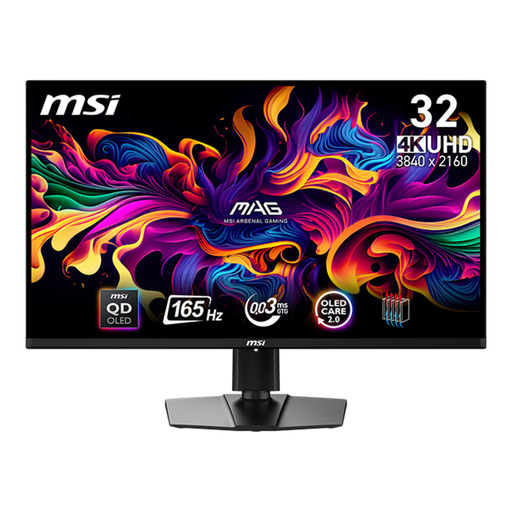
MSI MAG 321UPDE QD-OLED, 31.5-inch, 4K
A good fit if you want a larger 4K drawing surface and flexible positioning.
31.5-inch, QD-OLED and 3840 × 2160 pixels; product details list an anti-glare finish and 10-bit colour depth. Height adjustment, pivot and rotation are listed.
Joybuy
 No image available
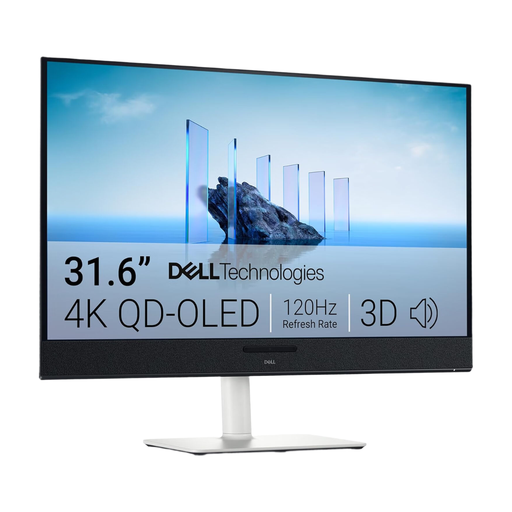
Dell Plus S3225QC, 31.6-inch, 4K QD-OLED
Worth considering if you want a large 4K drawing surface and several USB-C ports.
31.6-inch, QD-OLED and 3840 × 2160 pixels; product details list a matte finish and 99% DCI-P3 colour gamut coverage. Three USB-C ports with 90 W Power Delivery, plus HDMI 2.1; the stand is height-adjustable, tilts, swivels and rotates.
Joybuy
Frequently asked questions
Is an especially bright, matte monitor enough beside a window?
Not necessarily. The German Social Accident Insurance (DGUV) recommends positioning your line of sight parallel to the window and using adjustable glare protection at screen-based workstations; direct or reflected light can reduce perceived contrast. Check these conditions at the times you usually paint before comparing brightness figures.
How should I set up colour display once the monitor is in place?
First, decide on your intended output and the right working colour space. The International Color Consortium describes display calibration and profiling as complementary steps. sRGB may be suitable for images intended mainly for digital use. As Adobe explains, you should also take the document profile in your painting software into account.
What additional costs and rights should I consider when buying online in Germany?
Check whether your calibration workflow requires any additional equipment, and compare the energy information for the specific models. According to the German consumer advice centre, online purchases generally come with a 14-day right to cancel; the period usually starts when the contract is concluded or the goods are received.
Are monitors subject to energy labelling rules in Germany?
EU energy labelling rules generally cover electronic displays, including monitors, although some types of display are exempt. Check the product information for the specific device rather than assuming its energy class tells you whether it’s suitable for painting.


