
Lieferung heute & morgen

Qualitätsgarantie

Willkommens-Angebote freischalten: KOSTENLOSE Lieferung | Bis zu 80 % RABATT | Kostenlose 30-Tage-JoyPlus-Testphase
App herunterladen
The right cable for your monitor and PC determines whether video, audio, data and power are transferred reliably. Yet many buyers focus solely on terms such as ‘8K’, ‘240W’ or ‘High Speed’. These specifications only matter if the connected devices and their interfaces support them too.
An 8K HDMI cable can transmit a high-resolution signal. However, the result also depends on your graphics card, monitor, HDMI version and refresh rate. An 8K cable won’t turn a 4K monitor into an 8K screen. A 4K cable is sufficient for many home-working tasks, while gamers should pay closer attention to refresh rates and variable sync.
Depending on the device, a USB-C port may only charge, transfer data or also output video signals. Before buying a USB-C cable, check whether the port supports DisplayPort Alt Mode, USB4 or Thunderbolt. A USB-C-to-USB-C cable isn’t automatically a Thunderbolt 4 cable.
A 240W fast-charging cable can support up to 240 watts if the charger and device are also designed for it. A smartphone or laptop won’t automatically draw that much power. What matters is how the power supply, Power Delivery profile and device work together. If they aren’t compatible, the power output will be reduced accordingly.
First, identify the ports on both devices:
If you’re connecting a second display or a docking station, also check that your computer’s USB-C port actually supports video output. The maximum monitor resolution on a Mac or PC may also be limited by the graphics card and operating system.
The advertised bandwidth should suit the way you plan to use the cable. According to the product specifications, an HDMI 2.0 cable such as the Baseus Cafule supports up to 4K at 60 Hz. That may be enough for office work, streaming and many TVs.
An HDMI 2.1 cable with up to 48 Gbit/s, on the other hand, is designed for more demanding uses. The Wozinsky WHDMI-50 is listed as supporting 8K at 60 Hz, 4K at 120 Hz and 2K at 144 Hz. Your devices still need to support features such as VRR, ALLM or eARC.
For DisplayPort applications, the Wozinsky WPS-16AYL2S is listed as offering bandwidth of up to 80 Gbit/s. Its specifications include 4K at 240 Hz and 8K at 120 Hz. These figures are particularly relevant for powerful gaming PCs and compatible monitors. The ‘VESA-certified’ description refers to the product specification, so check that it matches the requirements of your devices.
When choosing a charging cable, power, connector type and length all matter. A USB-C charging cable measuring 1 to 1.5 metres is usually suitable for a desk or bedside table. For a TV, console or monitor that’s further away, 2 to 5 metres may be more practical. As the cable gets longer, pay particular attention to its stated data rate and shielding.
Reinforced or flexible braided coverings and sturdy connector housings are useful if you often unplug and reconnect your cable. An angled connector can save space with a laptop or docking station. Make sure it’s positioned so it doesn’t put sideways pressure on the port.
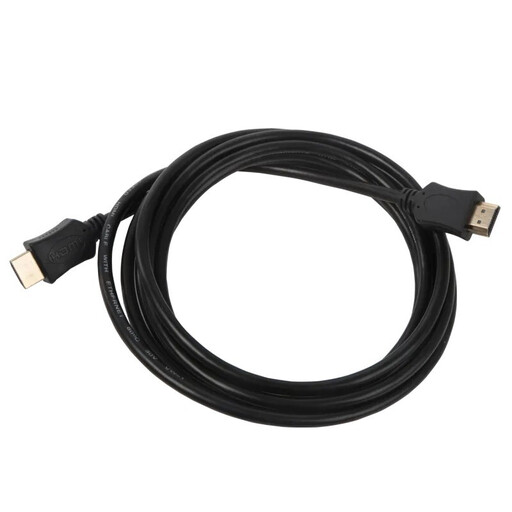
Why it suits this profile: The 3-metre length gives you flexibility when connecting a PC, monitor, projector or TV, without having to buy a high-performance cable designed for higher refresh rates.
The product description clearly specifies the HDMI connection and intended use with TVs, monitors and projectors. This makes it easier to choose a cable for a straightforward 4K setup.
3 m cable length, copper conductors and a PVC outer sheath, according to the product specifications.
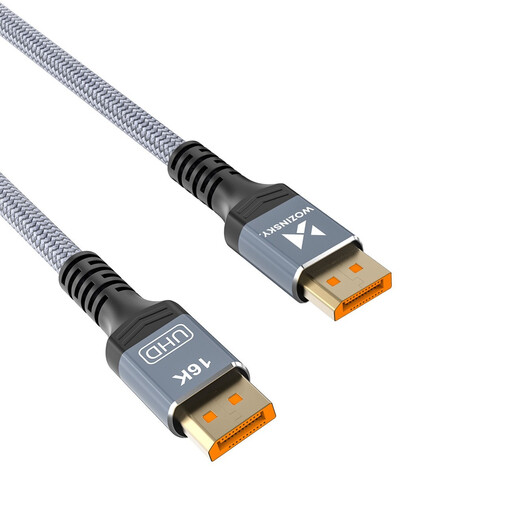
Why it suits this profile: Its stated specifications are aimed at users who need high refresh rates and plenty of bandwidth for compatible monitor and PC hardware.
The product specifications state the standard, bandwidth, resolutions and shielding. You can compare these details directly with your graphics card and monitor.
Listed as VESA-certified, with speeds of up to 80 Gbit/s and a length of 2 m.
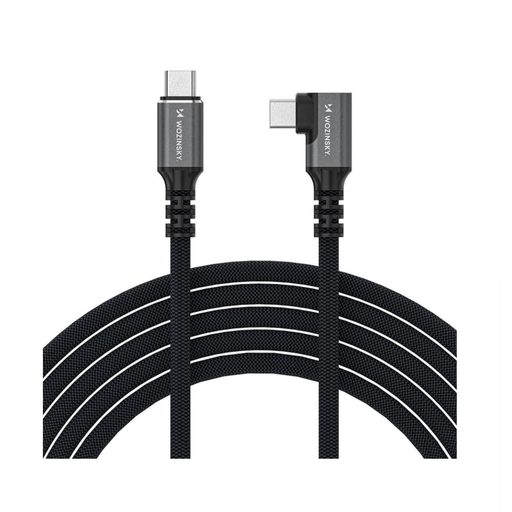
Why it suits this profile: The 1.5 m cable connects USB-C devices, docking stations and compatible monitors. The 90-degree connector can be useful in tight workspaces.
The specifications distinguish between data rate, video output and charging power. These figures apply only if both devices support Thunderbolt 4, USB4 or the relevant USB-C feature.
Up to 40 Gbit/s, up to 240W according to the product specifications, and support for 4K and 8K output.
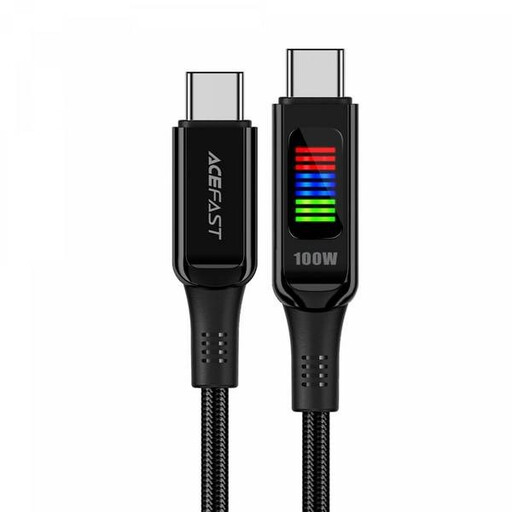
Why it suits this profile: The 1.2 m cable is designed for users who want to check the stated voltage on the built-in display while charging a smartphone, tablet or laptop.
The maximum power of 100W is clearly stated. This shouldn’t be confused with the power the connected device actually draws.
Up to 100W, 5A, USB-C connectors at both ends and a voltage display, according to the product specifications.
We’ve put together a comprehensive, regularly updated list of products that meet these strict selection criteria and the safety regulations in force in the EU.
It depends on the connection and the refresh rate you want. Suitable HDMI 2.0, HDMI 2.1 or DisplayPort cables can all support 4K at 60 Hz. For 4K at 120 Hz or 144 Hz, the monitor, graphics card and cable must all support the required bandwidth. So check your monitor and graphics card specifications before you buy.
Only if the USB-C connection supports video output. Your computer’s port must support DisplayPort Alt Mode, Thunderbolt or a compatible docking feature. A USB-C charging cable without video support won’t transmit a monitor signal.
There’s no reliable way to give a fixed lifespan. It depends on bend radius, pulling force, plug-in cycles, heat and moisture. Coil cables loosely, don’t kink them, and pull them out by the connector rather than the cable. Stop using a cable if it shows visible damage, becomes unusually hot or has an unstable connection.