You don't necessarily need a 4K monitor to pick out the sharpest shots. What matters is enlarging the area you want to check in your photo software and comparing it across similar images. A 27-inch 4K monitor is one option for checking detail and viewing multiple panels, but the scaling, desk space and connections need to suit your setup. Colour gamut and calibration are additional buying considerations, particularly if you’ll be assessing colours for a specific output after making your selection.
Who is this monitor comparison for?
Anyone checking sharpness across a series of photos
If you’re reviewing lots of similar shots, you’ll want to compare the key area across several candidates. Your photo software’s comparison view matters too: for example, Adobe Lightroom Classic lets you view two photos side by side.
Anyone who needs several panels on their desktop
If you want to have photos, a filmstrip and editing controls on screen at the same time, consider the screen size, resolution and scaling your computer can support together.
Anyone assessing photos for print
If you’ll be checking colours for a specific output after selecting your sharpest shots, colour gamut and calibration become additional considerations. Adobe describes monitor calibration as preparation for colour work in Lightroom Classic.
What to look for when buying
| Buying priority |
What to check |
Who it matters to |
| Sharpness in a specific area |
Compare the same area at a suitable magnification, then consider the resolution and screen size. |
When I’m assessing similar shots, I want to compare the same fine detail up close rather than rely on the overall view; around 42 % of consumers put checking sharpness first. |
| Multiple panels |
Check the photo view, filmstrip and controls using your usual text size and operating system scaling. |
At my desk, I want to keep the comparison view and controls in sight at the same time with my usual scaling; around 25 % of consumers prioritise multiple views and usable workspace. |
| Colours for output |
Decide on your intended output first, then check the colour gamut and calibration options of the specific model. |
If I’m preparing a specific print after selecting my photos, I want to assess colours using a suitable workflow; around 17 % of consumers prioritise judging colours for output. |
| Desk space and connections |
Measure the space available for your planned setup and check the video connection and required charging power against your computer. |
If desk space is limited or I’m connecting a laptop, I want to make sure the monitor and computer will fit my setup before buying; around 16 % of consumers put workspace compatibility first. |
Common misconceptions when buying a monitor
-
4K automatically guarantees you’ll pick the sharpest shot
Resolution describes how many pixels a display can show; your photo software provides the views you need to compare images. A higher resolution doesn’t replace checking the key area at an enlarged size.
Compare the same area in your photo software, then decide whether the extra resolution will be useful in your workspace.
Paying more for a higher resolution may not be worthwhile if you don’t have a suitable comparison workflow.
-
A wide colour gamut is no substitute for a consistent colour workflow
Colour gamut coverage and calibration are different things. When you’re simply deciding which photo is sharpest, a wider gamut is no substitute for viewing detail and comparing images.
Choose a colour gamut and calibration setup to suit your actual output, rather than simply opting for the highest percentage.
A suitable colour workflow may involve additional calibration.
-
USB-C on a monitor doesn’t guarantee compatibility with your laptop
Whether video and charging work together also depends on the capabilities of the connected computer. A monitor hood may also need more desk depth than using the stand alone.
Check the connections and required charging power of both devices, and measure the depth needed for your planned monitor setup.
Depending on the connections and setup, you may need an extra power supply, a cable or a different placement.
Monitor brands to consider
ASUS
The ProArt PA279CRV is a 27-inch 4K option for checking detail and working with colour.
- ASUS lists 100 % sRGB, 99 % Adobe RGB, an anti-glare screen and USB-C with 96 W Power Delivery for this model.
- These features don’t prove that you’ll be more accurate when selecting the sharpest shot. Also check that the USB-C connection is compatible with your computer.
EIZO
The ColorEdge CS2740 is worth considering if you regularly follow photo selection with colour-critical editing.
- EIZO lists a 26.9-inch screen, 4K resolution, typically over 99 % Adobe RGB and hardware calibration for this model.
- USB-C power delivery is listed at a maximum of 60 W. If your laptop needs more power, check how it will be supplied separately.
BenQ
According to BenQ, the PhotoVue SW272U combines a 27-inch 4K display with features for a photo colour workflow.
- BenQ lists 99 % Adobe RGB, hardware calibration, an SD card reader and 90 W USB-C Power Delivery.
- With the monitor hood fitted, the stated depth is greater than when using the stand alone. Make sure you have room for your preferred setup.
LG
The UltraFine 27UP850K-W is a 27-inch 4K option for reviewing photos and everyday desktop use, with USB-C.
- LG gives a typical value of 95 % DCI-P3 for this model and lists an adjustable stand.
- A DCI-P3 figure doesn’t automatically indicate specific Adobe RGB coverage or suitability for a particular print workflow.
Xiaomi
The 4K Monitor A27Ui is a 27-inch IPS model for reviewing photos and sRGB-focused tasks.
- Xiaomi lists a resolution of 3840 × 2160 pixels, along with 100 % sRGB and 95 % DCI-P3.
- According to Xiaomi, USB-C power delivery of up to 90 W is available under specific operating conditions. Don’t assume this charging power will always be available without checking.
Joybuy monitors for selecting photos
The Joybuy monitors below offer 4K resolution and differ in screen size and features, among other things. Also check that the photo view, scaling and desk space suit your setup.
 No image available
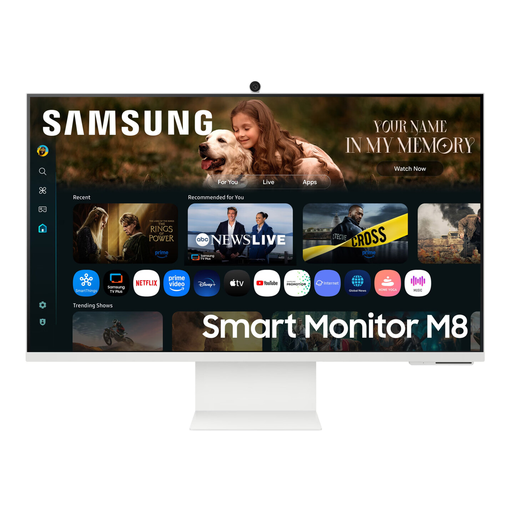
Samsung M8 M80F (2025), 32 inches, VA, 4K UHD, 60 Hz, webcam
If you’re looking for a large 4K screen for reviewing photos, check whether a 32-inch display suits your desk and preferred scaling.
Features listed include a VA panel, 4K UHD, 60 Hz and a webcam.
View at Joybuy
 No image available
CRUA CR320QB, 32 inches, curved 4K, 3000R
This 32-inch 4K model is an option if you’d like more screen space for reviewing photos. Bear the screen shape and the space available on your desk in mind.
The product title lists 3840 × 2160 pixels, a VA display, 3000R curvature and 100 % sRGB.
View at Joybuy
 No image available
INNOCN CB27U1, 27 inches, 4K UHD, IPS
With a 27-inch screen and 4K resolution, you can compare a more compact screen size with a high native resolution. Check that your usual scaling leaves enough room for the controls.
The product title lists 3840 × 2160 pixels, an IPS panel and 120 Hz. PIP and PBP are also listed for split-screen viewing.
View at Joybuy
 No image available
MSI MPG 322URXDE QD-OLED, 32 inches, 4K UHD
If you’re considering a 32-inch 4K monitor with a QD-OLED panel, check that the screen size and features suit your specific photo-editing workflow.
The product title lists 3840 × 2160 pixels, 240 Hz, 98 % Adobe RGB and 99 % DCI-P3.
View at Joybuy
 No image available
KTC M27P6, 27 inches, 4K MiniLED, dual mode
This 27-inch model offers a 4K mode for checking detail. Make sure you select the right mode when reviewing photos.
The product title lists 4K at 160 Hz or FHD at 320 Hz. You’ll need to select 4K mode to check detail.
View at Joybuy
Frequently asked questions
Do I need 4K to find the sharpest photo in a series?
No. Enlarge the relevant area in your photo software and compare it across the candidates. 4K offers a particular native resolution; check whether it suits your screen size and scaling in your workspace.
How can I compare similar photos in practice?
If you use Lightroom Classic, you can view two photos side by side in comparison view. Then check the key detail rather than judging from the smaller overall view alone; the exact steps depend on your photo software.
Do I need to calibrate my monitor to select the sharpest photo?
For assessing sharpness alone, calibration is no substitute for enlarging and comparing images. It’s mainly relevant if you want to judge colours: Adobe describes monitor calibration as preparation for colour management in Lightroom Classic.
What should I check when it comes to USB-C and charging a laptop?
Check the connection features of the specific monitor and your computer together. USB-C on the screen alone doesn’t tell you whether video and the charging power you need will work with every laptop.
Does ASR A6 apply to every home office monitor used privately?
No, it doesn’t automatically apply to every screen used in a private setting. The Federal Institute for Occupational Safety and Health distinguishes the scope of ASR A6 from, among other things, screen use outside workplaces. Whether a particular workspace is covered depends on how it is classified.


