Photo comparison
If you compare observations using several photos, close-ups and notes, a clear, easy-to-read screen and a window layout that works for you are especially important.


If you want to compare photos, close-ups and notes side by side, start by looking for a usable screen area, good resolution and a setup that works for you. If colour nuances matter, also check the colour space and calibration options for your image workflow. A manufacturer’s coverage figures alone don’t prove that your photos will display accurately or that you can identify plants reliably.
If you compare observations using several photos, close-ups and notes, a clear, easy-to-read screen and a window layout that works for you are especially important.
If you want to assess colour differences in photos, you should also consider the conditions in which they were taken and how you manage colour.
For longer periods spent reviewing and recording observations, you’ll need a suitable setup and connections that work with your desk and computer.
A good fit if: you want to see close-ups, comparison photos and notes on screen at the same time. For the 27-inch ASUS PA279CRV and LG 27UP850K-W models mentioned here, the manufacturers specify 3840 × 2160 pixels.
Bear in mind: More pixels don’t replace suitable photos or colour management. Also check text scaling, viewing distance and the space available for the monitor.
A good fit if: you want to compare colour nuances in suitable photos under appropriate conditions. BenQ describes the SW272U and EIZO the CS2400S as offering a wide Adobe RGB colour space.
Bear in mind: Calibration, monitor and image profiles, and consistent ambient lighting are all part of the workflow. The CS2400S has a resolution of 1920 × 1200 pixels rather than 4K.
A good fit if: you expect to spend longer reviewing and documenting observations, and need the screen position, anti-glare finish or connections to suit your workspace.
Bear in mind: USB-C or Thunderbolt is only useful if your computer supports the required video output and, where needed, charging power. A hub doesn’t guarantee accurate colour reproduction.
When reviewing plant photos at home, your buying priorities will depend mainly on whether image detail, colour nuances, workspace comfort or connections matter most to you.
| What matters | What to check before buying | Who it matters most to |
|---|---|---|
| Image detail and comparison views | Native resolution, screen size and readability at your preferred scaling, as well as space for the window layout you prefer. | If I want to compare leaf details with notes, I need a screen that’s easy to read at my chosen scaling. Around 33% of consumers put image detail first. |
| Colour nuances in photos | The colour space of the specific model, calibration and profiling options, as well as image profiles and lighting conditions. | If you want to assess colour differences, you should also factor in the conditions in which photos were taken and colour management. Around 25% of consumers put colour assessment first. |
| Ergonomics and reflections | Height and tilt adjustment, an anti-glare screen, desk space, viewing distance and lighting. | For longer review sessions, I want to position the screen appropriately and minimise distracting reflections. Around 25% of consumers put workspace comfort first. |
| Connections and running costs | Check the video connections you need and, if applicable, USB-C video output and charging requirements against your computer. Compare the energy label for the specific model. | If I want to connect a device I already own and consider running costs, the monitor needs to suit my computer and how I plan to use it. Around 17% of consumers put connections and running costs first. |
Colour-space coverage alone tells you neither how a photo was taken nor how it will look in your particular workflow.
If your assessment depends on colour nuances, check image profiles, lighting and calibration options.
Calibration and profiling can add extra steps to your workflow.
Resolution doesn’t tell you whether text and windows will be comfortable to read at your preferred scaling, or whether the monitor will fit on your desk.
Check your preferred window layout and scaling, and measure the space available before you buy.
Depending on the space available, you may need to adjust your workspace.
A USB-C port alone doesn’t confirm that your computer supports the video signal and charging power you need through that connection.
Check the connection type, video output and charging requirements against your computer’s specifications.
Depending on device compatibility, you may need a separate video connection or power supply.
According to ASUS, the ProArt PA279CRV combines a 27-inch 4K screen, 99% Adobe RGB coverage, an adjustable stand and USB-C.
BenQ describes the PhotoVue SW272U as a 27-inch 4K monitor with 99% Adobe RGB coverage and hardware calibration.
EIZO lists the ColorEdge CS2400S as having a 24.1-inch screen, 1920 × 1200 pixels and more than 99% Adobe RGB coverage.
LG lists the UltraFine 27UP850K-W as a 27-inch 4K monitor with USB-C and an adjustable stand.
Dell lists the UltraSharp U2725QE as a 27-inch 4K monitor with a Thunderbolt hub.
The Joybuy products below suit a range of setups: from 27-inch and wide screens for comparing images to portable extra displays. If your assessment depends on colour nuances, remember to use suitable profiles and lighting, whatever the model.
 No image available
For comparing images on a 27-inch screen; the product description specifies 3840 × 2160 pixels and 99% Adobe RGB coverage.
USB-C with 90 W Power Delivery, PIP/PBP and a height-adjustable stand. Calibration, profiling and suitable lighting are still important for consistent colour assessment.
 No image available
For detailed and side-by-side views on a 27-inch screen; the product title specifies 4K resolution.
Type-C with 65 W, KVM, and a height-adjustable stand with tilt and swivel. Check that the connection features you need are compatible with your computer.
 No image available
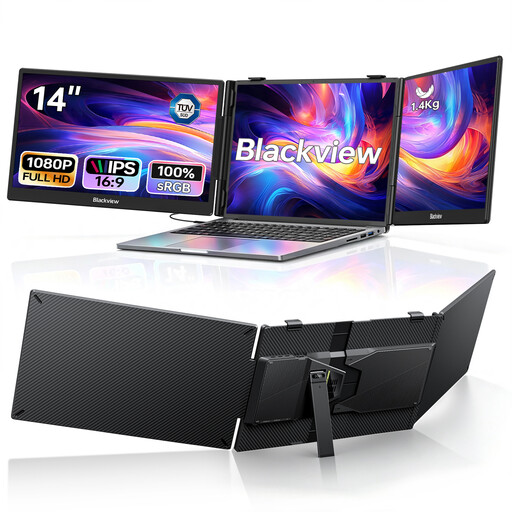
For two side-by-side views as an extension to your laptop: the description specifies two 14-inch FHD IPS screens, each with 1080p resolution.
The description lists compatibility with laptops from 13 to 17.3 inches, as well as 100 W PD and USB-C. Setup requires a compatible laptop.
 No image available
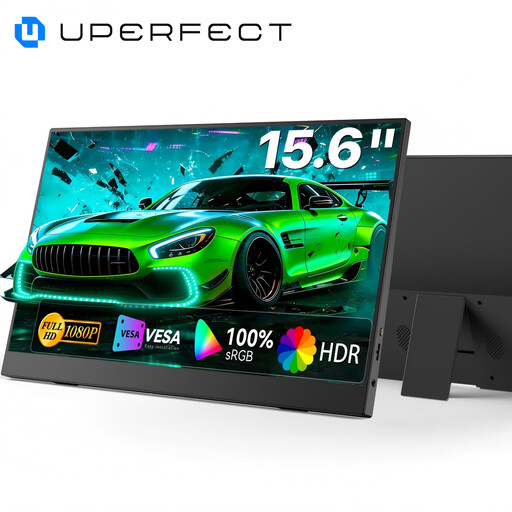
For a compact extra display: the product description specifies Full HD, 100% sRGB and a built-in stand.
The 15.6-inch Full HD screen offers less space and fewer pixels than a 27-inch 4K model. USB-C plug-and-play is mentioned in the product title.
 No image available
For a wide workspace with multiple views side by side; the description specifies a 40-inch screen, 5120 × 2160 pixels and PIP/PBP.
USB-C with 65 W Power Delivery and a height-adjustable stand. The listed Adobe RGB coverage is 87% (1931) or 91% (1976); the description doesn’t mention hardware calibration.
No. Colour-space data describes a monitor feature, not how reliably a plant can be identified. Adobe also recommends calibration, profiling and stable lighting for consistent colour assessment; these don’t establish how accurately a plant can be identified.
Set up the monitor in lighting that’s as stable as possible, then calibrate and profile it to suit your workflow. Adobe recommends letting the monitor warm up for at least 30 minutes before calibration.
ASR A6 sets out employers’ obligations for workplaces and teleworking locations within its scope. According to the German Federal Institute for Occupational Safety and Health, it does not apply to screen use in private settings outside a teleworking location, so it isn’t a general buying requirement for every home office.
Compare the EU energy label for the specific monitor model. According to the Verbraucherzentrale, consumers who buy faulty goods can generally assert their statutory rights against the seller within two years of delivery or receipt. A voluntary guarantee is separate from these rights.