If you mainly use your monitor to review and compare plant photos and organise them alongside your notes, focus first on whether it will fit your desk, how clearly it displays images and whether it has the right connections for your laptop. A wide colour gamut alone isn’t a reason to buy. Colour modes and calibration options can matter if you follow a specific colour or print workflow, while a more compact display may suit a smaller space. A monitor displays your photos, but it can’t replace suitable photographs or the need to verify a plant identification.
Who is this monitor for?
Students with lots of plant photos
If you review photos, compare details and make identification notes at the same time, look for a generous display area and text that’s easy to read. Pl@ntNet, as described by GBIF, uses photos to identify plants; this doesn’t mean that any particular monitor is especially suited to the task.
Students with a small desk
If you need to fit photos and study materials into a limited space, compare the monitor’s dimensions including its stand, rather than looking at screen size alone.
Students working on colour-critical projects
If you edit plant photos for a specific colour or print workflow, check which colour modes and calibration options are available. These requirements go beyond simply viewing images.
What should you look for?
Start by deciding what matters most: desk space, viewing photos and notes side by side, or a specific colour workflow. Then check the connections and dimensions of the model you’re considering.
| Buying priority |
What to check |
Who is this important for? |
| Colour reproduction |
Check colour modes such as sRGB or Adobe RGB and, where relevant, the calibration options for the specific model. |
If you want to compare colours in plant photos as part of a specific workflow, pay particular attention to suitable modes and calibration. This is the main priority for around 33% of consumers. |
| Image detail and notes |
Compare the native resolution and screen size; check that photos and text are easy to read at your preferred scaling setting. |
If you want to view plant photos alongside identification resources, you’ll need a display that works well for both. Around 25% of consumers prioritise image detail and the ability to take notes alongside their photos. |
| Desk space |
Measure the available width and depth, then compare them with the monitor’s dimensions, including the stand. |
If you have a small desk, you’ll want to make sure there’s room for both the monitor and your study materials. Desk space is the main priority for around 25% of consumers. |
| Connections and power use |
Check that your laptop’s video output matches the monitor’s input and, if relevant, compare charging power requirements. Also check the energy label for the specific model. |
If you want to connect your existing laptop and consider power use, check the connection and energy information together. This is the main priority for around 17% of consumers. |
Which assumptions should you avoid?
-
A wide colour gamut guarantees accurate plant identification
Colour modes and calibration can be useful for a specific image workflow, but they can’t confirm the identification of a plant species.
Choose your display separately from how you verify your observations.
A dedicated colour workflow involves extra set-up.
-
Screen size tells you how much desk space you’ll need
The diagonal measurement doesn’t tell you how much room the monitor and its stand will take up on your desk. ASUS lists the PA279CRV’s depth, including the stand, as 21.50 cm.
Measure your available space and compare it with the dimensions of the specific model, including its stand.
-
USB-C automatically means you can use just one cable
A monitor’s stated power delivery doesn’t confirm that your laptop can output video through the same connection or use the available charging power. ASUS lists 96 W USB-C Power Delivery for the PA279CRV.
Check your laptop’s video output and charging requirements against the monitor’s connections.
Brands worth considering
ASUS
The ProArt PA279CRV and PA248QFV offer different screen sizes for your workspace: 27 inches for the PA279CRV and 24.1 inches for the PA248QFV.
- ASUS lists 99% Adobe RGB coverage and 96 W USB-C Power Delivery for the PA279CRV.
- These are manufacturer specifications for this model, not a guarantee of the colour accuracy of every individual unit. Check the stand dimensions and compatibility with your laptop.
BenQ
The SW242Q is a 24.1-inch model with colour management features, while the PD2732U is a 27-inch 4K model.
- BenQ lists colour modes and hardware calibration for the SW242Q, and 4K and Thunderbolt 4 for the PD2732U.
- These features aren’t necessarily needed if you’re simply reviewing and comparing plant photos.
Dell
The UltraSharp U2724D is a 27-inch QHD option for viewing photos and studying side by side.
- Dell lists a resolution of 2560 × 1440 pixels and a height-adjustable stand for this model.
- Check the connections and features of the U2724D itself rather than assuming it has features found on similarly named hub models.
LG
The 27UP850K-W is a 27-inch 4K model with USB-C and an adjustable stand.
- LG gives a typical DCI-P3 colour gamut figure of 95%.
- This manufacturer figure isn’t an independent colour test; HDR alone doesn’t prove an advantage for everyday plant photo viewing.
EIZO
The ColorEdge CS2400S is a 24.1-inch option for a dedicated photo and colour management workflow.
- EIZO lists more than 99% Adobe RGB coverage, hardware calibration and a native resolution of 1920 × 1200 pixels.
- You don’t necessarily need this specialist set-up if you’re only reviewing photos.
Joybuy monitors for comparing photos and taking notes
The Joybuy monitors below have 27-inch screens and QHD or 4K resolutions. Before choosing one, check that its size, display and laptop connections suit your desk and set-up.
 No image available
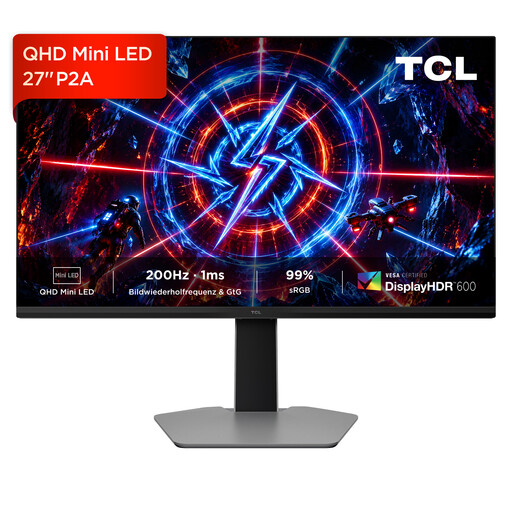
TCL 27P2A, 27-inch, Mini LED, QHD
The 27-inch QHD screen offers space for photos and notes; check that its size suits your desk.
Resolution: 2560 × 1440 pixels. Features listed in the product name: Mini LED, 200 Hz and IPS panel.
View at Joybuy
 No image available
GIGABYTE G27Q26, 27-inch, QHD
The QHD resolution and 27-inch screen may suit comparing plant photos with study materials; check the dimensions against your desk.
Resolution: 2560 × 1440 pixels. Features listed in the product name: SuperSpeed IPS and 260 Hz, overclocked to 275 Hz.
View at Joybuy
 No image available
INNOCN CB27U1, 27-inch, 4K UHD
A 27-inch 4K screen may be useful for viewing several photos at once, or photos alongside reference materials; remember to consider the text scaling you’ll need.
Resolution: 3840 × 2160 pixels. Features listed in the product name: IPS, USB-C with 90 W Power Delivery and a height-adjustable stand.
View at Joybuy
 No image available
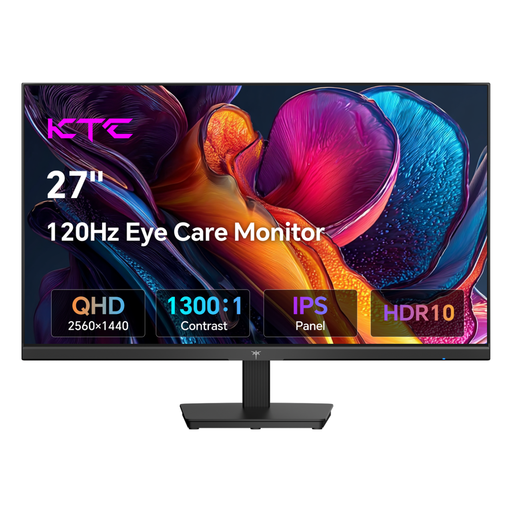
KTC H27D9, 27-inch, QHD
A 27-inch QHD screen may suit comparing photos with study materials; check that the resolution and screen size work for your viewing distance and desk space.
Resolution: 2560 × 1440 pixels. Features listed in the product name: IPS panel and VESA compatibility.
View at Joybuy
 No image available
KTC M27P6, 27-inch, 4K MiniLED
A 27-inch 4K screen may be a good option if you want to compare photos and identification resources on one display; check how much desk space you have first.
Features listed in the product name: 4K at 160 Hz or FHD at 320 Hz, Fast IPS, USB-C with 65 W Power Delivery and a height-adjustable stand.
View at Joybuy
Frequently asked questions
Can a monitor identify plants from my photos?
No. A monitor displays images, but it can’t identify plants. Pl@ntNet describes photo-based identification as a separate feature; verifying an observation is a separate matter.
What should I check when connecting my laptop?
Check that your laptop’s video output matches the input on the specific monitor. If you want USB-C to charge your laptop as well, check that it can output video through that connection and that it supplies enough power; for example, ASUS lists 96 W Power Delivery for the PA279CRV.
How can I compare energy use and efficiency?
Compare the energy label and EPREL entry for the exact monitor model. The European Commission describes energy efficiency labels for electronic displays using classes from A to G; an efficiency class doesn’t give a definitive figure for your individual electricity costs.
Are a warranty and statutory rights the same thing?
No. Your statutory rights apply to claims against the seller if a product is faulty; a warranty is an additional, voluntary promise. The Verbraucherzentrale recommends checking the terms for the exact model when a warranty is advertised.
Where should I take an old monitor in Germany?
Don’t put an old monitor in your household rubbish. The Umweltbundesamt lists municipal collection points; retailers have their own take-back conditions, for example when you return a large item of the same type.


