For working with code, a browser and developer tools side by side, a QHD monitor with clear, readable text is a sensible starting point. 4K is worth considering if you also assess fine design details and can keep the scaling comfortable to read. Compare the stand, connections and, if needed, the charging power available for your laptop. A large monitor is no substitute for testing responsive views on a real mobile device: Chrome for Developers describes device emulation as an approximation.
Which monitor is right for you?
Portal developers working with multiple windows
You switch between your editor, browser and developer tools, and need a clear, readable layout. You should also check responsive views at different viewport widths; MDN explains how media queries can adapt layouts to different viewport sizes.
UI designers focused on detail
You assess images, icons and colours as well as layouts. You’ll want to weigh up resolution and colour specifications against readability and the scaling that works best at your desk.
Laptop users who work in different locations
You regularly connect your laptop and want to make sure the video connection, power supply and screen position suit your particular workspace.
What should you look for when choosing?
First, decide whether having several work windows open side by side or assessing fine UI details is more important in your day-to-day work. Then check the laptop connection and ergonomics at your actual workstation.
| Buying criterion |
What to look for |
Who will find this most important? |
| Workspace for code and previews |
Consider screen size and resolution together; check your window layout and text scaling as part of your usual workflow. |
I want to use my editor, browser and developer tools at the same time, while keeping text easy to read. Around 36% of consumers prioritise workspace above all else. |
| Sharpness and colour assessment |
Compare resolution and your preferred scaling; treat the manufacturer’s colour specifications as model-specific figures. |
When assessing icons, images and colour states, I want to see the detail without scaling making the text impractically small. Around 29% of consumers prioritise image detail above all else. |
| Laptop connection |
Check that your laptop’s port supports video output and that the stated charging power meets your needs. |
I often connect my laptop and want to know before buying whether video output and power delivery will work with my device. Around 21% of consumers prioritise the laptop connection above all else. |
| Adjustable screen |
Check the height and tilt adjustments, and make sure the screen is easy to read from your actual seating position. |
During longer sessions, I want to position the screen so that the text and viewing angle work well at my desk. Around 14% of consumers prioritise ergonomics above all else. |
Which mistakes should you avoid?
-
Assuming viewport emulation is a complete mobile device test
A smaller browser view is useful for checking responsive layouts, but it doesn’t reproduce every feature of a real mobile device. Chrome for Developers describes device mode as an approximation.
Check different viewport widths in your browser, and also test important interactions on a real mobile device.
-
Assuming USB-C guarantees video output and sufficient charging
Whether a monitor works with your laptop over USB-C depends on whether the laptop’s port supports video output and on the device’s power requirements.
Check your laptop’s ports and charging requirements against the specifications for the exact monitor model.
-
Choosing 4K purely for the higher pixel count
More resolution doesn’t automatically mean more usable workspace: scaling and readability need to suit your setup.
Compare QHD and 4K using your usual font size and window layout before making a decision.
Monitor brands to consider
Dell
The UltraSharp U2724DE is a documented QHD option for a workstation running several applications.
- Dell lists a 27-inch screen, 2560 × 1440 pixels, 120 Hz, adjustment options and hub features for this model.
- Check that QHD suits your work with fine design details and your preferred text scaling.
ASUS
The ProArt PA279CRV is a 27-inch 4K option for work where visual details matter too.
- ASUS lists 3840 × 2160 pixels, 100% sRGB, 96 W USB-C Power Delivery and an adjustable stand.
- The colour gamut figure comes from the manufacturer. Whether the extra resolution is useful day to day also depends on scaling and readability.
BenQ
The PD2705U is a 27-inch 4K model with an sRGB mode and USB-C.
- BenQ lists 3840 × 2160 pixels, 99% sRGB, 65 W USB-C Power Delivery and a height-adjustable stand.
- The colour figure is a manufacturer specification; check that the stated charging power is sufficient for your laptop.
Philips
The Business Monitor 27B2U4601/00 is a QHD option with USB-C for an office workstation.
- Philips lists a 27-inch screen, 2560 × 1440 pixels, IPS and 120 Hz for this version.
- Check the full model number: the 27B2U4601H/00 is a separately described version with a webcam.
HP
The Series 5 Pro 527pm is a QHD conferencing monitor for workstations where video calls are a regular part of the day.
- HP lists 2560 × 1440 pixels, USB-C and a tiltable 5 MP webcam for this model.
- The built-in webcam is most useful if you actually use it for meetings; it’s no substitute for testing responsive views.
Joybuy monitors for portal development and design
Here you’ll find Joybuy monitors listed as QHD, UHD and ultrawide for working on portal interfaces. Match the resolution and format to your window layout, readability and responsive testing needs.
 No image available
Z-Edge AGEX 27-inch QHD monitor
The 27-inch QHD format is worth considering if you want to use code, your browser and developer tools side by side.
The title lists 2560 × 1440 pixels, 144 Hz, a Fast IPS panel and a height-adjustable stand. For 144 Hz at QHD, the product description specifies a DisplayPort connection to a compatible dedicated graphics card.
View at Joybuy
 No image available
MSI MAG 274UPDFDE E16M 27-inch Mini LED monitor
If you assess fine UI and image details as well as developing portals, this 27-inch model is worth considering as a UHD option.
The product specifications list 3840 × 2160 pixels, Mini LED and Rapid IPS, along with UHD at 160 Hz and FHD at 320 Hz. The product description says the stand can be adjusted for height, tilt, swivel and pivot.
View at Joybuy
 No image available
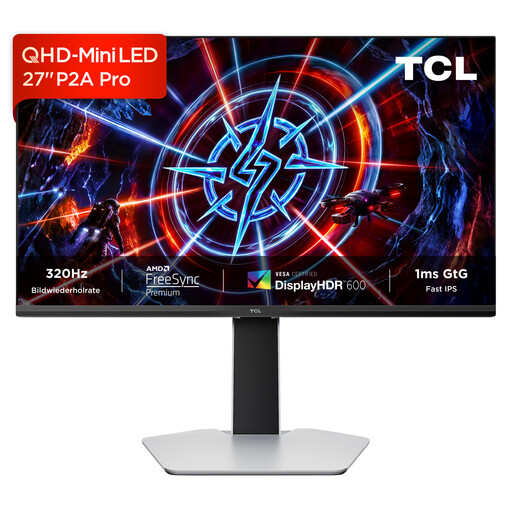
TCL 27P2A Pro 27-inch Mini LED monitor
The QHD format could suit a workstation where you want to arrange portal views and other work windows on a 27-inch screen.
The product specifications list 2560 × 1440 pixels, Mini LED and 320 Hz. The stand is described as adjustable in multiple directions.
View at Joybuy
 No image available
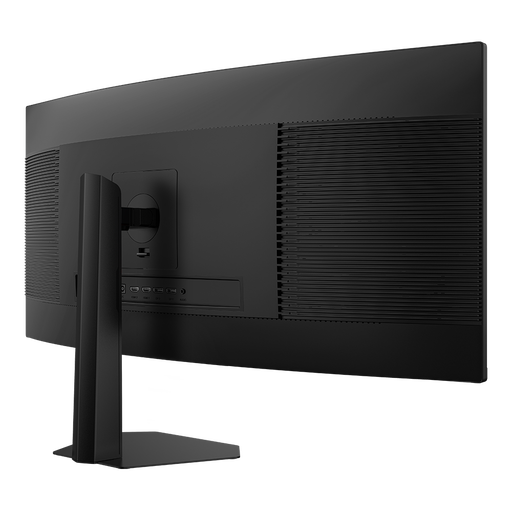
INNOCN E34A1R 34-inch curved ultrawide monitor
The 34-inch ultrawide format is worth considering if you want to arrange several work items side by side across a wide screen; check that it fits your desk.
The product description lists 3440 × 1440 pixels, UWQHD, a 21:9 aspect ratio, and PIP and PBP modes. The stand can be adjusted for height, tilt and swivel.
View at Joybuy
 No image available
INNOCN 2751S PLUS 27-inch Mini LED monitor
A 27-inch QHD model could suit your workflow if you want to work with code and previews on one screen.
The product specifications list 2560 × 1440 pixels, IPS and 1,152 Mini LED zones. The product description says the height-adjustable stand can also be tilted and swivelled.
View at Joybuy
Frequently asked questions
Do I need a particularly large monitor to check mobile portal views?
No. Responsive CSS takes account of factors including viewport width, which you can vary in your browser. Chrome for Developers describes device mode as an approximation; if needed, also test important interactions on a real mobile device.
What should I check before connecting a USB-C monitor?
Check whether your laptop outputs a video signal through the port you plan to use and whether the charging power is suitable for your device. BenQ lists 65 W Power Delivery for the PD2705U, while ASUS lists 96 W for the PA279CRV; compare these manufacturer specifications with your laptop’s requirements.
How should I set up my monitor for longer work sessions?
Adjust the screen position and text size so that text is easy to read from your usual viewing distance. Check the adjustment options and any distracting reflections at your actual workstation; ASR A6 concerns the use of display screen equipment in the workplace and is not a blanket requirement for buying a monitor for personal use.
Which energy information and rights matter when buying a monitor in Germany?
According to the European Commission, electronic displays covered by EU labelling requirements must carry an energy label with an efficiency scale from A to G. For consumer purchases, statutory rights relating to faulty goods are separate from a voluntary guarantee. The Verbraucherzentrale also notes that many online consumer purchases generally come with a 14-day right to cancel; the conditions and deadlines for the specific purchase apply.


