For poster design beside a bright window, an anti-glare monitor is only part of the solution. Position your workstation as parallel to the window as possible and limit distracting light; the German Social Accident Insurance (DGUV) recommends this setup. A high brightness figure alone does not guarantee good visibility in direct sunlight. For printed posters, you also need a print-matched colour workflow with soft proofing under defined lighting and ambient conditions, as Fogra explains. For digital-only designs, screen real estate, colour modes and notebook connections may matter more.
Who this monitor comparison is for
Poster designers working by a window
If you regularly work in bright daylight, you’ll need to consider reflections and glare. The DGUV recommends positioning your screen so that you look parallel to the window; blinds and the placement of your workstation also play a part.
Designers creating print posters
When assessing print colours, you need more than just a monitor: a suitable soft-proofing workflow and appropriate lighting and ambient conditions are also important. Fogra describes soft proofing as a simulation of a specific print condition under these conditions.
Layout designers using a notebook
If you want to keep your design and tools in view at the same time, compare screen space, resolution and adjustability. Also check that the monitor’s video output and charging capabilities are compatible with your notebook.
What to look for when buying
First decide whether window glare or assessing printed colours is the bigger obstacle to your workflow. Then compare screen space and notebook connectivity to suit your workspace and equipment.
| Buying criterion |
What to check |
Who it matters most to |
| Glare by the window |
Matte or anti-glare finish; typical brightness rather than HDR peak brightness; room to position the monitor suitably and add blinds. |
If I design in daylight, I want to limit reflections and position the screen appropriately. Around 36% of consumers put glare protection first. |
| Assessing print colours |
Print process and output profile; suitable colour modes, calibration and controllable ambient lighting. |
If I’m assessing posters for a specific print output, I want to check colours using the right workflow rather than relying on a colour-gamut figure alone. Around 29% of consumers prioritise print colour assessment. |
| Space for your layout |
Screen size and native resolution; the stand’s footprint and adjustment options. |
For my design, I want to see details and tool palettes at the same time, so I check the resolution and space required. Around 21% of consumers prioritise available layout space. |
| Notebook connectivity |
Video output and a compatible cable; check the monitor’s Power Delivery rating against the charging power you need. |
If I work on a notebook, I need a connection that can handle both video and power. Around 14% of consumers name notebook connectivity as their top priority. |
Common mistakes when buying a monitor
-
Confusing HDR peak brightness with typical brightness or sunlight readability
For the ASUS PA279CRV, the manufacturer distinguishes between an HDR peak brightness of 400 cd/m² and a typical brightness of 350 cd/m². Neither figure alone tells you how easy the screen will be to see in direct sunlight by your own window.
Compare brightness figures measured on the same basis, and factor in the monitor’s position and suitable blinds.
-
Assuming a wide colour gamut is enough for accurate soft proofing
Fogra describes soft proofing as a simulation of a specific print condition under suitable lighting and ambient conditions. A colour-gamut figure alone therefore doesn’t prove that you can assess a print file reliably in changing light from a window.
First establish the print process, output profile and viewing light. Additional calibration features are most relevant when your workflow actually uses them.
-
Assuming USB-C automatically provides enough power for your notebook
The Power Delivery output specified by the manufacturer varies by model. A USB-C port alone doesn’t confirm that video transmission and your notebook’s charging requirements are both covered.
Check the video output, cable and wattage required against the specifications for your particular notebook and monitor.
Key brands at a glance
ASUS
The ProArt range includes models for creative work; the details below refer to the PA279CRV.
- ASUS lists an anti-glare finish, 350 cd/m² typical brightness, AdobeRGB and sRGB modes, and 96 W USB-C Power Delivery.
- These manufacturer specifications don’t prove that the screen will be easy to see in direct sunlight or that it supports a colour-accurate print workflow.
BenQ
According to the manufacturer, the Creative Pro PD2732U combines a matte finish with colour-gamut and notebook connectivity specifications.
- BenQ lists 400 nits typical brightness, 99% Adobe RGB, a Nano Matte coating, and Thunderbolt 4 with 90 W Power Delivery.
- Whether it’s sufficiently glare-free by your own window still depends on the light and how your workspace is set up.
EIZO
The ColorEdge CS2740 is aimed at users who incorporate colour assessment and hardware calibration into their workflow.
- EIZO lists AdobeRGB and sRGB presets, as well as hardware calibration for brightness, white point and gamma.
- According to EIZO, maximum typical brightness is 350 cd/m². USB-C power output is rated at up to 60 W, so check that it’s suitable for your notebook.
ViewSonic
The ColorPro VP2786-4K is worth considering if you’re looking for a shading hood and an integrated calibration sensor.
- ViewSonic lists a matte finish, 350 cd/m² brightness, an integrated sensor and a folding shading hood.
- The manufacturer’s soft-proofing specifications don’t guarantee results for every print process or window-lighting condition.
Dell
The UltraSharp U2725QE is a 27-inch 4K alternative with an anti-glare finish and Thunderbolt hub features.
- For this model, Dell lists an anti-glare finish, IPS Black technology and a Thunderbolt hub.
- These features don’t prove that the monitor can be used to assess poster prints with colour accuracy; check the colour workflow and connections separately.
Joybuy product selection
This selection includes models with a matte or anti-glare finish, as well as monitors with stated colour-gamut and connectivity specifications for layout and notebook work.
 No image available
MSI PRO MP273UPDE E6, 27-inch, 4K UHD
The matte finish is useful for designing posters by a window; the product description advises against exposing the display to direct sunlight for extended periods.
27 inches; 3,840 × 2,160 pixels; 10-bit colour depth; sRGB preset; height-adjustable stand with swivel and pivot.
View product at Joybuy
 No image available
INNOCN 40C1U, 40-inch, 5K
The large stated screen area is useful for wide poster layouts with lots of detail; check that it suits your desk and viewing distance.
40 inches; 5,120 × 2,160 pixels; Adobe RGB coverage; Delta E < 2; matte finish; USB-C Power Delivery at 65 W.
View product at Joybuy
 No image available
INNOCN CB27U1, 27-inch, 4K UHD
The stated colour specifications are relevant for colour-critical designs; check them against your specific print and soft-proofing workflow.
27 inches; 3,840 × 2,160 pixels; 99% Adobe RGB; Delta E < 1; non-glare finish; USB-C Power Delivery at 90 W.
View product at Joybuy
 No image available
MSI MPG 322URXDE QD-OLED, 32-inch, 4K UHD
Screen size and resolution are important for poster layouts with a larger work area; the stated colour-gamut figures are no substitute for a soft-proofing workflow.
32 inches; 3,840 × 2,160 pixels; 98% Adobe RGB; 99% DCI-P3; anti-glare finish; USB-C Power Delivery at 98 W.
View product at Joybuy
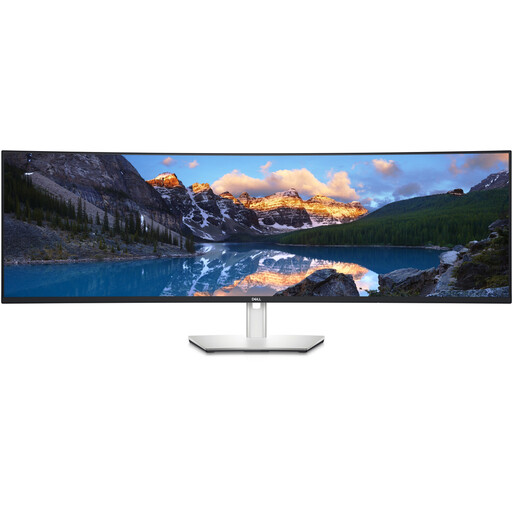 No image available
Dell UltraSharp U4924DW, 49-inch, 5K Dual QHD
The screen area is useful for very wide layouts with several workspaces; make sure you have enough desk depth and a sturdy surface to support it.
49 inches; 5,120 × 1,440 pixels; 98% DCI-P3; USB-C Power Delivery at 90 W; USB hub; height-adjustable stand with tilt and swivel.
View product at Joybuy
Frequently asked questions
Will an especially bright monitor prevent glare from a window?
No. A brightness figure is no substitute for controlling the light coming in. The DGUV recommends positioning yourself so that you look as parallel to the window as possible when using a screen. If needed, add blinds and choose a low-reflection finish.
How should I set up my monitor to assess a printed poster?
First, define the print condition and colour workflow. Fogra describes soft proofing as a simulation of a specific print condition under suitable lighting and ambient conditions, so don’t assess colours based on an AdobeRGB percentage alone.
What should I check before connecting my notebook?
Check your notebook’s video output, cable and charging requirements against the specifications for the specific monitor. ASUS lists 96 W for the PA279CRV, BenQ 90 W for the PD2732U, and EIZO up to 60 W Power Delivery for the CS2740. These manufacturer figures need to be suitable for your notebook.
What ongoing costs and consumer rights should I be aware of in Germany?
To compare energy consumption, you can check the EU energy label for electronic displays; the European Commission describes a scale from A to G. For purchases of consumer goods, statutory rights against the seller are separate from a voluntary guarantee. The consumer advice centre generally states that the statutory warranty period is two years. For sales contracts from 31 July 2026, it also describes a one-off 12-month extension if you choose a repair when a fault occurs.


