Editing photos by a window
If you edit product photos in bright or changing daylight, assess reflections at your own workstation rather than relying solely on the monitor’s brightness rating.


Position your monitor so that direct light from the window doesn’t fall on the screen. A matte finish or monitor hood can also help, but neither replaces controlling the ambient light. Choose a colour space to suit your web or print output, and plan to calibrate and profile your display for colour-critical work. Only then should resolution, connections and available space tip the balance.
If you edit product photos in bright or changing daylight, assess reflections at your own workstation rather than relying solely on the monitor’s brightness rating.
For printed product materials or client approvals, a colour workflow you can control matters more than a display that simply makes colours look vivid.
If you mainly create digital product images, look for a suitable colour mode, a practical working area and connections that are compatible with your computer.
Start by checking the light and monitor position, then consider the colour workflow for your output, followed by connections and space requirements.
| Buying priority | What to check | Who it matters most to |
|---|---|---|
| Reflections and window light | Window position and sun protection; a matte or anti-glare finish and, if needed, a hood and the space it requires. | If I need to assess dark areas of an image, I want to limit distracting reflections at my workstation. Around 36% of consumers put controlling reflections first. |
| Print colours and client approvals | Required colour space, calibration method, profiling and, if needed, a separate measuring device. | If product images are printed or submitted for approval, I need a reliable colour workflow, not just colours that look vivid. Around 29% of consumers prioritise colour control for print and approvals. |
| Colour mode and workspace for web images | A colour mode suited to your digital output, along with screen size, resolution and preferred scaling. | If I mainly edit product images for the web, I want to work with image details and tools clearly laid out. Around 21% of consumers put their web image workflow first. |
| Connections and desk space | Video output and the laptop’s required charging power, suitable cables, and the depth with the stand or hood fitted. | If my desk by the window has limited space or I want to connect my laptop through the monitor, the setup and connections need to work together. Around 14% of consumers prioritise connections and space requirements. |
A high brightness rating alone won’t solve reflections or changing light conditions. The German Federal Institute for Occupational Safety and Health considers glare protection relevant even with modern screen technology. For objective colour settings, Adobe recommends using a colour measurement device. Your output colour space, calibration and viewing light therefore all need to be considered together.
Peak HDR brightness is not the same as typical brightness in normal editing mode. Even a bright screen won’t automatically prevent reflections from direct or changing daylight.
Start by checking the monitor’s position and the light falling on it. Then compare the figures for typical brightness and screen finish.
A stated colour gamut coverage alone doesn’t prove that colours can be assessed reliably for print or client approvals. Calibration, profiling and viewing light matter too.
First decide on your output, then check which calibration and profile you’ll need. Adobe identifies a colour measurement device as a way to achieve objective colour settings.
You may need a separate colour measurement device for calibration; Adobe describes a colorimeter as one such device.
The depth required can vary depending on how the monitor is set up. BenQ lists different depths for the SW272U with and without its hood.
Measure the available space with the stand and, if you plan to use one, the hood fitted.
Whether video and power can both be delivered over one cable depends on the monitor’s specifications and the features of your particular laptop.
Before buying, compare your computer’s video output, its required charging power and the cables you’ll need.
The PhotoVue and Creative Pro models cater for different photo and digital workflows, with features varying by model.
The ProArt PA279CRV is a 27-inch 4K option with an anti-glare finish and features for creative workflows.
The ColorEdge range is designed, among other things, for workflows where regular colour checks and hardware calibration are important.
The Studio Display is a 27-inch 5K option for a P3 workflow with a compatible Mac.
The following Joybuy products are monitors for editing product photos. Specifications for finish, resolution, colour mode and connections vary by model.
 No image available
An option if you want to check product details in 4K and adjust the monitor’s position at your workstation.
Specifications list a matte finish, an sRGB picture mode and 10-bit colour depth. HDMI, DisplayPort and a height-adjustable stand with pivot functionality are also listed.
 No image available
An option if you’re looking for an anti-glare finish and connections for a compatible laptop in a 27-inch 4K monitor.
Specifications list a NON-GLARE finish, Adobe RGB 99% and DeltaE < 1. USB-C with Power Delivery, HDMI 2.1, DisplayPort 1.4 and a height-adjustable stand are also listed. Check video and charging compatibility with your computer.
 No image available
An option if you’re considering a 27-inch monitor with the listed 4K and FHD picture modes and flexible positioning.
The product name lists 4K at 160 Hz and FHD at 320 Hz. Specifications also include Type-C with 65 W, a KVM switch and a stand with tilt, swivel and height adjustment.
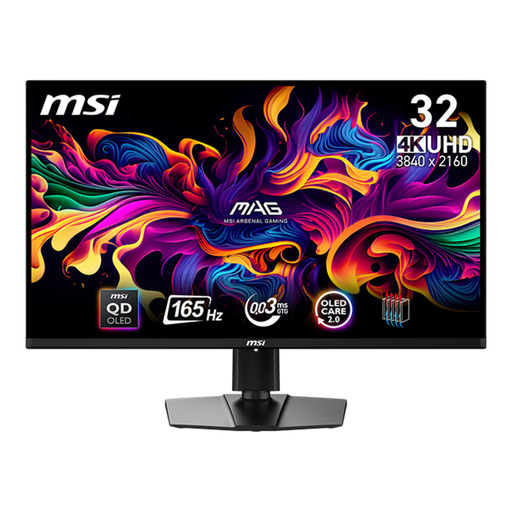 No image available
An option if you want a larger 4K workspace for editing images and an explicitly stated anti-glare finish.
Specifications list 10-bit colour depth, as well as HDMI 2.1, DisplayPort 1.4 and USB-C. Height adjustment, pivot and swivel functions are also listed.
 No image available
An option if you want to keep your image and editing tools side by side across a wide workspace.
Specifications list an IPS panel, a matte finish, 100 Hz and sRGB 99%. Adobe RGB coverage is listed as 87% (1931) or 91% (1976), so check whether this is suitable for your print workflow. USB-C with 65 W and a height-adjustable stand are also listed.
No. A high brightness rating alone won’t prevent reflections or changing light conditions. Check the monitor’s position and limit distracting light; a suitable finish or hood can provide extra help.
Keep the light as consistent as possible when assessing images and avoid direct light falling on the screen. Adobe recommends a colour measurement device for objective colour settings; choose a colour mode and profile to suit your output.
Check whether your calibration setup requires a separate measuring device, and compare power consumption using the EU energy label. In Germany, if a new device is faulty, you generally have statutory rights against the seller; the Verbraucherzentrale says these last for two years from delivery or receipt. A voluntary manufacturer’s guarantee is separate.
Yes. The European Commission generally includes computer monitors within the scope of EU energy labelling for electronic displays, although some special categories are exempt. The label shows, among other things, an efficiency class on a scale from A to G.
For online purchases by consumers in Germany, you generally have a 14-day right to cancel after receiving the goods. You must notify the retailer that you wish to cancel. Check the terms of your particular purchase, and distinguish this right from a voluntary manufacturer’s guarantee.