Online shop photo editors
If you mainly edit product images for digital viewing, a suitable sRGB workflow is important. The International Color Consortium describes calibration and profiling as complementary steps.


For product images intended mainly for online use, a suitable sRGB workflow matters more than the highest possible Adobe RGB figure. For print, the right colour space, calibration, profiling and soft proofing all matter. The International Color Consortium describes calibration and profiling as complementary steps. If you work from a laptop, also check that the specific monitor’s connections support image transmission and provide the charging power you need. A manufacturer’s colour-space coverage figure alone does not prove that your particular unit is colour-accurate.
If you mainly edit product images for digital viewing, a suitable sRGB workflow is important. The International Color Consortium describes calibration and profiling as complementary steps.
For catalogues, packaging and other printed materials, you need the right colour space and a coordinated calibration, profiling and soft-proofing workflow. Choosing the right colour-space specification alone does not tell you exactly how a particular print will look.
If you switch between photo editing and office tasks, check that image transmission and charging power meet your laptop’s requirements. The screen’s adjustable position should also suit your workspace.
Start by deciding how you’ll use the finished images. The International Color Consortium describes calibration and profiling as complementary steps; after that, consider resolution, workspace and connections.
| What to consider | What to look for | Who it matters most to |
|---|---|---|
| Assessing digital colour | Check for an sRGB mode and options for calibration and profiling. | If your product images will mainly appear in your shop and on other screens, you’ll want to assess colours using a suitable sRGB workflow. Around 33 % of consumers list digital colour assessment as their main concern. |
| Preparing images for print | Check the Adobe RGB specification for the specific model, its calibration method and the sensor you’ll need, as well as the available print profiles. | If you also prepare images for catalogues or packaging, you’ll need a suitable colour-management and soft-proofing workflow. Around 27 % of consumers list print preparation as their main concern. |
| Image detail and workspace | Compare the screen size, native resolution, dimensions and adjustability with your desk. | When retouching, you’ll want to assess fine image details and keep tool windows comfortably arranged on your desk. Around 20 % of consumers put checking image detail first. |
| Laptop and connections | Check video support on your laptop’s port, the charging power you need and whether the connection is suitable. | If you often use the monitor with a laptop, the connection should support image transmission and, where needed, power delivery for your device. Around 20 % of consumers list laptop and workspace integration as their main concern. |
A colour-space coverage figure is no substitute for calibration or a display profile that suits your intended output. For print work, your soft-proofing workflow must also match the process you plan to use.
Compare colour space and calibration method separately. For print work, also check which profiles and settings are needed for the soft-proof preview.
Depending on the model, a calibration sensor may be an optional extra; profiling also takes time to set up.
The International Color Consortium lists sRGB as one option for images mainly viewed on the web. A wider colour space is not automatically the deciding factor if your images are mostly for digital use.
Decide how you’ll use the images first and check whether you can select a suitable sRGB mode. Also consider colour management and profiling in your software.
Power delivery varies by model, and the stated figure alone does not tell you whether your laptop can receive both an image signal and enough power through the same connection.
Check that your laptop’s port supports video and that the monitor can provide the power your device needs.
Depending on your laptop, you may still need a separate power adapter.
The ProArt range is worth considering for photo editing and working from home. The details below apply to specific models, not the brand as a whole.
The SW272U and PD2732U cater to different approaches to photography, print and laptop-based work.
The ColorEdge CS2740 is worth considering for colour-critical photo editing, with a wide colour space and hardware calibration.
The UltraSharp U2725QE is an option if 27-inch 4K display, adjustability and a Thunderbolt hub are important for your home office.
The ColorPro VP2786-4K is another option for photo editing and print previews.
The Joybuy products below include 4K monitors for checking image detail, as well as models suited to digital image output or print preparation. Check the colour space, calibration features and connections of each specific model against your workflow.
 No image available
The stated 4K UHD resolution may be useful when checking the fine detail in product images.
32 inches, OLED, 3840 × 2160 pixels.
 No image available
This model is listed under print preparation. Check which colour-management and calibration features your specific workflow requires.
27 inches, UHD 160 Hz or FHD 320 Hz, Mini-LED, Rapid IPS.
 No image available
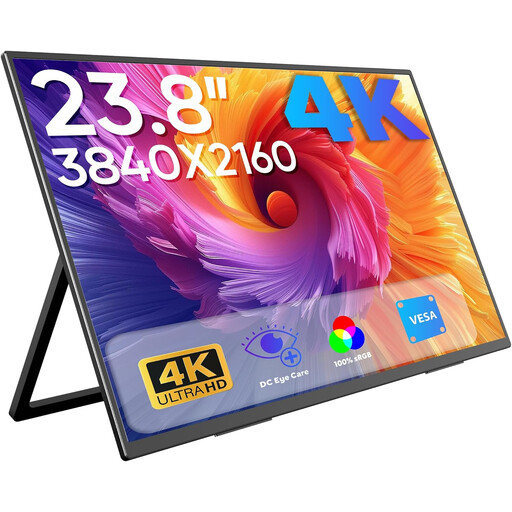
The stated sRGB coverage suits the digital product image scenario, but make sure it works with your colour-management settings.
23.8 inches, 3840 × 2160 pixels, 60 Hz, 100 % sRGB. Built-in stand, USB-C and Mini-HDMI inputs.
 No image available
This model is listed under digital product images. Check whether its stated sRGB picture mode suits your output and software settings.
27 inches, 4K UHD, IPS, 60 Hz, HDR Ready.
 No image available
This model is listed under print preparation. Compare the stated colour-space figures and calibration requirements with your print workflow.
3840 × 2160 pixels, IPS, 100 % sRGB, 99 % Adobe RGB, USB-C with 90 W Power Delivery, height-adjustable.
No, colour-space coverage alone isn’t enough. The International Color Consortium describes calibration and profiling as complementary steps. For images mainly intended for the web, sRGB may be suitable; for print previews, your soft-proofing workflow must also match the output process.
Choose a colour mode to suit your intended output, then set up calibration and the corresponding display profile. For print work, also check the profiles and settings needed for the soft-proof preview.
Not necessarily. The stated figures vary by model: EIZO lists a maximum of 60 W for the CS2740, ASUS lists 96 W for the PA279CRV, and BenQ lists 90 W via Thunderbolt 4 for the PD2732U. Check your laptop’s charging requirements and port against the specific monitor.
The European Commission classifies computer monitors as electronic displays with an energy label on a scale from A to G. The label covers energy efficiency; check colour space and colour management separately to see whether a monitor is suitable for photo editing.