What matters by a bright window?
The German Social Accident Insurance recommends positioning screen workstations so that your line of sight is parallel to the window front. So consider the monitor and its position together: an anti-glare finish is no substitute for being able to limit unwanted light.
| What matters |
What to check before buying |
Who should consider it? |
| Clarity by a window |
Compare the surface description and typical brightness, rather than looking only at HDR peak brightness. Consider your viewing direction and the sun protection available at your workstation. |
If I need to see grids and small clues in daylight, I want to consider reflections and direct sunlight together. Around 36% of consumers put visibility by a window first. |
| Space for editor panels |
Check the screen size and resolution together with your planned scaling. Also factor in the stand and the space available on your desk. |
If I want the level view, properties and tools open at the same time, I check the usable screen space and readability at my chosen scaling. Around 29% of consumers prioritise space for editor panels. |
| Judging colours |
Choose colour modes to suit your intended output. For the BenQ PD2706U, also check how uniformity compensation affects brightness. |
If I’m colour-correcting puzzle graphics, I choose a colour mode to suit the intended output. Around 21% of consumers prioritise colour accuracy. |
| Connections and positioning |
Compare the video output and charging requirements of your device with the exact model specifications. BenQ lists 90 W for the PD2706U, ASUS 96 W for the PA279CRV and EIZO up to 60 W over USB-C for the CS2740. Also check the stand’s range of movement. |
If I need to connect a laptop to the monitor or position the screen in relation to a window, I check the video connection, charging power and adjustment options. Around 14% of consumers prioritise connections and positioning. |
Monitors for designing puzzle levels by a window
This selection includes monitors with wide screen space for editor panels, as well as 27-inch models and devices with USB-C connections. Compare the resolution, space required and specifications for each model with your window-side workspace and computer.
 No image available
INNOCN 40C1U 40-inch ultrawide monitor
The wide format could suit you if you want to arrange several editor panels side by side. First, check the space available and readability at your chosen scaling.
5K (5120 × 2160), IPS, 100 Hz, 21:9, USB-C with 65 W PD, HDR400 and height-adjustable stand.
View at Joybuy
 No image available
INNOCN CB27U1 27-inch 4K monitor
The 27-inch format could give you space for a level view and tools on one screen. Check that everything remains legible at your preferred scaling, and consider how you can position the screen by the window.
3840 × 2160, IPS, 120 Hz, HDR500, USB-C with 90 W PD, height-adjustable stand.
View at Joybuy
 No image available
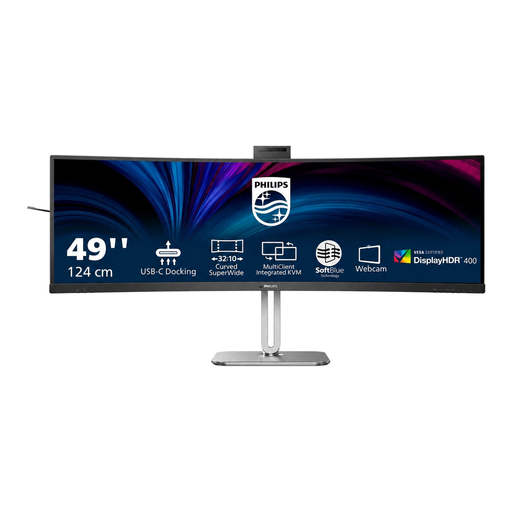
Philips 49B2U6900CH 49-inch curved monitor
The wide format could be useful for several editor windows side by side. Measure the space available and check that your layout will be easy to read at your chosen scaling.
5120 × 1440, 32:9, VA, 75 Hz, 450 cd/m², USB-C with 100 W Power Delivery.
View at Joybuy
 No image available
Philips 276B9 27-inch QHD monitor
The adjustable stand can be handy if you want to change the screen’s position by a window. Bear in mind that at 27 inches, QHD gives you fewer pixels to work with than a 4K model of the same size.
2560 × 1440, IPS, 75 Hz, USB-C with 65 W Power Delivery, 350 cd/m², height-adjustable stand.
View at Joybuy
 No image available
MSI PRO MP275QPDGDE 27-inch WQHD docking monitor
The docking features could suit a workspace with several devices. Check the connections against your computer and make sure WQHD gives you enough room for your editor layout.
27 inches, WQHD, 100 Hz, USB-C with 98 W PD, daisy chain, KVM and built-in webcam.
View at Joybuy
Frequently asked questions
Is an anti-glare finish enough when your workspace is in direct sunlight?
No, it does not guarantee a clear picture in direct sunlight. First, check your viewing direction and adjustable sun protection. The German Social Accident Insurance recommends positioning your screen so that your line of sight is parallel to the window front, and advises taking incoming light into account.
How should I set up a monitor for a puzzle level with lots of tool windows?
Arrange the level view and the tool panels you actually need in your software, then check that labels remain legible at your chosen scaling. Godot Engine documentation covers layers and tools for TileMaps; the Unreal Level Editor includes viewports, the Outliner and Details, among other panels. This does not mean there is one screen size required for every project.
Can I connect and charge my laptop with one USB-C cable?
Only if your laptop’s connection supports the video output you need and the monitor’s charging power is suitable for your device. Manufacturers list 90 W for the BenQ PD2706U, 96 W for the ASUS PA279CRV and up to 60 W for the EIZO CS2740; these model specifications do not confirm compatibility with your laptop.
What should I know about returns, faults and electricity costs when buying online in Germany?
According to Verbraucherzentrale, most online consumer purchases come with a 14-day right to cancel. Your statutory rights against the seller are separate from any voluntary guarantee. To estimate electricity costs, you can use the energy label for the specific monitor alongside your expected usage. The brightness figure alone is not enough.
Does German workplace health and safety law require every buyer to choose a particular monitor brightness?
No, it does not set a single brightness level for private buyers. ASR A6 sets out requirements for screen workstations and teleworking locations within its scope; according to the Federal Institute for Occupational Safety and Health, it does not generally apply to private use. For a workstation covered by the rules, glare and positioning should be assessed as part of the workstation design.


