People who work with texts and worksheets
When preparing reading exercises, you’ll want both the template and worksheet to be easy to read at a comfortable text size. Think about how much screen space you need for documents open at the same time.


For reading practice at a shared desk, choose the screen size and resolution based on whether you usually view one document or a template and worksheet side by side. A compact Full HD monitor takes up less space, while QHD or 4K models offer more pixels for documents on larger screens. If the monitor will be used by different people, you’ll also need a suitable screen position and connections that work with every computer in use.
When preparing reading exercises, you’ll want both the template and worksheet to be easy to read at a comfortable text size. Think about how much screen space you need for documents open at the same time.
If several people use the same desk, the screen should be easy to adjust for different seating positions. Check that the connections are also compatible with the computers each person uses.
If you need room for papers alongside your monitor, its footprint matters. A more compact display gives you less space for viewing documents at the same time than a larger model.
First, check that the text size and screen area suit the way you view your documents. Then consider adjustments for different seating positions, computer connections and how much desk space the monitor needs.
| What matters | What to check before buying | Who it matters most to |
|---|---|---|
| Readability and document viewing | Consider the resolution and screen size together; try out text scaling and window layouts. | If I want to work on a template and worksheet side by side, I need enough screen space and a comfortable, readable text size. Around 29% of consumers prioritise readability and viewing multiple documents at once. |
| Adjusting for different users | Check the height and tilt adjustment, as well as the space needed for the stand. | If several people use the desk, I want to be able to adjust the screen to suit my sitting position. Around 29% of consumers prioritise adjustability for different users. |
| Switching between computers | Check the video output on each computer; for USB-C, also confirm video support and charging requirements. | If different computers are connected at a shared desk, I want to be able to switch between them without unnecessary hassle. Around 24% of consumers focus on compatible connections and switching between computers. |
| Keeping desk space free | Measure the width and depth, including the stand or monitor arm. | If I need room for paper and other work materials beside the monitor, its setup mustn’t take up too much space. Around 18% of consumers put available desk space first. |
Resolution tells you the number of pixels, not whether the text will be a comfortable size for you to read.
Try your usual text scaling and window layout, taking into account your viewing distance and screen position.
Video output and charging power need to be compatible with the computer in question. A USB-C port alone doesn’t confirm that both will work.
For each computer you use, check the video output and, where relevant, the charging requirements against the monitor’s specifications.
If video output or charging power isn’t compatible, you may need extra cables or a different connection setup.
A large display or adjustable arm can leave less room for paper and other work materials.
Measure the available desk width and depth, including the space needed for your chosen setup.
The Pro P2725DE is one example of a 27-inch QHD monitor with a USB-C hub, described as suitable for document work and connecting different laptops.
The FlexScan EV2490 is a compact office monitor with USB-C docking, also described as suitable for a shared desk.
The ProArt PA279CRV is a 27-inch 4K model suited to detailed document views and an adjustable screen position.
The ThinkVision T27h-30 is a 27-inch QHD model with USB-C and several other connections.
The RD320UA is a large 31.5-inch 4K model with a flexible arm. Its focus on programming is only partly relevant to reading practice.
This selection includes monitors for detailed document views, an adjustable 27-inch QHD setup and a more compact Full HD option.
 No image available
This 27-inch 4K model is worth considering if you want to view detailed templates on a larger screen.
Listed in the product name: 27-inch, 4K UHD, IPS, 60 Hz and HDR Ready. Before buying, check that the text scaling and footprint suit your workspace.
 No image available
This 27-inch 4K model could suit you if you want to view several areas of a document in detail.
Listed in the product name: IPS, 3840 × 2160 pixels, 120 Hz, USB-C with 90 W Power Delivery, HDMI, DisplayPort and a height-adjustable stand. Check that USB-C video output and charging power are compatible with your computer.
 No image available
This 27-inch QHD model is an option if you want more pixels for viewing documents side by side than Full HD offers.
Listed in the product name: 2560 × 1440 pixels, 75 Hz, USB-C with 65 W Power Delivery, a USB hub, HDMI and DisplayPort. Check that the connections and charging power are suitable for your computers.
 No image available
This 27-inch docking monitor is worth considering if you want QHD resolution and a range of connection options for a shared workspace.
Listed in the product name: IPS, 100 Hz, USB-C with 98 W Power Delivery, daisy-chain, KVM and an integrated webcam. Check that the listed features suit your computers and workflow.
 No image available
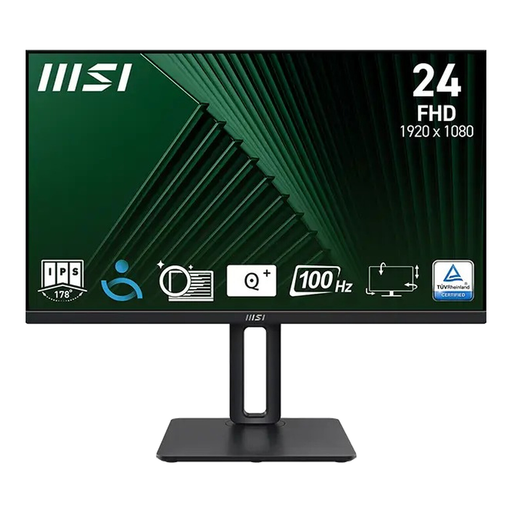
This more compact Full HD model could suit you if desk space is limited and you usually work on one document at a time.
Listed in the product name: IPS, 100 Hz, a height-adjustable stand and Adaptive Sync. At 23.8 inches and Full HD, it has fewer pixels for viewing multiple areas of a document at once than the QHD and 4K models considered here.
Base your choice on your preferred text size and how many documents you want to see at once. The models considered range from 23.8-inch Full HD to 27-inch 4K. If you choose a higher resolution, try adjusting the text scaling rather than comparing pixel counts alone.
Readjust the screen position whenever someone else takes over, and make sure there’s enough room for the monitor and paperwork. For screen-based work in workplaces and home offices, ASR A6 sets out relevant requirements; these don’t apply as a general rule to private use.
No. Check that the computer supports video output and confirm its charging requirements. EIZO lists DisplayPort Alt Mode and up to 70 W for the EV2490; ASUS specifies 96 W Power Delivery for the PA279CRV. These figures don’t replace checking that the connection is compatible with your laptop.
For a consumer purchase in the EU, you have a minimum statutory period of two years from receiving the goods to make a claim against the seller for faults, as explained by Your Europe. This is separate from a voluntary manufacturer’s warranty. Most online consumer purchases also come with a 14-day right to cancel, although the Verbraucherzentrale (German consumer advice centre) notes that exceptions may apply.
Take a monitor that’s no longer in use to an authorised collection point, such as a local council recycling centre. The German Federal Environment Ministry also lists manufacturers and retailers as possible return points. The specific return options depend on the applicable conditions.