Choose a monitor with enough usable space for your code and website preview to remain legible at your preferred scaling. Then check the connections and adjustability. A larger display or more native pixels can give you more room to work, but Google describes device simulation in Chrome DevTools as only a first approximation of a real mobile device.
Which monitor is right for you?
Developers working with code and previews
If you’re editing rehearsal schedules and choir content, a suitably sized workspace can help you keep your editor and preview in view at the same time. BenQ, Philips and ASUS models vary in size and resolution. Check for yourself how much space remains legible at your chosen scaling.
Anyone checking responsive layouts
If you switch between narrow and wide views, you can use Chrome DevTools to simulate different viewports. Google points out that Device Mode is only a first approximation of how a page appears on a mobile device.
Laptop users with a fixed workstation
If you want to connect your laptop to a monitor, compare the video connection you need and, where relevant, the charging power with the specifications for the particular model. BenQ, Philips and EIZO offer different USB-C features. Also check whether you can adjust the screen to suit your workspace.
What should you look for?
First compare the usable space for your usual windows with the monitor’s dimensions. Then check the connections and how it can be positioned at your workstation.
| Consideration |
What to check when buying |
Who is it most relevant to? |
| Readable space for code and previews |
Compare your editor and preview at your preferred font size; consider the screen size, resolution and overall dimensions. |
If I’m working on a rehearsal schedule, choir content and a preview side by side, I need enough room at my chosen font size. Around 36% of consumers put readable space for code and previews first. |
| Checking responsive views |
Check that there’s room for your editor and a resizable browser preview; also plan to test on a real mobile device. |
When I’m checking line breaks in narrow and wide views, I want to be able to change the viewport width easily. Around 29% of consumers prioritise checking responsive layouts. |
| Connecting a laptop |
Match your laptop’s video output to the monitor input; for USB-C, check Alt Mode and the charging power you need. |
When I connect my laptop at a fixed workstation, I want to know whether the connection carries a video signal and provides enough power for charging. Around 21% of consumers put laptop connectivity first. |
| Positioning the screen |
Measure the width and depth of your desk; check the height, tilt and, where relevant, pivot adjustment, as well as readability from your usual seating position. |
If I want to adjust the screen to suit my seating position, I need the right adjustment options and enough desk space. Around 14% of consumers prioritise screen positioning. |
Which assumptions should you avoid?
-
Assuming 4K automatically gives you a more usable workspace
Resolution alone doesn’t tell you how large code and page text will appear at your chosen scaling.
Try your editor and choir rehearsal preview at a font size you’d actually use.
-
Assuming USB-C guarantees a one-cable setup
Both your monitor and laptop need to support the video transmission and, where relevant, the charging power you require.
Check the features of both devices and the cable you plan to use. Depending on the connections, you may also need another cable or an adapter; you might still need a separate laptop power supply.
-
Treating a simulated phone view as a full mobile test
Google describes device simulation in Chrome DevTools as an approximation with limitations.
Use resizable viewports to check layouts, and test important pages on a real mobile device too.
Brands to consider
ASUS
The ProArt PA279CRV is a 27-inch 4K model for workstations where you need defined colour modes as well as space for layout work.
- ASUS lists USB-C with 96 W Power Delivery, plus height and pivot adjustment for this model.
- The advertised colour specifications are manufacturer claims and don’t demonstrate an advantage for text and layout work alone.
BenQ
The RD320UA is a 31.5-inch 4K monitor from BenQ’s programming range, designed for workstations where you want to see several windows at once.
- BenQ lists sRGB and Coding modes, plus USB-C with 90 W, for this model.
- Check that the monitor and arm will fit in the space available. Manufacturer claims about focus or eye strain are not independently verified by this.
Philips
The 27E1N5600AE/00 is a 27-inch QHD option with USB-C for a compatible laptop workstation.
- Philips lists 2,560 × 1,440 pixels and video, data and charging over USB-C for compatible devices.
- QHD has fewer native pixels than the 4K models mentioned; USB-C features depend on your laptop’s compatibility.
EIZO
The FlexScan EV2490 is a more compact office model with docking features, suited to workstations that don’t need a large side-by-side preview.
- EIZO lists the EV2490 as a 23.8-inch Full HD monitor with USB-C docking and up to 70 W power delivery.
- Its lower native resolution may be a drawback when placing several windows side by side; specifications for this model don’t establish the features of other FlexScan models.
LG
The 27UP850K-W is a 27-inch 4K option with USB-C and an adjustable stand.
- LG lists 3,840 × 2,160 pixels and a stand that can be tilted, height-adjusted and swivelled for this model.
- Advertising claims about picture quality or colour accuracy are not an independent measurement of the individual device.
Joybuy monitors for code and previews
These models offer a range of screen sizes and resolutions for working with website code and previews. If you’re connecting a laptop, check that the listed connection features are compatible with your device.
 No image available
INNOCN 40C1U 40-inch ultrawide monitor
For a workstation where you need a large native display area for code and previews.
40 inches; 5,120 × 2,160 pixels; 21:9; IPS; 100 Hz; USB-C with 65 W Power Delivery; height-adjustable stand; PIP and PBP.
View at Joybuy
 No image available
Philips 276B9 27-inch QHD monitor
A QHD option for working with an editor and preview; check that the USB-C features are compatible with your laptop.
27 inches; 2,560 × 1,440 pixels; USB-C with 65 W Power Delivery; height-adjustable stand.
View at Joybuy
 No image available
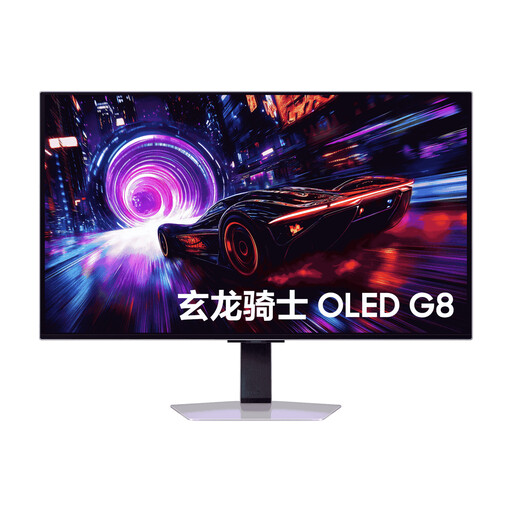
Samsung Odyssey OLED G8 G81SF 32-inch 4K monitor
For a workstation where you want room for code and previews on a large display.
32 inches; 3,840 × 2,160 pixels; QD-OLED.
View at Joybuy
 No image available
MSI PRO MP275QPDGDE 27-inch WQHD docking monitor
For a 27-inch workstation with WQHD and a USB-C connection whose features need to match your laptop.
27 inches; 2,560 × 1,440 pixels; USB-C with 98 W Power Delivery; 100 Hz; KVM; daisy chain; integrated webcam.
View at Joybuy
Frequently asked questions
Is a large monitor enough to sign off the mobile view of the choir rehearsal website?
No. You can use Chrome DevTools to check viewport sizes and media queries. Google describes Device Mode as a first approximation and recommends testing on a real mobile device if you’re unsure.
How should I set up my monitor for extended work on the rehearsal schedule?
Adjust the position, text size and lighting so that content is legible from your actual seated distance. The German Federal Institute for Occupational Safety and Health explains requirements for screen work within its scope under ASR A6; these don’t apply automatically to every private hobby workspace.
What should I bear in mind about power consumption and faults?
Compare the EU energy label and product specifications for the specific models you’re considering. The European Commission describes the energy label for electronic displays on a scale from A to G. If a product is faulty, distinguish your statutory rights against the seller from a voluntary manufacturer’s guarantee, as explained by the Verbraucherzentrale.


