Start by choosing a screen size where your code, design and preview remain easy to read at your preferred scaling. Whether a 27-inch 4K or QHD model is right for you depends on which views you need to see at the same time. For responsive layouts, test a range of viewport widths and check key user journeys on a real mobile device too: Chrome describes device emulation as an approximation, not a substitute. Colour mode, adjustability and USB-C features need to suit the specific model and your computer.
Which monitor is right for you?
Developers working with code and previews
If you often switch between your editor, browser and different viewport widths, everything should remain easy to read at your usual font size and scaling. A large screen alone cannot test mobile user journeys. MDN Web Docs describes responsive web design for different screen sizes, while Chrome for Developers points out that device emulation is only an approximation.
Designers working with images
For auction images and interface colours, the right colour mode and clear previews matter. Information about sRGB and calibration applies to specific models and comes from manufacturers; it is not based on independent testing.
Laptop users with a permanent workstation
For convenient connectivity and a comfortable screen position, video transmission, charging power and adjustability need to suit your laptop and workspace. Check these features against the exact monitor and computer model.
What should you look for when buying?
Start with a layout where your editor, browser and preview are easy to read at your usual scaling. Then decide whether colour mode, workspace adjustability or laptop connections are essential to the way you work.
27-inch 4K with design modes
A good fit if: Alongside code, you often work on auction images or fine design details, and everything remains easy to read at your preferred scaling.
Trade-off: More pixels are no substitute for the right colour workflow or testing on mobile devices.
27-inch QHD
A good fit if: You mainly write code and want desktop space for your editor and preview, without needing 4K.
Trade-off: QHD displays fewer pixels than 4K. Font size and window layout affect how well you can use the available space.
4K monitor with USB-C docking
A good fit if: You regularly connect a laptop and it supports the USB-C video transmission you need.
Trade-off: Docking features are only useful if they suit your computer and connectivity needs. Device emulation is still only an approximation of testing on a mobile device.
| Consideration |
What to check before buying |
Who it matters most to |
| Clear, usable workspace |
Compare screen size, native resolution, space requirements and layout at your preferred scaling. |
If I want to read code, my browser and a preview side by side, I need a layout that works with my font size. That is why around 31% of consumers put a clear, usable workspace first. |
| Colours and image previews |
Check the stated colour mode and the requirements of your image workflow against the exact model. |
If I edit auction images and interface colours, I want to assess how they look using an appropriate colour mode. That is why around 25% of consumers prioritise colour performance. |
| Position at your workstation |
Check height adjustment, tilt, stand dimensions and potential glare at your chosen location. |
If I spend long periods working at a screen, I want to position the monitor and seat to suit one another. That is why around 19% of consumers pay particular attention to workspace adjustability. |
| Laptop connectivity |
Check the supported video mode and required charging power, and compare the data ports you need with the monitor specifications. |
If I connect my laptop at a permanent workstation, video transmission and power supply need to suit my device. That is why around 13% of consumers prioritise laptop connectivity and docking. |
| Cost and energy use |
Compare only the features you need and check the specific model’s entry in the EU EPREL product database. |
If I want to avoid unnecessary features and running costs, I need to weigh up the specifications and energy use of the specific model. That is why around 12% of consumers prioritise keeping costs under control. |
Common misconceptions to avoid
-
Assuming 4K means you can use more window space
Extra pixels only help when working with several windows if text and controls remain easy to read at your chosen scaling.
Assess your editor and preview using your usual font size and scaling, rather than comparing QHD and 4K on pixel count alone.
-
Taking a desktop preview as a complete smartphone test
Chrome for Developers describes device emulation as an approximation of an actual mobile device.
Use variable viewport widths during development and check key user journeys on a real mobile device too.
-
Assuming USB-C will dock your laptop without checking the features
The connector shape alone does not tell you whether the monitor can transmit video or supply enough power to your laptop.
Check your laptop’s specifications, supported video mode and charging requirements against the full monitor model details.
Depending on the combination, you may need a different connection or a separate power supply for your laptop.
Monitor brands to consider
ASUS
The ProArt PA279CRV is a model-specific example of a 27-inch 4K monitor with design features.
- ASUS lists an sRGB mode, 96 W USB-C Power Delivery and height adjustment for the PA279CRV.
- Check that the charging power and connectivity features suit your laptop; these specifications apply to this model.
BenQ
The PD2705U is a 27-inch 4K model with a stated sRGB mode.
- BenQ lists 99% sRGB, plus USB-C with DisplayPort Alt Mode and 65 W Power Delivery.
- Whether 65 W can power your laptop depends on the specific device’s charging needs; colour specifications are provided by the manufacturer.
Dell
The UltraSharp U2724D is a 27-inch QHD option for a desktop workstation with an editor and preview.
- Dell lists a resolution of 2,560 × 1,440 pixels and a height-adjustable stand for this model.
- Do not assume it has USB-C video or charging features just because it belongs to a particular product range; check the ports on the specific model.
EIZO
The FlexScan EV2740X is a 27-inch 4K model with USB-C docking features.
- EIZO lists USB-C video, up to 94 W power delivery and LAN for the EV2740X.
- These features are only relevant if they suit your computer and connectivity needs.
LG
The UltraFine 27UP850K-W is another 27-inch 4K option with USB-C.
- LG lists DCI-P3 coverage and an adjustable stand for this model.
- The model specifications do not prove that the charging power will be sufficient for every laptop or that colour accuracy has been independently measured.
Joybuy products for development and design
This selection of Joybuy products includes 27-inch QHD and 4K monitors for coding, previews and design work at a permanent workstation.
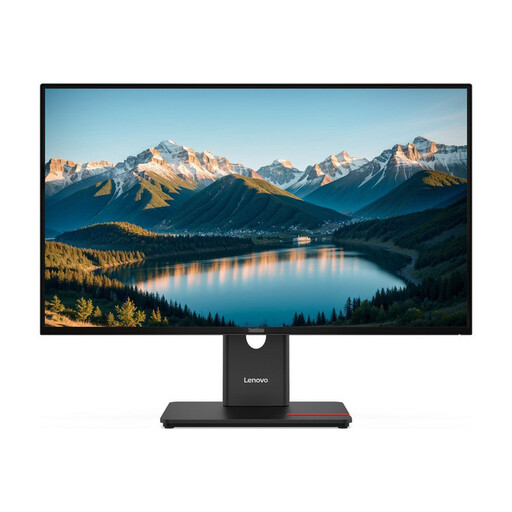 Image unavailable
Lenovo ThinkVision T27Q-40, 27-inch QHD IPS, black
For coding and browser previews on a 27-inch QHD screen.
2,560 × 1,440 pixels; the description states 99% sRGB. The stand is height-adjustable and can tilt, swivel and pivot.
View at Joybuy
 Image unavailable
MSI PRO MP273UPDE E6, 27-inch 4K UHD IPS, 60 Hz
For development and design work with a detailed desktop view.
3,840 × 2,160 pixels; the description lists sRGB picture modes and 10-bit colour depth. The stand is height-adjustable and supports pivot.
View at Joybuy
 Image unavailable
INNOCN CB27U1, 27-inch 4K UHD IPS, 120 Hz
For coding and previews, with space for detailed content. The height-adjustable stand is useful if you need a flexible screen position.
Specifications include 3,840 × 2,160 pixels, HDR500 and USB-C with 90 W Power Delivery. Video transmission and charging require a compatible computer.
View at Joybuy
 Image unavailable
KTC H27D9, 27-inch QHD IPS, 120 Hz
For coding and previews on a 27-inch QHD screen.
2,560 × 1,440 pixels; the product title states 123% sRGB. VESA compatibility is also listed.
View at Joybuy
 Image unavailable
Samsung ViewFinity S7 S70H, 27-inch 4K UHD IPS
For detailed desktop views and image previews.
Specifications include 3,840 × 2,160 pixels and 99% sRGB. The stand described can tilt; check that its adjustment options suit your workspace before buying.
View at Joybuy
Frequently asked questions
Is a large monitor enough to check a mobile auction layout?
No. Check a range of viewport widths using your browser’s developer tools; Chrome for Developers describes device emulation as an approximation. For important mobile user journeys, test on a real mobile device too.
What should I check before using a USB-C monitor with my laptop?
Check your laptop’s supported video output and charging requirements against the specifications for the exact monitor. For example, BenQ lists DisplayPort Alt Mode and 65 W Power Delivery for the PD2705U; the USB-C connector alone does not answer these compatibility questions.
How can I take energy use and warranty cover into account?
Compare the energy use of the specific monitor in the EU EPREL product database. According to information from the European Union, when consumers buy from a business seller, they are entitled to a minimum two-year legal guarantee from the seller. An additional commercial guarantee must not limit these rights. Other types of contract should be considered separately.
Are there specific rules in Germany for display screen workstations?
Workstations covered by the German Workplace Ordinance and ASR A6 must meet requirements for workstation design, which are aimed particularly at employers. Whether a specific workstation is covered depends on how it is set up and used; this does not mean that a particular monitor model is required for all private buyers.


