Illustrator working with lots of references
You want to keep your map, photos and other route references in view at the same time. The key is whether you can arrange your windows effectively on screen.


If you want to view your map, drawing canvas and several templates side by side, start by looking at a wide 21:9 display and how you actually arrange your windows. A 27-inch 4K model may be a better option for checking fine lines and labels. For print-ready artwork, you’ll also need a colour workflow suited to your output, as well as the right connections, scaling and desk space.
You want to keep your map, photos and other route references in view at the same time. The key is whether you can arrange your windows effectively on screen.
You often check small symbols, route lines and labels, and want to prioritise detail over extra screen width.
You prepare illustrations for a specific print process, so alongside screen space and resolution, you need a suitable colour workflow.
| What matters | What to check before buying | Who it matters to |
|---|---|---|
| Space for references | Arrange your windows with text at a comfortable reading size; consider the aspect ratio and the width of your desk. | If I want to see my map, photos and drawing software at the same time, the right window layout matters most. Around 36% of consumers put an overview of their references first. |
| Fine lines and labels | Check the resolution and scaling you want using a typical illustration. | If small route symbols and labels need to be easy to make out, detail matters more to me than extra width. Around 29% of consumers prioritise detail. |
| Colours for print | Decide on your output, then check the colour modes, profiles and, where applicable, calibration options that suit it. | If I’m designing for a specific print process, I want to tailor my colour workflow to that output. Around 21% of consumers put colour workflow first. |
| Connections and setup | Check the video output, charging power required, cables, stand and desk space against the exact model. | If the monitor needs to work with my existing computer and workspace, I check the connections and setup particularly carefully. Around 14% of consumers prioritise how well it fits into their workspace. |
Screen width and vertical resolution are different things. LG lists the 34U650A-B at 3,440 × 1,440 pixels, while the 4K UHD models mentioned here offer 3,840 × 2,160 pixels.
Arrange your usual windows alongside a labelled test illustration, then check whether you need more width or more screen height.
A colour gamut specification alone doesn’t prove that colours will match a particular print process. Adobe recommends setting up a colour management and calibration workflow for colour separations.
First, decide on your output, then check which colour modes, profiles and calibration options are suitable.
Video output and charging power need to be supported by the monitor, laptop port and cable. What’s included can also vary by offer.
Compare your laptop’s requirements with the specifications for the exact monitor model, and check which cable is included.
You may need a suitable cable, depending on the connection you require, and you may still need to use your laptop’s power adapter.
The EU energy label lets you compare energy consumption for specific models. For online purchases, terms and possible return costs may also be relevant.
Check the energy label and the applicable returns policy before ordering.
The 34U650A-B is a 34-inch 21:9 workspace option when you want room to view several references side by side.
The PD2706U is a 27-inch 4K option for detail-focused illustrations and workspaces where USB-C may be useful.
According to ASUS, the ProArt PA279CRV combines a 27-inch 4K display with colour modes and adjustment options.
The ColorEdge CS2740 is an example of a model designed for a defined colour workflow, with calibration options.
The UltraSharp U2725QE is a 27-inch 4K monitor with an integrated hub, suited to a workspace where connectivity is a priority.
The models below are ultrawide monitors for arranging your drawing canvas and references across a wide screen. Check the resolution, aspect ratio and space required against your workspace.
 No image available
If you want to arrange several references beside your drawing canvas, this wide format could work well for your window layout.
49 inches; 5120 × 1440 pixels; 32:9 aspect ratio.
 No image available
If you want to view your drawing software and templates side by side, check whether the 21:9 format suits your window layout.
34 inches; 3440 × 1440 pixels; 21:9 aspect ratio.
 No image available
If you want to combine a wide layout with a high-resolution drawing canvas, compare the format and available desk space with your workspace.
40 inches; 5120 × 2160 pixels; 21:9 aspect ratio.
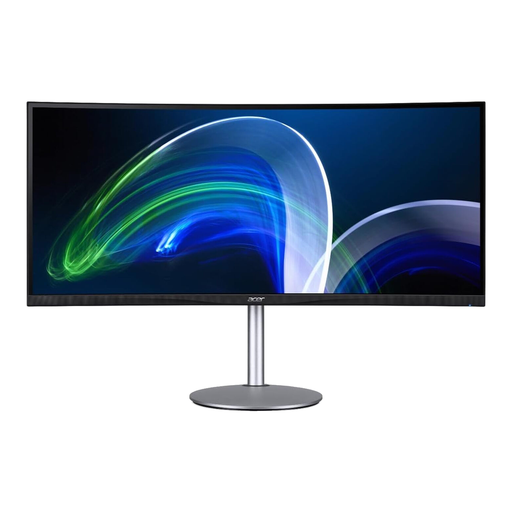 No image available
If you want room for several references alongside your drawing canvas, check whether the screen width and resolution suit your preferred window layout.
37.5 inches; 3840 × 1600 pixels; 21:9 aspect ratio.
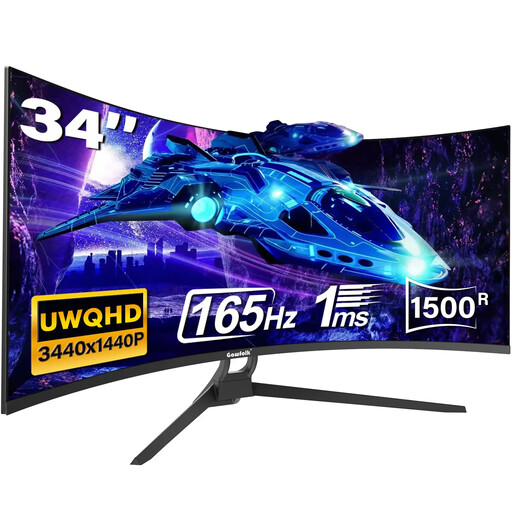 No image available
If you want to position references beside your drawing canvas, the wide aspect ratio may suit your planned window layout.
34 inches; UWQHD; 21:9 aspect ratio.
No. Try arranging your usual windows at a comfortable reading size. LG lists the 34U650A-B at 3,440 × 1,440 pixels, while the 27-inch 4K examples from BenQ and ASUS considered here offer 3,840 × 2,160 pixels. What matters is whether you’re more likely to need extra width or greater detail.
Check the position, adjustment options and potential reflections at your own desk. Germany’s ASR A6 sets out requirements for screen-based workstations in workplaces and teleworking environments; it explicitly excludes personal screen use outside these settings.
Only if the monitor, laptop port and cable support the features you need, and the charging power is suitable for your laptop. BenQ lists DisplayPort Alt Mode and 90 W Power Delivery for the PD2706U; EIZO lists DisplayPort Alt Mode and a maximum of 60 W for the CS2740.
Compare the information on the EU energy labels for the specific models. The European Commission classifies computer monitors as electronic displays, for which the energy label uses a scale from A to G. You can only work out your individual cost by taking your usage time and electricity tariff into account.
For a standard online purchase of goods, you generally have a 14-day right to cancel, starting from delivery; check the terms and any return costs. If the goods are faulty, you also have statutory rights against the seller, with a minimum two-year guarantee in the EU. The European Union’s Your Europe website explains how these rights differ from a voluntary manufacturer’s warranty, which doesn’t replace them.