For fine scan lines and checking your drawing, labels and card layout at the same time, a well-adjustable monitor with plenty of screen space is a good place to start. If you plan to print your flashcards, calibration options and the profile for the specific printing process also matter. Adobe notes that even with colour management set up properly, a print can look different from the vivid image on screen. For cards that will mainly be viewed on screen, you can give more weight to sRGB display, layout space and suitable connections.
Which monitor requirements suit different users?
Illustration from scans
If you’re tidying up scanned lines and combining drawings with text in German to create cards, fine detail and room for your tools are important. Adobe describes scanning graphics in Photoshop as part of a digital import workflow.
Designing printed cards
For colourful flashcards prepared for a specific printing process, it’s important to manage monitor and output profiles consistently and have suitable calibration options. Adobe explains that colour profiles can help coordinate colour display across your monitor, scanner and printer.
Digital cards on a laptop
If your cards will mainly be viewed on screens, you can prioritise sRGB display and an easy laptop connection over print-focused features. Adobe describes an sRGB workflow for online viewing.
What should you look for when choosing?
Digital flashcards
A good fit if: your cards will mainly be viewed on screens and you want to check the scan, card and tools side by side.
Trade-off: An sRGB-focused workflow isn’t a substitute for a calibrated print proof if you decide to print later.
Printed flashcards
A good fit if: you’re judging colours for a particular printing process and can work with its output profile.
Trade-off: Calibration and profile matching require extra setup; a wide colour gamut alone doesn’t guarantee a match with the print.
| Buying priority |
What to check before buying |
Who it matters most to |
| Assessing colours in the original |
Colour modes and calibration options for the exact model; profiles for the scan files and output process. |
If you want to assess colours consistently across the scan, monitor and output, this workflow is essential. Around 33% of consumers prioritise the colours in the original. |
| Viewing the scan and layout |
Resolution and aspect ratio, as well as the monitor’s dimensions; also check whether the software remains easy to read at the scaling you need. |
If you want to check fine lines, labels and card layout at the same time, usable screen space matters. Around 27% of consumers put scan and layout details first. |
| Preparing a print proof |
The print service’s specifications and available output profile; check whether your software supports a soft-proof preview. |
If you’re preparing cards for a specific print run, a wide colour gamut on the spec sheet isn’t enough. Around 27% of consumers prioritise print proofing. |
| Connecting your laptop and workspace |
Check that the USB-C port’s video output and charging power are compatible with your specific laptop; check the base and monitor dimensions against your desk. |
If you plan to use the monitor at a laptop workstation and want to plan your cables and desk space accordingly, connections and dimensions are key. Around 13% of consumers put this first. |
Which buying mistakes can you avoid?
-
Assuming a wide colour gamut guarantees accurate print colours
Scans, monitors and prints can all display the same colour values differently. A monitor with a wide colour gamut and calibration features won’t automatically make your print an exact match for what you see on screen.
First, decide on your intended output and, for printing, check the specifications for the actual process. Set up your preview using its profile.
Profiles, calibration and, where needed, test prints can all add to the setup involved.
-
Choosing based on screen size alone
A 24-inch monitor with a 16:10 aspect ratio and a 27-inch 4K model differ in resolution, aspect ratio and the space they take up. Screen size alone won’t tell you how well the scan and layout will fit on screen together.
Measure your desk and stand, then compare the resolution and aspect ratio with your card layout.
-
Assuming USB-C guarantees a one-cable setup
Video output and charging power need to be compatible with both the monitor and your laptop. A USB-C socket alone doesn’t confirm that your laptop can output a picture through it.
Check the connection specifications for both devices before buying. Depending on the combination, you may need an extra adaptor or a separate power supply.
Which brands are worth considering?
EIZO
The ColorEdge CS2400S is a more compact option for a colour-management-focused workspace.
- EIZO lists a 1920 × 1200 resolution in a 16:10 format, 99% Adobe RGB, hardware calibration and USB-C with up to 70 W for this model.
- Its resolution is lower than that of the 4K models considered here. The manufacturer’s specifications don’t guarantee a match with every printing process.
BenQ
The PhotoVue SW272U combines a larger view of your layout with features for colour-managed editing.
- BenQ lists a 27-inch screen, 3840 × 2160 resolution, 99% Adobe RGB, hardware calibration and USB-C with 90 W for the SW272U.
- These are manufacturer’s specifications, not independent measurements. For printed cards, the specific output profile and the space available remain important.
ASUS
The ProArt PA279CRV is a 27-inch 4K option with selectable colour modes for scan, illustration and layout work.
- ASUS lists 100% sRGB, 99% Adobe RGB, 3840 × 2160 resolution and USB-C Power Delivery up to 96 W for this model.
- The specifications alone don’t demonstrate the actual accuracy in your workspace or guarantee a matched print workflow.
Dell
The S2725QC is a 27-inch 4K all-rounder for digital cards and a mixed laptop workspace.
- Dell lists an IPS panel, 3840 × 2160 resolution and USB-C for the S2725QC.
- These specifications don’t show that it can replace a hardware-calibrated monitor in a colour-critical print workflow.
Monitors for digital flashcards at Joybuy
These product options are aimed at digital flashcards and general illustration work. Compare screen space and connections with your workspace; for colour-critical printed cards, also consider calibration and the output profile.
 No image available
INNOCN 40C1U, 40-inch, 5120 × 2160
The widescreen format can show your scan and card layout side by side, provided you have enough space on your desk.
The product specifications list a 40-inch IPS display with 5120 × 2160 resolution, USB-C with 65 W Power Delivery and a height-adjustable stand.
View at Joybuy
 No image available
INNOCN CB27U1, 27-inch, 4K UHD
The 27-inch screen with 4K resolution is a good option if you want to check scan lines and card layouts in detail.
The product specifications list 3840 × 2160 resolution, an IPS panel, 100% sRGB and USB-C with 90 W Power Delivery. The sRGB figure is a product specification, not an independent measurement.
View at Joybuy
 No image available
ASUS ROG Swift OLED PG32UCDMR, 32-inch, 4K UHD
The 32-inch format gives you room for a larger digital workspace; check that it will fit on your desk before buying.
The product specifications list 3840 × 2160 resolution and USB-C with 90 W Power Delivery. The stated colour gamut coverage is a product specification, not an independent measurement.
View at Joybuy
 No image available
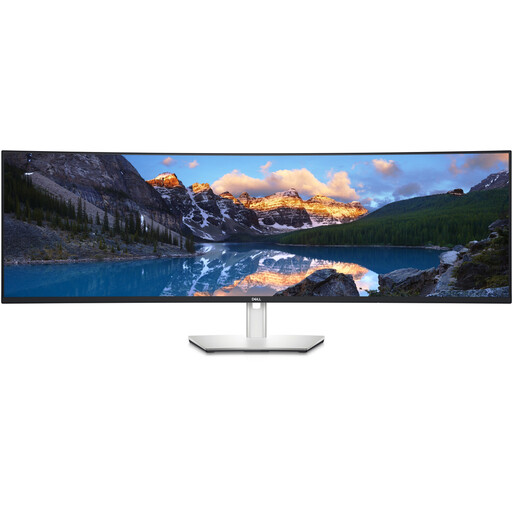
Dell UltraSharp U4924DW, 49-inch, 5120 × 1440
The widescreen display can show your scan and card layout side by side, but it needs plenty of desk space.
The product specifications list a resolution of 5120 × 1440, a 32:9 format and USB-C with 90 W Power Delivery.
View at Joybuy
 No image available
KOORUI MB24V29FS4, 24-inch, Full HD
The 24-inch format is a more compact option for digital cards. For fine scan lines, 1920 × 1080 offers fewer pixels than the 4K options listed here.
The product specifications list an IPS panel, 1920 × 1080 resolution and 99% sRGB. The sRGB figure is a product specification, not an independent measurement.
View at Joybuy
Frequently asked questions
Do I need Adobe RGB for digital flashcards?
No. For online viewing, Adobe describes an sRGB workflow that includes profile conversion. The key is to match your editing process to your output; an Adobe RGB figure on a spec sheet isn’t a reason to buy on its own.
Will a print exactly match a calibrated monitor?
No. A print preview using the correct output profile can help you assess the result, but Adobe notes that even with colour management set up properly, a print will look different from the vivid image on screen.
What should I do if a scan has no embedded colour profile?
First, check the colour settings in your scanning and image-editing software. Don’t assign a profile just because your monitor can display that colour space: the meaning of the colour values depends on the file’s profile.
What should I consider when it comes to running costs?
Check the EU energy label and EPREL information for the specific models you’re considering. Factor in calibration accessories or test prints only if your chosen workflow requires them.
What are my rights when buying a monitor online in Germany?
According to Verbraucherzentrale, consumers who buy online generally have a 14-day right to cancel from the date they receive the goods. Your statutory rights if goods are faulty are separate from any voluntary manufacturer’s warranty; the details depend on the sales contract and the specific circumstances.


