Choose a monitor to suit the way you work. If you mainly create posts using a screen reader and keyboard, accessible editorial software and well-structured content matter more than a particularly large or high-resolution display. If you also use magnification or check layouts visually, test the screen space, reflections, positioning and scaling at your own workstation. Make sure the monitor, cable and computer are compatible when connecting a laptop.
Which monitor setup is right for you?
Editors who rely on screen readers
If you mainly create and check notices using text-to-speech, accessible editorial software and published content should take priority over specialist monitor features. Microsoft describes Narrator as a screen reader, while the Federal Government Accessibility Portal highlights features such as a correct reading order, alternative text and semantic headings.
Editors who also use magnification
If you use magnified text alongside a screen reader, test screen size, reflections and your personal display settings together. Microsoft describes Magnifier as a way to enlarge parts of the display; a larger monitor alone will not automatically make content appear larger.
Teams checking layouts and publishing
If you also check notices visually, work with a preview and editor, or regularly connect a laptop, you’ll need the right connections and a position that suits your workspace. The resolution should work with your preferred text scaling.
What should you consider when choosing?
First, check how accessible your editorial and publishing workflow is. Then decide whether you need magnification or a visual layout preview, and make sure the connections are compatible with your computer.
| Requirement |
What to look for |
Who is this most important for? |
| Accessible editorial workflow |
Test the software you use with a screen reader and keyboard. The Federal Government Accessibility Portal highlights reading order, alternative text and semantic headings. |
If I write posts mainly using text-to-speech, the entire editorial and publishing workflow needs to be accessible. Around 36% of consumers would make this their top priority. |
| Magnified display |
Try Magnifier, scaling and viewing distance in the space where you plan to work. INCOBS points out that a larger monitor does not automatically make content appear bigger. |
If I also use magnification, the display needs to remain readable with my scaling settings and viewing distance. Around 29% of consumers would prioritise a magnified display. |
| Visual layout checks |
Test the editor and preview with your preferred text scaling. Dell Germany and BenQ Germany list 27-inch QHD models, while LG Germany lists a 27-inch 4K model; a higher resolution does not automatically mean larger text. |
If I compare the editor with the finished notice visually, I need a practical preview that remains easy to read at my chosen scaling. Around 21% of consumers would prioritise layout checks. |
| Laptop connection |
Check video output, data transfer, charging requirements and cables with the specific laptop you’ll use. A USB-C port on the monitor alone does not guarantee that every function will work. |
If I regularly switch laptops, I want to check whether a connection can transfer video and data and, if needed, supply power. Around 14% of consumers would prioritise laptop connectivity. |
Common planning pitfalls
-
A monitor won’t automatically make content screen-reader-friendly
A screen cannot replace a correctly structured reading order, alternative text or meaningful headings. The Federal Government Accessibility Portal highlights these elements for screen reader use.
Test the entire process, from writing a post to reading it once published, with the screen reader you actually use.
Checking and updating software or content may require extra time.
-
A bigger screen or 4K doesn’t automatically mean better readability
More screen space won’t enlarge content by itself. The usable view also depends on scaling and your personal magnification needs.
Compare typical text and windows at your preferred magnification before choosing a screen size or resolution.
-
USB-C doesn’t automatically guarantee a complete one-cable connection
Video output and charging depend on the laptop’s ports, the specific monitor and the cable. For example, BenQ lists 65 W USB-C Power Delivery for the GW2790QT; that alone does not confirm compatibility with every computer.
Check video output, charging requirements, cables and the USB devices you need for your specific setup.
If the connections aren’t compatible, you may need an additional cable or adapter.
A guide to popular monitor brands
Dell
According to Dell Germany, the Dell Pro P2725DE is a 27-inch QHD office monitor with a USB-C hub and adjustable stand, making it an option for an editorial workspace with a preview and laptop.
- Dell lists a 2560 × 1440-pixel resolution and height adjustment for this model.
- These specifications don’t tell you whether the software you use is accessible or whether the display will suit everyone with a visual impairment.
BenQ
According to BenQ Germany, the BenQ GW2790QT combines a 27-inch QHD display with USB-C and pivot adjustment. These features may be useful for long notices or different window arrangements.
- BenQ lists an anti-glare screen, 110 mm of height adjustment and 65 W USB-C Power Delivery for this model.
- Whether charging and video work together depends on the connected laptop. ‘Eye-Care’ is a manufacturer’s term, not proof that the monitor will meet your individual visual comfort needs.
LG
LG Germany lists the 27UP850K-W as a 27-inch 4K model with USB-C and an adjustable stand, for detailed visual previews.
- LG lists a resolution of 3840 × 2160 pixels for this model.
- More pixels won’t automatically make text larger. Manufacturer claims about colour or picture quality are not an independent assessment of accessibility.
Philips
According to Philips Germany, the Philips 27E1N5600HE/00 combines a 27-inch QHD display, USB-C and an integrated webcam. It could suit a workspace that’s also used for video calls.
- Philips lists monitor-based power delivery for compatible devices.
- A webcam isn’t necessary for screen reader work. Check the connections and adjustability of the exact model variant.
EIZO
According to EIZO Germany, its FlexScan range includes compact Full HD and larger QHD and 4K office monitors for different workspace sizes and ways of working.
- For example, EIZO lists the 23.8-inch EV2480 with USB-C and the 27-inch EV2795 with QHD and USB-C daisy chaining.
- Differences between models don’t prove that the brand is universally better suited to screen reader use.
Monitors for checking layouts and connecting computers
This Joybuy selection is for editorial workspaces where posts are also checked visually and computers or laptops are connected. The accessibility of your editorial software and content needs to be checked separately from the monitor.
 Image unavailable
INNOCN 40C1U, 40-inch monitor
The large workspace may be useful for checking an editor and preview side by side; make sure it suits your workspace.
40 inches; 5120 × 2160 pixels; USB-C with 65 W Power Delivery; height-adjustable stand.
View at Joybuy
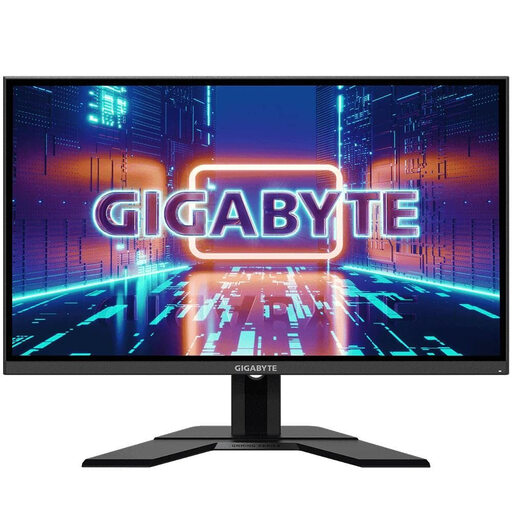 Image unavailable
GIGABYTE GS27QA, 27-inch QHD monitor
A QHD option for checking text and layouts visually; try it with your preferred scaling.
27 inches; 2560 × 1440 pixels; HDMI, DisplayPort and USB hub; adjustable stand and VESA mounting option.
View at Joybuy
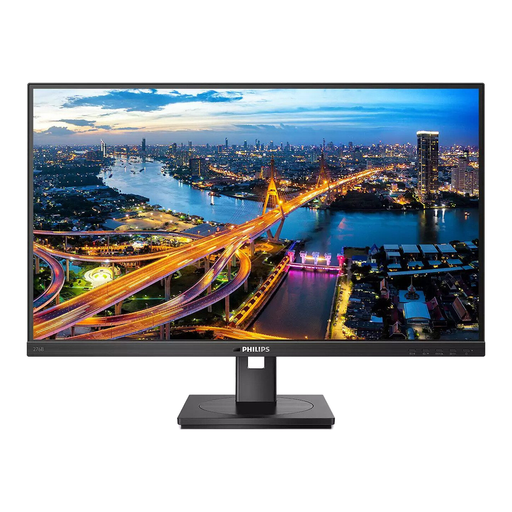 Image unavailable
Philips 276B1, 27-inch QHD monitor
The QHD resolution and pivot function may be useful for previewing text and portrait-format notices.
27 inches; 2560 × 1440 pixels; USB-C with up to 90 W Power Delivery and USB hub; height-adjustable, tiltable, swivel-adjustable and pivot-capable. According to the product description, a one-cable connection requires a compatible device with DP Alt Mode and Power Delivery.
View at Joybuy
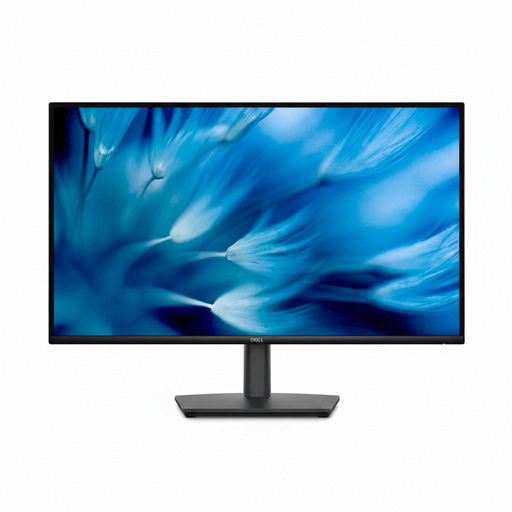 Image unavailable
Dell Pro 27 E2726DS, 27-inch QHD monitor
For visual layout checks, compare the QHD display with your usual text scaling.
27 inches; QHD; anti-glare finish; HDMI and DisplayPort; height-adjustable, tiltable and swivel-adjustable stand with 90° pivot.
View at Joybuy
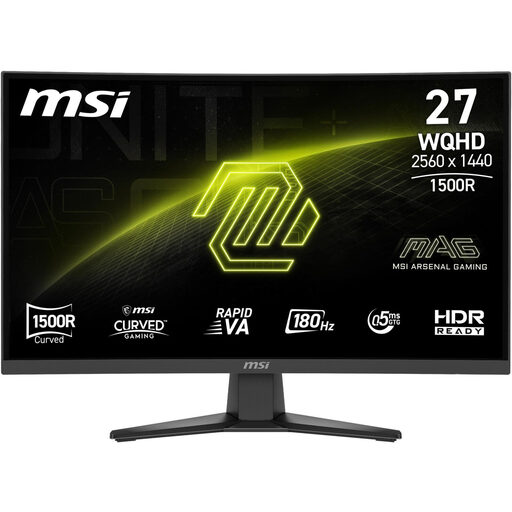 Image unavailable
MSI MAG 275CQFDE E18, 27-inch QHD monitor
A QHD option for checking text and layouts on screen; make sure the resolution works with your preferred scaling.
27 inches; 2560 × 1440 pixels; HDMI and DisplayPort; tilt-adjustable and VESA-compatible.
View at Joybuy
Frequently asked questions
Will a suitable monitor automatically read out noticeboard posts?
No. Text-to-speech is a feature of the operating system, not the monitor. Whether posts are read out clearly also depends on how the software and content are structured. Pay particular attention to reading order, headings and alternative text; the Federal Government Accessibility Portal highlights these points.
How can I test my workspace if I use a screen reader and magnification together?
First, set your usual text size and Magnifier, then test typical posts, navigation and previews. Microsoft explains that Magnifier can enlarge parts of the display. Finally, check the screen position and reflections in your actual workspace.
What additional costs and rights should I consider after buying a monitor?
Check whether your setup needs a cable, mount or extra software. If goods are faulty, statutory rights are separate from any voluntary warranty offered by the manufacturer or retailer. The Verbraucherzentrale explains that many online purchases generally come with a 14-day right to cancel; the specific contract and statutory exceptions apply.
Does every digital neighbourhood noticeboard on public display in Germany have to comply with the BFSG just because of its monitor?
You can’t draw such a general conclusion. The Federal Accessibility Centre describes the BFSG as legislation covering certain products and services; it has applied since 28 June 2025. Whether a particular digital noticeboard is subject to requirements depends, among other things, on who operates it and what functions it offers.


