If you work exclusively with a screen reader, a larger or higher-resolution monitor isn’t automatically your most important purchase: a screen reader is a software feature, not a monitor feature. If you also read with magnification or check code and a page preview side by side, test the screen size and resolution at your preferred scaling level. If you use a laptop, you’ll also need suitable ports and, where relevant, enough USB-C charging power.
Which monitor is right for you?
Developers with some remaining vision
You use a screen reader and also read or check parts of the lost property website with magnification. Text size and screen position should suit your preferred display settings. Microsoft Support explains how to adjust text size separately in Windows.
Developers who work with a side-by-side preview
You want to keep code, documentation and a visual page preview in view at the same time. Microsoft Support explains how to select and arrange connected displays. For this workflow, usable screen space matters more than a high refresh rate.
Laptop users at a fixed workstation
You regularly connect your laptop to a monitor and peripherals. Whether USB-C docking and power delivery will work depends on your laptop’s video output, the available ports and the charging power. Dell, BenQ and Lenovo list different features for their respective models.
What should you look for when buying?
First, decide whether you really need extra screen space for your work. Then check readability and scaling on your own computer, and make sure the available ports are compatible with your laptop.
| Factor |
What to look for |
Who will find this most useful? |
| Readability with magnification |
Test text size and scaling on your own system. Check the adjustment range and menu controls if you can’t make changes visually. |
If I also magnify content, I want to be able to read text at my preferred scaling level and position the screen comfortably. Around 34% of consumers prioritise readability for people with some remaining vision. |
| Working with multiple windows |
Compare screen dimensions and resolution together. Check whether code, documentation and a preview fit side by side at your chosen scaling level. |
If I visually check code, documentation and a preview side by side, the usable screen area is what matters to me. Around 33% of consumers prioritise having several work windows visible at once. |
| Connecting a laptop |
Check that video output is supported by the laptop port and cable. If you want to charge your laptop, check the USB-C power delivery of the specific monitor. |
If I connect my laptop at a fixed workstation, the video connection needs to work. USB-C charging only matters if the computer and cable support it. Around 25% of consumers prioritise laptop docking. |
| Keeping your current monitor |
Check whether your existing screen is suitable for the visual tasks you actually need to do. Test the screen reader and website independently of the monitor. |
If I work mainly with audio, I first check whether my current screen is adequate for the few visual tasks I need to do. Around 8% of consumers mainly want to avoid buying a monitor they don’t need. |
Common misconceptions when buying a monitor
-
Assuming a higher resolution means a better screen reader experience
A screen reader uses software and audio output to present content. A higher monitor resolution doesn’t prove that a monitor is easier to use or that the website you’re developing is accessible.
First, work out which parts of your work you actually do visually, and test the website with assistive technology independently of the monitor.
-
Assuming a USB-C port guarantees one-cable docking
Video output and charging power need to be compatible with your specific laptop. BenQ lists 65 W USB-C Power Delivery for the GW2790QT, while Lenovo lists up to 100 W for the ThinkVision P27h-30. These figures apply to the models specified.
Check your laptop’s specifications, the cable and the details for the exact monitor model before relying on one cable for video and charging.
-
Assuming similarly named models have the same features
Dell lists QHD for the P2725DE and 4K for the P2725QE. The resolution of one version doesn’t automatically apply to the other.
Check the full model name and the ports you actually need in the product description.
Brands to consider
Dell
Dell offers the 27-inch P2725DE QHD USB-C hub monitor and the 27-inch P2725QE 4K version, catering for different needs in terms of screen space and image detail.
- Dell Germany lists a resolution of 2560 × 1440 pixels for the P2725DE and 3840 × 2160 pixels for the P2725QE.
- The similarly named models have different resolutions. The manufacturer’s specifications don’t indicate any particular screen reader compatibility.
BenQ
BenQ describes the GW2790QT as an adjustable 27-inch QHD monitor with USB-C, suited to workstations where visual display and, potentially, a laptop connection are important.
- For this model, BenQ lists 65 W USB-C Power Delivery, height adjustment and pivot.
- Whether the charging power and adjustment options suit you depends on your setup. Terms such as ‘Eye-Care’ don’t prove an individual health benefit.
Lenovo
Lenovo says the ThinkVision P27h-30 combines a 27-inch QHD display with USB-C docking, Ethernet and KVM, for workstations that need these connections or the ability to switch between computers.
- Lenovo lists charging power of up to 100 W for this model.
- How useful it is depends on having a compatible computer and a genuine need for docking. These specifications don’t apply to other ThinkVision models.
EIZO
EIZO describes the FlexScan EV2740X as a 27-inch 4K office monitor with USB-C docking and adjustable picture settings.
- EIZO lists maximum USB-C power delivery of 94 W for the EV2740X.
- These features don’t show whether the monitor menu can be used with a screen reader or whether the display will be easy for you to read with magnification.
Joybuy monitors for visual development work
This selection includes 27-inch QHD and 4K monitors for visual work windows, as well as models with USB-C docking for compatible laptop workstations.
 No image available
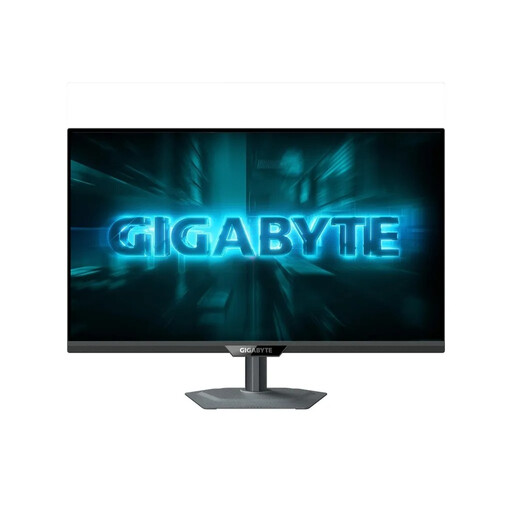
GIGABYTE G27Q2, 27-inch QHD gaming monitor
A QHD option if you want to check code and previews visually. Test the display at your preferred scaling level.
27 inches; QHD; gaming monitor.
View at Joybuy
 No image available
INNOCN 2751S PLUS, 27-inch Mini LED QHD gaming monitor
This 27-inch QHD model is an option for visual work windows. How comfortable it is to read on will also depend on your scaling settings.
Mini LED; QHD; gaming monitor.
View at Joybuy
 No image available
INNOCN CB27U1, 27-inch 4K UHD monitor
If you check fine details visually, you can try the 4K display at your preferred scaling level.
27 inches; 3840 × 2160 pixels; IPS; USB-C with 90 W Power Delivery.
The stated charging power needs to be compatible with your laptop and cable. 4K doesn’t replace testing text size and scaling on your own system.
View at Joybuy
 No image available
MSI PRO MP275QPDGDE, 27-inch WQHD docking monitor
This WQHD docking model could suit a fixed laptop workstation where you also use the screen visually. Check video output and charging compatibility with your laptop and cable.
27 inches; WQHD; USB-C with 98 W Power Delivery.
The stated charging power needs to be compatible with your laptop. Video output and power delivery also depend on your computer and cable.
View at Joybuy
 No image available
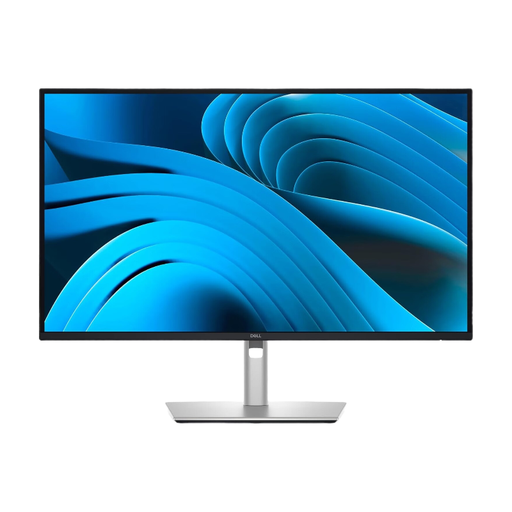
Dell Pro Plus P2725DE, 27-inch QHD monitor
A 27-inch QHD option for code and visual previews. Dell describes the P2725DE as a USB-C hub monitor. Check that its ports suit the laptop connection you need.
27 inches; 2560 × 1440 pixels; USB-C hub monitor, according to Dell Germany.
View at Joybuy
Frequently asked questions
Will a 4K monitor make my lost property website accessible to screen reader users?
No. A higher monitor resolution is no substitute for testing the website with assistive technology or with users. Assess how easy the pages are to use separately from how they look on your development computer.
How should I set up a monitor if I also read with magnification?
Once you’ve connected the monitor in Windows, select the relevant display and test the resolution and scaling. Microsoft Support also explains how to adjust text size separately. You’ll need to try the settings yourself to find the right fit.
Can I connect and charge my laptop with a single USB-C cable?
Only if your laptop port and cable support the required video output and the specific monitor provides enough charging power. BenQ lists 65 W for the GW2790QT and Lenovo lists up to 100 W for the ThinkVision P27h-30. These are model-specific manufacturer specifications, not a general guarantee of compatibility.
Does a German lost property website have to be accessible under the BFSG?
Not simply because it’s a lost property website. The Federal Agency for Accessibility explains that requirements for services in electronic commerce are particularly relevant where there may be a consumer contract. Whether this applies to a specific operator and service model needs to be assessed separately; your choice of monitor won’t determine the legal position.
Do the same rules apply to a home development setup as to a workplace computer workstation?
Not in every case. The Annex to the Workplace Ordinance sets out requirements for computer workstations within its scope. Buying a monitor for personal use alone doesn’t mean that every one of these employer obligations applies to you.


