If you manage a workshop directory mainly using a screen reader, you don’t need a larger monitor just for that: screen reading is a computer function, while the accessibility of forms, images and navigation also depends on the directory’s content (Microsoft Windows; W3C Web Accessibility Initiative). If you also make use of residual vision, start by testing text size, scaling and contrast in the way you normally work. For viewing entries, sources and previews side by side, the usable space after scaling, your desk space and the available connections are all important.
Which monitor is right for you?
People who mainly use a screen reader
Windows Narrator is built into the operating system (Microsoft Windows). If you manage workshop entries mainly by listening, choose a monitor based on your visual needs, not because you think it needs a read-aloud feature.
People who use residual vision and magnification
If you use visible text or previews alongside a screen reader, text size, scaling and contrast need to suit the way you work. Windows offers settings for text size and magnification (Microsoft Support); test them with the actual input form you use.
Directory editors who work with multiple views
If you compare entries with sources or switch between an input form and a preview, check how much space remains at your chosen text scaling. Windows lets you change how multiple displays are arranged (Microsoft Support).
What should you look for when buying?
Screen reading is a computer function; text size and window layout also depend on your operating system settings and the specific way you work (Microsoft Windows; Microsoft Support).
| What matters to you |
What to check before buying |
Who is this especially important for? |
| Avoid buying screen space you don’t need |
Check whether you have any additional visual needs and which connections your computer supports. |
If I mainly listen to directory entries and don’t need another visual view, I don’t need a larger screen just for that. Around 31% of consumers put listening to directory entries without an additional visual view first. |
| Reading text with residual vision |
Test text size and scaling with the input form and preview; consider screen size and resolution together. |
If I use visible text as well as a screen reader, it needs to remain readable at my preferred settings. Around 31% of consumers prioritise magnifying visible content. |
| Working with multiple views |
Check whether entries, sources and previews all fit on screen after scaling; if you use two displays, check their layout and connections. |
If I want to compare sources and previews alongside entries, the space I can actually use matters. Around 23% of consumers put having multiple views visible at once first. |
| Connections and desk space |
Measure your desk and check the video connection, plus USB-C video output and charging power if needed. |
If I need to connect a laptop and position the monitor on a desk with limited space, the connection and footprint are crucial. Around 15% of consumers prioritise these points. |
Common misconceptions when buying a monitor
-
4K or “eye comfort” guarantees screen reader suitability
A monitor’s resolution does not mean it has better screen-reading capabilities or that the directory is accessible. What’s more, manufacturers’ claims about eye comfort don’t prove that a model is suitable for a particular person or level of residual vision.
First decide whether you also use content visually, then test your preferred text size with real directory entries.
-
Every USB-C port provides full docking
On the EIZO EV2490, USB-C video output requires DisplayPort Alt Mode; the stated maximum power delivery of 70 W is a maximum figure.
Check the laptop’s specifications to confirm USB-C video output and the charging power you need.
-
27-inch Full HD and 27-inch QHD are comparable based on screen size alone
Philips lists the 273S1/00 as 1920 × 1080 pixels, while Dell lists the P2725D as 2560 × 1440 pixels. Those figures alone don’t tell you what text size or visible area will suit you.
Compare screen size and resolution with your preferred scaling, using the input form and preview.
Brands relevant to this topic
The information below applies to the specific models listed and is not a general statement about every product from each brand.
EIZO
The FlexScan EV2490 is a compact 23.8-inch Full HD option with USB-C docking for office workspaces.
- EIZO lists USB-C with DisplayPort Alt Mode and power delivery of up to 70 W.
- Full HD has fewer pixels than the QHD and 4K models covered here; that alone doesn’t show whether it’s suitable for your magnification needs.
Dell
The Pro P2725D is a 27-inch QHD office monitor offering visual workspace when used with suitable scaling.
- Dell lists a resolution of 2560 × 1440 pixels and height adjustment for the P2725D.
- Resolution alone doesn’t tell you what text size will be readable for you or how many windows will remain visible after scaling.
ASUS
The ProArt PA279CRV is a 27-inch 4K option if you also work with visual details as well as directory entries.
- ASUS lists a resolution of 3840 × 2160 pixels and an anti-glare IPS panel for this model.
- ASUS’s stated colour gamut coverage doesn’t prove a particular benefit for text-only or screen reader work; text scaling remains a key factor in your choice.
Philips
The 273S1/00 is a 27-inch Full HD office monitor with USB-C docking for a laptop setup.
- Philips lists USB-C docking and a resolution of 1920 × 1080 pixels.
- The docking feature requires a compatible laptop; Full HD on a 27-inch screen is not the same as QHD on a 27-inch screen.
BenQ
The RD320UA is a 31.5-inch 4K option if you need plenty of visual space and have enough room on your desk.
- BenQ lists a matte finish, an adjustable arm and USB-C with 90 W Power Delivery for the RD320UA.
- BenQ’s claims about making code easier to distinguish don’t demonstrate a particular benefit when creating a workshop directory with a screen reader.
Joybuy products for visually managing a directory
This selection is for visual work on a directory, such as when you want to see text as well or check multiple items at the same time. Screen reading itself remains a computer function.
 No image available
INNOCN 40C1U 40-inch 5K ultrawide monitor
The large format may suit having several items visible at once; first check that the text scaling and footprint work for your workspace.
40 inches, 5120 × 2160, IPS, 100 Hz and 21:9; USB-C with 65 W Power Delivery and PIP/PBP. The stated width with the stand is 944.1 mm.
View at Joybuy
 No image available
INNOCN CB27U1 27-inch 4K UHD monitor
If you want to view the input form and other content side by side, check that your preferred text size remains readable within the available space.
27 inches, 3840 × 2160, IPS, 120 Hz and HDR500; USB-C with 90 W Power Delivery and PIP/PBP. The stand is height-adjustable.
View at Joybuy
 No image available
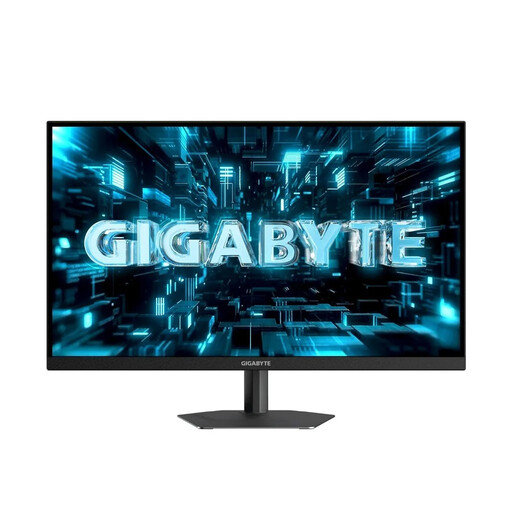
GIGABYTE G27Q26 27-inch QHD gaming monitor
QHD resolution may be useful for an additional visual workspace; test readability with your preferred scaling.
27 inches, 2560 × 1440 pixels, SuperSpeed IPS and 260 Hz (OC 275 Hz).
View at Joybuy
 No image available
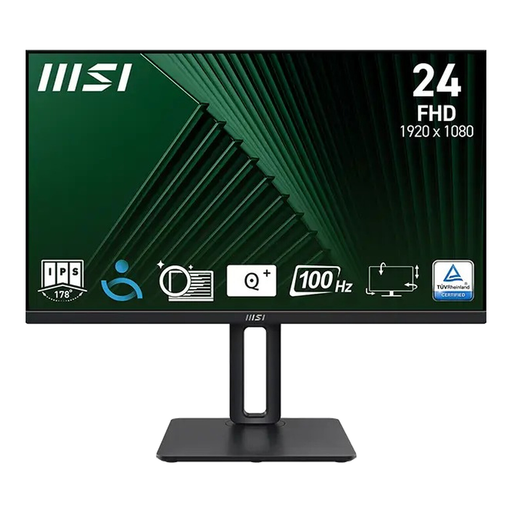
MSI PRO MP245PG 23.8-inch Full HD business monitor
A more compact screen may be a good fit if you use a single visual view and have limited desk space.
23.8 inches, Full HD, IPS and 100 Hz; the stand is height-adjustable.
View at Joybuy
 No image available
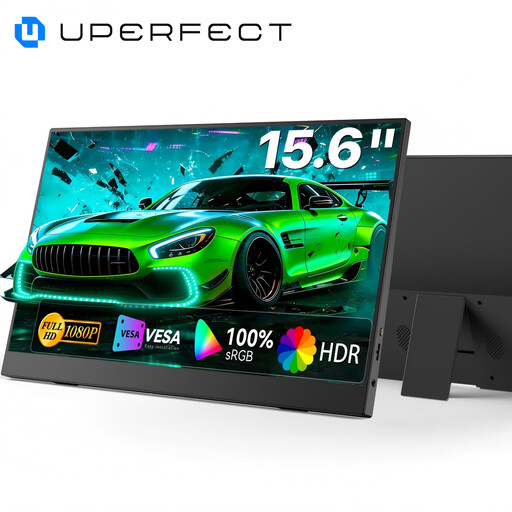
UPERFECT portable 15.6-inch Full HD monitor
A portable model may work well as an extra screen if you want another visual view alongside your laptop.
15.6 inches, Full HD and IPS; USB-C and Mini HDMI connections, plus a built-in adjustable stand.
View at Joybuy
Frequently asked questions
Do I need a monitor with a special read-aloud feature for a screen reader?
No. The Windows features described don’t mean you need a special monitor: screen reading is built into the operating system (Microsoft Windows). Choose a display based on how much of your work involves visuals, and check the directory’s accessibility separately.
How can I test whether the text and preview work for me?
Adjust the text size or scaling in Windows and, if needed, try Magnifier with the actual input form you use (Microsoft Support). If you have multiple displays, you can change their layout in Windows display settings.
Can a monitor make up for missing image descriptions in a workshop directory?
No. The W3C explains that text alternatives for images need to be provided in the web content and are passed to assistive technology through the browser. So check the image descriptions, forms and navigation in the directory itself.
How can I find out how much power a monitor uses?
The EU energy label also covers electronic displays such as monitors. Compare the energy label or product information sheet for the specific model; screen size alone doesn’t determine its energy class.
Does a public workshop directory have to be accessible under the BFSG?
You can’t determine that from the description “public workshop directory” alone. The Federal Government’s Accessibility Agency describes e-commerce services as digital services provided at the individual request of a consumer in connection with a consumer contract. Whether the specific directory falls into this category depends in particular on its features and business model; your choice of monitor does not determine the legal position.


