If you create your website mainly using a screen reader, your existing monitor or a simple, adjustable office display should be enough, provided the connections and positioning work for you and you can carry out occasional visual checks. A larger screen or higher resolution won’t automatically improve speech output. If you also use magnification, what matters is having a display you can read comfortably and positioning it appropriately. More screen space or higher resolution is mainly useful if you check articles, plant images or previews visually. A monitor is no substitute for a screen reader or suitable text alternatives for informative images.
Which monitor is right for you?
Screen reader users with limited remaining vision
If you work mainly with text using speech output, start by identifying the tasks you actually carry out visually. Microsoft Windows describes Narrator as its built-in screen reader, while the W3C Web Accessibility Initiative explains how alternative text for images is read aloud.
Editors who also use magnification
If you combine speech output with magnification, adjustable display settings, reflections and screen positioning all matter. INCOBS points out that a large monitor doesn’t automatically enlarge content; Microsoft Support describes Magnifier as a way to enlarge what’s on screen.
Website creators with visual checking tasks
If you edit gardening articles and check plant images or page previews yourself, usable screen space and appropriate scaling are important. LG lists the 27UP850K-W as a 27-inch model with 3840 × 2160 pixels; higher resolution doesn’t automatically mean larger text.
What should you look for?
Keep your existing monitor or choose a straightforward office display
A good fit if: you work mainly with audio and a keyboard, and only occasionally need to view a preview.
The trade-off: A larger screen or higher resolution won’t automatically improve screen reader output; what matters is the display you need and positioning it appropriately.
Adjustable QHD office monitor
A good fit if: you want to see text, your editing interface and a preview at the same time, or you also use magnification. The Dell P2725DE, Lenovo ThinkVision T27h-30, BenQ GW2790QT and EIZO EV2795 are examples of 27-inch QHD models.
The trade-off: Usable screen space depends on text size and scaling. USB-C docking, pivot and charging power vary, so check they’re compatible with your computer.
27-inch 4K display for visual checks
A good fit if: you check plant images or fine layout details visually and can set the interface to a scale that’s easy for you to read. LG lists the 27UP850K-W as a 27-inch model with 3840 × 2160 pixels.
The trade-off: More pixels won’t automatically make text or controls larger. If you don’t check content visually, the extra resolution may not make a difference to your work.
| What matters when buying |
What to check |
Who is it important to? |
| Usefulness when working mainly with a screen reader |
Think about your usual tasks and, if needed, check whether you can use the monitor settings. |
If I create almost all my text using speech output, I don’t want to pay for screen space I won’t use for the few visual checks I need to make. Around 33% of consumers put usefulness for mainly audio-based work first. |
| Readability with some remaining vision |
Try your usual operating system scaling and magnification; check for reflections and consider the screen’s position. |
If I also use magnification, I need to be able to make out text and controls at my chosen scale. Around 27% of consumers prioritise readability. |
| Visual checks of images and layouts |
Try your editing interface and preview with your usual text size; assess the image display separately from image descriptions. |
If I check plant images and page previews myself, I want to be able to see the article and image clearly at my usual text size. Around 20% of consumers prioritise these visual checks. |
| Connecting to your work computer |
Compare the video output, cable and charging power you need with the specifications for the monitor and computer. |
If I want my laptop to provide the monitor’s picture and connect other devices through a single connection, I check the supported features in advance. Around 20% of consumers prioritise having the right computer connection. |
Common selection mistakes
-
Assuming a large screen or 4K means a better screen reader experience
A larger display won’t automatically enlarge content; speech output is a computer feature, not a monitor feature.
First, decide which tasks you do using audio and which you do visually. If needed, try scaling and magnification with the pages you normally work on.
-
Buying USB-C without checking video output and charging power
USB-C features and power limits vary between models. Your computer must also support the features you need.
Before ordering, compare the full connection specifications for the monitor, computer and cable. Depending on your setup, you may also need a compatible cable or a separate power supply.
-
Taking eye comfort features as proof of personal accessibility
Manufacturers’ claims about eye comfort don’t prove that a display will be readable for you or that you can use the monitor controls without sight.
Try the display and controls with your own magnification settings or assistive setup.
Brands to consider
Dell
The Pro Plus P2725DE is a 27-inch QHD office monitor with a USB-C hub.
- Dell lists a resolution of 2560 × 1440 pixels and adjustable positioning for the P2725DE.
- These specifications don’t prove that it’s suitable for your individual screen reader needs or that its on-screen menus are accessible.
BenQ
The GW2790QT is a 27-inch QHD model with pivot and USB-C.
- BenQ lists 65 W USB-C power delivery and height adjustment for this model.
- The Eye-Care features described by the manufacturer don’t tell you whether the display will be easier for you to read or whether you can use the menus without sight.
Lenovo
The ThinkVision T27h-30 is positioned as a QHD docking monitor for laptops and peripherals.
- Lenovo lists USB-C, a hub and Ethernet for this model.
- How useful it is depends on whether your computer supports the connection and whether you actually need those ports.
EIZO
The FlexScan EV2795 is a QHD office monitor with USB-C docking, LAN and KVM functionality.
- EIZO lists up to 70 W through the USB-C upstream port and adjustable picture settings.
- These features alone don’t tell you whether you can use the monitor controls without sight.
LG
The UltraFine 27UP850K-W is a 27-inch 4K option for visual checks.
- LG lists a resolution of 3840 × 2160 pixels and an adjustable stand for this model.
- Higher resolution alone won’t make text larger or prove that it offers an advantage for work done entirely using audio.
Monitors at Joybuy
This selection includes QHD displays for text and website previews, as well as larger or higher-resolution displays for visually checking articles, images and layouts.
 No image available
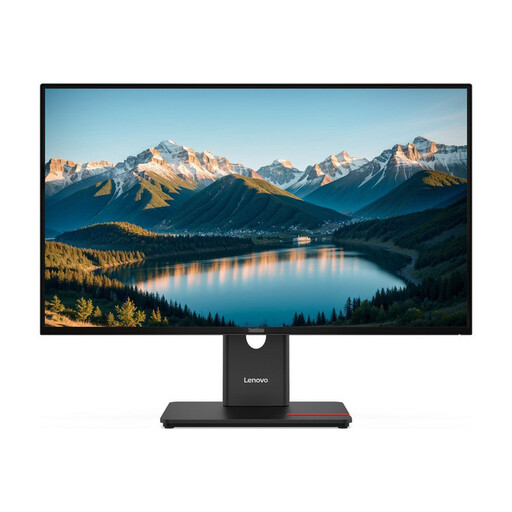
Lenovo ThinkVision T27Q-40, 27-inch QHD IPS monitor, black
An option if you want to edit text and website previews visually and adjust the screen’s position.
27 inches; QHD; IPS; colour: black.
Joybuy
 No image available
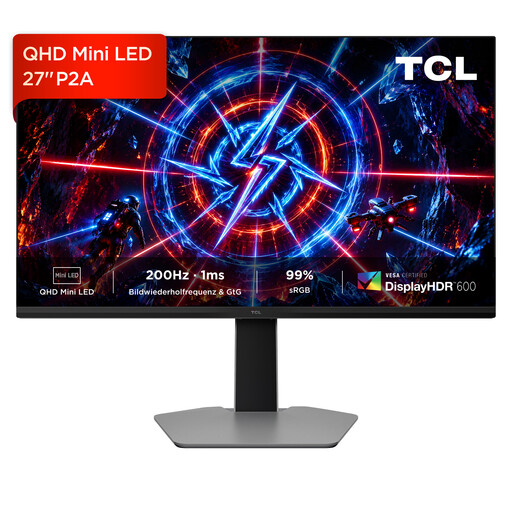
TCL 27P2A, 27-inch mini-LED monitor, QHD
An option if you check website content and previews on screen yourself.
27 inches; QHD (2560 × 1440); mini-LED; 200 Hz; IPS panel.
Joybuy
 No image available
INNOCN 40C1U, 40-inch ultrawide monitor, 5K
An option if you want to view several parts of your website at once.
40 inches; 5120 × 2160 pixels; IPS; 100 Hz; 21:9 aspect ratio.
Joybuy
 No image available
INNOCN CB27U1, 27-inch 4K UHD IPS monitor
An option if you check plant images and layout details visually yourself.
27 inches; 3840 × 2160 pixels; IPS; 120 Hz; USB-C with 90 W PD.
Joybuy
 No image available
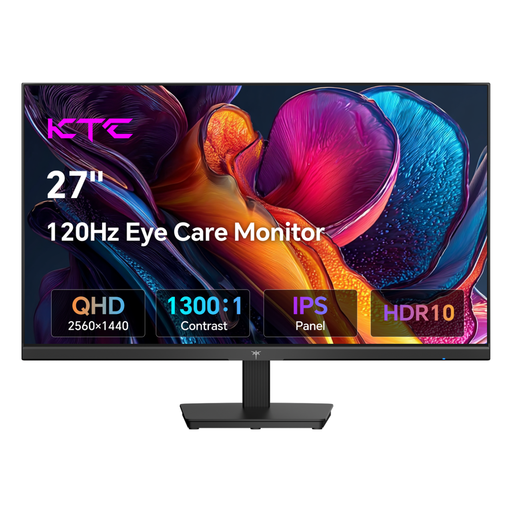
KTC H27D9, 27-inch QHD IPS monitor, 120 Hz
An option if you edit a visual preview of your website on a QHD monitor.
27 inches; QHD (2560 × 1440); IPS; 120 Hz.
Joybuy
Frequently asked questions
Will a special monitor read my gardening articles aloud?
No. In Windows, Narrator does this as the built-in screen reader; the monitor is responsible for the visual display. Try the screen reader and website editor on the computer you actually use.
How should I set up my screen if I also use magnification?
First, set magnification in your operating system, then try different brightness and contrast settings, and check for reflections and screen position using the pages you normally work on. Microsoft Support describes the Magnifier feature built into Windows. You’ll need to check for yourself which screen position works best.
Does a sharp image preview replace checking plant photos with a screen reader?
No. For informative images, accessible information depends on suitable alternative text on the website. The W3C Web Accessibility Initiative explains that screen readers can read this text aloud; a sharp monitor image won’t create it.
Does a gardening advice website in Germany need to be accessible under the BFSG?
Not simply because it’s a website. The Federal Accessibility Agency explains in its July 2025 FAQ that the BFSG covers certain products and services. For electronic commerce services, in particular, the link to entering into a consumer contract is what matters. Without details of the shop or contract features, it’s not possible to say definitively whether the specific website you’re planning is covered. Regardless, accessible image descriptions are useful for a gardening advice website.


