If you use the forum exclusively with a screen reader or braille, a larger or higher-resolution monitor alone won’t make it more accessible. You’ll also need to check the screen reader, operating system and website structure. If you also work visually, consider screen size, resolution, software scaling and positioning together. USB-C docking is only useful if your computer supports the video connection and power delivery you need.
Who is this choice relevant to?
Screen reader users who don’t work visually
If you mainly write and review forum posts using speech output or braille, don’t confuse monitor features with website accessibility. NV Access explains speech and braille output, while the German government’s accessibility portal highlights the importance of a correct reading order and semantic markup.
Screen reader users with some residual vision
If you also use enlarged text or controls, consider the screen and software scaling together. Microsoft describes Magnifier as a Windows tool for enlarging what’s on screen.
Forum moderators working at a laptop
If you spend long periods editing posts, forms and admin views, choose a screen position and connections that suit your workspace and computer. Microsoft recommends checking the cables and PC connection when troubleshooting external display problems.
What should you consider when buying?
Mainly non-visual use
A good fit if: you mainly use speech output or braille to work on posts and are choosing a monitor primarily for its connections and positioning.
The trade-off: More pixels or a high refresh rate won’t fix missing form labels or an incorrect reading order.
Screen reader plus visual magnification
A good fit if: you also view text and controls on screen and can test your preferred scaling in advance.
The trade-off: A higher native resolution won’t automatically make content larger without suitable scaling.
Laptop workspace with USB-C
A good fit if: your laptop can output video over USB-C and you want to use the connections or charging function on a specific monitor.
The trade-off: A USB-C port on the monitor alone doesn’t confirm that it can receive video from your laptop or provide enough power to charge it.
| What matters |
What to check before buying |
Who this matters most to |
| Use for non-visual tasks |
Check which computer connections you need and how audio is output. Test forum tasks separately using your screen reader and browser combination. |
If I mainly use speech output or braille to work on posts, I want to know whether the monitor is compatible with my computer. This is the main non-visual consideration for around 36% of consumers. |
| Legibility with magnification |
Test the native resolution alongside your preferred operating system scaling or Magnifier on typical forum pages. |
If I also look at the screen, I need text and controls at a size that works for me. Around 29% of consumers prioritise visual magnification. |
| Adjustable positioning |
Check which adjustments are listed for the specific model and whether the screen, keyboard and desk work well together. |
When spending long periods working on posts and admin views, I want to be able to adjust the screen position to suit my workspace. Positioning is the main consideration for around 21% of consumers. |
| Connection to a computer |
Compare your computer’s ports, supported video output and power requirements with the specifications for the exact monitor model. |
If I use a laptop, I want to know whether the connection will work for my setup and could replace extra cables. Suitable ports and a straightforward laptop connection are the main consideration for around 14% of consumers. |
Common buying mistakes
-
Assuming a high resolution means the monitor is screen reader accessible
Speech output and braille don’t depend on a higher monitor resolution. Usability also depends on factors such as reading order, alt text and correctly marked-up controls, as explained by NV Access and the German government’s accessibility portal.
First decide whether you’ll use the screen visually, then test forum tasks separately with your screen reader.
-
Reducing the resolution on a 4K screen to make content bigger
A non-native resolution can make text look blurry. Microsoft treats resolution and scaling as separate display settings.
Start by trying the monitor’s native resolution with suitable software scaling or Magnifier.
-
Assuming a monitor’s USB-C port guarantees a single-cable setup
The USB-C features of a specific monitor don’t automatically mean that every laptop can output video through it or receive enough power to charge.
Before buying, compare your laptop’s video output and charging requirements with the specifications for the exact monitor.
Depending on your laptop, you may need a different connection, a separate power supply or a compatible dock.
Brands to consider
Dell
Dell Germany lists the P2725D as a 27-inch QHD model with height adjustment.
- These specifications describe a specific QHD option for a fixed workspace.
- They don’t confirm dedicated screen reader features or scaling that will suit everyone.
Lenovo
Lenovo Germany lists the ThinkVision T27h-30 as a QHD model with USB-C docking, Ethernet and a USB hub.
- The listed connections could be useful with a compatible laptop.
- Check whether video output and power delivery work with the connection on your specific laptop.
Philips
Philips Germany lists QHD resolution, USB-C and a SmartErgo stand for the 276B9/00.
- These features may be useful for a laptop workspace with adjustable positioning.
- The manufacturer’s claims about eye comfort don’t prove an individual health benefit.
LG
LG Germany lists the 27UP850K-W as a 27-inch 4K model with USB-C and an adjustable stand.
- If you also use the screen visually, you can test the resolution with your preferred scaling.
- 4K offers no proven benefit for speech output alone; these specifications apply to this model.
BenQ
BenQ Germany lists the GW2790QT as a 27-inch QHD model with USB-C and a USB hub.
- The listed connections are specific features of this model.
- The manufacturer’s ‘Eye-Care’ label isn’t independent proof of better accessibility or fewer eye complaints.
Monitors at Joybuy
The models below may suit additional visual use, as well as laptop workspaces where adjustability or connections are a priority. Monitor features don’t replace a separate test of how well the forum works with your screen reader.
 No image available
INNOCN 40C1U 40-inch 5K monitor
Worth considering if you also want to magnify content visually and test your preferred scaling on a large screen.
40 inches; 5K, 5120 × 2160; USB-C with 65 W Power Delivery; height-adjustable stand.
View at Joybuy
 No image available
INNOCN CB27U1 27-inch 4K UHD monitor
An option to test if you also use the screen visually and want to assess software scaling on a 27-inch display.
27 inches; 4K UHD, 3840 × 2160; USB-C with 90 W Power Delivery; height-adjustable stand.
View at Joybuy
 No image available
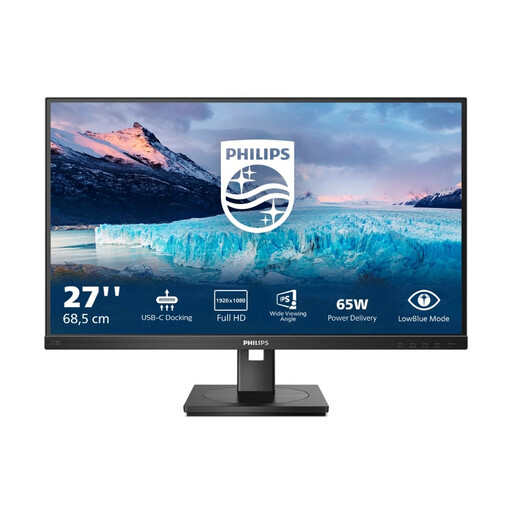
Philips 273S1 27-inch Full HD monitor
Could suit a laptop workspace if the listed USB-C connection meets your computer’s video and charging requirements.
27 inches; Full HD, 1920 × 1080; USB-C with 65 W Power Delivery; USB hub, HDMI and DisplayPort; height-adjustable stand.
View at Joybuy
 No image available
Philips 276B9 27-inch QHD monitor
A possible choice for additional visual use and a laptop workspace, provided the video output and charging requirements are compatible.
27 inches; QHD, 2560 × 1440; USB-C with 65 W Power Delivery; USB hub, HDMI and DisplayPort; height-adjustable stand.
View at Joybuy
 No image available
MSI PRO MP275QPDGDE 27-inch WQHD docking monitor
Worth considering for a laptop workspace if the USB-C video connection and power delivery are compatible with your computer.
27 inches; WQHD; USB-C with 98 W Power Delivery; IPS panel; built-in webcam.
View at Joybuy
Frequently asked questions
Will a larger monitor automatically make my neighbourhood forum usable with a screen reader?
No. Screen reader use depends on factors including the website’s reading order, alt text and correctly marked-up controls. Test creating a post, navigating the site and reading error messages with your software; a larger monitor is no substitute for this test.
How can I set up extra magnification on my monitor?
In Windows, you can adjust display scaling or use Magnifier. If possible, test the forum at the monitor’s native resolution and adjust magnification in the software, rather than lowering the resolution just to make things bigger.
What should I check when choosing a USB-C monitor for my laptop?
Check whether your laptop can output video over USB-C and whether the specific monitor provides enough power for it. A USB-C port on the monitor alone doesn’t confirm compatibility.
What can I check if my connected screen isn’t showing an image?
First check the cable and connection to your PC or dock, as well as the selected display mode. Microsoft recommends these steps when troubleshooting external monitors in Windows.
Is every private neighbourhood forum automatically covered by the German Accessibility Strengthening Act?
No. Calling something a ‘forum’ isn’t enough to determine this. Section 1 of the BFSG covers certain products and services, including e-commerce services offered to consumers after 28 June 2025. Whether a particular forum is covered depends on what it actually offers (Federal Ministry of Justice and Consumer Protection and Federal Office of Justice). Buying a monitor doesn’t determine this.


