What to consider when choosing
First, work out whether you need a visual display. If you do, test the text size and window layout in the apps you actually use before choosing based on screen size or resolution.
No additional monitor
Suitable if: You work exclusively with a screen reader or braille and don’t need visual checks.
Consider: You won’t gain extra space for magnification or several windows displayed at once.
Adjustable QHD office monitor
Suitable if: You use your remaining sight, or want to check sources, guide text and previews visually.
Consider: Whether windows fit side by side at your chosen text size depends on your scaling and the space available.
4K monitor with suitable scaling
Suitable if: You want to check fine visual details and your computer supports the resolution you need.
Consider: A higher resolution doesn’t replace text and control sizes that are readable for you.
| Consideration |
What to check before buying |
Who is this important for? |
| Whether you need a visual display |
Make a note of which tasks you need to see and which you do using a screen reader or braille. |
If I create the guide entirely without sight, I want to check whether an additional display will help me before I buy one. Around 36% of consumers are likely to put the lack of visual benefit first. |
| Readability when using magnification |
Test text size, scaling and contrast in your apps; check the screen position too. |
If I also use my sight, text and controls need to remain readable at my chosen scaling. Around 29% of consumers are likely to focus primarily on readability with magnification. |
| Space for sources, drafts and previews |
Try your window layout with a readable text size, and take the available space, including the stand, into account. |
When visually comparing a source, guide text and preview, the usable screen area with comfortably readable text matters to me. Around 21% of consumers are likely to prioritise checking documents side by side. |
| Laptop connection and moving between workspaces |
Compare your laptop’s video output and charging needs with the monitor’s connection and power specifications. |
If I want to connect my laptop at my desk, I need to know whether video transmission and, where necessary, charging are compatible. Around 14% of consumers are likely to consider laptop connectivity particularly important. |
Monitors for visual work at Joybuy
This selection includes monitors for visually checking documents, using magnification and arranging sources, drafts and previews. Speech output still comes from the assistive technology you use.
 No image available
INNOCN 40C1U 40-inch 5K ultrawide monitor
The large display is useful for visually cross-checking guide text, sources and previews; check that the windows fit on your desk at a readable scaling level.
40 inches, 5120 × 2160 pixels and PIP/PBP; height-adjustable stand and USB-C with 65 W Power Delivery.
According to the product description, the monitor is 944,1 mm wide with the stand attached; take this width into account when planning your workspace.
View at Joybuy
 No image available
INNOCN CB27U1 27-inch 4K monitor
If you visually compare sources, drafts and previews, the resolution and PIP/PBP are useful features; you’ll still need to choose scaling that suits your required text size.
27 inches, 3840 × 2160 pixels, PIP/PBP, USB-C with 90 W Power Delivery and a stand with 150 mm of height adjustment.
View at Joybuy
 No image available
Philips 276B9 27-inch QHD monitor
This model offers a QHD display for visually checking documents; test your window layout with your preferred readable scaling.
2560 × 1440 pixels, 75 Hz, USB-C with 65 W Power Delivery, plus height, tilt, swivel and pivot adjustment.
View at Joybuy
 No image available
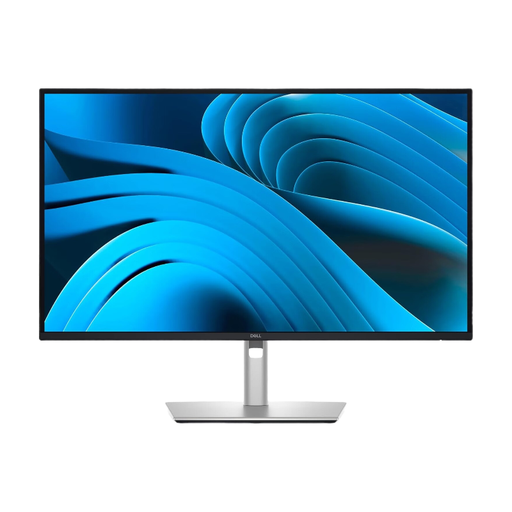
Dell Pro Plus P2725DE 27-inch QHD monitor
If you visually check sources, drafts and previews and want to connect a laptop, the resolution and listed USB-C features are worth considering.
2560 × 1440 pixels; USB-C with DisplayPort 1.4 and up to 90 W Power Delivery. The stand can be tilted, swivelled and adjusted for height.
View at Joybuy
 No image available
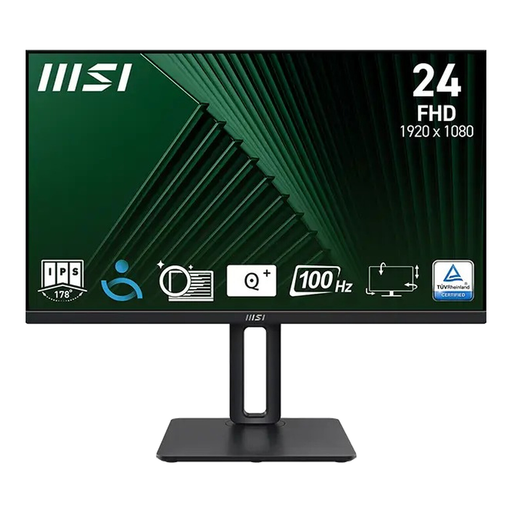
MSI PRO MP245PG 23.8-inch Full HD monitor
If you’re looking for a separate visual display with an adjustable position, this model has a height-adjustable stand.
23.8 inches, Full HD, IPS and 100 Hz; the stand adjusts by 120 mm for height and can be tilted, swivelled and rotated into portrait mode.
The 23.8-inch Full HD display offers less space for checking documents side by side than the 27-inch QHD models listed here.
View at Joybuy
Frequently asked questions
Will a monitor read my venue guide aloud with a screen reader?
No. Apple describes VoiceOver as assistive technology that provides an audible description of the device interface. A monitor won’t replace your screen reader or check whether the guide can be used with it.
How should I set up the display if I also use my remaining sight?
First, adjust the text size and scaling in your operating system, and choose a contrast theme if needed. Then check your draft and preview; Microsoft notes that text may appear less sharp when the monitor is set to a resolution below its native resolution.
Is USB-C on a monitor enough to charge my laptop?
Not necessarily. Compare your laptop’s video capabilities and charging requirements with the specific connection: EIZO lists DisplayPort Alt Mode and up to 70 W through the EV2795’s USB-C upstream port; BenQ lists DisplayPort Alt Mode and 65 W Power Delivery for the GW2790QT.
What are my rights if a monitor I bought privately is faulty?
In Germany, consumers who buy a new product can generally exercise their statutory rights against the seller if it is faulty. Verbraucherzentrale states that these rights last for two years from delivery or receipt; a voluntary guarantee is separate.
Do workplace rules or the BFSG automatically apply to every monitor bought for private use?
No, not across the board. The Federal Institute for Occupational Safety and Health explains that ASR A6 applies to certain screen-based workstations; it doesn’t apply to private use of screen equipment outside workplaces. Section 1 of the BFSG lists the product groups it covers, including certain hardware systems for general-purpose computers. You can’t determine from this alone whether an individually sold monitor is covered.


