What should you look for?
Start by checking which devices and views you’ll actually use at your desk. Then you can assess the right connections, screen space, adjustment options and running costs.
| What you need |
What to check before buying |
Who is it important to? |
| Connect a laptop quickly |
Check video output over USB-C, the charging power required, data functions and, where relevant, Ethernet compatibility across your laptop, cable and monitor. |
If I want to connect my laptop with as few cables as possible when moving desks, the video, data and charging functions all need to work together. That’s why around 33% of consumers prioritise a quick, compatible device swap. |
| Read filters and results side by side |
Compare screen size and native resolution, then assess the views at your preferred scaling. TÜV SÜD explains the relationship between screen size and resolution. |
If I want to read filters, a results list and a comparison view at the same time, I look for the right combination of screen size, resolution and scaling. Around 27% of consumers prioritise a readable screen area for viewing things side by side. |
| Adjust the screen to suit the user and desk |
Check the model’s height, tilt and swivel adjustments, and consider the intended setup and any potential reflections. |
If several people work at the same desk or I change my seating position, I want to be able to reposition the screen easily. Around 27% of consumers prioritise adjustments for different users and lighting conditions. |
| Keep purchase and running costs in mind |
Decide which features you need, compare the EU energy label for covered models, and distinguish statutory consumer rights from a voluntary guarantee. The European Commission and the Verbraucherzentrale provide further information. |
If I only want to pay for and use the features I actually need at a shared desk, I compare the specifications and running costs. Around 13% of consumers prioritise manageable purchase and running costs. |
Joybuy monitors for a shared desk
These Joybuy monitor options include compact and larger models for search filter testing at a shared workstation, with a range of resolutions and connectivity features.
 No image available
INNOCN CB27U1, 27-inch 4K UHD
The stated resolution and PIP/PBP features are useful for detailed views and displaying two sources at once.
3840 × 2160; IPS; 120 Hz; USB-C with 90 W PD; HDMI and DP; PIP and PBP; height-adjustable.
View at Joybuy
 No image available
Philips 276B9, 27-inch QHD
QHD resolution is worth considering if you want to compare filters and results lists on one screen.
2560 × 1440; IPS; 75 Hz; USB-C with 65 W Power Delivery; USB hub; height-adjustable.
View at Joybuy
 No image available
MSI PRO MP275QPDGDE, 27-inch WQHD
WQHD resolution is useful for viewing several workspaces at once. Check that the connectivity features suit your laptop and peripherals.
2560 × 1440; USB-C with 98 W PD; daisy chain; KVM; built-in webcam; 100 Hz; 1 ms MPRT.
View at Joybuy
 No image available
INNOCN 40C1U, 40-inch ultrawide
The wide format may suit you if you need to view lots of content side by side; make sure you have enough desk space.
5120 × 2160; 21:9; IPS; 100 Hz; USB-C with 65 W PD; PIP and PBP; height-adjustable. At 40 inches, this monitor needs plenty of desk space.
View at Joybuy
 No image available
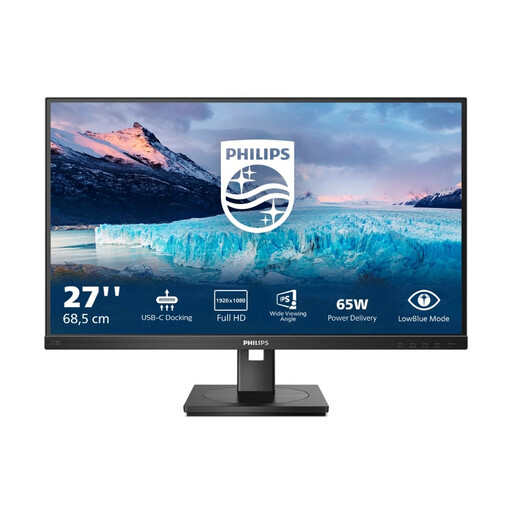
Philips 273S1, 27-inch Full HD USB-C docking
USB-C docking, a USB hub and RJ45 are useful if you want to connect your laptop and peripherals at a shared desk. If you regularly view content side by side, bear in mind that this is a Full HD monitor.
1920 × 1080; IPS; 75 Hz; USB-C with 65 W; RJ45; USB hub; HDMI and DisplayPort; height-adjustable.
View at Joybuy
Frequently asked questions
Is a 27-inch Full HD monitor suitable for testing filters and results?
Full HD may be enough for individual views. If you want to compare filters and results side by side, consider the native resolution alongside your usual font size and scaling: Dell specifies 2560 × 1440 pixels for the U2724DE, while Philips specifies 1920 × 1080 pixels for the 273S1/00. Screen size alone doesn’t tell you everything.
Can I connect and charge any laptop with a USB-C cable?
No. You can’t tell from the connector alone. Check which video output your laptop supports and how much charging power it needs, then make sure these match the video, data and Power Delivery functions of the specific monitor and a suitable cable.
How do I clean a shared monitor?
Follow the instructions from the manufacturer of your monitor. Dell recommends using a soft, clean cloth lightly dampened with water for its monitors and warns against unsuitable chemicals. This Dell advice doesn’t automatically apply to all screen coatings.
What should I consider when it comes to electricity costs and servicing?
For monitors covered by the scheme, compare the EU energy label. To estimate costs, use the power consumption of the specific model, how long you use it and the electricity price, all on the same units basis. If a consumer purchase is faulty, statutory rights against the seller are separate from a voluntary manufacturer’s guarantee, as the Verbraucherzentrale also explains.
Are there any requirements for monitors at shared desks in German workplaces?
Yes, where the workstation falls within the scope of the Workplace Ordinance. Its annex sets out requirements for display screen workstations; the Committee for Workplaces’ ASR A6 provides more detailed requirements within its scope. This does not mean there is a blanket requirement for the screen size or resolution of every monitor bought for personal use.


