Testers working with several windows at once
If you compare filters, results lists and test notes side by side, consider your preferred window layout alongside the width of your desk.


If you’re checking filters and results lists side by side, start by deciding how you want to arrange your windows. A 27-inch QHD monitor, a 34-inch ultrawide and a compact 23.8-inch Full HD monitor all take up different amounts of space and offer different amounts of screen area. Then check text clarity at your preferred scaling, as well as your laptop’s video and charging capabilities. More pixels or a USB-C port alone won’t guarantee readable text or a one-cable connection.
If you compare filters, results lists and test notes side by side, consider your preferred window layout alongside the width of your desk.
If you check labels, states or code, consider resolution, screen size and your chosen scaling together. That way, extra pixels won’t come at the expense of readability.
If you often rearrange your workspace or have limited room, check the monitor’s dimensions, setup and laptop connections before choosing.
Decide on your window layout first, then check readability, laptop connectivity and the space available on your desk.
| What to consider | What to check | Who should consider it? |
|---|---|---|
| Space for multiple windows | Compare the screen’s aspect ratio and width with the space needed for filters, results lists and notes on your desk. | If I want to see several test windows at once, usable width matters more to me than having the biggest possible display. Around 33% of consumers put screen space for windows first. |
| Readability of fine details | Consider screen size and native resolution together, and try the operating system and browser scaling you plan to use. | If small labels and states are important, I need a setting that keeps them clear and readable. Around 27% of consumers prioritise checking fine details. |
| Laptop docking | Check video output through your laptop’s port, the charging power you need and any additional connections. | If I want to connect my laptop to my desk setup easily, the display connection and charging power need to work with my device. Around 20% of consumers prioritise laptop connectivity. |
| Space and setup | Compare the width and depth, including the stand or arm, and the height and tilt adjustment with your workspace. | If my desk is short on space or I need to adjust the screen, the way it fits into my workspace is what matters most. Around 20% of consumers prioritise how well it fits their workspace. |
The screen format and resolution alone won’t tell you whether filters, results and notes will fit in your preferred layout, or whether labels will be easy to read.
Sketch out your typical window layout, then check the format, resolution and scaling together.
Whether your laptop can send a video signal over USB-C and charge sufficiently also depends on the capabilities of its port and the monitor’s available charging power.
Compare the specifications of both devices and check which cable you’ll need. Depending on your laptop, you may also need a power adapter or a different video connection.
A screen may support your planned window layout but still take up more desk space than you have available.
Measure the width and depth of your desk, then compare them with the dimensions of the specific model, including its stand or arm.
The Pro Plus P2725DE is a 27-inch QHD option with a USB-C hub, suited to a workspace with a laptop and several test windows open at once.
The UltraWide 34U640B-B has a wide 21:9 format for displaying several windows side by side.
The FlexScan EV2490 is a compact 23.8-inch office monitor with USB-C docking.
The ProArt PA279CRV is a 27-inch 4K option for checking fine interface details.
The RD320UA is a 31.5-inch 4K option with picture modes for viewing code.
The ThinkVision T27h-30 is another 27-inch QHD option with USB-C docking and Ethernet.
These Joybuy monitors offer different screen formats for testing search filters side by side, checking fine details and working with a laptop.
 No image available
The 32:9 format gives you a wide area for several test windows side by side. Check that this large screen will fit on your desk before you buy.
49 inches; 5,120 × 1,440 pixels; 32:9; 165 Hz; HDMI 2.1 and DisplayPort 1.4; height-adjustable stand.
Handle the curved panel carefully when setting it up.
 No image available
The 21:9 format is useful if you want to check filters and results side by side. Make sure you have enough desk width for the setup.
34 inches; 3,440 × 1,440 pixels; VA panel; 200 Hz; height-adjustable stand.
The product title also mentions PIP and PBP modes for displaying multiple sources.
 No image available
The wide 21:9 screen can accommodate several work windows. Before you buy, check the dimensions, including the stand, against your desk.
40 inches; 5,120 × 2,160 pixels; IPS panel; 100 Hz; USB-C with 65 W Power Delivery; height-adjustable stand.
The listed dimensions with the stand are 944.1 × 573.5 × 241.1 mm.
 No image available
The 27-inch 4K format is an option for checking fine interface details. Try your preferred scaling to make sure text remains easy to read.
27 inches; 3,840 × 2,160 pixels; IPS panel; 120 Hz; USB-C with 90 W Power Delivery; height-adjustable stand.
The product title also mentions PIP and PBP functions.
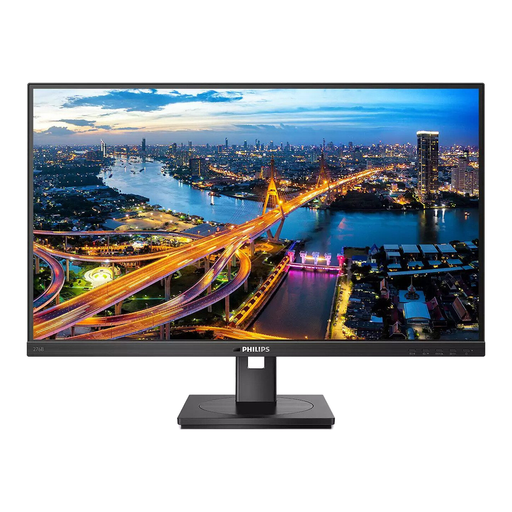 No image available
The 27-inch QHD format is an option for working with filters, results and notes at the same desk. USB-C docking requires a compatible laptop.
2,560 × 1,440 pixels; 75 Hz; IPS panel; USB-C docking with up to 90 W Power Delivery; Ethernet.
Your laptop must support USB-C DP Alt Mode and Power Delivery for video and charging.
No, 4K isn’t essential. What matters is your preferred window layout and readability at your chosen scaling. There are both QHD and 4K options.
Only if the monitor and laptop support the features you need. Check whether your laptop can output video through its USB-C port, and compare the monitor’s Power Delivery output with your device’s charging requirements.
Compare the specific model’s width and depth, including its stand or arm, with the desk space available. A wide format can accommodate several windows, but it will take up more room.
Adjust the screen’s position and settings, and consider the lighting and potential glare in your workspace. Germany’s Federal Institute for Occupational Safety and Health (BAuA) covers screen work in workplaces and teleworking environments in its ASR A6 guidance. Its scope doesn’t automatically apply to all personal screen use.
Compare the EU energy label and product information for the specific models. The European Commission describes an A to G efficiency scale for electronic displays, with additional model information available in EPREL. Your personal running costs will also depend on how long you use the monitor, its operating mode and your electricity tariff.