What should you look for when buying?
Start by checking which devices you’ll connect and whether you need to read slides and supporting material at the same time. This will help you decide whether extra docking, KVM or colour features are useful for your workspace.
| What you need |
What to check |
Who should pay particular attention? |
| Connecting devices and switching computers |
Check that USB-C supports video output and provides the power your laptop needs. If you use two computers, check the KVM and USB connections are suitable. |
If I regularly switch laptops at a shared desk, I want to connect my screen and essential devices without unnecessary cable swapping. Around 36% of consumers say switching devices is their main concern. |
| Reading slides and supporting material |
Check the screen size, resolution and scaling on your computer, as well as the text size at your usual viewing distance. |
If I work on slides alongside sources, notes or data, I want both to remain easy to read. Around 29% of consumers say having space to work on both at once is their main concern. |
| Adjusting the position for different people |
Consider height adjustment, tilt and swivel, as well as the depth of your desk. |
If several people use the monitor, I want to adjust its position to suit my posture and visual needs. Around 21% of consumers say adjustability is their main concern. |
| Assessing colours in presentation graphics |
Check that the colour space and colour mode meet the requirements for your finished presentation. |
If I’m adjusting the colours in charts or images, accurate colour specifications matter more to me than extra docking features. Around 14% of consumers prioritise colour display for graphics. |
Monitors for presentations at a shared desk
This selection includes 27-inch QHD and 4K monitors for working on presentations, with models offering different resolutions and USB-C specifications. The right ports and settings depend on the devices you use and your viewing distance.
 No image available
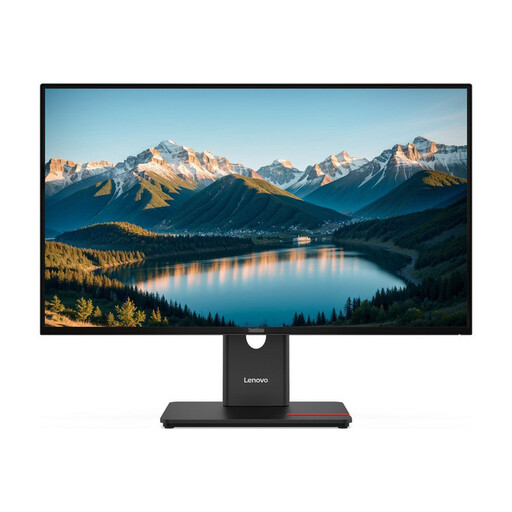
Lenovo ThinkVision T27Q-40, 27-inch, QHD, IPS
The QHD specification may be worth considering when choosing a screen for presentations and supporting material. Check readability with your preferred scaling.
USB-C Power Delivery is specified at 15 W. Check whether that’s enough to charge your laptop.
View at Joybuy
 No image available
MSI PRO MP273UPDE E6, 27-inch, 4K UHD, IPS
The 4K specification may be useful for presentations with detailed content. Check that scaling and text size are easy to read on your computer.
The product name specifies IPS and 60 Hz.
View at Joybuy
 No image available
INNOCN CB27U1, 27-inch, 4K UHD, 120 Hz, USB-C 90 W PD
The 4K specification is worth considering for presentations with fine details. Also check that scaling is suitable for the computer you’ll be using.
The product name specifies USB-C with 90 W PD and 120 Hz. Video output and charging require a compatible laptop, and the charging power must suit your device.
View at Joybuy
 No image available
Philips 276B9, 27-inch, QHD, IPS, USB-C 65 W Power Delivery
The QHD specification may help you choose a screen for presentations and supporting material. Check the display using your preferred scaling.
The product name specifies 75 Hz, a USB hub and a height-adjustable stand. USB-C Power Delivery is listed at 65 W; check that this is enough for your laptop.
View at Joybuy
 No image available
MSI PRO MP275QPDGDE, 27-inch, WQHD, USB-C 98 W PD, KVM
If you regularly switch devices at a shared desk, the docking and KVM features listed in the product name may be useful. Check your computers’ ports and how you want to switch between them.
The product name also lists Daisy Chain and an integrated webcam. USB-C video output and charging require a compatible laptop, and the specified charging power must suit your device.
View at Joybuy
Frequently asked questions
Is one USB-C cable enough for my laptop’s display and charging?
Only if your laptop’s USB-C port supports video output and the monitor provides enough power for your device. Manufacturers specify different power levels: for example, 65 W for the BenQ PD2705Q and up to 100 W for the Lenovo ThinkVision P27h-30.
How should I set up a monitor at a shared workspace?
Adjust the screen position and text size to suit your viewing distance and, if applicable, your glasses, rather than relying on the previous user’s settings. The BAuA covers how screen position, visual requirements and body dimensions work together. For workplace screen setups, the scope of ASR A6 is also relevant.
What information can help me compare energy use?
For monitors of a similar size and used in a similar way, compare the EU energy label and the accompanying product information. The energy efficiency class alone can’t tell you your individual electricity costs. The European Commission describes the A to G efficiency scale for electronic displays.
Who should I contact if my monitor is faulty?
In Germany, the retailer is responsible for your statutory consumer rights in the first instance. A voluntary guarantee is separate. The Verbraucherzentrale lists repair or replacement as ways of putting a fault right and explains that the retailer covers the associated transport, labour and material costs.
Are there specific requirements for monitors at workplace desks?
Within its scope, ASR A6 sets out requirements under Germany’s Workplace Ordinance for screen-based work; it doesn’t apply to every type of private use. In the EU, electronic displays such as standard computer monitors are also subject to ecodesign and energy-labelling rules, with the exceptions set out in the regulations.


