Choose a monitor that suits the way you work. If you regularly connect different laptops, the image, data and charging functions actually supported matter more than simply having a USB-C port. For working with several documents side by side, screen size and resolution are key. At a shared desk, you should also check how adjustable the monitor is. A camera and microphones are particularly useful if you regularly hold video meetings there.
Who is this selection for?
People who switch laptops at a shared desk
If you regularly connect a laptop, check whether the monitor supports video, data and the required power delivery through its available ports. The DGUV also recommends adjusting your equipment to suit your needs before you start work when using a shared desk.
Planners working with several documents
If you work with a schedule, slides and reference materials side by side, consider screen size, resolution and text display together. The QHD and 4K specifications apply to the specific models mentioned, not to every product in each range.
Organisers who regularly hold video meetings
If you coordinate training sessions by video from a shared desk, check whether the monitor has a built-in camera and microphones and whether they work with your laptop. HP lists this equipment for the E27m G4.
What should you consider when choosing?
First, check which laptops and devices you need to connect. Then compare the display and adjustability. Extra features such as KVM or a built-in camera only matter if they suit the way you work.
| Priority |
What to check before buying |
Who is it important to? |
| Connecting a laptop and peripherals |
Video and data transfer, the required charging power and USB ports; KVM only if you need to keep several computers connected. |
If I regularly switch laptops at a shared desk, I want to connect video, data and power with as little unplugging as possible. Around 33% of consumers put connecting or switching laptops first. |
| Reading documents side by side |
Compare desk space, screen size, resolution and comfortable text scaling with the software you use. |
If I need a schedule, slides and reference materials at the same time, I want to work with them clearly displayed side by side. Around 27% of consumers particularly value space and readability for several training documents. |
| Adjusting the screen position |
Check height and tilt adjustment, as well as swivel or pivot if needed, and allow space for the stand or mount. |
If other people use the same desk, I want to adjust the screen position to suit my work. Around 27% of consumers say adjusting their viewing position is their main priority. |
| Holding video meetings |
Check for a built-in camera and microphones, how the monitor connects to your laptop and whether it works with your meeting software. |
If I regularly discuss training arrangements by video at a shared desk, I want to use a camera and microphones directly at my workstation. Around 13% of consumers prioritise built-in video meeting features. |
Common selection mistakes
-
Assuming USB-C provides full laptop docking
USB-C alone doesn’t tell you whether a monitor can transfer video and data, provide enough power to charge your laptop or connect the devices you need. Features and charging power vary by model.
Check the ports and specifications of the exact monitor you’re considering, then compare them with the capabilities and power requirements of each laptop you plan to use.
If the monitor or workstation doesn’t suit the way you work, you may need an extra mount or video meeting equipment.
Relevant brands at a glance
Dell
The P2725DE is a QHD option with a USB-C hub for laptop workstations.
- Dell lists a 27-inch screen, 2560 × 1440 pixels, height adjustment and tilt for this model.
- These specifications don’t confirm compatibility with every laptop over USB-C. Check the charging and data transfer features you need.
EIZO
The FlexScan EV2795 is a documented option for docking and switching between computers.
- EIZO lists QHD, LAN, KVM and up to 70 W through the USB-C upstream port for this model.
- Whether this charging power suits your laptop and whether you need KVM depends on your device setup.
Philips
According to Philips, the Business Monitor 27B2U6903/00 combines a 27-inch 4K display with Thunderbolt 4 and Smart KVM.
- The model description lists power delivery and source-switching features.
- For a daisy-chain connection over Thunderbolt 4, Philips specifies a maximum of 3840 × 2160 at 60 Hz and 8 bit.
Lenovo
The ThinkVision T27h-30 is a QHD docking option with USB-C, Ethernet and a USB hub.
- Lenovo’s German listing specifies a 27-inch screen and 2560 × 1440 pixels for this model.
- The information available doesn’t confirm a KVM or camera feature for this model. Check these separately if you need them.
HP
HP says the E27m G4 is designed for workstations used for video meetings.
- HP lists a 5 MP webcam, two microphones and USB-C power delivery up to 65 W for this model.
- Compare the stated power delivery with your laptop’s requirements and check that the camera features suit the way you’ll use it.
ASUS
The ProArt PA279CRV is a 27-inch 4K option for detailed graphic training materials.
- ASUS lists USB-C with 96 W and an adjustable stand for this model.
- Colour specifications come from the manufacturer and don’t, by themselves, guarantee an advantage for every training plan.
Joybuy monitors for training preparation
The models below offer QHD or 4K options for training materials and laptop workstations. Depending on the model, they also include features for video meetings or connecting several devices. Check the ports, power delivery and adjustment options for each specific model.
 No image available
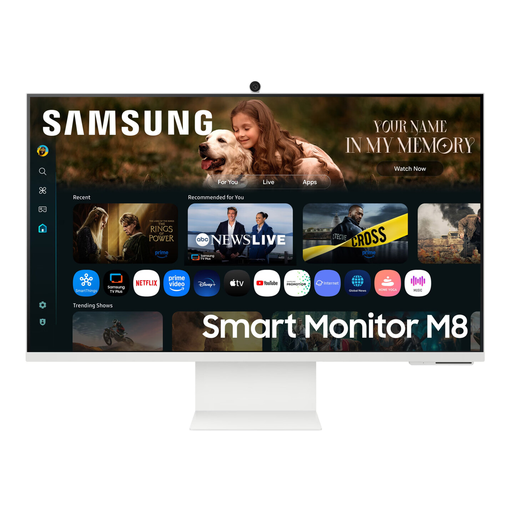
Samsung M8 M80F (2025), 32-inch
An option if you want to display training materials on a 32-inch screen and use built-in video features.
The product specifications list VA, 4K UHD, 60 Hz and a webcam. They also specify USB-C with 65 W Power Delivery, plus a height-adjustable, tilting stand.
Joybuy
 No image available
INNOCN CB27U1, 27-inch, 4K UHD
This option is a good fit if you want detailed training materials and need to connect a laptop over USB-C.
The product specifications list 3840 × 2160 pixels, IPS, 120 Hz and USB-C with 90 W Power Delivery. The stand is described as height-adjustable, tilting, swivelling and pivotable. KVM is listed as unavailable.
Joybuy
 No image available
Philips 276B9, 27-inch, QHD
A QHD option for working with several training documents, with USB-C connectivity and a built-in USB hub.
The product specifications list IPS, 2560 × 1440 pixels, 75 Hz and USB-C with up to 65 W Power Delivery. The stand adjusts for height, tilt and swivel, and rotates into portrait mode. Make sure the charging power suits your laptop.
Joybuy
 No image available
MSI PRO MP275QPDGDE, 27-inch, WQHD
This option is worth considering if you need USB-C docking, KVM and built-in video features at a shared desk.
The product specifications list USB-C docking with 98 W Power Delivery, KVM, a webcam and a microphone. The stand adjusts for height, tilt and swivel, and pivots.
Joybuy
 No image available
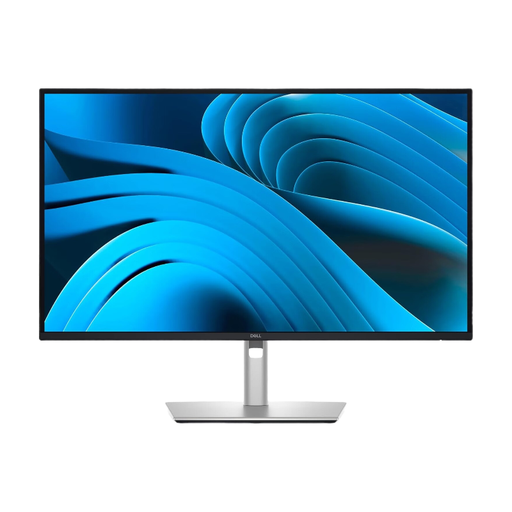
Dell Pro Plus P2725DE, 27-inch, QHD
A QHD option for working with training documents side by side and connecting a laptop through a USB-C hub.
Dell specifies 2560 × 1440 pixels and 100 Hz for the P2725DE. The product details list USB-C for video and data, with up to 90 W Power Delivery, as well as four USB ports. Height adjustment and pivot are also listed. Check that the charging power suits your laptop.
Joybuy
Frequently asked questions
Is one USB-C port enough for video, accessories and charging over a single cable?
The shape of the port alone isn’t what matters. Check the video and data transfer supported by the specific monitor, along with its charging power, then compare these with your laptop’s capabilities and power requirements. Dell and HP specify different charging power for their respective models.
What should I adjust at the start of a session at a shared desk?
Set up the screen, chair and desk to suit your needs. The DGUV recommends making these adjustments when sharing a desk. The available positions depend on the stand and workstation.
What costs or rights should I consider when buying, and if a product develops a fault?
Before buying, check whether the cables, mount or separate video meeting equipment you need are included in your setup. For consumer purchases in the EU, statutory rights against the seller for faulty goods are separate from a voluntary guarantee. EU consumer information states that the minimum statutory guarantee period is two years from receipt of the goods.
Are there specific rules for a monitor at a shared desk in the workplace?
Where a workstation with a display screen falls within their scope, the Workplace Ordinance and the supporting ASR A6 cover its setup and operation, and apply to employers. This is not a blanket statement about desks used privately. Electronic displays are also subject to EU ecodesign and energy labelling rules. Check the information for the specific model.


