What should you look for when buying?
Choose your screen size based on your usual window layout, then check the stand, connections and energy label for the specific model. The European Commission classifies monitors as electronic displays with an A to G energy label.
| Consideration |
What to look for when buying |
Who should pay particular attention? |
| Screen position when switching between sitting and standing |
Check the height and tilt adjustment and the stand’s footprint. If you’re using a monitor arm, check that it’s suitable too. |
When I switch between sitting and standing, I want to be able to set the screen to my eye level. Around 25% of consumers prioritise an adjustable screen position. |
| Readable workspace for slides and supporting material |
Check your usual layout at your preferred text size, and consider resolution and screen size together. |
When I have slides, notes and sources open side by side, I want to be able to read everything at my usual scaling. Around 25% of consumers prioritise workspace for slides and supporting material. |
| Laptop connection and charging power |
Check the video output supported by your laptop’s port, the charging power you need and the cable you plan to use. |
When I connect my laptop regularly, I want the video signal and charging to work with the equipment I already have. Around 20% of consumers prioritise laptop connectivity. |
| Displaying slides with detailed imagery |
For small graphics, check the resolution and colour options. Also make sure menus and text remain readable at your chosen scaling. |
When I work with detailed slides, I want to assess small graphics without making text and menus too small to read. Around 15% of consumers prioritise displaying fine image details. |
| Features and energy consumption |
Choose features that suit your workflow, and compare the EU energy label for the specific model. |
When I’m keeping an eye on energy use, I want to avoid features I won’t use and check the label for the specific model. Around 15% of consumers focus on features and running costs. |
Joybuy products for working on slides
This selection includes monitors whose resolution and format specifications you can compare for slides, supporting windows and switching between sitting and standing.
 No image available
MSI PRO MP273UPDE E6 27-inch 4K UHD IPS monitor
If you assess fine image details on slides, the 4K specification is one factor to consider. Also check that text and notes remain readable at your chosen scaling.
27 inches; 4K UHD; IPS; 60 Hz; HDR Ready.
View at Joybuy
 No image available
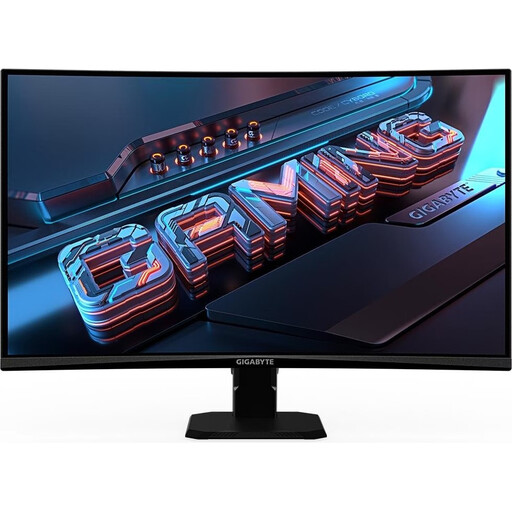
GIGABYTE GS27QCA 27-inch curved QHD monitor
If QHD suits your window layout, compare this model’s screen size and curved format with your desk setup.
27 inches; curved; QHD; 180 Hz; 1 ms; AMD FreeSync; HDR.
View at Joybuy
 No image available
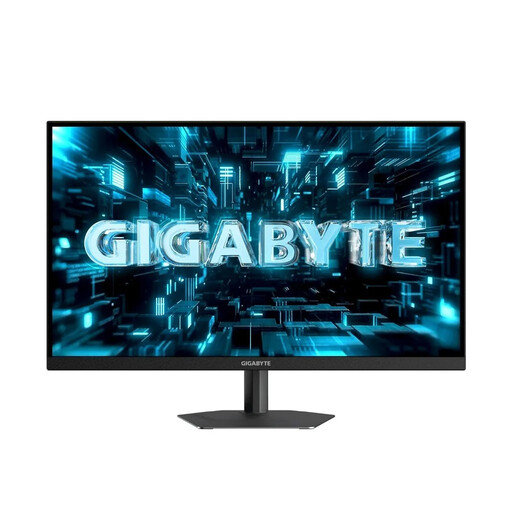
GIGABYTE G27Q26 27-inch QHD monitor
The QHD specification gives you a useful point of comparison for slides and supporting windows. Check whether the screen space is sufficient at your usual text size.
27 inches; QHD; SuperSpeed IPS; 2560 × 1440; 260 Hz (OC 275 Hz); 1 ms GTG.
View at Joybuy
 No image available
INNOCN 2751S PLUS 27-inch Mini LED QHD monitor
If you’re considering QHD for working on slides, compare the screen format and stand specifications with your desk position and window layout.
27 inches; Mini LED; QHD 2K; 275 Hz; 1 ms; height-adjustable.
View at Joybuy
 No image available
INNOCN 40C1U 40-inch 5K ultrawide monitor
If you want to arrange slides and several supporting windows across a wide workspace, check that the 40-inch format will fit on your desk.
40 inches; 5120 × 2160; IPS; 100 Hz; 21:9; USB-C PD 65 W; height-adjustable stand.
View at Joybuy
Frequently asked questions
Do I need to stand all the time when creating slides?
No. The BAuA describes sit-stand working as alternating between postures, and notes that prolonged standing may be less suitable for tasks that require a high level of concentration. Set up your desk and screen for the postures you actually use.
Is USB-C enough for video and power over one cable?
Not just because it has a USB-C socket. Check that your laptop can output the video signal you need through the specific port, and compare its power requirements with the monitor’s charging output. For example, BenQ lists 65 W for the GW2790QT.
How can I compare running energy consumption?
Compare the EU energy label and EPREL listing for the specific models. The European Commission classifies computer monitors as electronic displays with an A to G label. When comparing, make sure the information relates to the models you’re considering.
What rules apply to a screen-based workstation used for work in Germany?
The BAuA explains that ASR A6 sets out requirements for screen-based workstations in workplaces and teleworking environments within its scope. It doesn’t apply across the board to all private use, nor does it establish a general requirement for a particular monitor size or resolution.
Are a warranty, statutory rights and the right to cancel the same thing?
No. The Verbraucherzentrale distinguishes between your statutory rights against the seller and an additional voluntary warranty. Online purchases usually come with a 14-day right to cancel; check the terms of your specific purchase.


