Slide creators working with lots of sources
If you want to keep slides, written sources or images in view while you work, a second workspace lets you display them side by side.


Choose your monitor based on what you need the second screen for. For slides, sources and notes, a clear working area and enough desk space matter most. If you regularly connect a laptop, a USB-C docking monitor can bring several connections together. When presenting to an audience, your computer must also support multiple displays, and your presentation software needs to assign slides and private speaker notes correctly.
If you want to keep slides, written sources or images in view while you work, a second workspace lets you display them side by side.
If you regularly switch between using your laptop on the move and working with two screens at a desk, consider the connections, charging capabilities and how easy it is to plug everything in.
If you want to see your notes while presenting, with your audience viewing the slides, both your presentation device and display settings need to support multiple screens. Microsoft notes that the presentation device must support this.
Best if: Desk space is limited and you need room beside your existing screen for sources, notes or a slide overview.
The trade-off: A smaller display gives you less room for several large windows. Connections and charging power also vary by model.
Best if: You work on slides, images and supporting documents at the same time, and your laptop supports the video output you need.
The trade-off: A 27-inch model takes up more desk space. Also check that it suits your planned connections and multi-screen setup.
Best if: You regularly plug in and unplug a laptop, and having connections in one place matters more to you than a higher resolution.
The trade-off: Full HD displays fewer pixels than QHD or 4K. Charging requires a compatible laptop.
Best if: You often work with fine graphics or images, and your computer can output the resolution you need.
The trade-off: A higher resolution alone won’t give you a private Presenter View, nor can it replace a second supported display or the right connections.
| Requirement | What to check before buying | Who it matters most to |
|---|---|---|
| Clear working area | Consider screen size, native resolution and available desk space together. | If I want to read slides and sources at the same time, I look for enough space and a suitable resolution. Around 33% of consumers put working area first. |
| Connecting a laptop | Check the video output, connections and charging power you need against your laptop. | If I regularly connect my laptop at my desk, I want to connect it for both video and power. Around 27% of consumers prioritise laptop connectivity. |
| Private speaker notes | Check that your presentation device supports multiple displays, and confirm how the software assigns them. | When presenting, I want to see my notes without showing them on the audience display. Around 20% of consumers base their choice mainly on Presenter View. |
| Flexible positioning | Check the exact model’s height and tilt adjustments, as well as your available space and lighting. | If I’m working on slides for a long time, I want to position the screen to suit my workspace. Around 20% of consumers prioritise adjustability. |
Charging depends on the monitor and a compatible laptop. For two displays, you also need to check that your computer supports the video output you’re planning to use.
Check the video output, charging power required, cables and number of displays supported by your specific laptop model.
Depending on the connection setup, you may also need an adapter or a separate laptop power supply.
Whether your audience and you see different views also depends on how the presentation software assigns content to each display.
Set up your slides and notes before the event, then check what appears on both displays.
Two monitors with the same screen size can have different native resolutions. The Philips and Lenovo 27-inch models reviewed here are an example.
Compare the specific model’s native resolution with the slides, sources and graphics you work with.
The Dell P2425HE is a compact USB-C hub monitor for a laptop-based workspace. These details apply to this specific model variant with stand.
According to Lenovo, the ThinkVision P27h-30 combines a 27-inch QHD workspace with USB-C docking and a DisplayPort output.
The Philips 273S1/00 is a docking option for users who value laptop connectivity more than a higher resolution.
With a 27-inch screen and 4K resolution, the ASUS ProArt PA279CRV is designed for detailed slide and graphics work.
The following Joybuy picks include 27-inch QHD and 4K monitors. USB-C docking is listed for selected models; check that the connections and video output are compatible with your laptop.
 No image available
As an additional work screen, it can display slides and supporting materials on a 27-inch display.
2.560 × 1.440 pixels; HDMI and DisplayPort inputs.
 No image available
4K resolution is an option if you work with detailed slides or images and your computer can output this resolution.
3.840 × 2.160 pixels; HDMI and DisplayPort inputs; height-adjustable stand with pivot, swivel and tilt.
 No image available
As an additional screen, its 4K resolution is suited to displaying detailed slides, provided your computer supports it.
3.840 × 2.160 pixels; 99% sRGB; HDMI and DisplayPort inputs; tiltable stand or VESA 100 × 100 mm mounting.
 No image available
An option for working on slides and sources side by side, if the WQHD resolution and docking connections suit your laptop.
2.560 × 1.440 pixels; USB-C with 98 W Power Delivery; Daisy Chain support; HDMI and DisplayPort inputs.
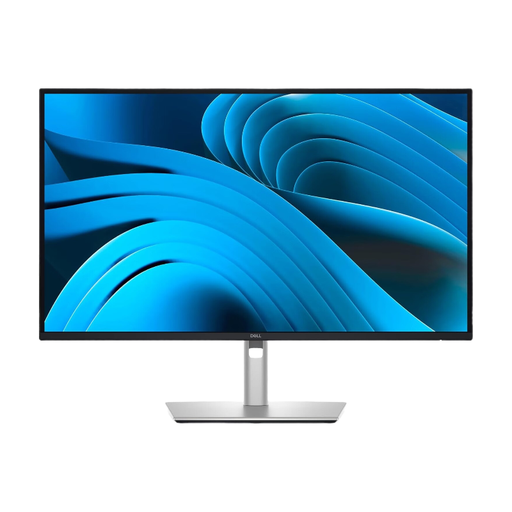 No image available
The 27-inch QHD workspace is an option for slides and supporting materials. Check that the USB-C connection is compatible with your laptop.
2.560 × 1.440 pixels; USB-C with up to 90 W Power Delivery and integrated USB hub; HDMI and DisplayPort inputs.
No, the monitor alone isn’t enough. Microsoft notes that your presentation device must support multiple displays. Then check the display settings in PowerPoint.
Connect the second display, turn on Presenter View in PowerPoint and check the display settings. For Windows, Microsoft describes selecting “Extend these displays” and choosing the main display. Before your presentation, test which view appears on each screen.
ASR A6 applies to screen-based workstations in workplaces and teleworking environments within its scope. The Workplace Ordinance also requires, among other things, that distracting glare and reflections are avoided. These requirements don’t amount to a general equipment obligation for every monitor used at home.
Compare the EU energy label and consumption data for the specific monitor models. The European Commission includes computer monitors among the electronic displays covered by energy labelling. Your actual electricity costs also depend on the model and how you use it.
No. EU guidance distinguishes the statutory guarantee for consumer goods, which lasts for at least two years, from a manufacturer’s voluntary commercial guarantee. Check the specific offer to see who the seller is and what additional guarantee terms apply.