For sprite animation at a shared desk, QHD with a suitable colour mode is a sensible choice if palettes and your editor are the priority. If you frequently switch between computers, KVM or a suitable USB-C hub matters more. With the right scaling, 4K can give you more pixels for multiple windows, while a higher refresh rate is mainly relevant for previewing animations in motion and doesn’t indicate better colour reproduction. Before buying, check your desk space, your computers’ ports, their charging requirements and your colour workflow.
Which monitor is right for you?
Sprite artists focused on colour
If you regularly assess palettes and previews, look for a suitable colour mode and consider how it fits into your workflow. BenQ lists an sRGB mode for the PD2705Q, while EIZO documents hardware calibration for the ColorEdge CS2400S.
Teams using a shared desk
If several people connect different computers, check whether KVM or a USB hub makes switching easier and works with your devices. BenQ, ASUS and Dell list these features on specific models.
Animators with lots of windows open
If you want your editor, layers and preview visible at the same time, consider resolution, screen size, desk space and readable scaling together. TÜV SÜD describes resolution as one factor to consider when choosing a display, alongside screen size.
What should you look for when buying?
These figures show the main buying priorities for consumers looking for a monitor for sprite animation at a shared desk.
| Buying priority |
What to look for when buying |
Who it matters most to |
| Assessing colours |
Look for a suitable sRGB mode and documented calibration options. |
If I want to assess sprite palettes reliably, I check the colour mode and my output workflow. For around 33% of consumers, colour assessment is the top priority. |
| Switching between computers |
Check KVM or USB hub support, as well as video output, charging requirements and cables for each computer. |
If several computers share the same desk, I want to connect them without having to unplug and reconnect cables unnecessarily. For around 27% of consumers, switching between devices is the main buying priority. |
| Viewing the editor and preview |
Match the resolution and screen size to your desk space and readable scaling. |
If I want to keep my tools and preview open at the same time, a suitable window layout matters most to me. For around 20% of consumers, workspace takes priority. |
| Checking motion previews |
Check the monitor’s refresh rate alongside your computer’s video output and connection; set pixel-art scaling in your software. |
If I also want to check animations in motion, I look at the supported refresh rate and preview settings. For around 20% of consumers, motion display is the main priority. |
Common misconceptions
-
Assuming a high refresh rate means good colour reproduction
Refresh rate and colour mode describe different features. A high Hz figure on its own doesn’t indicate suitable colour reproduction for sprite work.
Compare colour mode and refresh rate separately, then consider what your workflow actually needs.
-
Assuming USB-C will automatically give you a working one-cable setup
The video signal, USB data and charging power all need to be compatible with your computer and cable.
Check the ports and charging requirements for each computer, as well as the cable specifications, before choosing a model.
-
Assuming higher resolution automatically means more usable space
Readability and scaling affect how many windows you can comfortably use.
Compare QHD and 4K with your window layout, desk size and operating system’s scaling settings.
Brands to consider
BenQ
The PD2705Q is a QHD option for sRGB work and switching between connected devices.
- BenQ lists 100% sRGB, USB-C with 65 W Power Delivery and KVM for this model.
- The stated refresh rate is 60 Hz; the colour figures are manufacturer specifications.
ASUS
The ProArt PA278CGRV combines QHD with Auto-KVM and a higher refresh rate.
- ASUS lists 144 Hz, 100% sRGB and USB-C with up to 96 W Power Delivery for this model.
- KVM, video output and charging need to work with your specific computers and cables; 144 Hz doesn’t indicate better colour reproduction.
Dell
The Pro P2725DE is a QHD monitor with a USB-C hub for a shared workspace.
- Dell lists a 27-inch screen, 2560 × 1440 pixels, 100 Hz and 90 W power delivery for this model.
- These specifications don’t indicate any specific calibration performance for assessing sprite colours.
LG
The UltraFine 27UP850K-W is a 27-inch 4K option if its scaling suits your computer and working style.
- LG lists USB-C and an adjustable stand.
- LG specifies a maximum refresh rate of 60 Hz for this model.
EIZO
The ColorEdge CS2400S is a smaller graphics display for workflows involving regular colour calibration.
- EIZO documents ColorNavigator hardware calibration and USB-C for this model.
- Its 24-inch format doesn’t offer the same physical workspace as a 27-inch monitor.
Monitors at Joybuy
This selection includes 4K, QHD and WQHD monitors for sprite work at a shared desk, including models with USB-C, hub or switching features.
 No image available
INNOCN CB27U1 27-inch 4K UHD monitor
An option if you’re looking for 4K resolution and a height-adjustable stand for your shared workspace.
Specifications include a 27-inch screen, 3840 × 2160 pixels, 120 Hz and 100% sRGB.
USB-C with 90 W Power Delivery and PIP/PBP are also listed. Check that your computer and scaling suit your working style.
View at Joybuy
 No image available
Philips 276B9 27-inch QHD IPS monitor
A QHD option if you want to use your editor and preview on one screen and have a USB hub at your shared workspace.
Specifications include a 27-inch screen, 2560 × 1440 pixels and 75 Hz.
USB-C with up to 65 W Power Delivery and a height-adjustable stand are also listed. Check that the charging power and ports match your computer.
View at Joybuy
 No image available
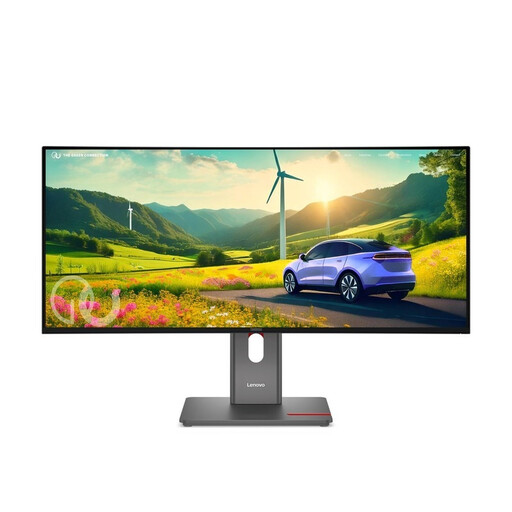
Lenovo ThinkVision P34WD-40 34-inch WQHD IPS monitor
The 21:9 format is an option if you want your editor, tools and preview side by side.
Specifications include a 34-inch screen, 3440 × 1440 pixels, 120 Hz and 99% sRGB; the description also mentions factory calibration.
USB-C with up to 140 W, a USB hub and Gigabit Ethernet are listed. The 34-inch format needs more desk width than 27-inch models.
View at Joybuy
 No image available
KOORUI G2741L 27-inch dual-mode gaming monitor
A dual-mode option if you want to consider both 4K resolution and a higher refresh rate for motion previews.
The product specifications list 4K UHD at 160 Hz and FHD at 320 Hz, as well as 100% sRGB.
Height adjustment and a pivot function are also listed. Check which combination of resolution and refresh rate your computer connection supports.
View at Joybuy
 No image available
MSI PRO MP275QPDGDE 27-inch WQHD docking monitor
A docking option for a shared workspace if KVM and USB-C ports are important when switching between computers.
Specifications include a 27-inch screen, WQHD, 100 Hz, KVM and USB-C docking with 98 W Power Delivery.
The stated colour gamut coverage is 84% sRGB. If you’re assessing sprite colours, take this figure into account when choosing.
View at Joybuy
Frequently asked questions
Does a monitor for sprite animation need to have 144 Hz?
No, not just for editing individual sprites. If you also want to check scenes in motion at a higher refresh rate, your monitor, computer video output and connection all need to support it. ASUS lists 144 Hz for the PA278CGRV, while BenQ lists 60 Hz for the PD2705Q.
How do I set up the pixel-art preview?
Check the scaling and texture filtering settings in your animation software. The Godot Engine documents nearest-neighbour filtering for visibly blocky pixel art; this software setting can’t be replaced by a monitor specification.
What should I check before connecting a shared laptop?
Check the laptop’s video output, USB-C video support, charging requirements and cable, as well as the hub or KVM ports you need. ASUS lists up to 96 W for the PA278CGRV and Dell lists 90 W power delivery for the P2725DE; these manufacturer specifications don’t tell you how much power your particular laptop needs.
What rights do I have when buying online from a trader?
For goods, the seller is generally liable by law for defects for at least two years; an additional manufacturer’s guarantee doesn’t replace this. For a typical online distance purchase, you generally have a 14-day right to cancel from the date you receive the goods. The European Commission also explains the circumstances in which the buyer may have to pay return costs.
What should I do with an old monitor in Germany?
Electrical and electronic waste must not go in household rubbish. The German Environment Agency lists municipal recycling centres and retailer take-back schemes; check locally to find out which options are available.


