For long, multi-track timelines, an ultrawide monitor or an additional screen could be a good choice. For example, Dell Germany lists a 21:9 aspect ratio and 3.440 × 1.440 pixels for the U3425WE, while Adobe explains how to move panels to a second screen. If you need to assess 4K detail or stage colours, focus more on native 4K resolution, suitable colour modes and a practical calibration process. Manufacturer specifications alone don’t prove the accuracy of your entire preview setup.
Which monitor setup is right for you?
Editing multi-track rehearsals
When you’re arranging long recordings from several cameras, you need a clear timeline and enough room for your editing panels. Dell Germany lists a wide 21:9 aspect ratio for the U3425WE. Adobe also explains how to move panels to a second screen.
Assessing stage colours
With changing lighting or dark scenes, it’s important to have a colour mode that suits your output format and a practical calibration process. EIZO lists a built-in sensor for the CG2700X, but setting up the right preview is still part of your workflow.
Checking 4K footage
If you’re checking image detail in high-resolution footage while using your editing tools, compare the native resolution with how easy the panels are to read. ASUS Germany and BenQ Germany list 27-inch models with 3.840 × 2.160 pixels.
What should you look for when buying a monitor?
First decide whether timeline width, native 4K detail or a separate preview will have the biggest impact on your editing setup. You should also choose colour controls and connections to suit your output format and computer.
| Priority |
What to check when buying |
Who is it important to? |
| Room for the timeline and editing panels |
Aspect ratio and horizontal and vertical pixel count; test your window layout at a scaling level that’s easy to read. |
If I need to arrange long recordings and several windows side by side, a clear timeline is especially important to me. Around 36% of consumers prioritise timeline space. |
| Colour and dark stage scenes |
Check that the colour mode suits your output format, along with the calibration and preview settings. |
If I’m assessing colours under changing stage lighting, I need a suitable colour mode and a practical calibration process. Around 29% of consumers prioritise colour control. |
| Source footage detail |
Compare the footage resolution with the monitor’s native resolution; check that scaling keeps everything easy to read. |
If I need to check image detail in 4K, native resolution matters more to me than an especially wide workspace. Around 21% of consumers put 4K detail first. |
| Connections and workspace |
Check your computer’s video outputs; compare video transfer and the charging power you need separately. |
If I want to connect a laptop or a second screen, the setup needs to work with my computer and workspace. Around 14% of consumers prioritise connections and workspace design. |
Common assumptions when buying a monitor
-
An ultrawide screen doesn’t automatically give you more room for stacked tracks
Timeline height also depends on vertical resolution. The Dell U3425WE has 1.440 vertical pixels.
Compare horizontal and vertical pixel counts separately, and check your window layout at a scaling level that’s easy for you to read.
-
A colour gamut figure or HDR label doesn’t guarantee a reliable preview
A colour mode or gamut specification describes a feature of the model, not the accuracy of your entire preview setup.
Choose your output format, then check the colour mode, calibration and preview settings in your editing software.
-
USB-C isn’t automatically a complete one-cable solution
A monitor’s charging power alone doesn’t confirm video output or the power requirements of a particular laptop.
Check the video connection, the charging power you need and the available outputs for every computer in your setup.
Depending on your computer, you may need extra cables or a separate power supply.
Key brands and models at a glance
Dell
The UltraSharp U3425WE is a documented 34,1-inch ultrawide option for a wider timeline.
- Dell Germany lists a 21:9 aspect ratio, 3.440 × 1.440 pixels and a Thunderbolt hub for the U3425WE.
- With 1.440 vertical pixels, this model doesn’t offer native 3.840 × 2.160 resolution. These specifications apply to the U3425WE, not all Dell monitors.
BenQ
The DesignVue PD2705U is a 27-inch 4K option with documented colour features.
- BenQ Germany lists 99% Rec.709 and factory calibration for the PD2705U.
- Manufacturer specifications don’t prove the colour accuracy of your particular editing setup.
ASUS
The ProArt PA279CRV combines a documented 27-inch 4K resolution with colour presets and USB-C.
- ASUS Germany lists 3.840 × 2.160 pixels, a Rec.709 preset and USB-C Power Delivery at 96 W.
- Check that it’s compatible with your laptop and that the connections suit your actual colour and preview workflow.
EIZO
The ColorEdge CG2700X and CS2740 are 27-inch 4K models with documented calibration features.
- EIZO Germany lists a built-in sensor for the CG2700X. For the CS2740, EIZO describes hardware calibration with ColorNavigator.
- Don’t assume the CS2740 has the CG2700X’s built-in sensor. Calibration features also don’t give you extra timeline space.
Joybuy products for editing and previewing
The Joybuy products below include wide ultrawide workspaces and 27-inch 4K options for editing and previewing.
 No image available
INNOCN 40C1U 40-inch 5K ultrawide monitor
The wide workspace could be a good fit if you want to arrange long multi-track timelines and several editing panels side by side.
Product specifications list 5.120 × 2.160 pixels, a 21:9 IPS panel with 100 Hz and USB-C Power Delivery at 65 W. PIP/PBP and a calibration report are also listed; these specifications don’t prove the colour accuracy of your configured editing setup.
View at Joybuy
 No image available
INNOCN CB27U1 27-inch 4K UHD monitor
Native 4K resolution could suit your editing setup if you want to check image detail while using your editing tools.
Product specifications list 3.840 × 2.160 pixels, an IPS panel with 120 Hz, PIP/PBP and USB-C Power Delivery at 90 W. They also list 100% sRGB, 99% Adobe RGB and Delta E < 1; these figures don’t replace checking your own preview workflow.
View at Joybuy
 No image available
CRUA 49-inch DQHD curved monitor, 32:9
The wide format could be worth considering for a long timeline and editing panels arranged side by side.
Product specifications list 5.120 × 1.440 pixels, 165 Hz and a curved 32:9 display. With 1.440 vertical pixels, it doesn’t offer native 4K preview and won’t automatically give you more room for stacked tracks.
View at Joybuy
 No image available
INNOCN E34A1R 34-inch curved ultrawide monitor
The 21:9 format could be a good fit if you want more horizontal space for a long timeline and editing panels.
Product specifications list 3.440 × 1.440 pixels, a VA panel with 200 Hz, HDMI and DisplayPort. PIP/PBP is also listed. The resolution doesn’t offer native 4K preview and limits the vertical space available for stacked tracks.
View at Joybuy
 No image available
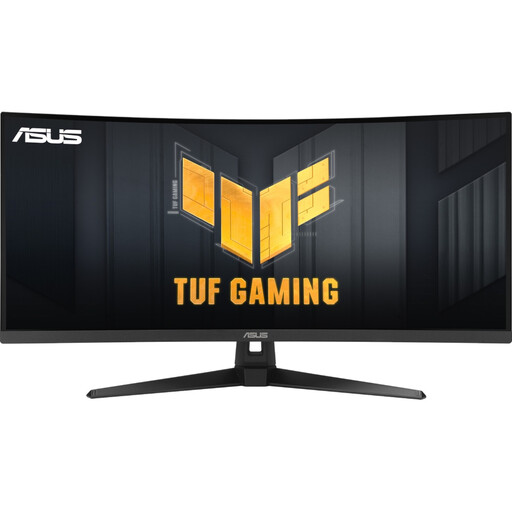
ASUS TUF Gaming VG34VQ3B 34-inch UWQHD monitor
The 21:9 format could be an option if you want a wide timeline and editing panels arranged side by side.
Product specifications list 3.440 × 1.440 pixels, a curved VA panel with 180 Hz, HDMI 2.0, DisplayPort 1.4 and a USB hub. The resolution doesn’t offer native 4K preview and limits the vertical space available for stacked tracks.
View at Joybuy
Frequently asked questions
Does an ultrawide monitor automatically give you room for more stacked video tracks?
No. Vertical resolution, scaling and window layout all matter too. The Dell U3425WE, with 3.440 × 1.440 pixels, is an option if you want more horizontal space. Alternatively, you can move panels to a second screen in Adobe Premiere.
How do I set up a full-screen preview on a second monitor in Premiere?
Adobe explains how to use separate video output with “Enable Mercury Transmit”. This is different from moving panels; your computer must first be able to use the second screen.
What else should I check besides resolution and connections?
Compare the EU energy label for the specific model and check which connections your computer needs for a second screen or your calibration process. The European Commission lists electronic displays on an energy efficiency scale from A to G.
How should I dispose of an old monitor in Germany?
The German Environment Agency advises against putting electrical equipment in household waste. For an old monitor, use a recycling centre or a suitable take-back point, for example.


