Timeline reviewers
If you mainly check the edit sequence, tracks and preview, you’ll need enough screen space to arrange and read these elements clearly.


When reviewing edit tracks and preview footage, a usable screen area, suitable scaling and an adjustable setup all matter. If you also assess colour for a specific SDR output, you’ll need suitable colour modes and a controlled colour workflow. For laptops used in rotation, the connection type and charging power are key. HDR support alone doesn’t establish that a monitor is suitable for critical HDR evaluation.
If you mainly check the edit sequence, tracks and preview, you’ll need enough screen space to arrange and read these elements clearly.
If you assess colour for a specific SDR output workflow as well as editing, the monitor mode, output format and colour management need to work together.
If you share a workstation or connect different laptops, the monitor’s setup options, lighting conditions and connection compatibility all matter.
| Consideration | What to check before buying | Who will find this important? |
|---|---|---|
| Screen space for timelines and preview footage | Compare screen size and native resolution, then check whether the scaling is comfortable to read on the computer you plan to use. | If I want to see tracks, tools and preview footage at the same time, I need the right combination of screen space and scaling. Around 39% of consumers prioritise screen space. |
| Colour checking during review | Decide on your output workflow and check for suitable colour modes, colour management options and calibration. | If I assess colour for a defined SDR output while reviewing footage, the monitor mode needs to be suitable. Around 23% of consumers prioritise SDR colour checking. |
| Glare and an adjustable setup | Check the screen finish, height adjustment, stand footprint and lighting conditions at the actual workstation. | If I use a shared desk, I want to be able to adjust the screen to suit my seating position and the lighting. Around 23% of consumers prioritise a position that’s adjustable and minimises glare. |
| Connecting different laptops | Check that video output, laptop port, cable and power requirements match the stated Power Delivery output. | If I connect different compatible laptops at a shared desk, the connection needs to meet their display and charging requirements. Around 15% of consumers prioritise laptop connectivity. |
HDR signal support and stated DisplayHDR tiers don’t, by themselves, show that a fully configured review setup is suitable. VESA’s DisplayHDR standard covers several performance tiers.
Before buying, decide whether you need a preview or a reliable HDR assessment, then check the complete setup required for that purpose.
A reliable HDR assessment may require additional equipment and a suitably configured workflow.
USB-C alone doesn’t guarantee video output or enough charging power for every laptop. The models considered here have different stated Power Delivery outputs.
Before buying, check that the monitor and laptop ports, video mode, cable and charging requirements are compatible.
Depending on the connection and power requirements, you may need a suitable cable or a separate power supply.
Windows and lights can make the screen harder to see. A matte finish alone won’t resolve the lighting conditions at your workstation.
Check the windows, lights and possible screen positions at the shared workstation itself. The DGUV recommends positioning your line of sight parallel to the window front, while the BAuA sets out requirements for screen work in ASR A6.
If your current setup doesn’t prevent glare, you may need to adjust the screen position or sun protection.
The DesignVue range is worth considering for creative work. The PD2705U is a specific 27-inch 4K model with a stated Rec.709 mode.
The ProArt PA279CRV is a specific model for anyone looking to assess colour modes and an adjustable setup together.
The UltraSharp U2725QE is a hub-focused alternative for laptop-based workstations.
ColorEdge is particularly worth considering if repeatable colour checks are part of your workflow. EIZO lists the CS2740 for video editing and post-production.
The UltraFine 27UP850K-W is another 27-inch 4K option with USB-C and an adjustable stand.
The Joybuy models below are 4K monitors for timelines and preview footage. If you need to assess colour critically, check the colour workflow separately from the resolution and model name.
 No image available
An option if you want to review timelines and preview footage on a 27-inch 4K screen.
27 inches; 3840 × 2160 pixels; IPS; 60 Hz; HDR Ready.
The HDR specification alone doesn’t establish that the monitor is suitable for critical HDR evaluation.
 No image available
An option for timelines and preview footage if you also need USB-C and an adjustable setup at a shared desk.
27 inches; 3840 × 2160 pixels; IPS; 120 Hz; USB-C with 90 W Power Delivery; height-adjustable.
Check that the connection and charging output are suitable for your laptop.
 No image available
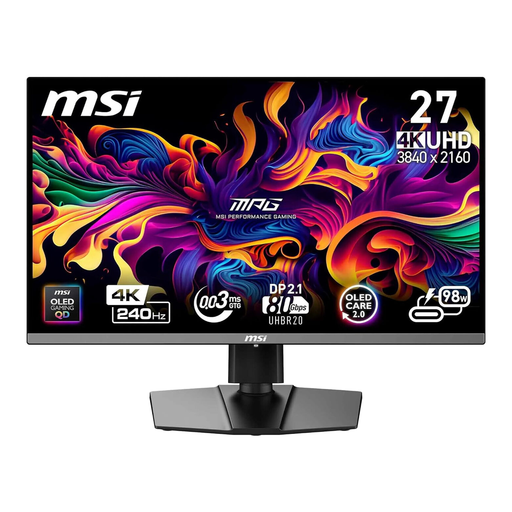
An option if you want to work with timelines and preview footage on a 4K screen with USB-C connectivity.
26.5 inches; 3840 × 2160 pixels; QD-OLED; 240 Hz; USB-C with 98 W Power Delivery.
Check that the charging output meets your laptop’s requirements.
 No image available
An option if you want a larger 4K display and a built-in USB hub for a shared workstation.
32 inches; 3840 × 2160 pixels; QD-OLED; 240 Hz; USB-C with 98 W Power Delivery; height-adjustable.
Check that the dimensions suit your desk and the charging output meets your laptop’s requirements.
 No image available
An option for timelines and preview footage on a larger 4K screen if you also want USB-C and a USB hub.
32 inches; 3840 × 2160 pixels; 240 Hz; USB-C with 90 W Power Delivery; USB hub.
Check the connection and charging requirements of the devices you use.
Not just because you’re working with a timeline. What matters is whether you’re reviewing SDR footage or need to assess a defined HDR workflow. HDR10 support and DisplayHDR performance tiers are different specifications; neither alone establishes that a configured workstation is suitable for critical HDR evaluation.
Check for reflections at the workstation itself and position the screen and desk accordingly. The DGUV recommends positioning your line of sight parallel to the window front when working with screens, and describes adjustable glare protection. A matte monitor finish alone won’t resolve the lighting issue.
For eligible models, compare the EU energy label, particularly the SDR and, where applicable, HDR figures. You can only calculate your individual costs from the stated consumption in kWh per 1,000 hours once you factor in your usage and electricity tariff.
For a private purchase in the EU, you’re generally entitled to at least two years of legal protection against faulty goods from the seller. This is separate from any voluntary manufacturer’s warranty. Your Europe explains this consumer protection. If you’re buying for a business, check the specific contract terms separately.
The ASR A6 from the Federal Institute for Occupational Safety and Health doesn’t specify a particular monitor model. If employees work at the workstation, the employer is responsible for its design and assessment. The ASR also describes alternative solutions, provided they offer at least the same level of protection.