Comparing timetables
If you often have several connections or timetable tables open at once, usable screen space and clearly legible text matter. Choose a size that suits the way you want to arrange your windows.


For comparing several timetables, a 27-inch QHD monitor can be a good middle ground. An ultrawide gives you more horizontal screen space but needs a wider desk, while a compact model takes up less room and offers fewer pixels for side-by-side views. Dell lists a resolution of 2560 × 1440 for the P2725DE and 3440 × 1440 for the P3425WE. If you regularly switch between laptops, also check the video connection, suitable USB-C charging power and stand adjustment on the specific model.
If you often have several connections or timetable tables open at once, usable screen space and clearly legible text matter. Choose a size that suits the way you want to arrange your windows.
If different laptops are connected at the same desk, suitable video connections, enough charging power and the other ports you need matter more than an extra-high refresh rate.
If there’s little room for the monitor, paperwork and input devices, measure the footprint, including the stand. Adjustable positioning makes it easier to set the screen up for different users.
A good fit if: There’s limited desk space at your shared desk. EIZO specifically describes the FlexScan EV2490 as suitable for shared workstations.
The trade-off: The Full HD model mentioned offers fewer pixels for side-by-side views than the QHD and ultrawide options.
A good fit if: You want to compare two views on a common 16:9 screen. Dell and Lenovo offer models in this class with different connection and adjustment options.
The trade-off: USB-C, other ports and adjustment options vary by model, so check each one individually.
A good fit if: You want to keep several tables open side by side and have enough desk width. Dell lists a resolution of 3440 × 1440 for the P3425WE.
The trade-off: The wider monitor needs more desk space. Legibility also depends on window width and your chosen text size.
| Consideration | What to check when buying | Who it affects most |
|---|---|---|
| Keeping several timetables legible | Check your window layout, native resolution and a suitable text size for the applications you actually use. | If I use several timetables at once, I need enough width and a text size that keeps the times easy to read. Around 33 % of consumers prioritise comparing several timetable views at once. |
| Connecting laptops easily | Check the laptop port’s video output, the charging power you need, other inputs and the cables supplied. | If different laptops are used at the desk, I want to connect them appropriately and keep their charging requirements in mind. Around 27 % of consumers prioritise being able to connect different laptops easily. |
| Adjusting the screen position | Check the height, tilt and swivel adjustments, as well as the screen’s position in relation to light sources. | If several people use the desk, I want to be able to position the screen to suit each person. Around 20 % of consumers prioritise being able to adjust the screen position to suit them. |
| Keeping space and ongoing costs down | Measure the width, including the stand, and compare the energy label for the specific model. | If desk space or budget is limited, I want to check whether a compact screen will do and how to compare its energy use. Around 20 % of consumers prioritise saving space or keeping costs down. |
The 23.8-, 27- and 34.1-inch monitors considered here also differ in resolution and aspect ratio. For timetables, what matters is whether your chosen windows fit on screen at a comfortably legible size.
Set up the window layout you need using your intended text size, and measure the available desk width.
A USB-C hub won’t necessarily make every laptop suitable for video and power delivery. Connections and charging power vary across the models covered here.
Check the video output, power requirements and supplied accessories for every laptop you regularly use.
Depending on your laptop, you may also need a power adapter, cable or dock.
More horizontal space can make comparisons easier, but the monitor needs to fit alongside your paperwork and be positioned without distracting reflections.
Check the footprint, adjustability and lighting conditions at the intended desk.
These examples show different screen sizes and connection options. The details refer to the models named, not each brand’s entire range.
Dell lists the P2725DE as a 27-inch QHD hub monitor and the P3425WE as a 34-inch ultrawide model.
The ThinkVision T27h-30 is a documented 27-inch QHD docking option for shared workstations.
According to BenQ, the GW2790QT combines a 27-inch QHD screen with USB-C and an adjustable stand.
EIZO describes the FlexScan EV2490 as suitable for shared desks too, offering a more compact docking setup.
The 27E1N1600AE/00 is a documented 27-inch QHD option with USB-C.
This Joybuy selection includes compact monitors, 27-inch QHD models and 34-inch ultrawide monitors for comparing timetables at a shared desk.
 No image available
The 27-inch QHD format is an option if you want to compare several timetable views.
2K/1440P, 144 Hz, HDMI and DisplayPort; height-adjustable stand.
 No image available
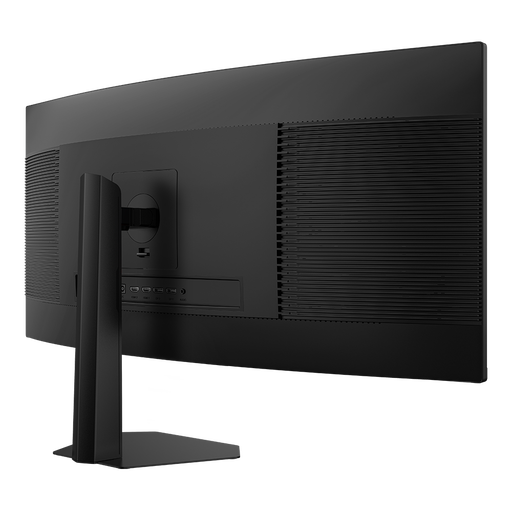
An ultrawide is worth considering if you want to view several timetables side by side and have enough desk width.
3440 × 1440, 21:9, 200 Hz and 1500R; height-adjustable stand.
 No image available
A 27-inch QHD option for viewing several things side by side and connecting a laptop at a shared desk.
2560 × 1440, 75 Hz, USB-C Power Delivery up to 65 W, USB hub, HDMI and DisplayPort; height-adjustable stand.
 No image available
The 27-inch WQHD format is one option for comparing several views at a shared workstation.
IPS, 100 Hz, USB-C with 98 W Power Delivery, daisy-chain and KVM; built-in webcam.
 No image available
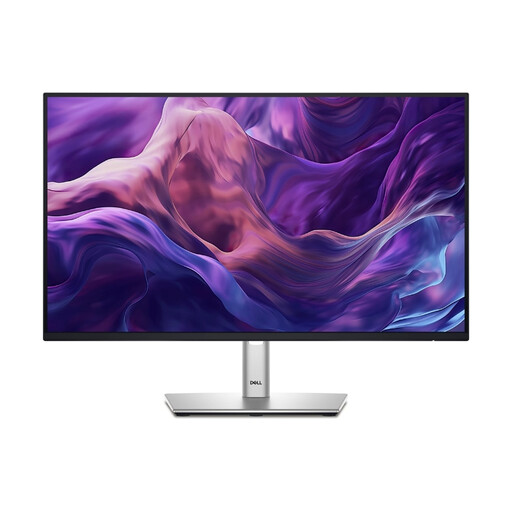
The compact format is worth considering if there’s limited desk space at your shared desk.
24 inches, Full HD, IPS and USB-C. Full HD offers fewer pixels for side-by-side views than the QHD and ultrawide options.
No, an ultrawide isn’t automatically necessary. First, compare the width and text size you need for both windows. A 27-inch QHD monitor and a 34-inch model with a resolution of 3440 × 1440 offer different amounts of horizontal space, but neither specification alone tells you whether your application will be easy to read.
Only if your laptop’s port supports the video output you need and the specific monitor provides suitable charging power. Manufacturers quote different figures, such as up to 65 W for the BenQ GW2790QT and up to 70 W for the EIZO EV2490.
Position the screen to suit each user and check for potential reflections at the intended desk. For employees using a display-screen workstation covered by the relevant requirements, Germany’s BAuA sets out requirements under workplace regulations in ASR A6. This does not mean there is a blanket requirement to buy a particular screen size. Follow the manufacturer’s instructions when cleaning your chosen model.
Use the energy label and product data sheet for the specific model. To estimate costs yourself, you’ll need the energy use on a comparable basis, the expected hours of use and your electricity tariff. Screen size alone isn’t enough to give you a reliable figure.
The European Commission lists computer monitors as being covered by energy labelling rules for electronic displays, and also sets out information requirements for online retailers. Check the labelling information on the specific product listing.