If you want to view a transcript, recording window and your own indexing fields at the same time, an adjustable 27-inch QHD monitor is a sensible place to start – provided the text is comfortable to read at your preferred scaling and the screen fits on your desk. If you mainly work with a single document, a compact 24-inch monitor may be enough. USB-C docking is only useful if your laptop supports the required video output and charging power. Transcription and indexing are handled by your software, not the monitor.
Which monitor is right for you?
Interview indexers working with multiple windows
If you want to keep a transcript, recording window and custom fields in view at the same time, look for a usable working area and text that remains clear and easy to read when scaled. Dell and Lenovo offer examples of suitable 27-inch QHD models.
Indexers with a small desk
If you mainly work with text and forms but have limited desk space, or are planning to use two compact screens, check the dimensions, including the stand, first. PRAD recommends 23- to 25-inch monitors for smaller desks and dual-screen workstations; the LG 24BA55W-B is a specific 16:10 example.
Indexers who use different laptops
If you regularly connect your laptop at your workstation, check that the video output, charging requirements and USB ports you need are compatible with the exact monitor model. Lenovo and EIZO list USB-C features on certain models, which require a compatible laptop.
Which buying criteria matter for indexing?
Compact 24-inch monitor with 16:10 aspect ratio
A good fit if: Desk space is limited, or your main focus is a transcript and a narrow input form.
The trade-off: The LG 24BA55W-B offers a resolution of 1920 × 1200 pixels, which is lower overall than 2560 × 1440 pixels.
27-inch QHD monitor
A good fit if: You want to see a transcript and several indexing fields side by side, and you have enough desk space and viewing distance.
The trade-off: The larger screen needs more space. What matters is whether the text remains easy to read at your chosen scaling.
27-inch 4K monitor with docking
A good fit if: You can make use of the higher pixel density or the USB-C features with your laptop.
The trade-off: 4K is no substitute for checking readability. The video signal and charging power need to be compatible with your laptop.
First, decide which windows in your software need to be visible at the same time. Then check that your preferred screen size, text scaling and setup will work for your workspace.
| What you need |
What to check before buying |
Who this matters most to |
| See the transcript and indexing fields at the same time |
Try your own window layout with your preferred text scaling. |
If I need the recording window, transcript and fields side by side, usable screen space matters more than a high pixel count alone. Around 36% of consumers prioritise having multiple work windows open. |
| Read text comfortably |
Check the font size, reflections and height adjustment at your own workstation. |
When working with text for long periods, I want to be able to read characters and field labels comfortably, even if that means fewer windows fit on screen at once. Around 29% of consumers put readability first. |
| Work with limited desk space |
Measure the width and depth, including the stand; test the transcript and input form at the size you plan to use. |
If my workspace is limited, the monitor needs to fit, stand and all, even if a larger display could offer more screen space. Around 21% of consumers prioritise limited desk space. |
| Connect a laptop |
Check video output, cables, USB ports and the required charging power against the exact model. |
If I regularly connect my laptop at my workstation, I need ports that work with my device. Around 14% of consumers prioritise connecting a laptop. |
Common monitor-buying misconceptions
-
More pixels automatically mean more readable workspace
With larger text scaling, fewer fields may fit on the screen at once. A high resolution alone therefore doesn’t tell you how easy your interface will be to read day to day.
Try the transcript and input form at your preferred scaling, then compare compact 16:10, QHD or 4K models.
-
A USB-C port guarantees single-cable docking
Docking features vary by model and need to be compatible with your laptop.
Check the exact model name, as well as the video output and power requirements of both devices. If the video output, cable or charging power isn’t compatible, you may need a different connection setup.
-
A monitor handles transcription or indexing
The screen displays your workspace; recording, transcripts and custom fields depend on the software you use.
First, check whether your application supports the features you need and the layout you want for the player, transcript and fields.
Monitor brands worth considering
Dell
The Dell Pro P2725DE is a specific 27-inch QHD model with a USB-C hub, offering a larger working area for text and forms.
- Dell lists a resolution of 2560 × 1440 pixels and an adjustable stand for the P2725DE.
- Check laptop compatibility separately; these specifications don’t automatically apply to similarly named Dell models.
Lenovo
According to Lenovo, the ThinkVision T27h-30 combines 27-inch QHD with USB-C, Ethernet and a USB hub.
- Lenovo lists an adjustable stand.
- Docking is only relevant if your laptop and the ports you need are compatible.
LG
The LG 24BA55W-B is a compact 16:10 option for text work when desk space is limited.
- LG lists a resolution of 1920 × 1200 pixels, along with height, swivel and pivot adjustment.
- This model has fewer pixels overall than the QHD examples listed here.
EIZO
The FlexScan EV2740X is a specific 27-inch 4K model with USB-C docking and KVM.
- EIZO lists a resolution of 3840 × 2160 pixels and a maximum of 94 W via the specified USB-C upstream port.
- The 94 W is a maximum figure; the video signal and charging requirements need to be compatible with your laptop.
HP
The HP Series 5 Pro 527pq is another 27-inch QHD option with an adjustable stand.
- HP lists HDMI, DisplayPort and a USB hub.
- USB-C features that HP advertises on selected models don’t automatically apply to this one.
Joybuy monitors for transcript and indexing work
This selection includes 27-inch monitors with QHD or 4K resolution, including models with adjustable stands and, in some cases, USB-C docking.
 No image available
MSI PRO MP273UPDE E6, 27-inch, 4K UHD, IPS, 60 Hz
The 4K resolution of 3840 × 2160 pixels could be useful for working with multiple windows on a 27-inch screen. Check that the text is easy to read at your preferred scaling.
Height-adjustable stand with pivot, tilt and swivel.
Joybuy
 No image available
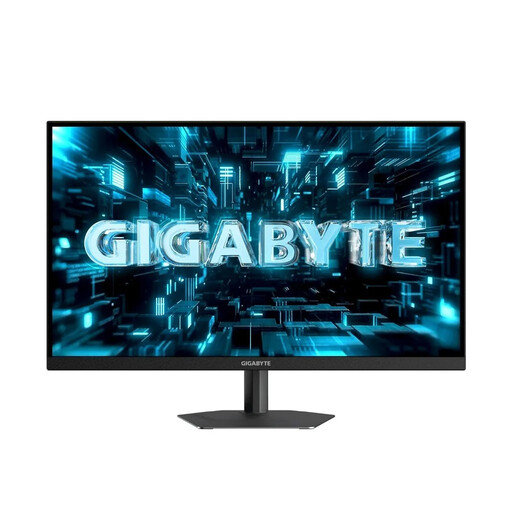
GIGABYTE G27Q26, 27-inch, QHD
The QHD display with a resolution of 2560 × 1440 pixels is an option if you want room for your transcript and indexing fields on a larger workspace.
The stand is height-adjustable and supports tilt, swivel and pivot.
Joybuy
 No image available
INNOCN CB27U1, 27-inch, 4K UHD, USB-C with 90 W Power Delivery
The 4K resolution of 3840 × 2160 pixels gives you plenty of pixels for multiple windows. Check that the text scaling works for the way you use the screen.
USB-C with up to 90 W Power Delivery. Video output and charging power need to be compatible with the connected laptop.
The stand supports height adjustment, pivot, swivel and tilt; PIP and PBP features are also listed.
Joybuy
 No image available
MSI PRO MP275QPDGDE, 27-inch, WQHD, USB-C docking
The WQHD display with a resolution of 2560 × 1440 pixels provides space for multiple windows, as long as the text remains easy to read at your chosen scaling.
USB-C docking with 98 W Power Delivery, four USB-A ports and KVM. Video output and charging power need to be compatible with your laptop.
The stand supports height adjustment, swivel, tilt and pivot; an integrated webcam is also listed.
Joybuy
 No image available
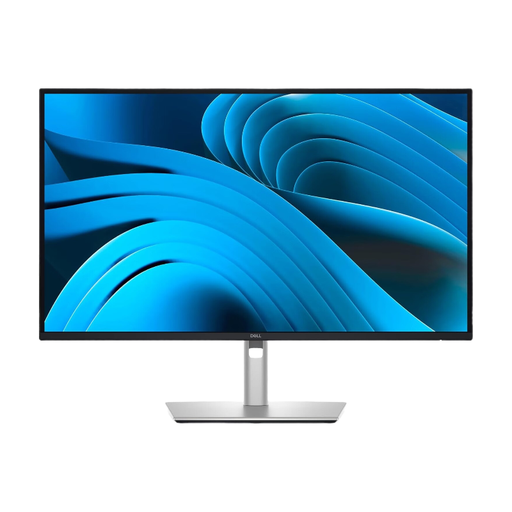
Dell Pro Plus P2725DE, 27-inch, QHD, USB-C hub
The QHD resolution of 2560 × 1440 pixels gives you space for a transcript and several indexing fields. Check the text size at your preferred scaling.
USB-C with 90 W Power Delivery and four USB ports. Video output and charging power need to be compatible with your laptop.
The stand supports height and tilt adjustment, as well as pivot.
Joybuy
Frequently asked questions
Does a monitor index recordings and create custom fields?
No. The monitor displays your workspace; recording, transcripts and editing are handled by the software you use. Before buying, check how your application arranges the player, transcript and fields.
How should I set up my monitor for extended periods of reading and writing?
Position the screen so that text is easy to read and reflections are kept to a minimum. The German Social Accident Insurance Institution for the Woodworking and Metalworking Industries recommends placing the top line of the screen below eye level and choosing a viewing distance to suit the task. These are general guidelines, not a one-size-fits-all measurement for buying a monitor.
Can I record any interview and index it afterwards?
This can’t be answered on the basis of your monitor purchase alone. The German Data Protection Conference says that, in the case of telephone recordings, the consent of the other person on the call is generally required (resolution of 23 March 2018). This statement shouldn’t be applied without checking to every type of interview or subsequent processing; clarify the legal basis for your specific process.
Do rules on screen work also apply at home?
ASR A6 sets out requirements for screen work in workplaces and at teleworking workstations within its scope. According to its text, it does not apply generally to private screen use outside such workstations. Whether a home workstation is covered depends on the specific working situation.


