First, choose your monitor based on whether the second screen will mainly show your manuscript and sources, or whether you also want to view travel photos. For text, look for clear, easy-to-read type, suitable scaling and a display you can position comfortably. For photos, resolution and suitable colour modes become more important. Also check your available desk space, connections and how many external displays your specific computer supports. A USB-C port or monitor daisy-chaining alone does not guarantee a working two-screen setup.
Which monitor is right for you?
Keep your manuscript and sources in view
You want to write your travel article on one screen while reading notes, maps or research on the other. Look for a comfortable text size and a display layout that suits your setup. Microsoft Support explains how to adjust display arrangement and scaling in Windows.
Writing on a laptop
You want to use your laptop with one or two external screens, without having to keep unplugging and reconnecting everything. Apple Support points out that the number of external displays supported depends on the Mac model, resolution and refresh rate. For other computers, check the specific display specifications too.
Creating travel articles with photos
You edit travel photos alongside your text or create an illustrated edition. Compare the resolution and colour modes offered by the specific model for your image workflow, rather than assuming that 4K or HDR alone guarantees accurate colours.
What should you look for when buying?
First decide what you’ll use the extra screen for, then check that your computer, connections and workspace are up to the job.
| What matters |
What to check before buying |
Who will find this especially important? |
| Readability and sources |
Consider resolution, screen size and scaling together; view manuscript pages at your preferred text size. |
If I want to read my manuscript and sources at the same time, a suitable text size matters more than having as many pixels as possible. Around 31% of consumers put readability and sources first. |
| Connections and two displays |
Clarify whether you mean a laptop plus a monitor or two external displays; check computer compatibility, video connections and, if needed, charging requirements. |
If my laptop needs to power two displays, I want to know what setup it actually supports before I buy. Around 25% of consumers prioritise the connections and running both displays. |
| Desk setup |
Measure your available space and viewing distance; check the stand, adjustment options and, if applicable, VESA mounting on the specific model. |
When using two displays side by side, I want to position my manuscript and sources so that both fit on my desk. Around 25% of consumers pay particular attention to setup and ergonomics. |
| Photo display |
Decide how you’ll use the images, then compare the resolution and colour modes specified for the particular model. |
If I want to review travel photos alongside my text, image detail and a colour mode suited to how the photos will be used both matter. Around 19% of consumers prioritise how their travel photos look. |
Which buying mistakes should you avoid?
-
Assuming 4K automatically means larger or more legible text
Resolution and text size are separate settings. Poor scaling can limit the benefit of extra pixels when working with text. TÜV SÜD highlights the importance of resolution for how images are displayed, while Microsoft Support explains how to adjust scaling.
Try typical manuscript pages at your preferred text size before choosing QHD or 4K.
-
Assuming USB-C or daisy-chaining will give you two working external displays
A port on the monitor doesn’t prove that your computer can output to the number of external displays you want. According to Apple Support, the options for Mac models also depend on resolution and refresh rate.
First check which displays your computer supports, then compare that with its video outputs, the monitor’s connections and, if needed, its charging power. Depending on the connection, you may also need a suitable cable or adapter.
-
Ordering a large monitor without planning space for both displays
Screen size alone won’t tell you whether the stand and monitor will fit on your desk or can be positioned as needed.
Measure the width and depth of your desk, and check the stand’s dimensions, adjustment range and, if needed, the specific model’s VESA specifications.
-
Assuming HDR or colour-space specifications mean independently verified colour accuracy
Manufacturers’ specifications for colour modes and colour spaces aren’t automatically based on independent measurements, and they can’t always be compared directly across different models.
Choose colour modes to suit how you’ll use your travel photos. They may be less important if you’re only editing a manuscript.
Key brands to consider
ASUS
The ProArt PA279CRV is a 27-inch 4K model for working with text, with additional features for images.
- For this specific model, ASUS lists sRGB, Adobe RGB and DCI-P3 modes, pivot, height adjustment and USB-C with 96 W Power Delivery.
- These are the manufacturer’s specifications, not results independently measured here. The extra colour modes aren’t essential for text-only work.
BenQ
The DesignVue PD2705U combines a 27-inch 4K workspace with features for text and images.
- BenQ lists 99% sRGB, pivot and USB-C with 65 W Power Delivery for the PD2705U.
- The colour specification comes from the manufacturer. Also check that the charging power suits your laptop and that you need the image features.
Dell
The S2725QC is a 27-inch 4K USB-C option; the UltraSharp U2725QE is an alternative with a greater focus on hub features.
- Dell lists a refresh rate of up to 120 Hz for the S2725QC and a Thunderbolt hub for the U2725QE.
- These specifications apply to different models and shouldn’t be combined as if they were features of one monitor. Check which connections you need.
LG
The UltraFine 27UP850K-W is a 27-inch 4K model for working with text and previewing images.
- LG lists an IPS display, USB-C, an adjustable stand and typical DCI-P3 coverage of 95%.
- These are the manufacturer’s specifications for the 27UP850K-W, not the results of an independent colour measurement. They don’t mean that HDR is essential for a travel article.
EIZO
The FlexScan EV2490 is a more compact office option for viewing sources or notes alongside an existing main screen.
- EIZO lists a 23.8-inch Full HD display, USB-C docking with up to 70 W at the upstream port and a daisy-chain output for the EV2490.
- Its lower resolution offers less detail for photos than 4K models. Daisy-chaining also requires a compatible computer.
Joybuy products for text-focused work
The Joybuy products below are 27-inch QHD monitors for text-focused manuscript and source work. You’ll need to check separately whether your computer supports two displays, using the specifications for your specific model.
 No image available
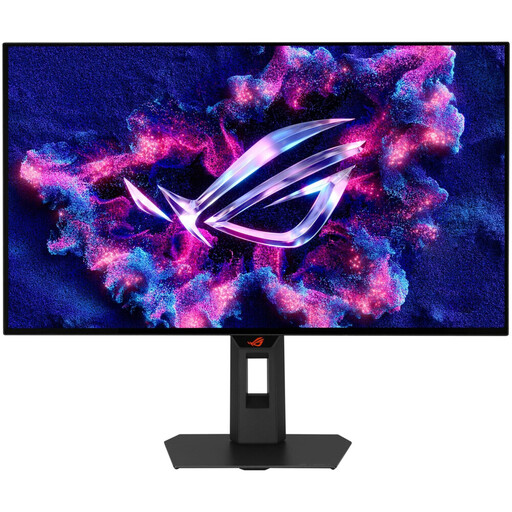
ASUS ROG Strix WOLED XG27AQWMG
As a QHD model, this monitor could suit a text-focused view of your manuscript and sources. The right text size also depends on your scaling settings.
27 inches, WQHD, 2560 × 1440 pixels.
View at Joybuy
 No image available
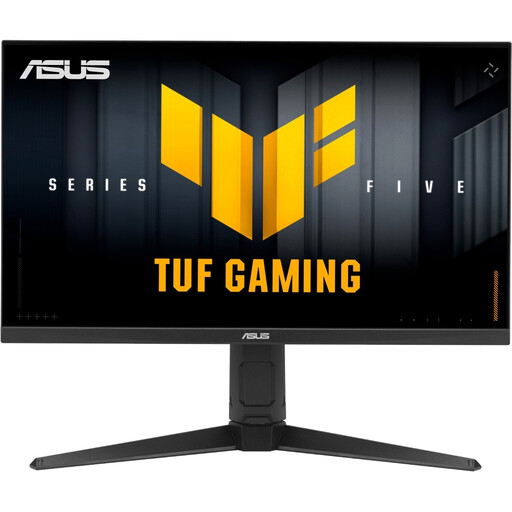
ASUS TUF Gaming VG27AQL5A
The QHD resolution could work well for your manuscript and sources open side by side, provided you adjust text scaling to suit your reading preferences.
27 inches, WQHD, 2560 × 1440 pixels.
View at Joybuy
 No image available
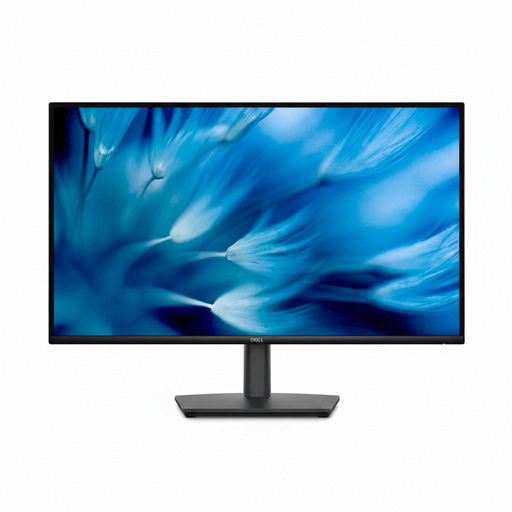
Dell Pro 27 E2726DS
This model is a QHD option for your manuscript and sources. Check that its connections match your computer’s video outputs.
27 inches, WQHD, IPS, HDMI and DisplayPort.
View at Joybuy
 No image available
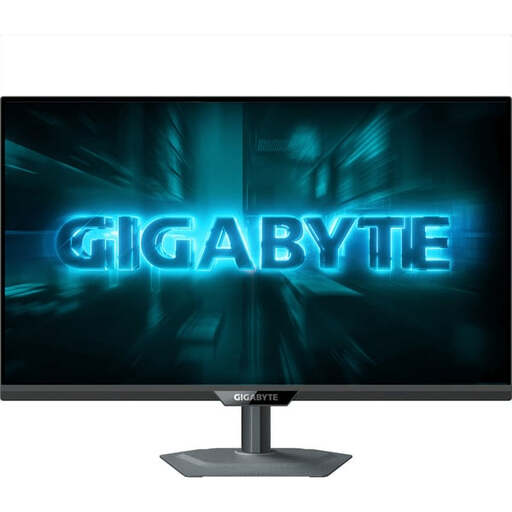
GIGABYTE G27Q20
The QHD resolution could make this a suitable second screen for text-focused work. Check that the text size suits you before choosing.
27 inches, QHD, SS-IPS.
View at Joybuy
 No image available
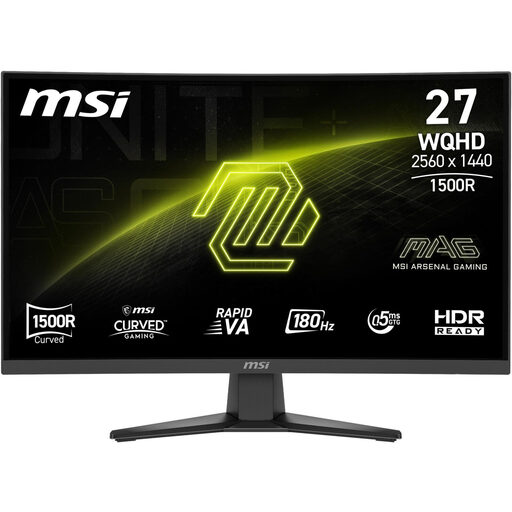
MSI MAG 275CQFDE E18
As a QHD model, this monitor could suit text and sources. Before buying, check that its screen shape works for your workspace.
27 inches, 2560 × 1440 pixels, Rapid VA, 1500R curvature.
View at Joybuy
Frequently asked questions
Do I have to buy two new monitors to use two screens?
No. Two screens could mean your laptop display plus one external monitor, or two external monitors. If you want two external displays, check what your specific computer supports. Apple Support notes that the number of displays, resolution and refresh rate depend on the Mac model.
How do I arrange my manuscript and sources in Windows?
Once Windows recognises both displays, you can arrange them in the display settings to match your physical setup. You can adjust scaling and orientation for the selected screen; to use portrait orientation, you’ll also need to turn the monitor physically. Microsoft Support explains these display settings.
Can USB-C on a monitor replace my laptop charger?
Only if your laptop can output video through the connection you’re using and the specific monitor’s Power Delivery output meets its charging requirements. ASUS lists 96 W for the PA279CRV, BenQ lists 65 W for the PD2705U, and EIZO lists up to 70 W at the EV2490’s USB-C upstream port. These manufacturer specifications apply to different models.
What rights do I have when buying a monitor online as a private consumer in Germany?
When you buy from a business seller, your statutory consumer rights apply. The EU’s Your Europe consumer information states that these include at least two years of legal guarantee from the date you receive the goods. For standard online distance purchases, you generally have 14 days from delivery to withdraw from the contract. Check for exceptions and any return costs before placing your order. A voluntary manufacturer’s guarantee is separate from your statutory rights.


