If you mainly work with tutorial text and tracked changes, choose a screen size, resolution and scaling that let you view your document, edits and image preview comfortably. For digital image examples, look for a colour mode suited to your workflow and a well-maintained monitor profile. If you’re preparing work for colour-critical print, you’ll also need the right colour gamut and a consistent profile and proofing workflow. Check that the connections, adjustment options and space required suit your workspace.
Who this guide is for
Tutorial writers who work through rounds of edits
If you spend a lot of time editing tutorial text and tracking changes, you’ll want to be able to read the document easily alongside the image preview and revisions. Track Changes is a feature of your word-processing software, not your monitor; Microsoft Support describes it as a feature in Word.
Writers who use digital image examples
When assessing edited photos for a digital tutorial, it’s important to use a colour mode that suits your workflow and a reliable monitor profile. Adobe distinguishes between document and monitor profiles.
Writers preparing work for print
If you’re also assessing image examples for a specific print process, you should match the colour gamut, calibration, and document and output profiles to that workflow. A wider colour gamut alone doesn’t guarantee a match with the final print.
What to look for when buying
QHD for text-focused work
A good fit if: Tutorials and edits make up most of your work, and you don’t need to assess print colours accurately. Dell lists the P2725DE as a 27-inch monitor with a resolution of 2560 × 1440 pixels.
Trade-off: QHD has fewer pixels than 4K, so try out your preferred text size and scaling.
27-inch 4K for text and digital images
A good fit if: You combine tutorials, revisions and digital image examples on one screen, and want to use a dedicated sRGB mode. BenQ and ASUS list suitable 27-inch models in their manufacturer specifications.
Trade-off: More pixels don’t automatically make text more comfortable to read; you’ll still need to get the scaling and monitor profile right.
Wide gamut for print workflows
A good fit if: You assess photos for a specific print process and need Adobe RGB coverage and calibration options that suit your workflow. EIZO lists these features for the ColorEdge CS2740.
Trade-off: Colour-gamut coverage alone won’t ensure a match with the print; the monitor, document and output profiles must suit the process.
| Buying priority |
What to check |
Who it matters most to |
| Readable text and space for edits |
Consider screen size and resolution together; test scaling and window layouts with your document, changes and image preview. |
When I’m writing, I need to see edits and an image preview side by side, while keeping text readable at my chosen scaling. Around 36% of consumers put readability and room for revisions first. |
| Colour reproduction for image examples |
Decide on your output destination; check the colour mode, calibration options, and the document, monitor and output profiles you’ll need. |
For digital image examples, I want to assess colours using a suitable mode and monitor profile. Around 29% of consumers prioritise how their images are displayed. |
| Ergonomics and desk space |
Measure your desk’s width and depth, including the stand; check the adjustment options and reflections where you plan to place the monitor. |
For longer writing sessions, I need a screen I can position comfortably on my desk. Around 21% of consumers prioritise ergonomics and desk space. |
| Laptop connection and power |
Check the laptop connection, video signal, cable and charging requirements against the specifications for the exact monitor variant. |
When I use a laptop, I want the video signal and, if needed, charging to work through the available connections. Around 14% of consumers focus on having the right connection and power supply. |
Common misconceptions
-
Assuming Adobe RGB coverage guarantees a print match
A wide monitor colour gamut on its own doesn’t guarantee a match with a print. Document, monitor and output profiles each serve a different purpose.
Decide on your print destination before choosing a model, then check that the colour mode and calibration method suit your profiling and proofing workflow.
Colour-critical work may also require measuring hardware and the extra effort involved in a consistent profile and proofing workflow.
-
Buying 4K without testing text size and window layout
Resolution and screen size alone don’t tell you whether edits and tutorial text will be comfortable to read.
Test your usual operating system scaling with your document, revisions and image preview open at the same time.
-
Assuming USB-C will provide the right laptop charging power
A USB-C port alone doesn’t confirm that it supports video output from your laptop or provides enough power to charge it.
Check your laptop connection, required video signal, cable and charging needs against the specifications for the exact monitor variant. Depending on the configuration, you may still need a separate laptop power supply.
Brands to consider
BenQ
BenQ describes the PD2705U as a 27-inch 4K model for sRGB-focused workflows, and the PD2732U as offering 99% Adobe RGB coverage for work across different media.
- The colour features can be matched to the relevant model and your intended digital or print workflow.
- Manufacturer claims about colour gamut or print results don’t prove the output quality of an individual unit or guarantee a finished print match.
ASUS
ASUS lists the ProArt PA279CRV in its German specifications as a 27-inch 4K monitor with sRGB and Adobe RGB modes, adjustment options and USB-C.
- These features can help when setting up a workspace for a mix of text and image work.
- Manufacturer claims about colour accuracy and power consumption aren’t independent measurements; laptop compatibility should be checked separately.
EIZO
EIZO describes the ColorEdge CS2740 as a 27-inch 4K monitor with a wide gamut and hardware calibration for more demanding colour work.
- EIZO lists Adobe RGB and sRGB presets, plus USB-C power delivery of up to 60 W.
- These features are most useful when they suit your workflow; suitable profiles are still needed for print results.
Dell
The Dell Pro P2725DE is a 27-inch QHD option for document-focused work and a range of connections.
- Dell lists a resolution of 2560 × 1440 pixels and adjustment options.
- These specifications don’t confirm suitability for any particular print colour gamut.
LG
LG lists a 27-inch 4K display, USB-C and an adjustable stand for the UltraFine 27UP850K-W.
- LG gives 95% DCI-P3 as a typical value and describes a hardware calibration feature.
- DCI-P3 doesn’t prove a particular level of Adobe RGB coverage; LG says Calibration Studio software isn’t included.
Joybuy monitors for text and images
These models offer options for tutorial text, edits and digital image examples, including QHD and 4K displays. Compare the specifications for the exact variant with your workspace and output destination.
 No image available
MSI PRO MP273UPDE E6, 27-inch 4K UHD IPS
A 27-inch 4K option for working with tutorial text and an image preview on one screen.
Listed in the product name: 4K UHD, IPS, 60 Hz and HDR Ready.
Joybuy
 No image available
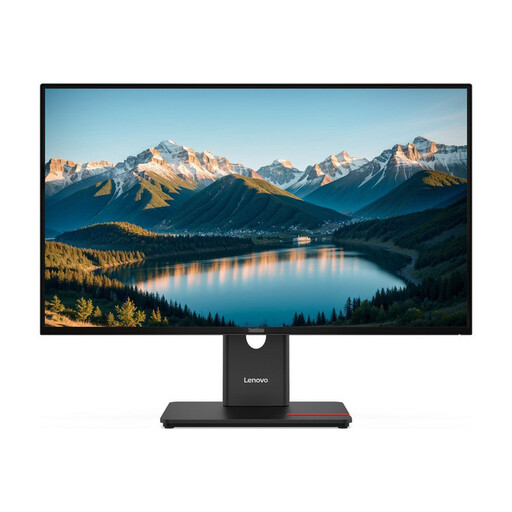
Lenovo ThinkVision T27Q-40, 27-inch QHD IPS
A QHD option for a workspace where tutorial text and revisions take priority.
Listed in the product name: 27-inch, QHD and IPS.
Joybuy
 No image available
INNOCN CB27U1, 27-inch 4K UHD
A 27-inch 4K option for text and image previews; check that the listed connections are compatible with your device before buying.
Listed in the product name: 3840 × 2160, IPS, 120 Hz and USB-C with 90 W PD.
Joybuy
 No image available
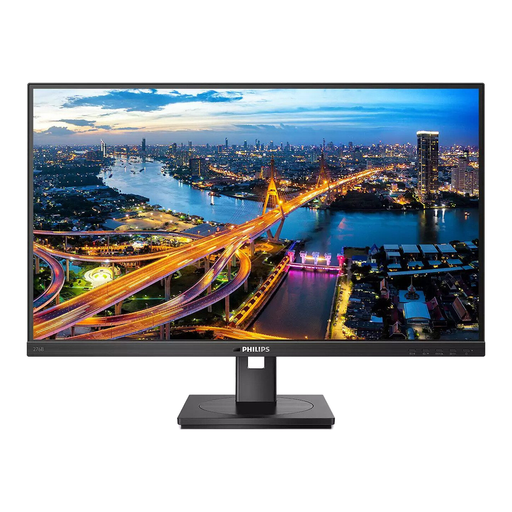
Philips 276B1, 27-inch QHD IPS
A QHD option for documents and edits; if you’re using a laptop, check the connection and power requirements.
Listed in the product name: 75 Hz and 350 cd/m².
Joybuy
 No image available
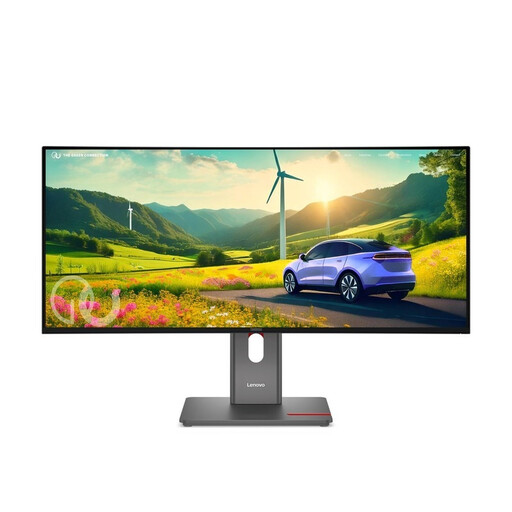
Lenovo ThinkVision P34WD-40, 34-inch WQHD IPS, 21:9
The wide format can let you view a document, edits and image preview side by side; make sure you have enough desk space for it.
Listed in the product name: 120 Hz.
Joybuy
Frequently asked questions
Can a monitor track changes in tutorial text?
No. Track Changes is enabled in your word-processing software. Microsoft Support explains how to use it in Word via the ‘Review’ tab; when choosing a monitor, focus on whether revisions are comfortable for you to read.
What should I do after setting up my monitor to assess images?
Set the colour mode to suit your output destination, then profile or calibrate the monitor. Adobe recommends measuring hardware for colour-critical work; monitor, document and, where relevant, print profiles each serve a different purpose.
What running costs can I compare before buying?
Compare the EU energy label and the model specifications for typical use. The European Commission rates electronic displays on an energy label scale from A to G.
What are my rights when buying a monitor online?
According to Your Europe, consumers generally have a 14-day right to cancel an ordinary online purchase, starting from delivery; check the terms and any return costs. If a product is faulty, you generally have a legal guarantee of at least two years from receipt, provided by the seller and separate from any additional manufacturer’s warranty.
Is there a monitor height that everyone in Germany must use?
No. ASR A6 doesn’t set one standard height for everyone to use when buying a monitor. The Federal Institute for Occupational Safety and Health describes requirements for covered workplaces and teleworking arrangements; private use outside this scope is expressly excluded.


