Handbook designers working with lots of reference material
If you want to view page layouts alongside text, images or feedback, look for a clear, easy-to-read workspace and a suitable setup for both displays.


Start by deciding whether you’ll mainly be reading handbook pages and reference material side by side, or assessing colours for a specific print job. For layout work, a clear, easy-to-read workspace and a suitable setup are key. For colour-critical printing, a properly configured colour-management and soft-proofing workflow matters more than a high colour-gamut figure alone. Also check that your computer supports the number of displays you want, and that the ports, cables and, where relevant, laptop power supply are compatible.
If you want to view page layouts alongside text, images or feedback, look for a clear, easy-to-read workspace and a suitable setup for both displays.
If you need to assess colours for a specific printing process, your monitor choice and soft-proofing workflow go hand in hand.
To connect a laptop to additional displays and devices, check that the computer’s display support, video ports, cables and, where relevant, charging function all work together.
First, decide whether the two displays will show pages and reference material, or whether one will be used for a specific print condition. Then check your computer’s ports and the space available for your setup.
| What you need | What to check before buying | Who will find this especially important? |
|---|---|---|
| Clear, readable workspace | Compare the space needed for both devices with how your layout software will appear at your chosen scaling. BenQ lists the PD2705Q as a 27-inch display with 2560 × 1440 pixels, while ASUS lists the PA279CRV as a 27-inch display with 3840 × 2160 pixels. | If I want to keep the handbook page and reference material in view at the same time, resolution, readability and desk space all matter. Around 33% of consumers put workspace first. |
| Colour for print output | Clarify the output type and, for colour-critical printing, the profile, lighting and soft-proofing process. EIZO documents hardware calibration for the CS2400S; BenQ lists an sRGB mode for the PD2705Q. | If you need to assess colours for a specific print process, consider the whole workflow rather than just a colour-gamut figure. Around 25% of consumers prioritise print-colour assessment. |
| Connection to your computer | Decide whether you mean two external monitors or the laptop display plus one external monitor. Then check display support, ports, cables, possible daisy-chaining and the charging power required. | If I want to connect my laptop to the display setup I need, the computer and cabling must be compatible. Around 25% of consumers say connection compatibility is their top concern. |
| Setup and running costs | Compare the dimensions and height-adjustment options, and check the EU energy label for the specific models. The European Commission describes the energy-efficiency scale for electronic displays as running from A to G. | If space is limited, I want to position both screens sensibly and take running costs into account. Around 17% of consumers focus mainly on setup and running costs. |
The number of displays supported also depends on the computer itself. Video, data transfer and power delivery are separate functions, so check each one.
Make a note of your exact computer model and planned display setup before comparing ports and cables.
Depending on the connection, you may need compatible cables or adaptors.
A soft proof is based on a specific print condition, with suitable lighting and viewing conditions. Fogra describes it as a simulation of those conditions on a monitor or projector.
Confirm the output requirements with your printer and assess the entire colour workflow, rather than comparing a single percentage in the specifications.
A colour-critical workflow may require extra steps or equipment.
The dimensions of the monitors and their stands affect whether both screens will fit on your desk and can be positioned as needed.
Measure the available space and compare the dimensions of both specific models before ordering.
If you need a separate mount, factor in the space it will take up when planning your desk setup.
The DesignVue PD2705Q is a documented 27-inch QHD option for layout work, with an sRGB mode and laptop connectivity.
The ProArt PA279CRV is a documented 27-inch 4K option with a choice of colour modes.
The ColorEdge CS2400S is a 24-inch option for a workspace geared towards colour management.
The UltraSharp U2724DE is a QHD hub monitor for a laptop workspace with multiple ports.
These product suggestions could work as main monitors for detailed layout work. Before buying, check that your computer supports the second screen you plan to use.
 No image available
Could suit a layout workflow where you need to check page details on a 27-inch 4K main screen.
27 inches, 3840 × 2160 pixels and IPS; 60 Hz.
HDMI 2.0b and DisplayPort 1.4a are listed as connections.
Your computer must support the planned setup with a second display.
 No image available
Could serve as a main screen for layouts where you want a 4K display at 32 inches.
32 inches and 3840 × 2160 pixels.
HDMI 2.1, DisplayPort 2.1a and USB-C with 98 W Power Delivery are listed in the product name.
Check that your computer and cables are compatible with your chosen display setup.
 No image available
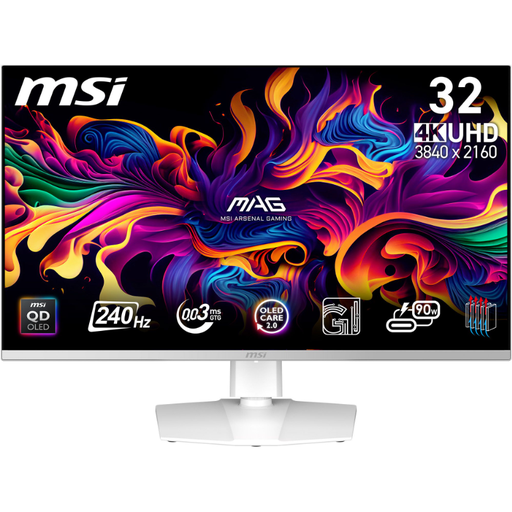
Could suit detailed page design on a 32-inch 4K main screen.
32 inches and 3840 × 2160 pixels.
HDMI 2.1, DisplayPort 2.1 and USB-C with 90 W Power Delivery are listed in the product name; a USB hub is also listed.
Check separately that your computer supports the displays you plan to connect.
 No image available
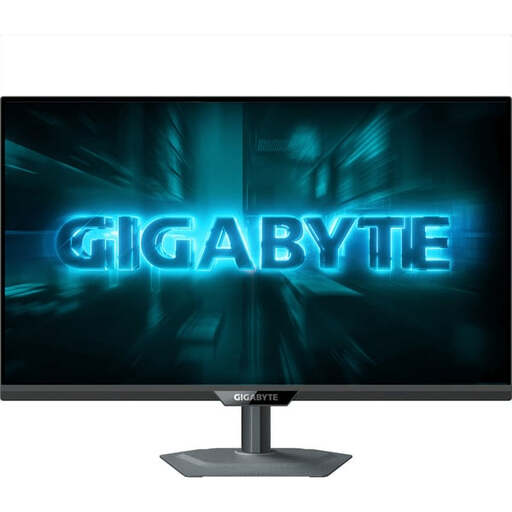
Could work as a main screen for handbook pages if you want 4K resolution on a 31.5-inch display.
31.5 inches and 4K UHD; the description lists 3840 × 2160 pixels.
DisplayPort, HDMI and USB-C are listed as connections.
Compare the connections with those on your computer and planned second display.
 No image available
Could be an option if the handbook page and reference material will be on separate displays and QHD is enough for the main screen.
27 inches and 2560 × 1440 pixels.
The description lists height adjustment, swivel, tilt and pivot functions, as well as HDMI and DisplayPort inputs.
QHD has fewer native pixels than 4K, so bear this in mind when displaying fine layout details.
The monitor connections alone aren’t enough: support for external displays also depends on the specific computer model. Check the video ports and cables. Apple says a MacBook Air with an M3 chip can use two external displays at the same time with the lid closed and subject to other requirements. This doesn’t apply to other computers or to models that haven’t been specified.
Decide which screen will show the handbook page and which will show reference material or tools, then check the layout and readability in your software. For Mac, Apple explains how to extend the desktop across multiple displays. You’ll also need to consider the ports and cables.
If you want to assess colours for a specific print condition, calibration should form part of a suitable soft-proofing workflow, with appropriate lighting and surroundings. Fogra describes soft proofing as simulating a specific print condition; a wide colour gamut alone doesn’t show that these requirements have been met.
Compare the EU energy labels for the specific monitors; the scale runs from A to G. If a product is faulty, statutory rights against the seller are separate from any additional manufacturer’s guarantee. The Verbraucherzentrale says consumers are generally entitled to a two-year statutory guarantee from the date of delivery.
Don’t put old equipment in your household rubbish. The Umweltbundesamt lists free drop-off at recycling centres and return options at retailers, among other possibilities. Check which return options are available for your circumstances.