A 27-inch 4K monitor is a good option for fine typography and layout details if you have enough desk space and use its native resolution with comfortable scaling. A 27-inch QHD model has fewer pixels at the same screen size. TÜV SÜD highlights the importance of resolution for clear text, while Microsoft notes that text can look blurry at resolutions below the native setting. For digital colour design, colour mode, calibration and lighting also matter. Adobe explains that what you see on screen is no substitute for a suitable print proof.
Which monitor is right for you?
Students working on typography and layout projects
If you compare letterforms, spacing and page layouts, consider detail resolution alongside a comfortable working view. TÜV SÜD highlights resolution as a factor in text clarity, while Microsoft explains that text can look blurry at resolutions below the native setting.
Students with limited space for a laptop on their desk
If you need room for a keyboard, notes and your laptop as well as the monitor, measure the available desk space, including the stand. Also check that video transmission and, if required, USB-C charging power are suitable for your particular laptop.
Students working on colour or print projects
If you assess colour as well as typography, bear in mind that an on-screen preview, a calibrated display and an actual print proof are not the same thing. Adobe lists calibration, ambient light and paper quality as factors in the print colour workflow.
What should you look for when buying?
First, decide how much detail you want to see and how much space you have. Then consider your colour workflow and laptop connection, if you need them.
| Buying consideration |
What to look for |
Who should pay particular attention? |
| Typography and layout details |
Compare the native resolutions of monitors with the same screen size. Check your usual font size at the native resolution, using comfortable operating system scaling. |
If I want to assess letterforms and line spacing, I need fine detail without making the text too small for me to read. Around 33% of consumers would rank typography and layout details as their top buying consideration. |
| Space and screen position |
Measure the available desk width and depth, allowing room for your keyboard and notes. Compare these measurements with the monitor’s dimensions, including its stand and adjustment options. |
On a small desk, I need enough room for my monitor, input devices and study materials, and the stand must not be too deep. Around 27% of consumers would rank space requirements as their main consideration. |
| Colour preview and output |
Decide whether your work is intended for a screen or for print. Compare the colour mode and calibration options you need; for print projects, check the proofing requirements. |
If I’m assessing colour for digital designs or print preparation, the display needs to suit my intended output. Around 20% of consumers would consider colour preview a priority. |
| Laptop connection |
Compare your laptop’s video output and power requirements with the monitor’s connections and USB-C Power Delivery output. Check which cable you’ll need, too. |
If I want to connect and possibly charge my laptop on a small desk, the signal and power delivery need to be suitable for my device. Around 20% of consumers would make laptop connectivity a priority. |
Common buying pitfalls
-
Lowering the native resolution to make text larger
Microsoft notes that text can look blurry when the monitor is set to a resolution below its native resolution.
Where possible, keep the native resolution and adjust the operating system’s scaling or text size instead.
-
Assuming USB-C guarantees both a picture and sufficient charging
Power Delivery output varies by model. For example, the BenQ PD2705U offers 65 W, while the ASUS PA279CRV offers 96 W. Whether that’s enough for your laptop depends on its connection and power requirements.
Check that the video signal, cable and charging requirements are compatible with your specific laptop and monitor.
If the connection isn’t sufficient, you may need an additional connection or a separate power supply for your laptop.
-
Assuming a wide colour gamut guarantees a finished print proof
Adobe describes calibration, ambient light and paper quality as factors in the colour workflow. A monitor alone therefore cannot confirm the final print result.
Before buying, decide what your intended output is and check the proofing requirements for your print workflow.
-
Comparing screen size instead of the space the monitor takes up
The monitor needs to fit on your desk with its stand, which may take up room needed for your keyboard or notes.
Measure the available desk space and compare it with the width and depth of the specific model, including its stand.
Brands to consider
The details below refer to specific model ranges and manufacturers’ specifications; they are not a blanket assessment of any brand.
Dell
Dell offers the 27-inch P2725DE with QHD resolution and the P2725QE as a 4K USB-C hub monitor.
- These specific models offer different native resolutions at the same screen size.
- Resolution specifications alone do not provide an independent assessment of text or colour quality.
BenQ
According to the manufacturer’s website, the DesignVue PD2705U combines a 27-inch screen, 4K resolution and an sRGB mode.
- BenQ specifies 99% sRGB and 65 W USB-C Power Delivery for this model.
- The colour and power specifications come from the manufacturer. Check that the charging output and colour workflow suit your laptop and project.
ASUS
According to the German manufacturer’s website, the ProArt PA279CRV is a 27-inch 4K model with colour modes and USB-C.
- ASUS specifies 99% Adobe RGB and 96 W USB-C Power Delivery for this model.
- The colour gamut specification does not mean that an uncalibrated display can replace a suitable print proof.
LG
The LG 27UP850K-W is listed as a 27-inch 4K IPS monitor with USB-C and an adjustable stand.
- LG specifies 95% DCI-P3 as the typical figure for this model.
- The DCI-P3 figure is not directly comparable with an Adobe RGB specification and does not, by itself, confirm that a print proof is suitable.
EIZO
According to the manufacturer’s website, the ColorEdge CS2400S is a 24.1-inch 16:10 monitor designed for graphics work.
- EIZO lists hardware calibration for this model.
- Its native resolution of 1920 × 1200 has fewer pixels than the 4K models mentioned here, so check whether it offers enough detail for your typography previews.
Joybuy monitors for typography and layout previews
The Joybuy models below include 27-inch 4K and QHD monitors for typography and layout previews. Some models also feature USB-C or colour-related specifications.
 No image available
MSI PRO MP273UPDE E6 27-inch 4K UHD IPS monitor
For a detail-focused view of typography and layouts on a 27-inch screen, if 4K is your priority.
4K UHD, IPS, 60 Hz and a matte finish; the stand is height-adjustable, tiltable, swivel-adjustable and pivotable.
View at Joybuy
 No image available
Samsung ViewFinity S7 S70H 27-inch 4K UHD IPS monitor
For 27-inch 4K typography previews, with an sRGB colour gamut specification from the manufacturer to consider, too.
The product specifications list 3840 × 2160 pixels, 99% sRGB, a tiltable stand and VESA compatibility.
View at Joybuy
 No image available
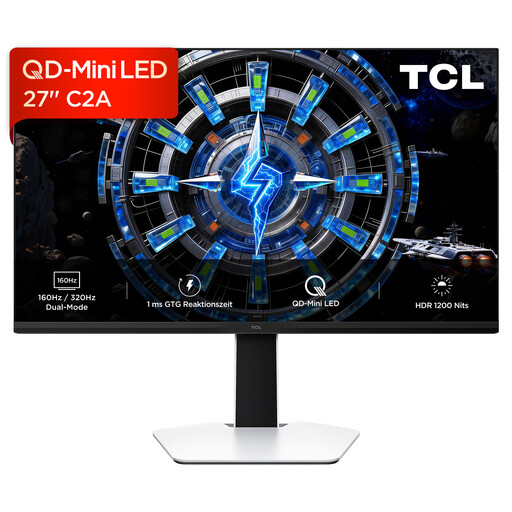
TCL 27C2A 27-inch QD-Mini-LED monitor, 4K UHD
For previewing typography and layout details in 4K on a 27-inch screen.
The product name specifies QD-Mini-LED and 4K UHD; according to the product details, the stand is adjustable.
View at Joybuy
 No image available
INNOCN CB27U1 27-inch 4K UHD IPS monitor
For a detail-focused view on a 27-inch screen when you want to connect your laptop via USB-C.
3840 × 2160 pixels, IPS, USB-C with 90 W Power Delivery and a height-adjustable stand, according to the product specifications.
View at Joybuy
 No image available
INNOCN 2751S PLUS 27-inch QHD monitor
A QHD option if extra 4K pixels are not a priority for your typography and layout previews.
27 inches, QHD with 2560 × 1440 pixels and a height-adjustable stand. At the same screen size, it has fewer pixels than a 4K monitor, so check how small text looks in your usual working view.
View at Joybuy
Frequently asked questions
Should I lower my monitor’s resolution to make text larger?
If you use Windows, keep the native resolution where possible and adjust the scaling or text size first. Microsoft notes that text can look blurry at resolutions below the monitor’s native setting.
How should I set up a monitor for colour previews?
Set up your colour workflow to suit your intended output, and take calibration and ambient light into account. Adobe explains that the monitor, lighting and paper all affect how predictable a colour print will be; the factory settings alone cannot confirm the final result.
Is a colour-accurate monitor enough to approve a print?
No, not automatically. Adobe recommends checking the requirements with your print provider for print production workflows and requesting a suitable proof for review.
What are my rights when I buy a monitor online?
According to the Verbraucherzentrale, for an ordinary online purchase by a consumer, you generally have a 14-day right to cancel after receiving the goods. Your statutory rights if goods are faulty apply against the seller and are separate from any voluntary guarantee.


