For typography work at a sit-stand desk, check the resolution and operating system scaling alongside your usual font size, and make sure you can position the screen appropriately when sitting and standing. The German Federal Institute for Occupational Safety and Health (BAuA) recommends matching screen position to your eyesight and body measurements. For colour-critical print work, you’ll also need to consider the intended output, colour profiles and, where necessary, calibration. If you use a laptop, make sure the video signal and charging power are compatible with your specific device.
Who should consider a monitor for typography at a standing desk?
Type designers who alternate between sitting and standing
If you assess fine letterforms and spacing over long working sessions, you should be able to read the screen comfortably both sitting down and standing up. The BAuA recommends matching screen position to your eyesight.
Print and digital layout designers
If you assess colours as well as typography, choose a monitor to suit your intended output, colour mode and profiling or calibration workflow. Adobe distinguishes between colour management for online display and for print media.
Designers with a laptop-based workstation
If you review designs on an external screen, check that the video signal, cable and required charging power are compatible with your specific laptop and chosen monitor.
What should you look for when buying?
Start by checking the font size and screen position at your own workstation. Colour workflow and laptop connections become important when required by your intended output or device setup.
| What matters |
What to look for |
Who it matters most to |
| Small text and fine details |
Test your own font file in your usual application and text size; check the native resolution and operating system scaling together. |
If I’m checking fine letterforms, I want to assess text size and workspace in the software I usually use. Around 36% of consumers prioritise the legibility of small text and fine details. |
| Positioning when alternating between sitting and standing |
Check the height range, tilt, stand and, where applicable, VESA mounting against both desk positions. |
When switching between sitting and standing, I need to be able to position the screen appropriately in both positions. Around 29% of consumers place the greatest importance on screen positioning when using a height-adjustable desk. |
| Colours that suit the intended output |
Decide on the output medium, the appropriate colour mode and profile, and whether you need calibration. |
If my designs are intended for both digital use and print, I need a colour workflow that suits the intended output. Around 21% of consumers therefore prioritise colour mode, profile and, where necessary, calibration. |
| Laptop connection |
Check your laptop’s output, supported video signal, required charging power and suitable cable against the specifications for the specific monitor. |
If I want to connect a laptop, I want to check the video signal and power supply against the monitor and cable before buying. Around 14% of consumers prioritise laptop connectivity. |
Common misconceptions when buying a monitor
-
Choosing 4K without testing your usual font size
Pixel count alone doesn’t determine how large text and controls appear on screen. The wrong scaling can make previews or everyday use more difficult.
Test one of your own layouts using your usual font size, preferred scaling and the windows you need for work.
-
Assuming a wide colour gamut guarantees a print-ready proof
Manufacturer claims about colour gamut coverage are no substitute for a colour workflow suited to your output medium. As Adobe explains, colour management for online display differs from colour management for print media.
First decide on your intended output and the profiles you need. Choose specialist colour features only if they fit your actual workflow.
-
Assuming USB-C guarantees both a picture and enough power
Video transmission and charging power depend on the laptop, monitor port and cable. A USB-C port alone doesn’t tell you whether the device will provide a compatible video signal or charge your laptop sufficiently.
Before buying, check your laptop specifications, the monitor port, the required wattage and the cable you plan to use.
A guide to leading monitor brands
The models listed are examples of different features; their specifications don’t necessarily apply across every product range from the same brand.
ASUS
The ProArt PA279CRV is an example of a 27-inch 4K monitor with colour modes and a height-adjustable stand.
- ASUS lists 163 ppi, sRGB and Adobe RGB modes, 96 W USB-C Power Delivery and 130 mm of height adjustment for this model.
- Manufacturer specifications don’t confirm the colour accuracy of an individual unit or compatibility with a specific laptop.
BenQ
According to the manufacturer, the DesignVue PD2725U combines 4K specifications with colour modes and Thunderbolt connectivity.
- BenQ lists 150 mm of height adjustment, KVM and 65 W power delivery via Thunderbolt 3 for the PD2725U.
- The stated charging power needs to suit your laptop. These features apply to the model named, not to all BenQ monitors.
EIZO
The FlexScan EV2740X and ColorEdge CS2740 are designed for different office and graphics workflows.
- EIZO lists 4K, USB-C with up to 94 W and an sRGB mode for the EV2740X. The manufacturer describes the CS2740 as supporting hardware calibration.
- These features belong to different models and shouldn’t be taken as a combined specification.
LG
The UltraFine 27UP850K-W is an example of a 27-inch 4K monitor with USB-C and an adjustable stand.
- LG lists 95% DCI-P3 as a typical value and promotes calibration with LG Calibration Studio.
- Manufacturer specifications aren’t an independent colour assessment and don’t confirm that every print workflow is supported.
Dell
The UltraSharp U2725QE is an example of a 27-inch 4K monitor with a Thunderbolt hub and height adjustment.
- Dell’s German product page details the office features and connectivity of this model.
- Dell’s claims about viewing comfort are manufacturer statements, not independently verified benefits for assessing typography.
Joybuy monitors for typography at a standing desk
The models below offer a range of sizes and features for previewing text and layouts. Check that the display size and available screen positions suit your desk.
 No image available
MSI PRO MP273UPDE E6, 27-inch 4K UHD IPS monitor
This 27-inch 4K model may suit detailed text previews; check the scaling with your usual application and text size.
Listed in the product name: IPS, 60Hz and HDR Ready.
View at Joybuy
 No image available
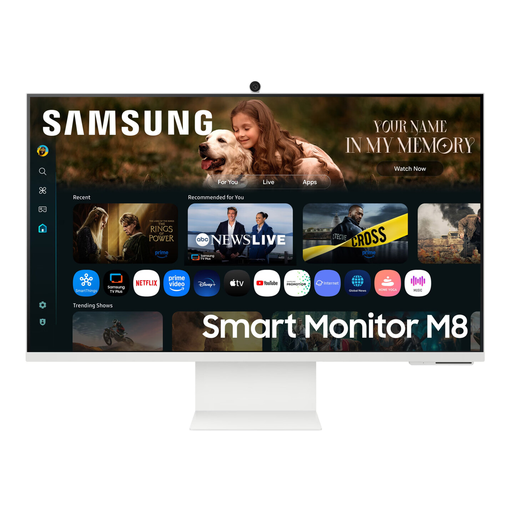
Samsung M8 M80F (2025), 32-inch 4K UHD monitor
If you’re looking for a 32-inch 4K display to preview layouts, check the text size and screen position at your own workstation.
Listed in the product name: VA panel, 60Hz and webcam.
View at Joybuy
 No image available
INNOCN CB27U1, 27-inch 4K UHD monitor
This 27-inch 4K model may be worth considering for fine text previews; check the displayed text size and stand against your sit-stand workstation.
Listed in the product name: IPS, 120Hz, HDR500, USB-C with 90 W Power Delivery and a height-adjustable stand.
View at Joybuy
 No image available
ASUS ROG Swift OLED PG32UCDMR, 32-inch 4K UHD monitor
If you’re considering a 32-inch 4K display for large-format design work, check that the text size and screen position suit your workstation.
Listed in the product name: OLED, 240Hz and USB-C with 90 W Power Delivery.
View at Joybuy
 No image available
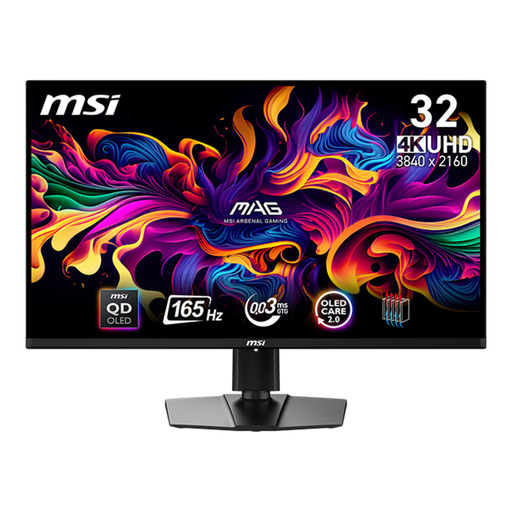
MSI MAG 321UPDE QD-OLED, 31.5-inch 4K UHD monitor
This 31.5-inch 4K model is one option for layout previews; check the text size and screen position when sitting and standing.
Listed in the product name: QD-OLED and 3,840 × 2,160 pixels.
View at Joybuy
Frequently asked questions
Does 4K automatically make small text easier to read?
No. Check text in your own application and at your usual viewing distance, then adjust the display size. Microsoft Support explains scaling and native resolution in Windows; Apple Support describes how to choose between larger text and more screen space on a Mac.
What should I adjust after setting up my monitor at a height-adjustable desk?
Set the height, tilt, viewing distance and text size to suit your actual sitting and standing positions. The BAuA treats screen position, individual eyesight and body measurements as factors that need to be considered together.
Can one USB-C cable handle both video and power?
Only if your laptop, monitor port and cable support the required functions and provide enough charging power. BenQ lists 65 W via Thunderbolt 3 for the PD2725U; EIZO lists up to 94 W for the EV2740X’s USB-C port.
What are my rights when buying a monitor in Germany?
If a product is faulty, you have statutory rights against the seller; this is separate from a manufacturer’s guarantee. The consumer advice centre notes that, for a distance contract with a consumer, a 14-day right to cancel generally applies if the legal requirements are met.
Do workplace screen rules apply to my home standing desk?
The BAuA describes the scope of ASR A6 as covering screen-based workstations in workplaces and teleworking workstations; private use outside teleworking is excluded. Whether a specific workstation falls within the rules depends on how it is set up and used. This doesn’t mean there’s a general requirement to buy a particular monitor model.


