Start by tackling glare with the right screen position and adjustable shading. An anti-glare finish or higher brightness won’t replace either, as Germany’s statutory accident insurance body explains in its guidance on screen-based work. Then choose a monitor according to what you need to check: for on-screen graphics, look for clear detail and suitable colour modes; for colour-critical print decisions, you’ll also need a properly calibrated workflow that matches your output. Before you buy, check that the monitor’s footprint and connections will suit your workspace and computer.
Who this monitor comparison is for
Graphic designers working by a bright window
If you assess outlines and text in changing daylight, your screen position and shading matter just as much as the monitor’s finish. Germany’s statutory accident insurance body recommends sitting so that you look parallel to the window when working at a screen.
Designers signing off colours
If you approve colours for a specific screen or print purpose, you’ll need suitable colour modes and a matching calibration process. The technical specifications published by BenQ and EIZO apply to the specific models listed.
Designers working from a laptop
If you check graphics on an external screen, make sure the connection, cable and, where necessary, power supply are compatible with your laptop. BenQ and Dell list connection and feature details for individual models that you should check against your computer.
What to look for when buying
Start with glare and positioning, then consider your colour goals and level of detail, followed by connections and desk space.
| Priority |
What to check |
Who it matters to |
| Glare in daylight |
Consider the anti-glare finish and typical brightness separately; plan the positioning and shading too. |
If changing light by the window makes work difficult, I don’t want to rely on higher brightness alone to counter reflections. Around 36% of consumers put reducing glare first. |
| Colour goals and sign-off |
Match the colour mode to your screen or print goal; factor in the calibration process for print sign-off. |
For colour sign-off, I need an assessment that matches the intended output. Around 29% of consumers prioritise accurate colour display. |
| Fine detail |
Assess resolution alongside screen size, scaling and the space available on your desk. |
When small lines, text and spacing matter, I want to be able to see them at my usual working size. Around 21% of consumers put checking detail first. |
| Connections and space |
Check video output and charging power against your laptop and cable; consider the screen’s dimensions and positioning. |
At my laptop workstation, I want to connect the monitor appropriately and position it sensibly by the window. Around 14% of consumers prioritise connections or how well a monitor fits their workspace. |
Avoiding common buying mistakes
-
Confusing peak HDR brightness with typical brightness
For the BenQ PD2706U, the manufacturer lists peak HDR brightness of 400 cd/m² alongside typical brightness of 350 cd/m². These are different measurements and shouldn’t be treated as equivalent.
Compare typical brightness figures on a like-for-like basis, and take glare and shading at your actual workspace into account.
-
Assuming colour gamut coverage guarantees accurate print matching
A percentage for Adobe RGB or DCI-P3 alone doesn’t tell you whether a particular print will match the image on screen.
Decide on your output goal and check which colour modes and calibration process you’ll need to achieve it.
A coordinated calibration and output workflow require additional setup and ongoing maintenance.
-
Assuming USB-C guarantees full laptop compatibility
A USB-C port alone doesn’t prove that video output and power delivery will work with every laptop.
Check the specific monitor’s features against your computer’s video output, cable and charging requirements.
Depending on the connection, you may need a suitable alternative cable or a separate power supply.
Key brands at a glance
BenQ
The DesignVue PD2706U is a 27-inch 4K option for checking graphics, with an sRGB mode and an anti-glare finish.
- BenQ lists typical brightness of 350 cd/m² and 90 W USB-C Power Delivery for this model.
- These manufacturer specifications don’t guarantee readability in direct sunlight or compatibility with every laptop.
EIZO
The ColorEdge CG2700X is designed for more demanding colour and print workflows and, according to the manufacturer, has a built-in self-calibration sensor.
- EIZO lists over 99% Adobe RGB coverage and hardware calibration for this model.
- Its features won’t eliminate glare by the window or replace a properly matched output workflow.
ASUS
The ProArt PA279CRV is a 27-inch 4K model with documented colour modes for different graphic design goals.
- The German ASUS specifications list an anti-glare finish, typical brightness of 350 cd/m², and 99% coverage for both Adobe RGB and DCI-P3.
- Colour gamut coverage and peak HDR brightness don’t tell you how easy the screen will be to read at your particular window-side workstation.
Dell
The UltraSharp U2725QE pairs graphics display with a Thunderbolt hub and screen adjustment options.
- Dell lists an anti-glare finish, ambient light sensor and adjustable stand for this model.
- These features don’t mean that every UltraSharp model is suitable for colour-critical sign-off.
LG
The UltraFine 27UP850K-W is a 27-inch 4K model with USB-C and an adjustable stand.
- LG lists 95% DCI-P3 as the typical figure for this model and promotes calibration software.
- LG says the software isn’t included; this also doesn’t prove that the monitor can be used without reflections by a bright window.
Joybuy monitors for checking graphics
This Joybuy selection includes 4K and QHD monitors for checking vector graphics.
 No image available
TCL 32x3A 32-inch OLED monitor, 4K UHD
The 4K resolution stated in the product name may be useful when checking vector detail; an anti-glare finish won’t eliminate glare by the window completely.
32 inches; OLED; 4K UHD (3840 × 2160); anti-glare display.
View at Joybuy
 No image available
INNOCN CB27U1 27-inch 4K UHD monitor
The 27-inch screen and 4K resolution are well suited to checking detail; make sure the USB-C connection and power supply work with your laptop.
27 inches; 4K UHD (3840 × 2160); IPS; 120 Hz; USB-C with 90 W Power Delivery; height-adjustable.
View at Joybuy
 No image available
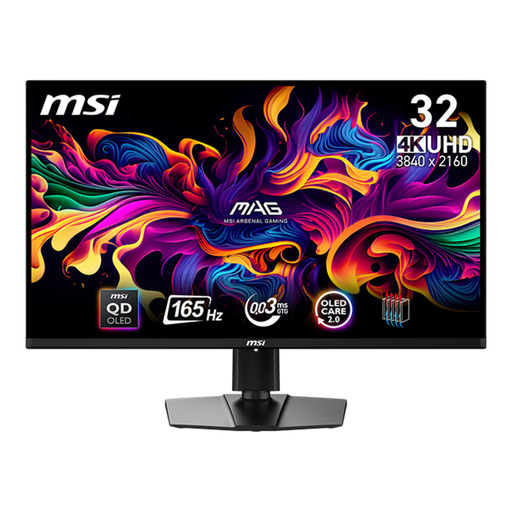
MSI MAG 321UPDE QD-OLED monitor, 31.5 inches
The native 4K resolution is useful for checking fine vector detail; also check that the screen size and positioning suit your workspace.
31.5 inches; QD-OLED; 4K UHD (3840 × 2160).
View at Joybuy
 No image available
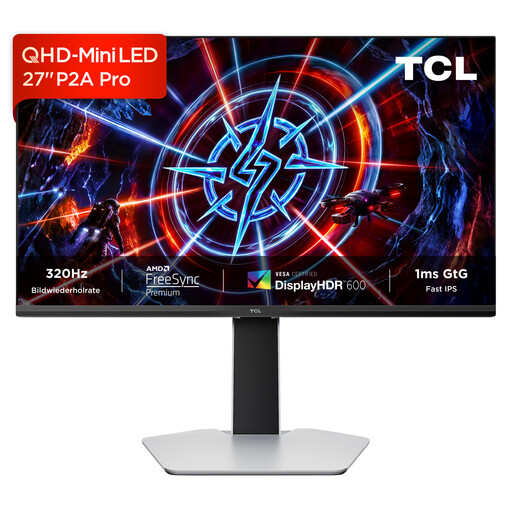
TCL 27P2A Pro 27-inch Mini-LED monitor, QHD
At 27 inches, QHD has fewer native pixels than 4K, which may matter when you’re choosing a screen for very fine outlines.
27 inches; QHD (2560 × 1440); Mini-LED; 320 Hz.
View at Joybuy
 No image available
INNOCN 2751S PLUS 27-inch Mini-LED monitor, QHD
For fine outlines, QHD at 27 inches has fewer native pixels than 4K; factor in this trade-off when assessing the monitor.
27 inches; QHD (2560 × 1440); Mini-LED; 99% Adobe RGB; 99% sRGB.
View at Joybuy
Frequently asked questions
Is a bright, anti-glare monitor enough if it’s right next to a window?
No. Brightness or an anti-glare finish alone won’t solve the problem. Germany’s statutory accident insurance body recommends positioning your screen so you look parallel to the window, and using adjustable shading; an anti-glare finish can help too.
What should I check when choosing a monitor for my laptop?
Check video output, the cable and the power delivery your laptop needs. BenQ lists DisplayPort Alt Mode and 90 W Power Delivery over USB-C for the PD2706U; this doesn’t guarantee the right connection for every computer.
Does a wide colour gamut remove the need for calibration when signing off prints?
No. Colour gamut coverage is only one part of the picture. For print sign-off, the colour mode, calibration and output goal all need to work together. EIZO lists a built-in self-calibration sensor for the ColorEdge CG2700X, but this feature doesn’t replace a properly matched output workflow.
Does an anti-glare finish prove that a screen will be easy to read in direct sunlight?
No. An anti-glare finish alone doesn’t prove that the screen will remain easy to read in direct sunlight. Check the conditions at your actual workspace, and factor in screen position and shading.


