You don’t necessarily need a new monitor to blur or replace your video background. The feature is set up in apps such as Teams or Zoom, and depends on the app, device and settings. A conference monitor may be useful if you also need a built-in camera and meeting audio. You should still move confidential items out of the camera’s view, as background effects won’t reliably hide them.
Which solution is right for you?
Anyone who wants a more private background
If you don’t want your home or personal belongings to be visible on video calls, first check your meeting app’s background feature and the camera’s actual field of view. Microsoft Support points out that blurring or replacing your background may not completely conceal confidential information.
Anyone who has frequent video meetings
If you regularly need a camera and audio at your desk, a conference monitor with built-in meeting features may be worth considering. Dell, Philips and HP list suitable models; background effects are a separate feature, set up in the meeting app.
Anyone with a dedicated desk setup
If all you’re missing is a suitable work monitor, choose its size, resolution and position to suit your workspace. Your existing camera may still be perfectly adequate; workplace health and safety guidance in NRW recommends not positioning your screen directly in front of a window.
What should you consider when buying?
Existing monitor with an app effect
A good fit if: your screen and camera already meet your needs and you mainly want to change what’s visible in the background.
Bear in mind: availability and requirements depend on the meeting app, device and settings.
Plain-coloured background
A good fit if: a wall or curtain behind you is practical; Zoom says a plain-coloured surface is required for its green screen setting.
Bear in mind: you’ll need space for the surface, and it must be suitable for your meeting app.
Conference monitor with webcam
A good fit if: you need a built-in camera and meeting audio as well as a screen.
Bear in mind: a built-in camera doesn’t replace your meeting app’s background effect.
Work monitor without webcam
A good fit if: a suitable work screen is your priority and you want to keep using your existing camera.
Bear in mind: you’ll still need suitable existing or separate devices for video and audio.
Microsoft Support and Zoom Support describe background effects as features of their respective meeting apps. So before buying a monitor because you think it can mask your background, check the app, device requirements and camera’s field of view.
| What you need |
What to check before buying |
Who is this most important to? |
| Privacy on camera |
Check your meeting app’s background options and the camera’s actual field of view. |
If I don’t want to show my home or belongings on a video call, I’ll first check the app feature and camera view. Around 36% of consumers put protecting their camera background first. |
| Camera and audio for meetings |
Compare the camera and microphone on the exact model, and check that they work with your computer and app. |
If I have meetings regularly, I want a camera and audio available right at my desk. Around 29% of consumers prioritise built-in meeting technology. |
| A screen for longer working hours |
Check the size, resolution, adjustment options and lighting conditions in your workspace. |
If I work at a screen for long periods every day, I look for a comfortable display and a suitable position. Around 21% of consumers put a work monitor first. |
| Keep using existing equipment |
First test the camera’s field of view and app settings; then work out what equipment you actually need. |
If my existing setup is working well enough, I only want to add the feature I’m missing. Around 14% of consumers prioritise keeping their setup as simple as possible. |
Common misconceptions
-
A conference monitor automatically masks your background
A monitor’s camera and audio are separate from the background effects in Teams or Zoom.
First, test the background options in your meeting app. Only buy a conference monitor if you genuinely need its screen, camera or audio features.
-
Blurring makes confidential items invisible
Microsoft Support warns that confidential information may still be visible, even when you blur or replace your background.
Move confidential items out of the camera’s view and check the preview before your call.
-
Every monitor is a complete video-conferencing solution
According to the manufacturer, the Dell S2725DC does not have a webcam; conference monitors, on the other hand, may have built-in cameras.
Compare the exact model’s features with the devices you already own. If your monitor doesn’t have a webcam, you’ll still need suitable devices for video and audio.
Relevant brands and models
Dell
Dell lists the P2726DEB as a 27-inch conference monitor with a webcam, speakers and microphone. The S2725DC is a 27-inch USB-C monitor without a webcam.
- The two models differ in their built-in meeting features.
- The manufacturer’s specifications don’t confirm automatic background masking.
Philips
Philips describes the Business Monitor 27B1U5601H/00 as a QHD model with USB-C docking and a 5MP webcam.
- The pop-up webcam retracts into the casing when not in use.
- The manufacturer’s claims about picture and sound quality aren’t independent measurements and don’t confirm background masking.
HP
HP describes the E27m G4 as a 27-inch QHD conference monitor with docking features and a built-in 5MP webcam.
- The model’s specifications cover both screen and meeting features.
- A built-in webcam doesn’t automatically handle your meeting app’s background effects.
Lenovo
Lenovo describes the ThinkVision T27hv-30 as a 27-inch QHD monitor with a 5MP camera, microphones and meeting controls.
- The listed features are designed for video conferencing.
- The manufacturer’s specifications don’t confirm automatic masking of a distracting room.
Monitors at Joybuy
This selection includes work monitors for a range of desk setups. Background effects are set up in the meeting app and aren’t a feature confirmed by the monitor specifications.
 No image available
Z-Edge AGEX, 27-inch QHD monitor
An option if you’re also looking for a work screen with a height-adjustable stand.
Specifications include QHD resolution, a Fast IPS panel and a height-adjustable stand. Background effects are set up in the meeting app.
View at Joybuy
 No image available
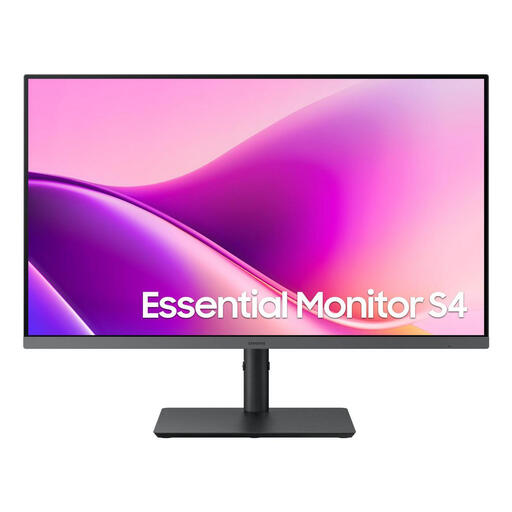
Samsung Essential Monitor S4 S43UF, 27-inch, Full HD, IPS, 100 Hz, USB-C
Could be worth considering if you’re looking for a 27-inch work screen with a height-adjustable stand.
The specifications list Full HD, IPS, 100 Hz, USB-C and a stand that adjusts for height, tilt and swivel. They don’t confirm background masking.
View at Joybuy
 No image available
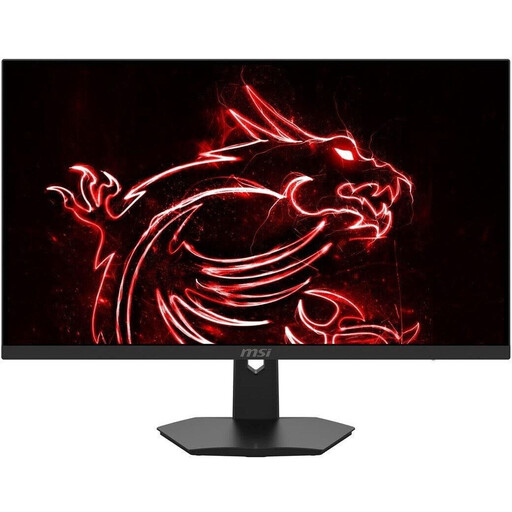
MSI MAG 274FDE, 27-inch, Full HD, IPS, 180 Hz
An option if you need an extra 27-inch screen with an adjustable stand.
Specifications include Full HD, IPS and a stand that adjusts for height, tilt, swivel and pivot. The monitor alone doesn’t provide background effects.
View at Joybuy
 No image available
CRUA, 49-inch DQHD curved ultrawide monitor
Could suit a large-format workspace if the 32:9 aspect ratio works for your space.
The title lists 5120 × 1440 pixels, 165 Hz, 1500R curvature and a height-adjustable stand. Background effects are handled in the meeting app.
View at Joybuy
 No image available
INNOCN E34A1R, 34-inch, UWQHD, curved
An option if you’re looking for a wide screen for your workspace.
Specifications include 3440 × 1440 pixels, a VA panel, 200 Hz and a height-adjustable stand. This doesn’t confirm background masking.
View at Joybuy
Frequently asked questions
Can a new monitor blur my video background on its own?
A monitor alone isn’t what makes this happen: the effect is set up in the meeting app, for example in Teams or Zoom. Check whether your device and app support the feature you want.
How can I check what other people can see of my room before a meeting?
Check the preview and the camera’s actual field of view before your call. Microsoft Support warns that blurring or replacing your background may not completely conceal confidential items.
What should I consider when positioning a new monitor?
Workplace health and safety guidance in NRW recommends not positioning your screen directly in front of a window, but aligning your line of sight parallel to it. Also check that the size and position suit your workspace.
What should I do if my monitor is faulty?
Contact the retailer about your statutory consumer rights, which are separate from a manufacturer’s voluntary warranty. The consumer advice centre lists repair or replacement as ways of putting things right.
How should I dispose of an old monitor?
In Germany, electrical waste must not go in household rubbish. The Federal Environment Agency lists local collection points and retailer take-back options; check the arrangements for your local collection point or retailer before returning your monitor.


