Who might need this type of monitor

Flashcard designers short on space

If you mainly design text-based flashcards, you need room for your layout and tools without filling your student desk with a large screen. PRAD highlights the extra vertical pixels offered by a 1920 × 1200 resolution, which ASUS lists for its ProArt PA248QV Gen2 (PA248QFV) model.

Designers creating colourful printed cards

If you want to assess colours for printed cards, remember to consider profiles for your printer and paper as well as your monitor. Adobe describes colour profiles as part of a colour-managed print workflow.

Laptop users who want a one-cable setup

If you regularly move between your laptop and desk, the specific video, data and power functions matter. Dell describes the P2425 as having a USB-C data port, while EIZO says the EV2480 supports video, data and power delivery over USB-C.

What to look for when buying

Criterion What to look for Who it matters most to
Layout space on a small desk Compare screen size, aspect ratio and resolution, as well as the monitor’s width and depth, including its stand. A 16:10 display at 1920 × 1200 has more vertical pixels than one at 1920 × 1080; QHD at 2560 × 1440 on a similar-sized screen can make it easier to work with multiple views. If I want to see my card text and tools side by side on a limited desk, usable layout space matters to me. Around 40% of consumers rank a compact workspace as their top buying priority.
Colours on printed cards Check the colour-space mode and calibration details for the specific model, then compare them with your planned print workflow. Printer and paper profiles also play a part in printing. If I design colourful cards, I want to assess the colours on screen and prepare the print accordingly. For around 30% of consumers, assessing print colours comes first.
Laptop connectivity and adjustability Check separately whether USB-C carries video between the monitor and laptop, and what charging power is specified. Also check whether the specific model offers height adjustment and pivot. If I want to connect my laptop to my desk easily and adjust the screen to suit me, I check the features of both devices. Around 20% of consumers prioritise laptop connectivity and adjustability.
Purchase price and power consumption Only pay for features you’ll actually use. The European Commission lists SDR consumption on the EU energy label in kWh/1,000 h; to estimate your own costs, you’ll also need your operating hours and electricity tariff. If I’m mainly keeping an eye on purchase and running costs, I compare the stated power consumption with how I use the monitor. Around 10% of consumers put low overall costs first.

How to avoid buying pitfalls

  • Assuming “USB-C included” means one-cable docking

    A USB-C port may only support data. Dell specifies that the P2425’s USB-C downstream port supports data only, at up to 15 W; by contrast, EIZO says the EV2480 supports video, data and power delivery over USB-C.

    Check video support, port direction and the required charging power for the exact monitor and laptop models.

    Depending on the ports available, you may need extra cables, a separate power supply or a dock.

  • Taking 100% sRGB as a guarantee of identical prints

    An sRGB specification describes a monitor feature, but it doesn’t guarantee a colour-matched print. Adobe also recommends using suitable printer and paper profiles for colour-managed printing.

    Check the monitor specifications and print workflow separately, and allow for suitable printer and paper profiles and test prints if needed.

    Setting up the right profiles and assessing test prints takes extra time.

  • Choosing by screen size or pixel count alone

    WUXGA and QHD offer different layout options. Resolution alone doesn’t tell you how much desk space the stand takes up or whether the text scaling will be comfortable for you.

    Measure the space available and check that your preferred text size and window layout are easy to read on screen.

Relevant brands at a glance

ASUS

The ProArt PA248QV Gen2 (PA248QFV) is a compact option for text-focused and sRGB-based card design.

  • ASUS lists this model as 24.1 inches, 16:10, 1920 × 1200 pixels and 100% sRGB, with height adjustment and pivot.
  • The UK specification does not list a USB-C video input. The manufacturer’s stated figures alone don’t guarantee a match with your printout.

Dell

The Pro Plus P2425 and Pro Plus P2425DE are two different compact monitor options.

  • Dell lists the P2425 as having a resolution of 1920 × 1200 pixels and an adjustable stand. The P2425DE is specified as 23.8 inches, with QHD at 2560 × 1440 pixels and a USB-C hub.
  • Dell specifies the P2425’s USB-C downstream port for data at up to 15 W. Don’t assume it offers the same features as the P2425DE.

BenQ

The 27-inch DesignVue PD2705Q is worth considering if colourful cards need more screen space and an sRGB-based workflow.

  • BenQ lists 100% sRGB and factory calibration for the PD2705Q.
  • The larger model needs more desk space. Manufacturer specifications are not an independent measurement of the individual unit you buy, and they don’t prove that prints will match the screen; the output profile is still important.

EIZO

The FlexScan EV2480 is a compact office option for laptop users looking for USB-C docking.

  • EIZO lists video, data and power delivery over USB-C at up to 70 W.
  • The EV2480 is 23.8 inches and has a resolution of 1920 × 1080 pixels, so it doesn’t offer the extra vertical pixels of a 16:10 WUXGA monitor.

LG

The UltraFine 27UP850K-W is a 27-inch 4K option if you also want to create detailed images alongside your cards and have enough desk space.

  • LG lists an IPS panel with a resolution of 3840 × 2160 pixels and USB-C for this model.
  • LG’s DCI-P3 specification doesn’t prove that printed cards will match the screen. Remember to consider the screen size and the scaling that works best for you.

Joybuy monitors for vocabulary flashcard layouts

This Joybuy selection includes portable and larger monitors for card layouts in limited spaces, as well as models with QHD or sRGB specifications. If you’re considering a 27-inch model, make sure you have enough desk space.
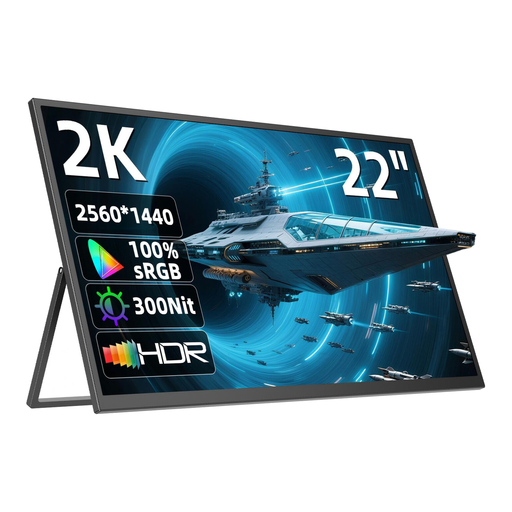
UPERFECT 22-inch 2K QHD portable monitor

UPERFECT 22-inch 2K QHD Portable Monitor

The compact 22-inch model is an option if you want to use QHD on a limited desk space.

22 inches; 2560 × 1440 pixels; IPS; 180° adjustable stand; VESA compatible.

View at Joybuy
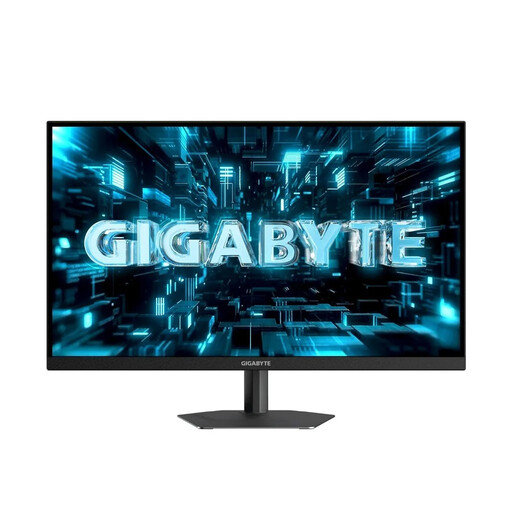
GIGABYTE G27Q26 27-inch QHD gaming monitor

GIGABYTE G27Q26 27-inch QHD gaming monitor

The QHD resolution gives you more pixels to work with if you want to view several parts of your card layout at once; the 27-inch screen needs a corresponding amount of space.

27 inches; 2560 × 1440 pixels; SuperSpeed IPS; 260 Hz (OC 275 Hz); 1 ms GTG.

View at Joybuy

INNOCN 27-inch Mini LED gaming monitor 2751S PLUS

INNOCN 27-inch Mini LED Gaming Monitor 2751S PLUS

An option for colourful card layouts if you’re considering a larger QHD display with stated colour-gamut figures.

27 inches; QHD 2K; IPS; 275 Hz; 1 ms; 1,152 zones; 99% sRGB and 99% Adobe RGB (1931).

The sRGB specification alone doesn’t guarantee a colour-matched print; a suitable printer and paper profile also matters for colour-managed printing.

View at Joybuy
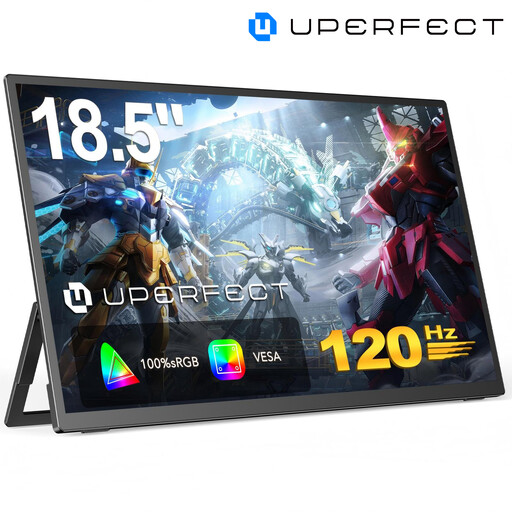
UPERFECT 18.5-inch 120 Hz portable gaming monitor

UPERFECT 18.5-inch 120 Hz Portable Gaming Monitor

This portable model is a compact option for card designs; Full HD offers fewer pixels than the QHD models listed above.

18.5 inches; 1920 × 1080 pixels; Full HD; matt IPS display; 120 Hz; VESA compatible.

View at Joybuy
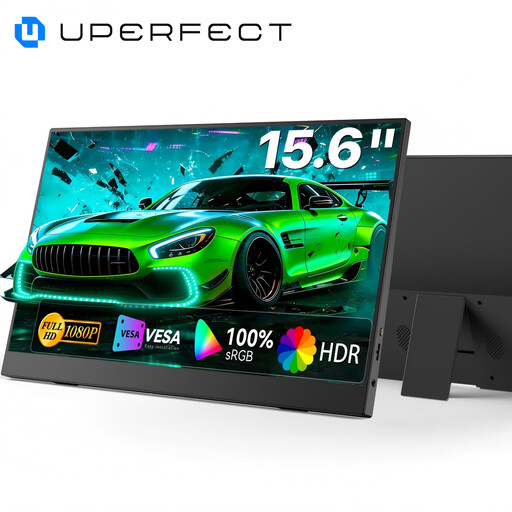
UPERFECT 15.6-inch portable monitor with 100% sRGB

UPERFECT 15.6-inch Portable Monitor with 100% sRGB

This small portable model is an option if you want to design colourful cards on a compact display.

15.6 inches; 100% sRGB; built-in adjustable stand; VESA compatible.

The sRGB specification alone doesn’t guarantee a colour-matched print; a suitable printer and paper profile also matters for colour-managed printing.

View at Joybuy

Frequently asked questions

Do I need a professional graphics monitor for printed vocabulary flashcards?

Not just because you’re printing. Choose according to your colour-assessment needs, and remember that a stated colour gamut doesn’t guarantee an identical print. For colour-managed printing, Adobe recommends using a suitable printer or paper profile.

Can I connect any laptop to a monitor over USB-C for video and power?

No, USB-C features vary between models. Dell specifies a USB-C data downstream port with up to 15 W for the P2425; EIZO says the EV2480 supports video, data and power delivery over USB-C at up to 70 W. Check the specifications for both devices and your laptop’s charging requirements.

How do I set up a monitor for portrait-orientation cards?

Check whether the specific model’s stand offers pivot and height adjustment, and switch the display to portrait mode in your operating system if needed. The workplace-related ASR A6 is not a general legal requirement for a private student desk.

What are my rights when buying a monitor online?

For a typical online purchase from a trader, you generally have a 14-day right to cancel from the date of delivery. The European Union’s Your Europe website also explains the minimum two-year legal guarantee for faulty goods; an additional manufacturer’s warranty does not replace these rights. Check the terms for return costs in advance.

How do I compare the power consumption of two monitors?

Compare the SDR consumption figure on the EU energy label, shown in kWh/1,000 h; the European Commission explains this figure. To make your own estimate, multiply the figure by your annual operating hours divided by 1,000, then multiply the result by your electricity price per kWh.